



 Solution
 Support Center
 About Us
 Contact
How to Restore iPhone Without iTunes in Various Situations
 Clara Prescott Published on March 27, 2026Recover Data3-min reading
Restoring an iPhone refers to two actions: restoring an iPhone to factory settings and restoring an iPhone from a backup. iTunes can restore your iPhone to factory settings and from a backup; however, some bugs occur when using iTunes. This guide demonstrates multiple effective ways to restore your iPhone without iTunes in various situations, such as when your iPhone is disabled, loses important files, and more.

In this article:
Part 1: How to Restore a Disabled iPhone Without iTunes
Restoring an iPhone using iTunes is a significant way to troubleshoot when your device is disabled. Since iOS 15.2, Apple has added the Security Lockout feature to iPhones, which allows you to restore a disabled iPhone without iTunes.
On iOS 17 and above
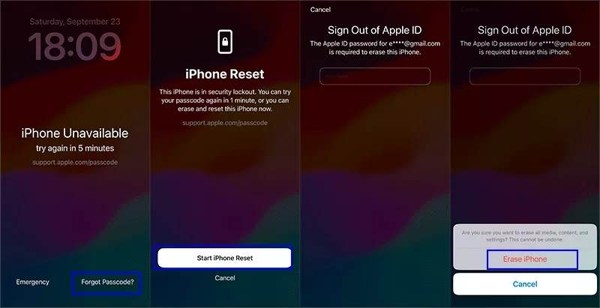
Tap the Forgot Passcode at the iPhone Unavailable screen.
Select Start iPhone Reset.
Type in your Apple ID password.
If prompted, tap Erase iPhone.
On iOS 15.2 and above
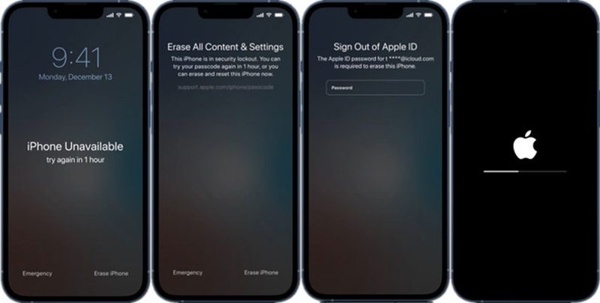
Tap the Erase iPhone button at the bottom.
Read the alert and tap Erase iPhone.
Input your Apple ID password to begin restoring a locked iPhone without iTunes.
Part 2: How to Factory Restore iPhone Without iTunes
In the past, you had to restore an iPhone using iTunes or Finder. Currently, Apple has upgraded the Find My feature as an independent app. Users can restore an iPhone to factory settings without iTunes on another Apple device. The prerequisite is that you have enabled Find My iPhone on your device.
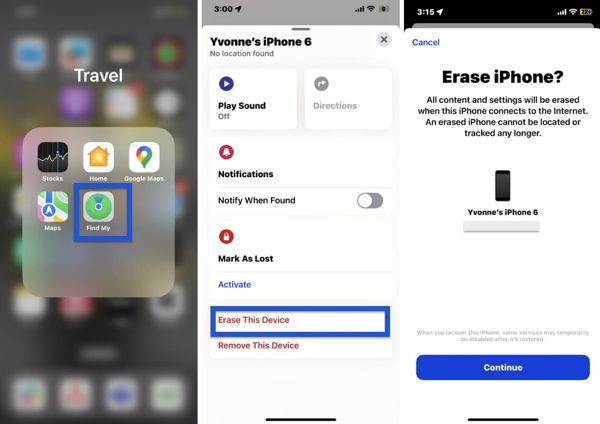
Install the Find My app from the App Store on another Apple device.
Open it and go to the Devices tab.
Choose your iPhone name from the list.
If you cannot find your iPhone, tap + next to Devices, choose Add AirTag, and write your Apple ID and password to add it.
Next, tap the bottom toolbar to expand it.
Choose Erase This Device and tap Continue to factory reset your iPhone.
Follow the onscreen instructions to confirm your action.
Part 3: How to Back Up and Restore iPhone Without iTunes
Can you back up and restore an iPhone without iTunes? Yes, you can back up and restore your device with iCloud. It is the official cloud storage for iOS users. Apple gives 5GB of free storage for each Apple account.
Back up iPhone to iCloud
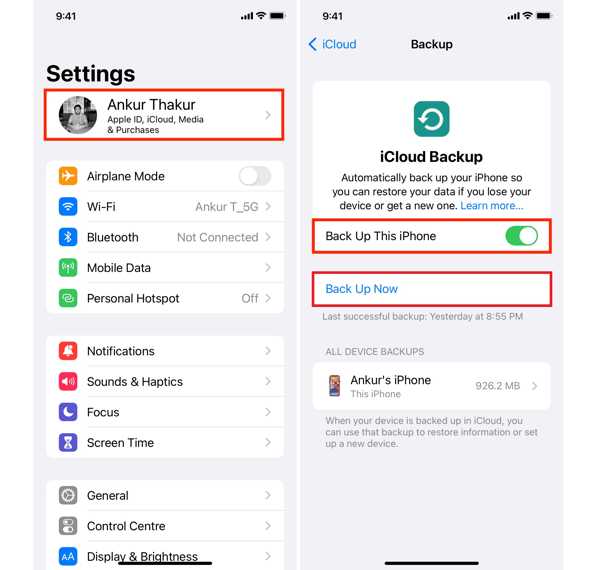
Open the Settings app, connect to an internet connection, and tap on your profile.
Choose iCloud and tap iCloud Backup.
If you want to automatically back up your device, toggle on Back Up This iPhone.
If the automatic backup is not working, tap the Back Up Now button to start a backup manually.
Restore iPhone from iCloud
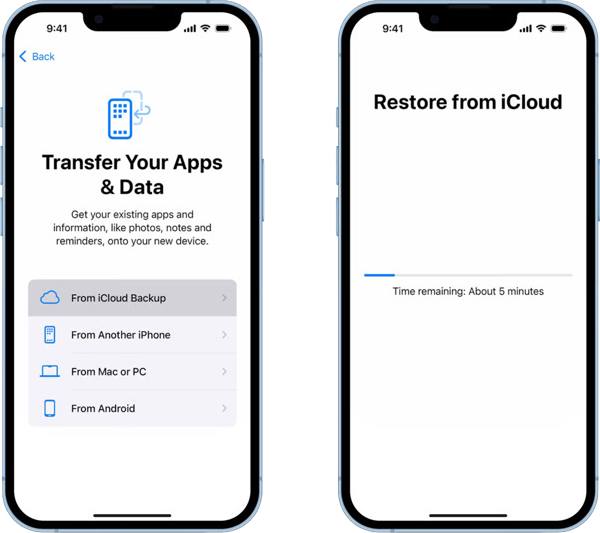
Go to Settings, General, and Transfer or Reset iPhone.
Tap Erase All Content and Settings.
Tap Continue and enter your Apple ID password.
Confirm erasing your device.
When your iPhone restarts, set it up as a new device.
On the Transfer Your Apps & Data screen, select From iCloud Backup.
Enter your Apple ID and password, and choose the last backup.
Part 4: How to Restore iTunes Backup to iPhone Without iTunes
imyPass iPhone Data Recovery is a simple way to restore iTunes backup to iPhone without iTunes. It is able to open an iTunes backup and extract desired files. During the process, existing data on your device won’t be erased.
4,000,000+ Downloads
Restore an iTunes backup to an iPhone quickly.
Extract specific files from iTunes backup without overwriting.
Open and view files in an iTunes backup.
Support the latest editions of iOS and iPadOS.
How to Restore iTunes Backup to Your iPhone
Open iTunes backup
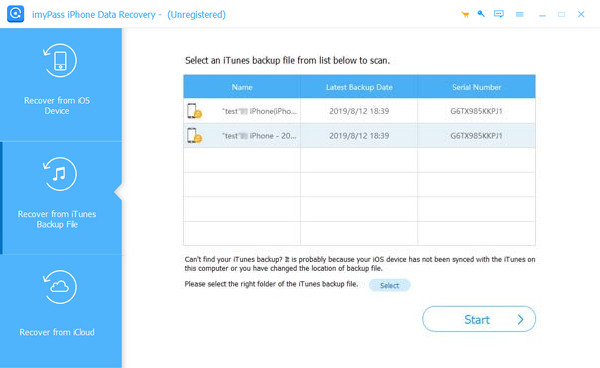
Launch the iPhone recovery software after you install it on your computer. It works on Windows 11/10/8/7 and macOS 10.12 or above. Hook up your iPhone to your computer using a Lightning cable. Choose Recover from iTunes Backup File on the sidebar, pick the right backup file, and click Start.
Preview files
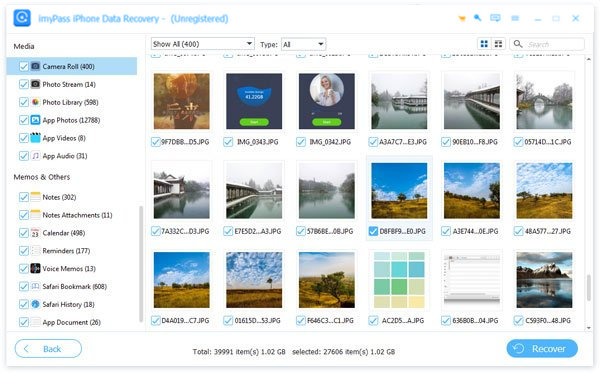
After the backup is opened, select the data types you want to restore. To recover photos, for example, select Camera Roll. You can use the filter options to sort your files.
Restore iPhone with iTunes backup
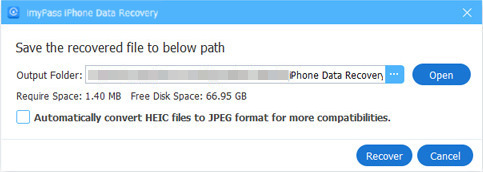
Select the desired files and click the Recover button at the bottom. Set an output folder and click Recover again to confirm it.
Extended Reading:
Conclusion
This guide explained how to back up and restore an iPhone without iTunes. You can restore a disabled iPhone using the options on the Security Lockout screen directly. The Find My app is another way to restore an iOS device remotely. iCloud enables you to back up and restore your iPhone without iTunes. imyPass iPhone Data Recovery is a powerful way to restore iTunes backup easily.
Clara has over 8 years of experience helping users recover lost files and transfer data. She previously worked as a data recovery technician for a major IT service company. Certified in Data Recovery and Digital Forensics, her articles focus on simple solutions that make complicated recovery tasks easier for everyday users.
Hot Solutions
-
Recover Data
- AppGeeker iOS Data Recovery Review
- Disk Drill iPhone Data Recovery Review
- How to Get iPhone Out of Recovery Mode
- How to Fix support.apple.com/iphone/restore
- How to Recover Data from DFU Mode
- Gbyte iPhone Data Recovery Review
- How to Recover iPhone Deleted Photos After 30 Days
- How to Recover Deleted Photos on iPad
-
Unlock iOS
-
Transfer Data
-
iOS Tips

