



 Solution
 Support Center
 About Us
 Contact
How to Fix Unlock iPhone to Use Accessories: Full Guide
 Samuel Spenser Published on September 24, 2026Unlock iOS3-min reading
Have you connected a cable or accessory to your iPhone only to see a message asking you to unlock it first? This happens when your iPhone is locked and iOS is blocking a new wired data connection for security. For most people, simply unlocking the iPhone and reconnecting the accessory is enough. But if you forgot your passcode or the screen is unresponsive, you may need a different approach. In this guide, you'll learn how to unlock iPhone to use accessories in different situations.

In this article:
Part 1. Why Your iPhone Blocks Accessories When Locked
Starting with iOS 11.4.1, iPhone blocks new wired data connections when the device is locked. This security feature is designed to prevent unauthorized tools from accessing data through the Lightning or USB port. If more than an hour has passed since your iPhone was locked, new wired data connections are blocked until you unlock the device.
There is an important difference between data access and charging, though. A locked iPhone may block communication with a USB accessory or computer, but it can still charge normally when connected to a USB power adapter. So, seeing a message asking you to unlock your iPhone doesn't mean that you can't charge it.
Part 2. How to Unlock iPhone to Use Accessories
Method 1. Simple Unlock Your iPhone
In most cases, you don't need any special tools to unlock iPhone to use accessories. Simply unlock the device and connect the accessory again.
Wake up your iPhone and unlock it with your passcode, Face ID, or Touch ID. Then connect the accessory to the Lightning or USB-C port again.
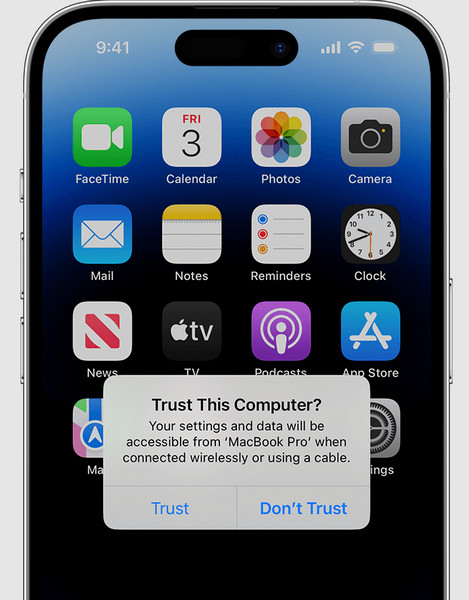
If you're connecting your iPhone to a Mac or PC, you may also see a Trust This Computer? message. Tap Trust and enter your passcode when asked.
Method 2. Disable USB Restrictions
If you want to avoid repeated prompts every time an accessory is connected, you can change a setting that allows accessories to work even when your iPhone is locked. This is helpful for regular connections with trusted devices.
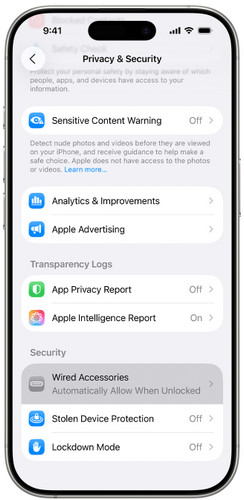
Go to Settings > Privacy & Security > Security > Wired Accessories.
On a USB-C iPhone, you can choose how the device handles wired accessories, including Always Ask, Always Allow, and Automatically Allow When Unlocked.
Tap Always Allow to automatically approve all accessories when they connect.
Note:
Allowing accessories while the iPhone is locked will reduce the protection and increase risks.
Method 3. Use AssistiveTouch or VoiceOver
It's hard to interact with your iPhone when the screen has problems. If the screen still responds to touch in some areas, AssistiveTouch can help you unlock iPhone without buttons. If ou can see the screen but have trouble tapping it, VoiceOver can help you unlock iPhone to use accessories.
Use AssistiveTouch
If you can still tap parts of the screen, try AssistiveTouch to make the iPhone easier to control.
Go to Settings > Accessibility > Touch > AssistiveTouch.
Turn on AssistiveTouch.
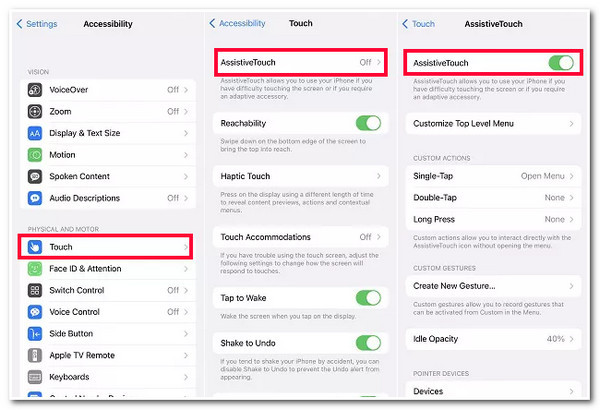
A floating button will appear on the screen. Tap it to open the AssistiveTouch menu.
Use the menu to unlock your iPhone with your passcode, Face ID, or Touch ID. Once the iPhone is unlocked, connect the accessory again.
Use VoiceOver
If your iPhone screen is partially broken and unresponsive, try VoiceOver to read items on the screen and control the iPhone with gestures.
Ask Siri to turn on VoiceOver by saying, "Hey Siri, turn on VoiceOver."
Swipe left or right with one finger to move through the items. VoiceOver will read each item aloud.
When you reach a number on the passcode keypad, double-tap anywhere on the screen to select it.
Repeat the same steps to enter all the numbers in your passcode. Then, your iPhone will unlock, connect your USB accessory or cable again.
Part 3. Unlock iPhone to Use Accessories Without Passcode Easily
What if you can't remember your iPhone passcode? How to unlock iPhone to use accessories without passcode? imyPass iPassGo is a dedicated iOS unlocking tool for users who are locked out of their devices and unable to connect accessories. It specializes in removing screen passcode, Face ID or Touch ID. It supports the latest iOS versions and works without iTunes.

4,000,000+ Downloads
Unlock iPhone to use accessories without passcode.
Remove various types of screen locks on iPhone or iPad.
Remove Apple ID from your device without credentials.
Bypass Screen Time and MDM restrictions easily.
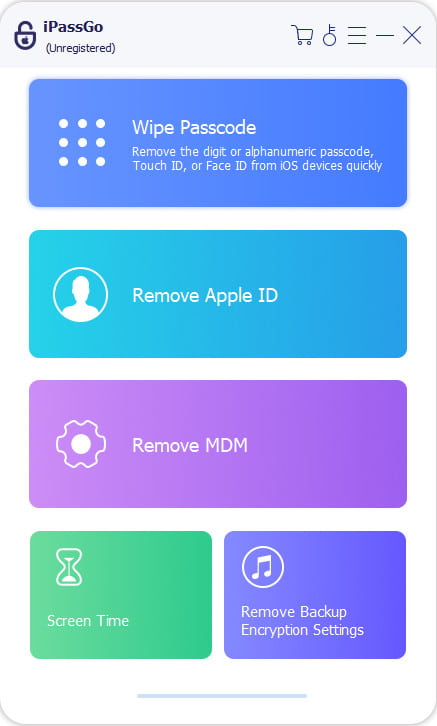
Launch imPass iPassGo on your computer, then choose the Unlock iOS Screen mode from the interface. Connect your device to the computer with a USB cable.
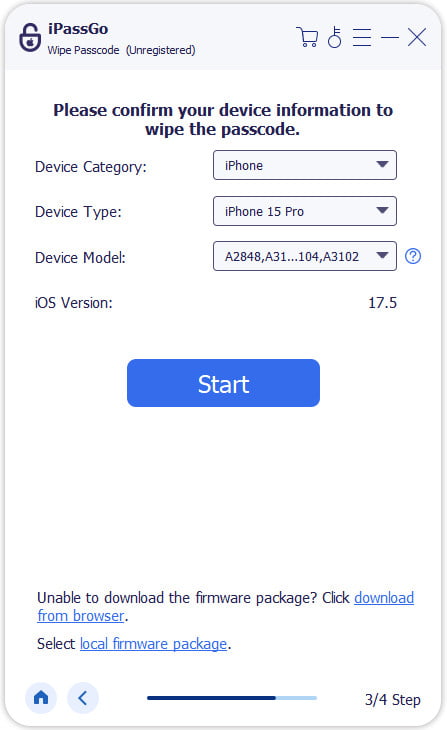
Confirm your device information and click Start Now to begin downloading the firmware package.
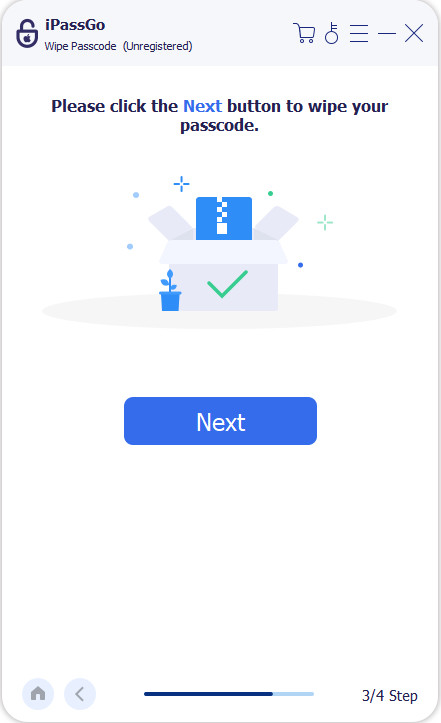
Click the Start Removing button to start the reset. When it is done, the screen lock and all your data will be erased from your device.
Part 4. What to Do If Your iPhone Won't Recognize the Accessory
If you've already unlocked your iPhone but the accessory still isn't working, the problem may be with the accessory, cable, or port. Try these simple fixes first.
- Restart your iPhone and reconnect the accessory again.
- Look for any visible damage and make sure they are compatible with your iPhone. Try another cable or accessory if you have one available.
- Make sure there is no dust or debris blocking the Lightning or USB-C port, and plug the cable in firmly.
- Update your system to the latest iOS version.
Conclusion
No matter how badly your iPhone is working or how damaged the screen is, there are still ways to unlock it and reconnect your accessories. If you keep seeing a prompt asking you to unlock iPhone to use accessories, use imyPass iPassGo to unlock it quickly and reconnect your accessories.
Samuel specializes in password security and digital privacy. He used to work as a cybersecurity consultant for small businesses to protect digital assets. With certifications in Cybersecurity and Ethical Hacking, he turns complex security topics into easy-to-follow advice. He also enjoys sharing password tips to help users protect their accounts more confidently.
Hot Solutions
-
Unlock iOS
-
iOS Tips
-
Unlock Android
-
Password Tips


