



 Solution
 Support Center
 About Us
 Contact
How to Unlock Notes on My iPhone If I Forgot Password
 Samuel Spenser Published on October 14, 2026Unlock iOS3-min reading
According to our research, the Notes app is one of the most important pre-installed apps on iOS devices because people use it as a second brain. iPhone users save their shopping lists, creative ideas, and other information as notes. It makes sense that you feel stressed when seeing the Enter Password prompt, but realizing you have forgotten it. This concrete guide will discuss what to do when you forgot the notes password on your iPhone.

In this article:
Part 1: How to Unlock Notes with Face ID If You Forgot the Notes Password
What to do if you forgot your Notes password? The first thing is to recall your password. The good news is that the Notes app allows unlimited attempts. You can try unlimited passwords until your notes are unlocked. You won't be locked out of your device for guessing.
Moreover, if you have set up Face ID for Apple Notes, you can scan your face to unlock old notes on your iPhone when you forget your password.
Run the Settings app on your iPhone.
Go to Apps and choose the Notes app.
Scroll down and tap the Password option.
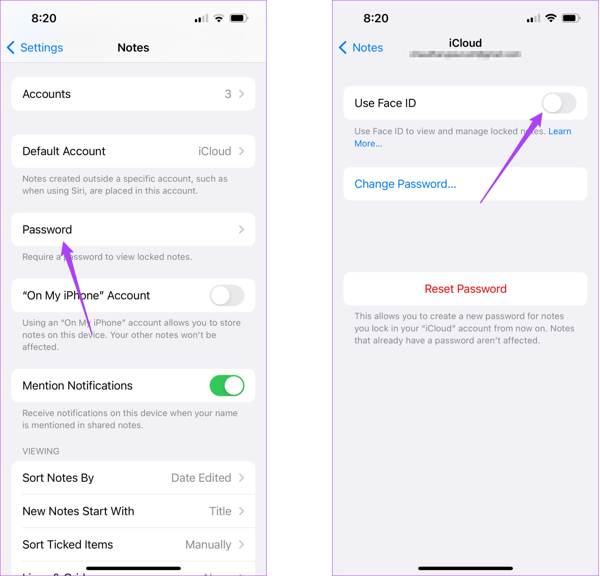
Make sure to toggle on Use Face ID.
Turn to the Notes app and choose an encrypted note.
Tap the View Note button.
Unlock it with your Face ID.
Next, press the Menu button with a three-dot icon, and choose Remove to unlock old notes on your iPhone when forgetting the password.
Part 2: How to Reset Notes Password on iPhone
When you forget the password, you cannot remove the lock on notes. Apple allows you to reset your Notes password with your Apple Account password. However, the new password is only available for notes created from now on. In other words, the old notes are still protected by the previous password.
Open your Settings app.
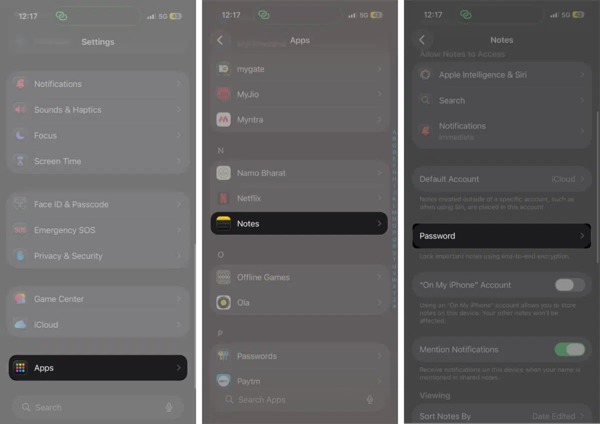
Navigate to Apps, Notes, and Password.
Tap the Reset Password button.
When prompted, enter your Apple Account password and press OK.
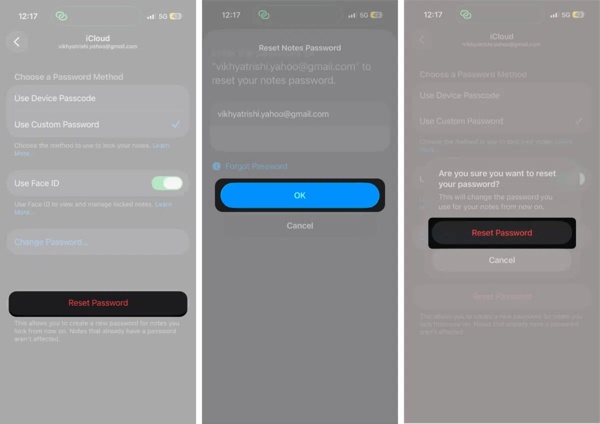
Next, tap the Reset Password button on the alert to confirm your action.
Choose Not Now to enter the new password screen.
Tip: If you want to use your iPhone passcode as the new password, choose Use iPhone Passcode instead.
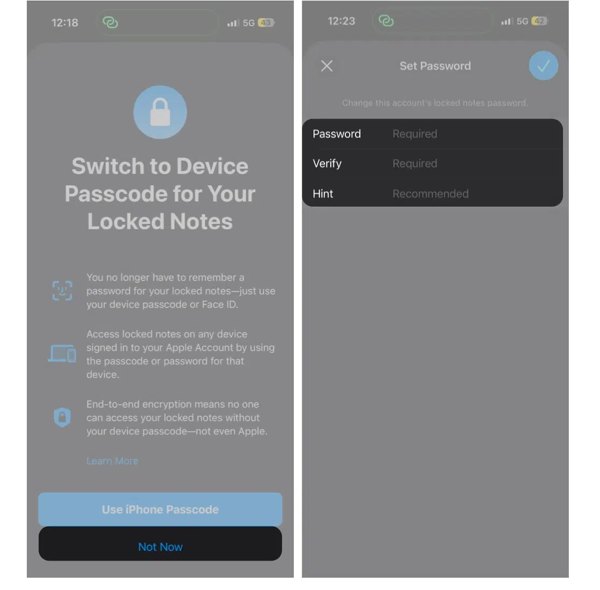
Type in a new password, verify it, and leave a hint.
Finally, tap the Done button to complete the job.
You May Also Like:
Part 3: How to Remove Notes Password on iPhone Without Any Password
Obviously, you can change your Notes password when you forget it on your iPhone. However, unlocking the encrypted notes is not possible. If you want to get rid of the Notes password on your iPhone when forgetting it, try imyPass iPassGo. It is able to remove any type of password from an iOS device, including your Notes password, iPhone passcode, Apple Account password, and more. More importantly, the user-friendly design makes it a good option for beginners.

4,000,000+ Downloads
Remove Notes password on iOS without the password.
Easy to use and complete the process in three steps.
Remove any passwords on an iPhone or iPad.
Offer bonus features, like bypassing MDM or iTunes password reset.
Work on the latest editions of iOS and iPadOS.
How to Remove Notes Password on Your iPhone When You Forgot It
Install the password removal tool
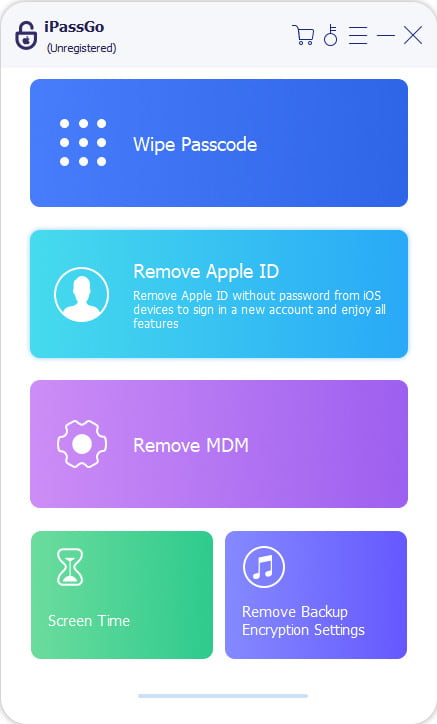
Download and install the password removal software on your PC. There is another version for Mac OS X 10.12 and above. Choose the Remove Apple ID mode to continue.
Link to your iPhone
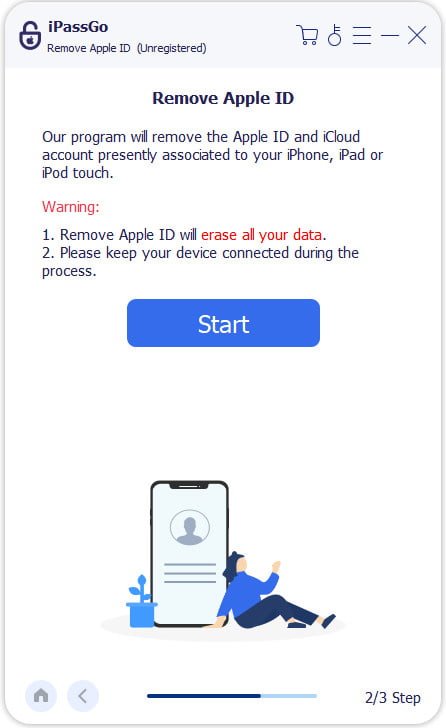
Plug your iPhone into your PC using a Lightning cable. When prompted, tap Trust on your screen to trust this PC if you are linking the two devices for the first time. Once the software recognizes your iPhone, it will load your device information. Check and confirm them carefully. Next, click on the Start Now button to continue.
Remove Notes password
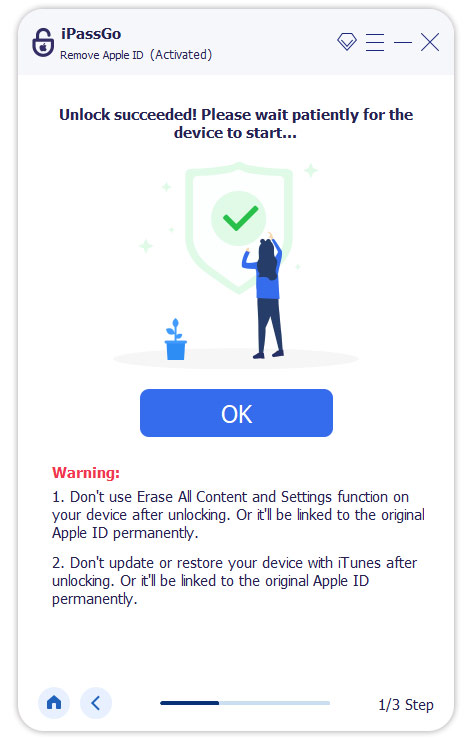
If Find My iPhone is turned off on your iPhone, the software will begin removing Notes password and other accounts automatically.
If Find My iPhone is enabled, you need to reset all settings on your iPhone following the onscreen tutorial. When resetting finishes, click the Confirm Again button to initiate the process.
Note:
Note: Since the process will erase all your data, you'd better back up your iPhone to iCloud or a computer first.
Conclusion
As you can see, you can reset the Notes password on your iPhone after authenticating with your Apple Account password when you forgot it. However, this way cannot unlock the old notes protected by the previous password. If you forgot both your Notes password and Apple Account password, try imyPass iPassGo to remove them from your iOS device without any password quickly.
Samuel specializes in password security and digital privacy. He used to work as a cybersecurity consultant for small businesses to protect digital assets. With certifications in Cybersecurity and Ethical Hacking, he turns complex security topics into easy-to-follow advice. He also enjoys sharing password tips to help users protect their accounts more confidently.
Hot Solutions
-
Unlock iOS
-
iOS Tips
-
Unlock Android
-
Password Tips


