



 Solution
 Support Center
 About Us
 Contact
How to Recover Apple ID Password on iPhone or iPad: 5 Easy Ways
 Samuel Spenser Published on September 09, 2026Unlock iOS3-min reading
Forgetting your Apple ID password is a common problem. Users may be locked out of their account and all Apple services, such as iCloud, Find My, and App Store. If you encounter this problem, password recovery is likely the first solution that comes to mind. In this guide, we'll show you how to recover your Apple ID password if you forgot it and how to find a saved password.

In this article:
Part 1: How to Find Your Saved Apple ID Password
If you previously saved your Apple ID password on your iPhone, iPad, Mac, or web browser, you may be able to view it without resetting your password. Apple provides built-in password management tools, including the Passwords app and iCloud Keychain, while browsers also store login credentials.
On iPhone or iPad
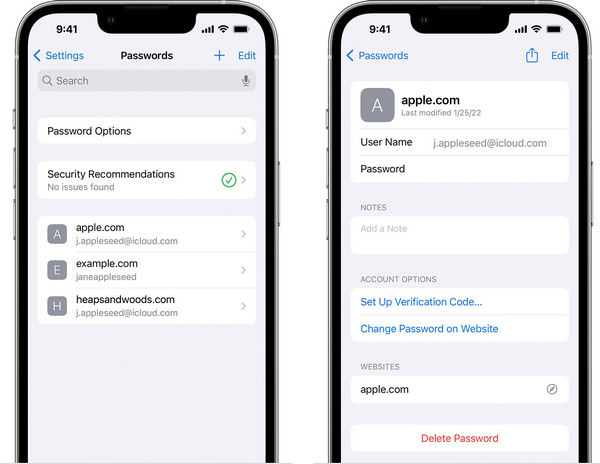
If your device is running iOS 18 or iPadOS 18 or later, you can check your saved passwords in the Passwords app:
Open the Passwords app on your iPhone or iPad. Unlock the app with Face ID, Touch ID, or your device passcode.
Tap All and search for your Apple Account or a saved Apple website login.
Select the relevant account to view the saved password.
Note:
On earlier versions of iOS or iPadOS, go to Settings > Passwords to view your saved passwords.
On Mac
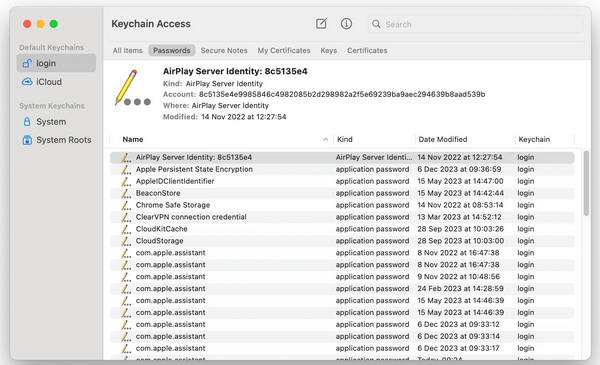
If you're using a Mac running macOS Sequoia or later, follow these steps:
Open the Passwords app on your Mac.
Authenticate with Touch ID or your Mac login password.
Search for the saved Apple account or website login. Select the saved account to view the password.
Note:
On earlier versions of macOS, you can find saved passwords under System Settings > Passwords or in Keychain Access.
On a Web Browser
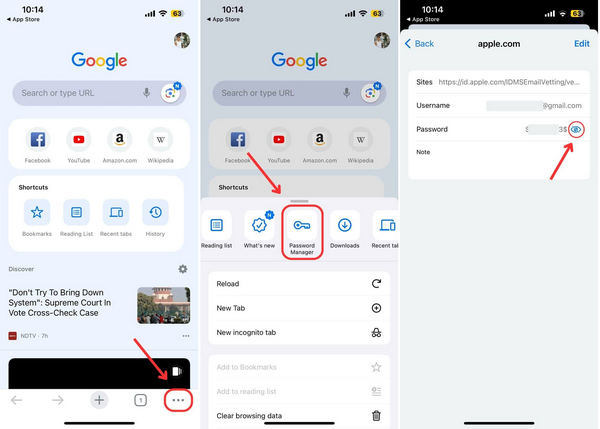
If you saved your Apple Account password in a browser, you can also check the password manager in Chrome, Firefox, Microsoft Edge, or more. Here we take Chrome as an example.
Open Chrome and tap the Menu (three-dot) button in the upper-right corner.
Choose Password Manager in the toolbar.
Search for your Apple account or the relevant Apple website.
Tap the Eye button to view the password.
Part 2: How to Recover Apple ID Password Using a Recovery Key
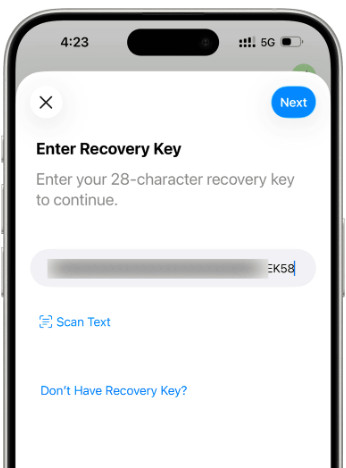
A recovery key is a unique 28-character code that works with your trusted phone number and Apple device to verify your identity. If you previously set up a recovery key, you can use it to recover your Apple ID password and regain access to your account.
Open Settings and tap your name.
Tap Sign-In & Security > Change Password.
When prompted, use your recovery key and trusted phone number to verify your identity.
Enter your new Apple Account password.
Note:
Keep your recovery key in a safe place. If you lose both your trusted device and recovery key, you may be permanently locked out of your account.
Part 3: How to Recover Apple ID Password on a Trusted Device
If you're still signed in to your Apple Account on a trusted iPhone, iPad, or Mac, resetting your Apple ID password directly from the device is the easiest and safest way.
On iPhone or iPad
Open the Settings app and tap your name at the top.
Tap Sign-In & Security, and choose Change Password.
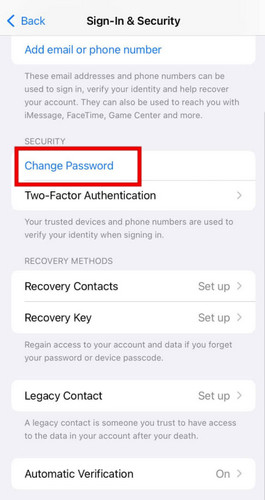
Enter your device passcode when prompted.
Create and confirm your new Apple Account password.
Note:
If Stolen Device Protection is enabled, Apple may require a security delay before you can change your password or other critical security settings.
On Mac
You can also reset your Apple Account password from a trusted Mac.
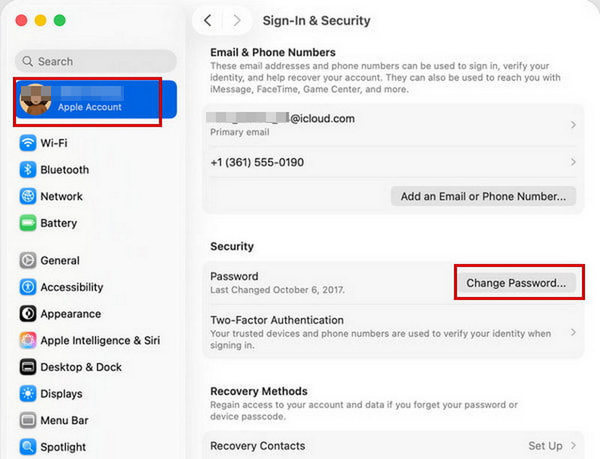
Click the Apple menu and select System Settings.
Click your name, then select Sign-In & Security.
Click Change Password. Enter the password you use to unlock your Mac.
Follow the on-screen instructions and set to a new password.
Part 4: How to Reset Apple ID Password via iForgot Website
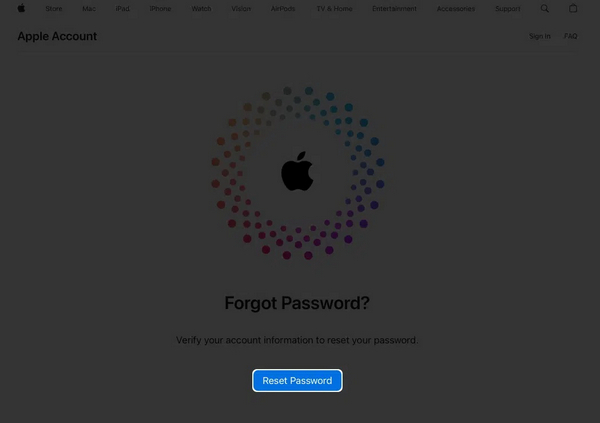
If you cannot recover Apple ID password on a trusted device. Don't worry. You can try resetting your password through Apple's iForgot website.
Go to iforgot.apple.com in a browser.
Click the Reset Password button.
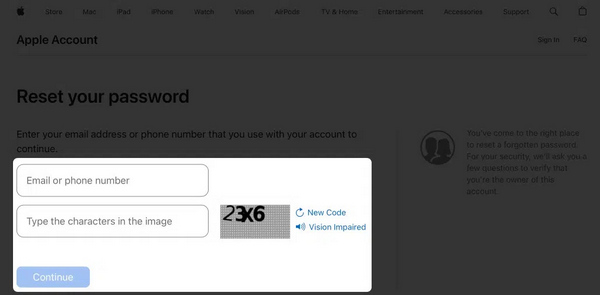
Enter your email or phone number associated with your Apple ID.
Type the characters in the image and click Continue.
Then, enter your phone number and receive the verification code.
Next, type the code you received and verify your ownership.
Situation 1: Two-factor Authentication Is Enabled
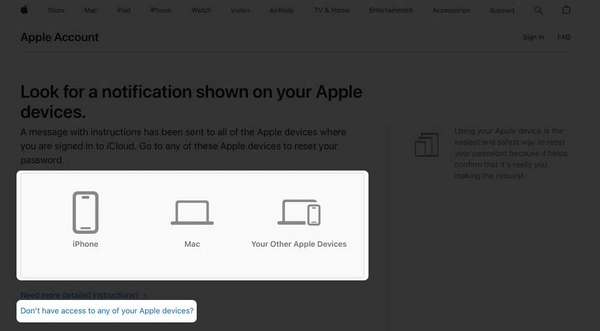
Select a trusted device.
Turn to the device and tap or click Allow on the notification.
Provide your device login password and set a new password.
Situation 2: Two-factor Authentication Is Disabled
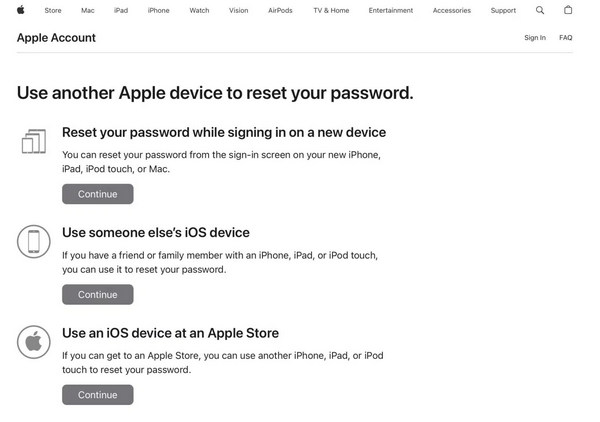
Click Don’t have access to any of your Apple devices.
Then, locate the option that is available to you and click the Continue button.
Follow the onscreen prompts to recover your forgotten Apple ID password.
Part 5: An Alternative When You Can't Recover Your Apple Account
Those official recovery methods don't work? You still have an alternative way to access your Apple Account! imyPass iPassGo can remove the current Apple Account from your iPhone or iPad without password. Even if you bought a second-hand iPhone locked to the owner, iPassGo can remove the Apple ID directly. Moreover, the user-friendly interface makes it easy to learn and use.

4,000,000+ Downloads
Remove forgotten Apple ID password on iPhone/iPad.
Delete old, locked or disabled Apple ID account easily.
Support the latest iOS and iPadOS versions.
Offer other features like MDM removal and lock screen bypass.
Connect iOS device to computer
Launch the software on your computer, then select the Remove Apple ID mode from the interface. Use a USB cable to connect your device to the computer. Once connected, click the Start Now button.
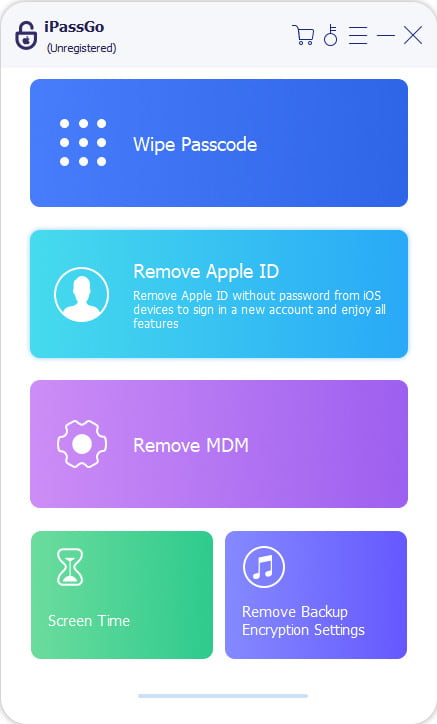
Remove Apple ID from your device
If Find My iPhone is turned off:
imyPass iPassGo can remove your Apple ID password immediately.
If Find My iPhone is enabled:
You'll need to reset all settings on your device. Go to Settings > General > Reset All Settings. Then, imyPass iPassGo will start removing the Apple ID instantly.
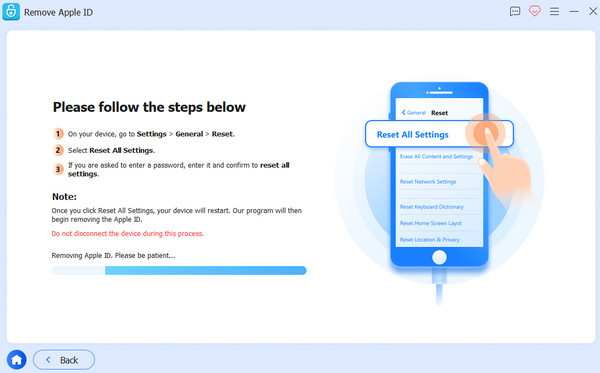
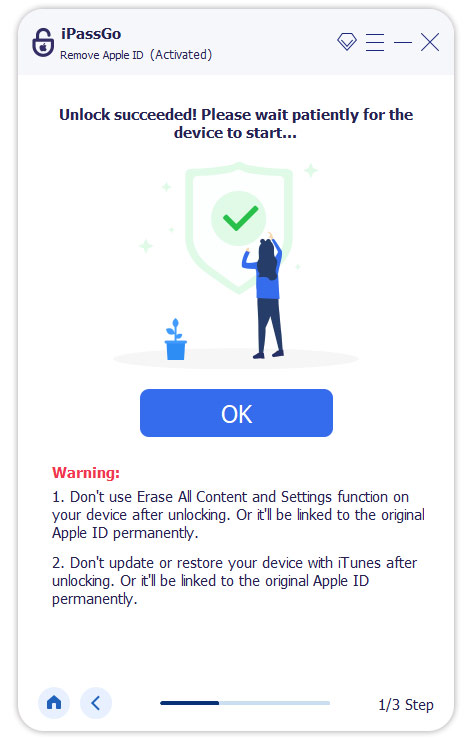
Confirm the unlocking process
When all has settled, click Confirm Again, then the current Apple ID will be removed soon.
Conclusion
This guide explained how to recover your Apple ID password on your iPhone, iPad, and Mac. You can follow our steps to either find your forgotten password or reset a new password, depending on your situation. imyPass iPassGo is the alternative solution to remove the old Apple ID and set a new account and password.
Samuel specializes in password security and digital privacy. He used to work as a cybersecurity consultant for small businesses to protect digital assets. With certifications in Cybersecurity and Ethical Hacking, he turns complex security topics into easy-to-follow advice. He also enjoys sharing password tips to help users protect their accounts more confidently.
Hot Solutions
-
Unlock iOS
-
iOS Tips
-
Unlock Android
-
Password Tips


