



 Solution
 Support Center
 About Us
 Contact
How to Reset iTunes Login and Password Efficiently
 Clara Prescott Published on June 24, 2026iOS Tips4-min reading
According to our research, having so many accounts is a big challenge for ordinary people. It makes sense that some Apple users forgot their iTunes passwords. As a result, they are locked out of the content you purchased with your iTunes account. Don't worry, resetting it is easier than you think. This article shares the proven methods to reset the iTunes password. Read on to discover the steps you need.

In this article:
Part 1. What Is Your iTunes Password
Before resetting your iTunes login and password, let's discuss what your iTunes account refers to. The iTunes account refers to the login that you use to purchase content in the iTunes Store.
The iTunes password is the same as your Apple ID password. In fact, you log in to the iTunes Store with your Apple ID and password. In other words, resetting iTunes password means resetting your Apple ID password.
Part 2. How to Reset iTunes Password
If you forgot your password, you can reset your iTunes Store password with an internet connection. The process requires a channel to verify your ownership and other necessary information. Here are the steps:
Open the latest version of iTunes.
Go to the Account menu and choose Sign In.
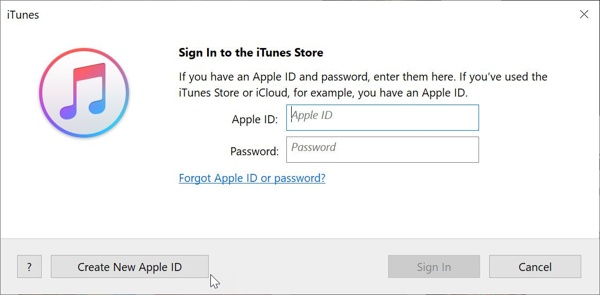
Press the link of Forgot Apple ID or password in the dialog.
Then, the password-reset webpage will open in the web browser.
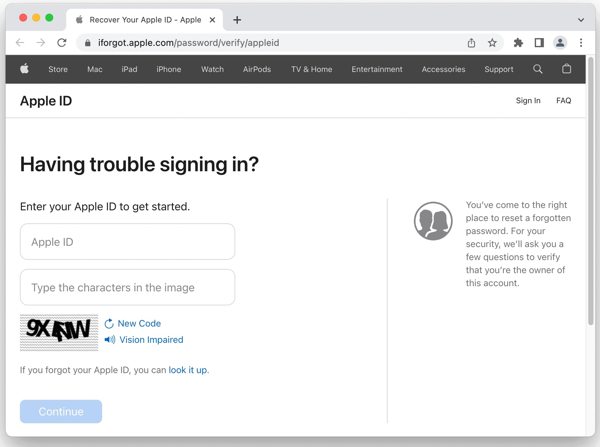
Click the Reset Password button to proceed.
Enter the Apple ID email you associated with iTunes, type the characters in the image, and click Continue.
Next, enter your phone number and click Continue. Then, choose a verification channel:
Channel 1: Use Trusted Device
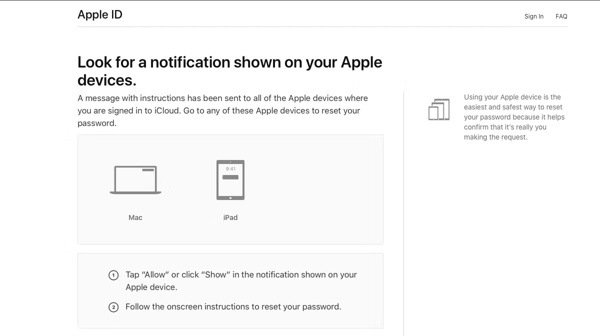
If you have turned on Two-factor Authentication, choose a trusted device.
Turn to the trusted device, and hit Allow on the notification.
Enter your lock screen passcode or login password.
Next, enter a new password, verify it, and hit Next to reset iTunes login and password.
Channel 2: Without Trusted Device
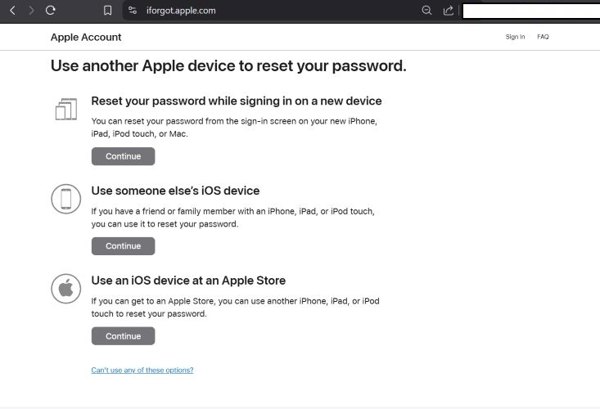
If your trusted device is inaccessible, click Don't have access to your iPhone.
Then, choose an available option according to your situation and click Continue.
Follow the onscreen instructions to reset the iTunes password.
Channel 3: By Recovery Key
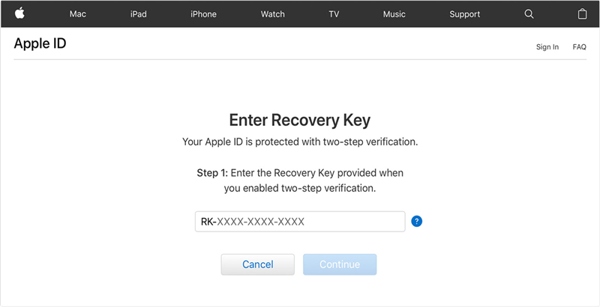
If you have set up Two-step Verification, enter the recovery key.
After verification, type in a new password, re-enter it, and click Reset Password.
Channel 4: Via Email
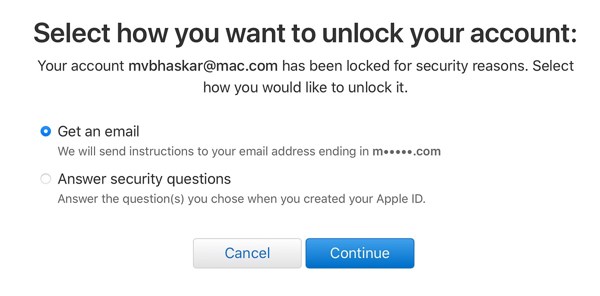
Choose Get an email when prompted and click Continue.
Enter your email address to receive the instructions.
Then, open the email and follow the instructions to verify your ownership.
Finally, reset the iTunes password and confirm it.
Channel 5: Answer Security Questions
Choose Answer security questions and click Continue.
Select a security question and offer the accurate answer.
Answer other questions.
Set a new password and verify it.
Part 3. How to Reset iTunes Password on iPhone Without Password
If all the channels above are unavailable, try imyPass iPassGo. It allows you to remove the old iTunes login and password from your iPhone without any restrictions. The user-friendly interface makes it easy to use.

4,000,000+ Downloads
Remove forgotten iTunes password from your iPhone.
Easy to use and complete the process in 3 steps.
Don't require a password or technical skills.
Support the latest versions of iOS and iPadOS.
How to Remove iTunes Password from Your iPhone
Install iTunes password remover
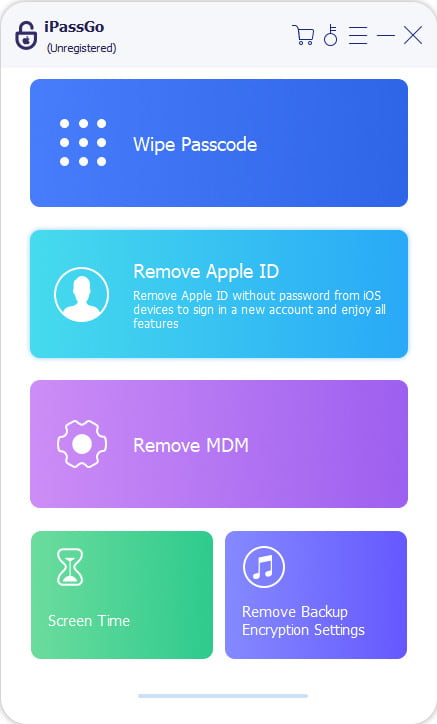
Start the iTunes backup password removal software after you install it on your computer. It is compatible with Windows 11/10/8/7 and macOS 10.12 or above. Choose the Remove Apple ID mode to proceed.
Connect to your device
Plug your iPhone into your computer with a Lightning cable. If prompted, tap the Trust button to trust this computer. Then, the software will automatically detect your device and load device information.
Remove iTunes password
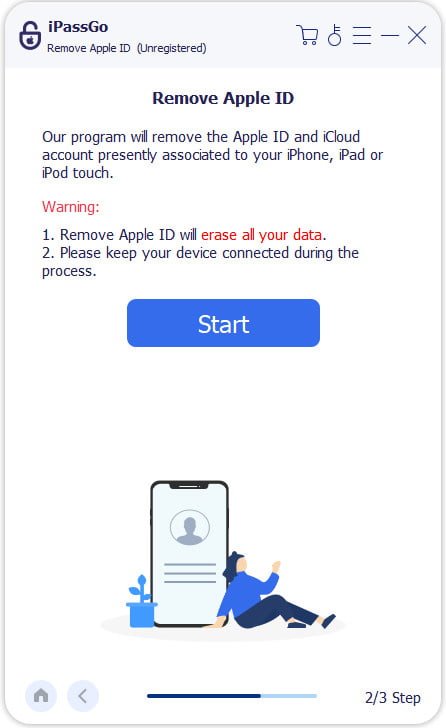
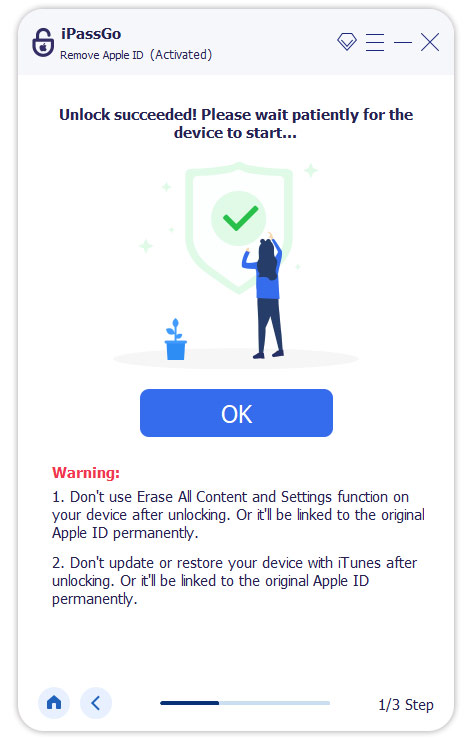
Click the Start Now button to start removing the iTunes password if Find My iPhone is disabled. If Find My iPhone is enabled, follow the onscreen instructions to reset all settings on your device. Then, click Confirm Again and check your device information to initiate the process.
Related Readings:
Conclusion
This guide shared how to reset the iTunes password. When you forgot your password, you cannot access the content purchased from the iTunes Store. Moreover, you cannot purchase more content. Fortunately, you can reset it following our steps quickly. Of course, you have to choose a channel to verify your ownership. If none of them are available, remove the old account with imyPass iPassGo. Then, you can make a new iTunes account and password for your iTunes Store.
Clara has over 8 years of experience helping users recover lost files and transfer data. She previously worked as a data recovery technician for a major IT service company. Certified in Data Recovery and Digital Forensics, her articles focus on simple solutions that make complicated recovery tasks easier for everyday users.
Hot Solutions
-
iOS Tips
-
Unlock iOS
-
GPS Location
-
Windows Tips


