



 Solution
 Support Center
 About Us
 Contact
iPhone Turn Passcode Off Greyed Out - Causes & Fixes
 Samuel Spenser Published on September 24, 2026Unlock iOS3-min reading
Trying to turn off your iPhone passcode, but the option is greyed out? You are not alone. This can happen for a few reasons, and it is not always clear why. Maybe your phone is managed by a profile, linked to an email account, or synced with iCloud. In this guide, we will explain why the iPhone turn passcode off greyed out issue shows up and show you easy ways to fix it, step by step.

In this article:
- Why is Turn Passcode Off Greyed Out on iPhone?
- How to Fix iPhone Turn Passcode Off Greyed Out
- Method 1: Check Screen Time Passcode Restrictions
- Method 2. Check Stolen Device Protection
- Method 3. Reset All Settings
- Method 4. Remove a Work or School Email Account
- Method 5. Remove MDM or Configuration Profile
- Bonus: How to Remove iPhone Screen Passcode Easily
Why is Turn Passcode Off Greyed Out on iPhone?
If the Turn Passcode Off option is greyed out on your iPhone, it usually means that your device is under a restriction, preventing you from changing your passcode settings. In most cases, the issue is caused by:
- Screen Time restrictions
- Face ID or Touch ID settings
- Stolen Device Protection
- A configuration profile or Mobile Device Management (MDM)
- A work or school email account
These restrictions are designed to protect your data, so iOS may block you to turn off the passcode until the restriction is removed.
How to Fix iPhone Turn Passcode Off Greyed Out
If the Turn Passcode Off option is greyed out on your iPhone, you can try the following methods to find the cause and fix the issue. Go through the fixes below one by one.
Method 1: Check Screen Time Passcode Restrictions
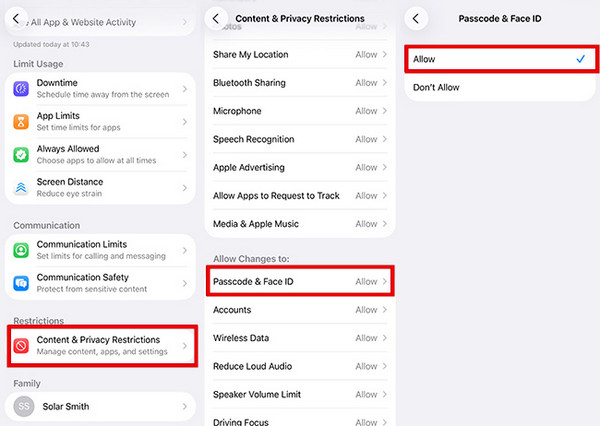
Screen Time can restrict passcode changes. It may be the reason why the Turn Passcode Off option is unavailable on your iPhone. Here's how to fix it:
Open Settings > Screen Time. Then tap Content & Privacy Restrictions.
Enter your Screen Time passcode if prompted.
Tap Passcode & Face ID and make sure it set to Allow.
Method 2. Check Stolen Device Protection
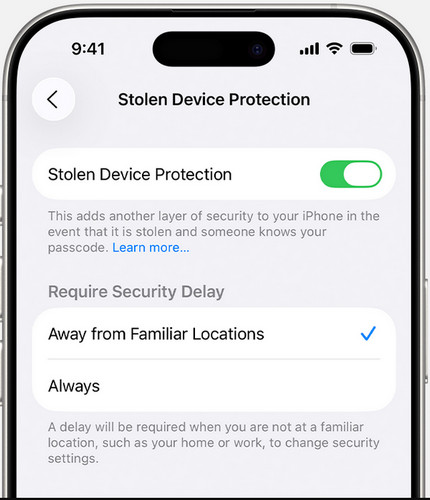
On newer devices, if Stolen Device Protection is enabled, you may not be able to change your passcode or account information. Here are the steps to disable Stolen Device Protection:
Open Settings, then tap Face ID & Passcode.
Enter your passcode when asked.
Scroll down and select Stolen Device Protection.
Check whether it is enabled. If it is, toggle off this option.
Method 3. Reset All Settings
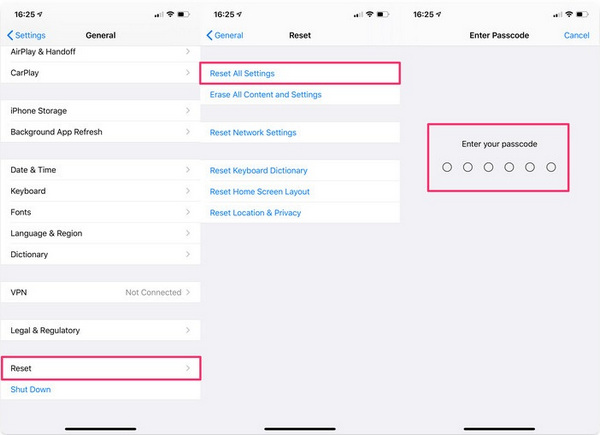
If Turn Passcode Off option is still greyed out, a temporary iOS settings issue may be causing the problem. In this case, resetting all settings can help fix this issue without deleting your personal data.
Open Settings > General > Transfer or Reset iPhone.
Tap Reset, then choose Reset All Settings and confirm.
Method 4. Remove a Work or School Email Account
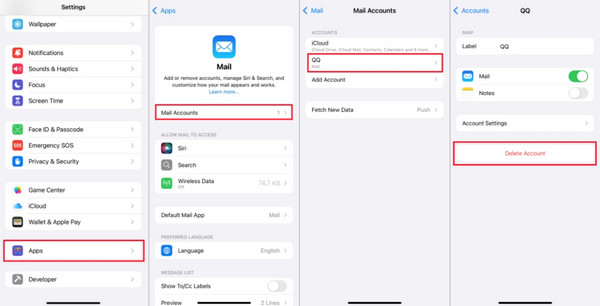
In some cases, adding a work or school email to your iPhone can trigger strict security rules that limit what you can change, including the option to turn off your passcode. This is often due to security policies linked to Exchange or similar accounts. If your disabled passcode iPhone greyed out issue started after adding an email, removing that account might fix it.
Go to Settings, then tap Mail > Accounts.
Find and select your work or school email account.
Tap Delete Account, then confirm by choosing Delete from My iPhone. Once the account is removed, go back to your passcode settings, and the greyed-out option may now be unlocked.
Method 5. Remove MDM or Configuration Profile
One common reason for the disabled passcode iPhone greyed out issue is a configuration profile installed on your device. Schools, workplaces, or apps often add these profiles to manage settings, and they can block you from turning off your passcode. To resolve this, you can remove the MDM profile from the iPad or iPhone settings.
Open Settings, then go to General.
Scroll down and tap Profiles & Device Management or VPN & Device Management on newer versions.
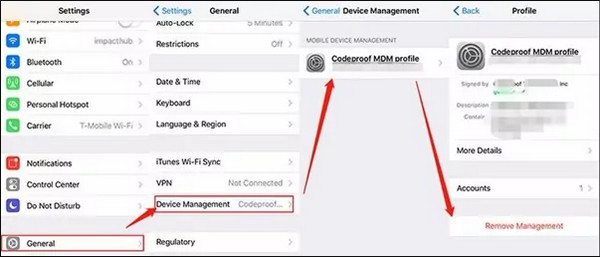
Select the configuration profile, tap Remove Profile or Remove Management, then enter your passcode to confirm. Once removed, check again; the option to turn off your passcode should now be available.
Bonus: How to Remove iPhone Screen Passcode Easily
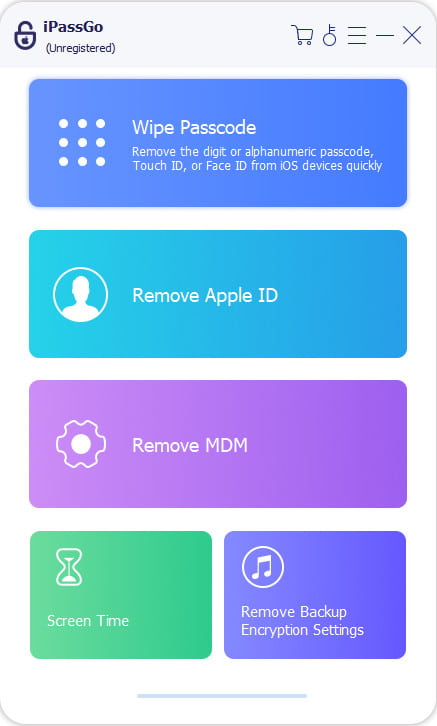
If you cannot turn off your iPhone passcode because you forgot the current passcode, or have no permission to remove MDM or Screen Time restrictions, this iOS unlock tool can resolve all your puzzles. imyPass iPassGo is designed to remove all kinds of iOS locks from iPhone and iPad, even without a passcode. You can use this software easily bypass screen passcode, Apple ID, MDM profiles or Screen Time limitations.

4,000,000+ Downloads
Fix iPhone Turn Passcode Off Greyed Out issue easily
Remove screen passcode, Face ID & Touch ID from iPhone.
Bypass Screen Time and MDM without password.
Support the latest iPhone versions and models.
Launch imPass iPassGo on your computer, then choose the Unlock iOS Screen mode from the interface. Connect your device to the computer with a USB cable.
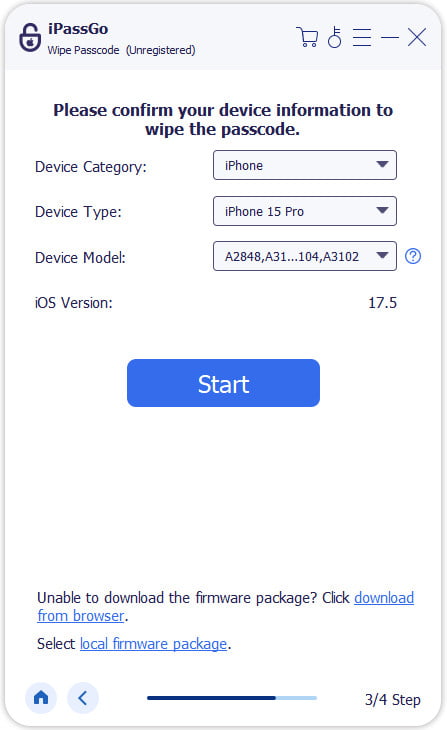
Confirm your device information and click Start Now to begin downloading the firmware package.
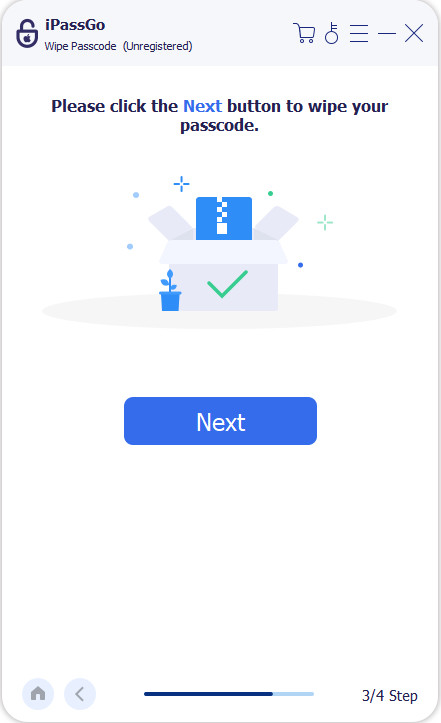
Click the Start Removing button to start the reset. When it is done, the screen passcode will be removed from your device.
Conclusion
Running into the disable passcode iPhone greyed out issue can be cumbersome, especially when you need quick access to your device settings. Whether the problem comes from a configuration profile, email account, MDM, or Screen Time, there are effective solutions to get things back to normal. Just follow the steps that match your situation, and you will be able to turn off the passcode with ease.
Samuel specializes in password security and digital privacy. He used to work as a cybersecurity consultant for small businesses to protect digital assets. With certifications in Cybersecurity and Ethical Hacking, he turns complex security topics into easy-to-follow advice. He also enjoys sharing password tips to help users protect their accounts more confidently.
Hot Solutions
-
Unlock iOS
-
iOS Tips
-
Unlock Android
-
Password Tips


