Solution
 Support Center
 About Us
 Contact
Can You Recover Deleted Instagram Messages & How to Do It
 Clara Prescott Published on August 27, 2026Recover Data3-min reading
If you've accidentally deleted an important Instagram message, you're probably wondering if there's a way to get it back. To be real with you, Instagram does not have a built-in Undo button to retrieve your deleted conversation. While you can recover deleted messages, it depends on how the messages were removed and how much time has passed. In this post, we'll teach you how to see deleted messages on Instagram in several proven ways. We will cover the official way, through Android notification history, checking other devices/accounts, and using trusted data recovery tools. This way, we can help you find the most suitable recovery method before you permanently lose your deleted Instagram messages.

In this article:
Method 1: The Official Method (Request Instagram Data)
Is there a way to recover deleted Instagram messages? Many Instagrammers aren't aware that Instagram holds a copy of recently deleted messages from a conversation. Meta keeps a copy of deleted messages on its server up to 90 days. However, you need to download your account data before the timeline fully lapses. Otherwise, they will be permanently removed.
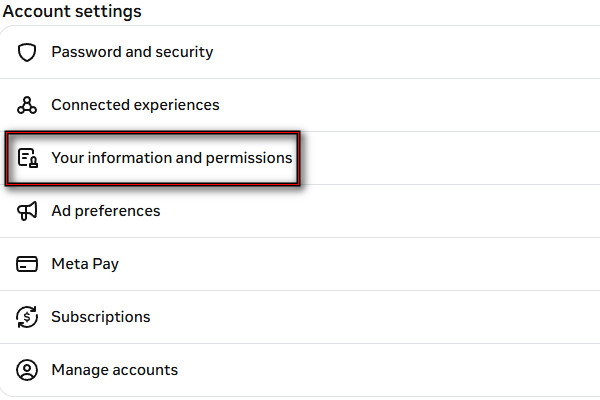
Go to your Instagram Profile, click the Menu, and select Account Center. Select Your information and permissions, then Export your information.
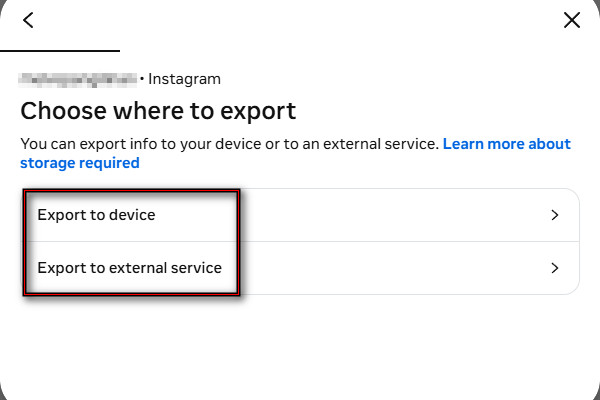
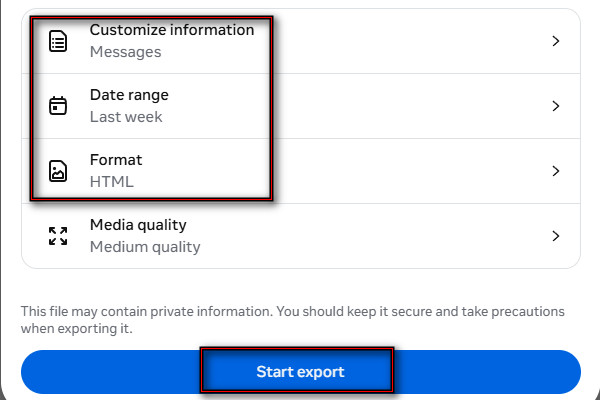
Click Create Export, select your profile, and click Export to device or Export to external service. Right after, tap Customize information and check Messages.
Set the date to the day you deleted the messages. Select a format (HTML or JSON) and click Start Export. Remember, you only have 4 days to download it.
Method 2: Via Android Notification History
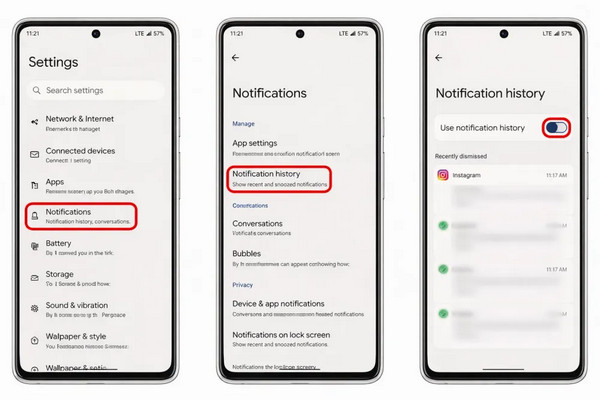
If you're using Android 11 or later, you can recover deleted Instagram messages by using the notification log. But it only works if you had Instagram notifications and Notification History turned on before the messages got deleted.
Open the Settings app, scroll down, and tap Notifications or Notifications & status bar.
Ensure the Notification History option is turned ON, and select Instagram. You will see the timestamped list of the messages you received.
Note:
If the Instagram message was a photo, the notification log will only display that someone sent a photo. It means you won't be able to recover a deleted photo.
Method 3: Check Other Devices/Accounts
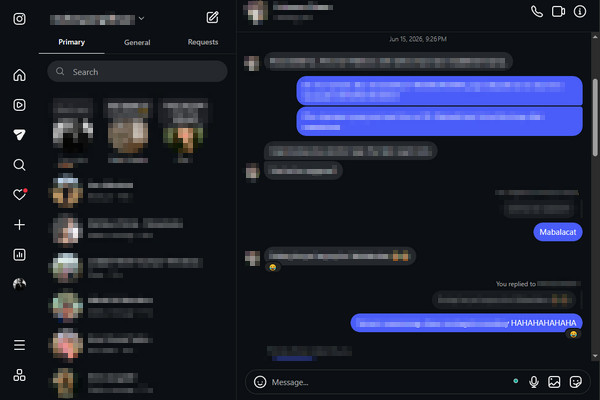
Instagram syncs conversations on different devices logged into the same account. Sometimes, you can still access the deleted conversation on another device that hasn't refreshed its data yet. However, there is a very low chance of seeing your deleted Instagram messages. See the instructions below to see how to read deleted Instagram messages:
Log in to the same Instagram account on a spare device and open Messages. It could be a smartphone, tablet, or through the Instagram web.
Check whether the conversation still appears. If visible, screenshot the messages before they disappear. Please avoid refreshing the app/page so the data isn't lost.
Method 4: Using Data Recovery Tools
1. imyPass iPhone Data Recovery
imyPass iPhone Data Recovery, as the name implies, is a data recovery program for iPhone/iPad. It scans your iPhone to help you restore deleted Instagram messages even without a backup. Aside from messages, you can also recover Instagram images and videos in batches. It can recover data from old and newer iPhone models, including the latest iPhone 16 and 17. It supports iOS 5-iOS 27.
Here's how to get deleted Instagram messages back:
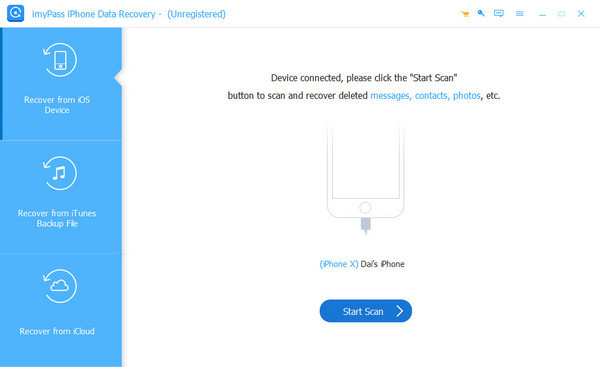
Download imyPass iPhone Data Recovery on your PC. After setting up, open it and connect the iPhone to the computer using a USB cable.
Choose the Recover from iOS Device option and click Start Scan to scan all your data, including Instagram messages.
After the software analyzes your data, select Show Deleted Only to filter the data you deleted. Look for the Instagram messages you want to recover and select them.
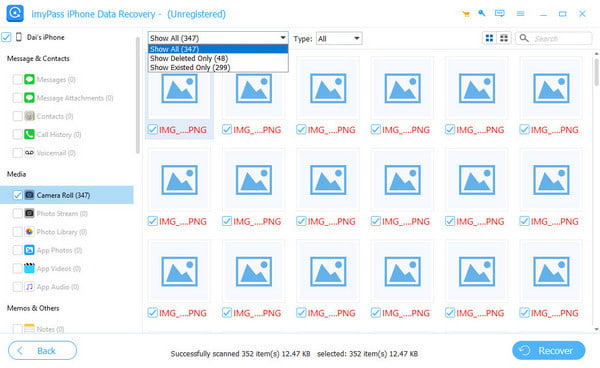
Look for the Instagram messages you want to recover and select them. Then click Recover to start recovering your deleted Instagram messages.
2. Disk Drill
Disk Drill can recover lost or deleted data from various sources, including Instagram messages. With it, you can inspect recovered Instagram database files to look for message records. However, the process is more technical than other recovery tools. See below how to find deleted messages on Instagram:
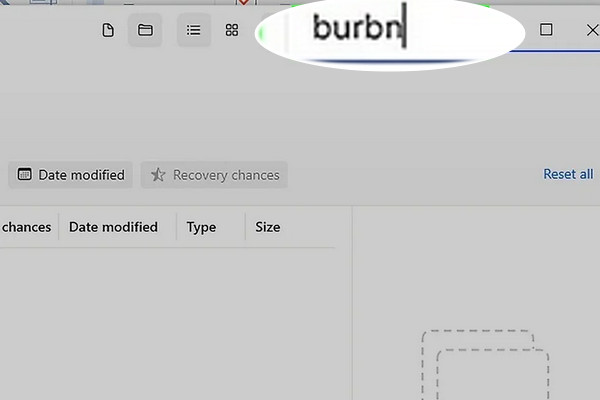
Download and install Disk Drill and DB Browser, then plug the iPhone into the computer. After scanning your iPhone, go to Other or search for burbn.
Note:
burbn is Instagram's original internal project name.
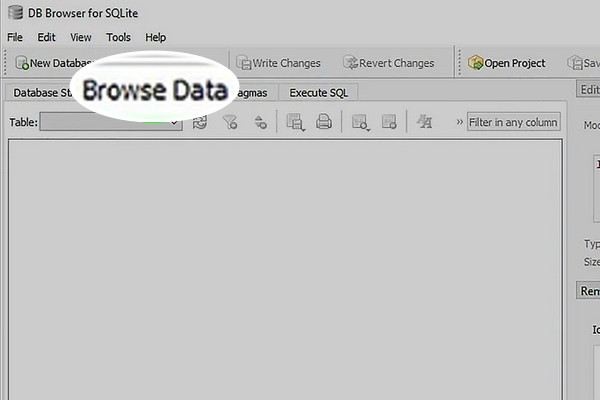
Copy and paste the files to another destination on your computer. Open any DB files in DB Browser and click Browse Data to find the Instagram messages.
3. Gbyte
Gbyte can extract deleted Instagram chats without data overwriting. In other words, it won't wipe the data from your iPhone as iTunes does. It uses a Read-Only scan that ensures your Instagram data won't be damaged. Check the instructions below on how to retrieve deleted Instagram messages:
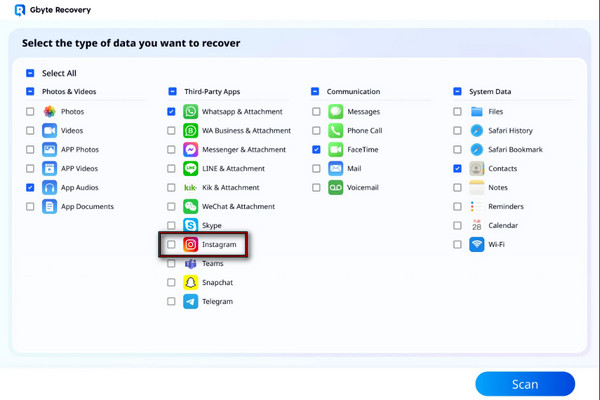
In the Gbyte Recovery interface, select the Instagram option and click Scan.
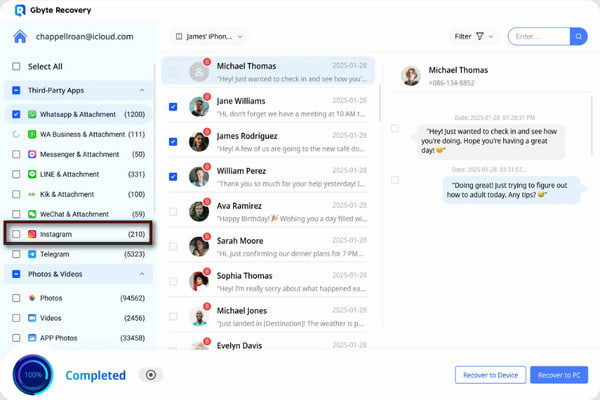
Select all the IG messages you want to recover and click Recover to Device or Recover to PC to save them.
Quick Method Comparison Table
| Method | Can Recover Deleted Messages? | Requires Backup | Recovery Success | Best For |
| Request Instagram Data | Within Instagram’s 90-day retention period | No | 100% | Recovering messages that are still stored on the server. |
| Android Notification History | Partially | No | 95% | Viewing deleted messages recently. |
| Check Other Devices/Accounts | Not guaranteed | No | 0% to 50% | Conversations that haven’t synced on other devices yet. |
| imyPass iPhone Data Recovery | Yes | Optional | 95% | Recovering deleted Instagram messages directly from an iPhone, iTunes backup, or iCloud backup. |
| Disk Drill | Not guaranteed | No | 0% to 50% | Inspecting recovered Instagram database files. |
| Gbyte | Yes | No | 90% | Recovering deleted Instagram messages without a backup. |
Conclusion
Learning how to recover deleted Instagram messages helps you retrieve important conversations that were accidentally removed. While Instagram does not provide a direct restore button for deleted chats, you can try the methods above. But let's be clear, the recovery success depends on whether the deleted messages are still available or have been overwritten. For a more effective solution, we highly recommend using imyPass iPhone Data Recovery. It scans your iPhone to find recoverable chats and lets you preview deleted data before recovery.
Clara has over 8 years of experience helping users recover lost files and transfer data. She previously worked as a data recovery technician for a major IT service company. Certified in Data Recovery and Digital Forensics, her articles focus on simple solutions that make complicated recovery tasks easier for everyday users.
Hot Solutions
-
Recover Data
- AppGeeker iOS Data Recovery Review
- Disk Drill iPhone Data Recovery Review
- How to Get iPhone Out of Recovery Mode
- How to Fix support.apple.com/iphone/restore
- How to Recover Data from DFU Mode
- Gbyte iPhone Data Recovery Review
- How to Recover iPhone Deleted Photos After 30 Days
- How to Recover Deleted Photos on iPad
-
Unlock iOS
-
Transfer Data
-
iOS Tips