Solution
 Support Center
 About Us
 Contact
What Is Google Find My Device and How to Use It for Android
 Gideon Byron Published on August 21, 2026Unlock Android3-min reading
Google Find My Device, currently known as Find Hub, is a tracking service released by Google to remotely manage Android devices. It is a simple way to find an Android device on the interactive map through the associated Google account. According to our research, some Android users haven’t used this feature partly because they don’t understand what it can do or how to use it. This comprehensive guide shares everything you need to know about this functionality.
In this article:
Part 1: What Is Google Find My Device
Google introduced the Find My Device service in 2013. At first, it was designed to find Android devices. From then on, Google expands Find My Device and now rebrands it as Find Hub. Plus, it integrates more options. Currently, it works for all devices that have a Works with Android badge.
Key Features of Google Find My Device Service
- 1.Find your Android device even if it is on silent or offline. Once you log in to the Find My Device portal, it will find all devices associated with the same account on the map.
- 2.Locate smartphones, tablets, earbuds, and more, including wearable devices.
- 3.Play a sound to locate the lost device within 10 meters quickly. If you cannot find your Android device or it is stolen, you can make it ring immediately.
- 4.Remotely lock your phone with a PIN or password. When your Android device is stolen, you can lock it remotely and prevent unauthorized access.
- 5.Display a custom message on the lock screen, such as your phone number, name, and more.
- 6.Factory reset your Android device to protect your privacy. Wipe all data on your device, even if you are locked out of your phone, or it is not in your hand currently.
- 7.Share your phone location with up to 10 trusted contacts, like your family members and friends.
- 8.Track your Android device with a web browser or another phone using the web portal or Find Hub app.
- 9.Locate the Pixel series for several hours after the battery has run out.
Part 2: When to Use Google Find My Device
Understanding when to use Find My Android phone by Google is indispensable. It is a service not only to manage your Android devices, but also to protect your privacy and personal data. The scenarios when you can use the service include:
- 1.You cannot find your phone or tablet at home or at the workplace.
- 2.You are locked out of your Android device.
- 3.You forgot your password for your phone or tablet.
- 4.Your Android device is stolen.
- 5.You need to share your location with your friends or family members.
- 6.You want to track someone’s location.
- 7.You have sold your phone and forgot to unlock it.
Part 3: How to Set up Find My Device on an Android Phone
By default, Find My Device is disabled on your Android phone or tablet. If you want to use this service, you need to set it up on your device. Plus, you must have added a Google account to your phone.
How to Turn on Find My Device on Google Pixel
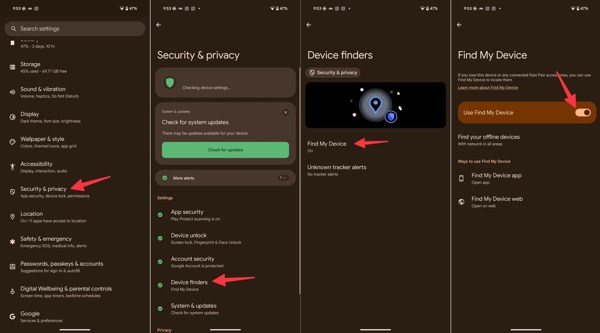
Open the Settings app on an Android device.
Go to the Security & privacy option.
Tap the Device finders option.
Press the Find My Device button.
Toggle on Use Find My Device.
Note:
If you haven’t added a Google account to your phone, log in to one first.
How to Set up Find My Device on Samsung
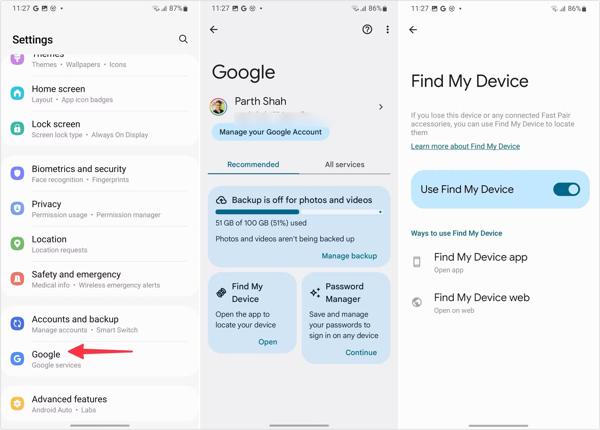
Run the Settings app from the app tray.
Scroll down and choose the Google option.
Tap the Find My Device option.
Toggle on Use Find My Device.
How to Enable Find My Device for Offline Devices
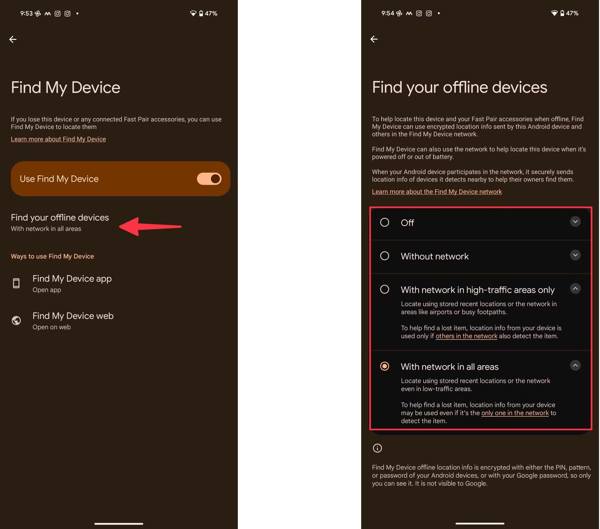
Go to your Settings app.
Head to Security & privacy, Device finders, and Find My Device.
Tap the Find your offline devices option.
Now, you will see a few options:
- Off for not participating in the Find My Device network.
- Without network for not participating in the network.
- With network in high-traffic areas only for tracking your location in high-traffic areas, like airports, streets, and more.
- With network in all areas for participating in all areas.
Choose an option according to your needs.
How to Turn on Location for Find My Device
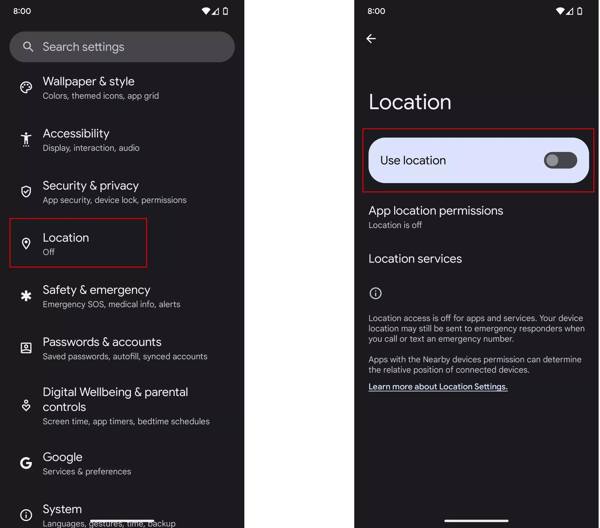
Open your Settings app.
Choose the Location option.
Toggle on the Use location feature.
Part 4: How to Use Google Find My Device
Once you set up Google Find My Device on your phone or tablet, you can track your device by accessing the web portal or mobile app. Here, you need a stable internet connection and your Google account.
How to Use Google Find My Device Tracker Online
Go to https://www.google.com/android/find/ in a browser.
Log in to the Google account and password associated with your device.
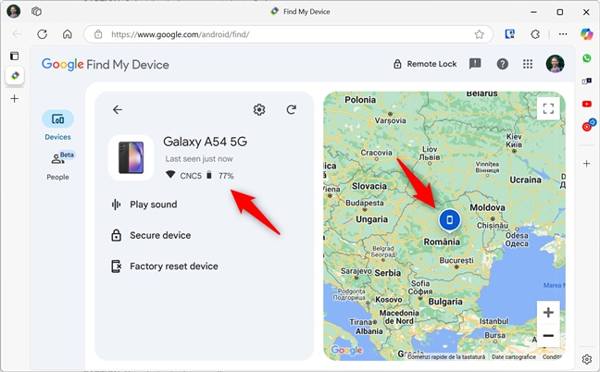
Choose the desired device under the My Devices section.
Then, Google Find My Device will track your phone on the map and display the toolbar:
Ring Your Device
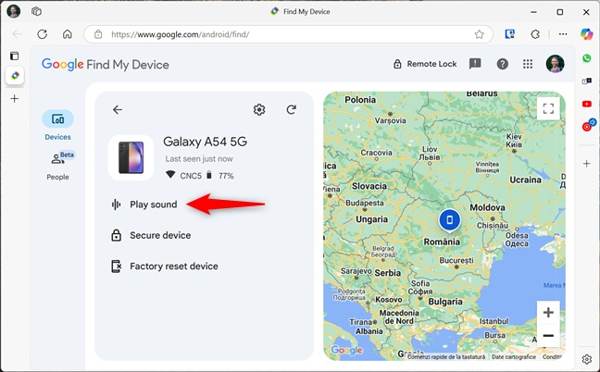
If you want to locate the missing device quickly, click the Play sound button.
After you find your phone, click Stop sound.
Secure Your Device
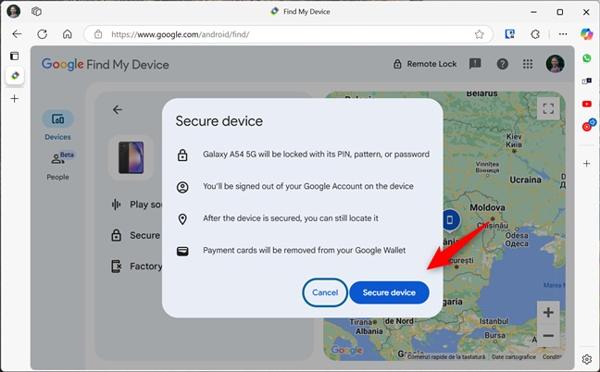
To protect your privacy, click the Secure device button.
Read the alert message and click the Secure device button again.
Next, enter a message and your phone number.
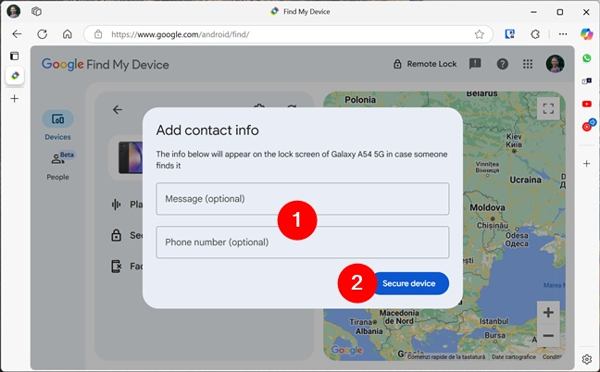
Finally, click the Secure device button. Then, your device will be locked remotely, and the contact information will appear on your device screen.
Factory Reset Your Device
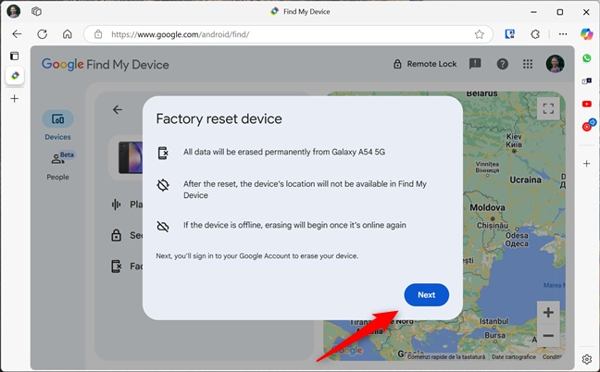
If you need to erase your phone, click the Factory reset device button.
Read the warning message and click the Next button.
Then, Google Find My service will wipe all data on your device.
Lock Your Device
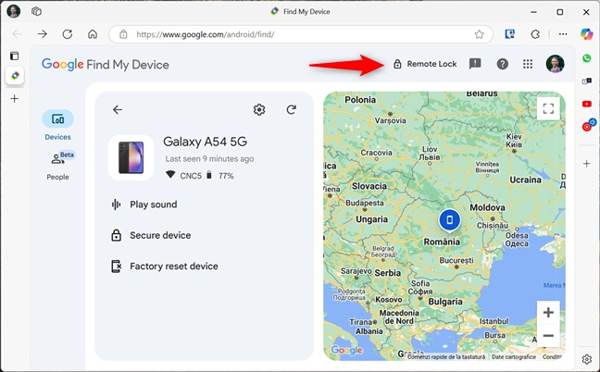
If you just want to lock your phone or tablet, click the Remote Lock button.
The Remote Lock option is similar to the Secure device, but the former only locks your device with your pattern, PIN, or biometric security measure. The latter will sign out of your Google account and remove Google Wallet.
How to Use the Google Find My Device App
Install the Google Find Hub or Google Find My Device app from the Play Store on another phone or borrowed device.
Open the app, tap Add another account, and sign in with your Google account.
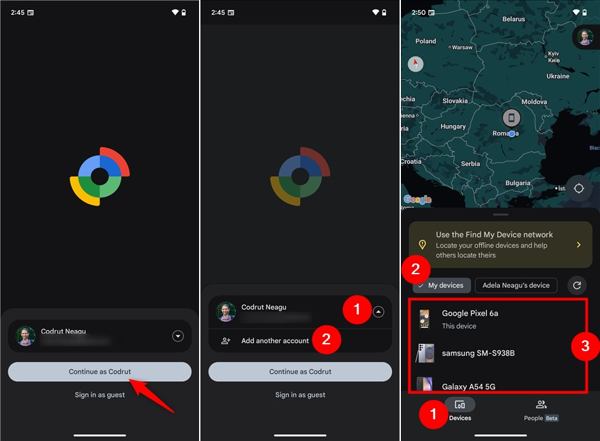
Go to the Devices tab at the bottom and choose your phone.
The Google Find My Device app will track your device even if it is offline.
Swipe upward from the bottom to expand the toolbar, and you will have several options:
Play sound
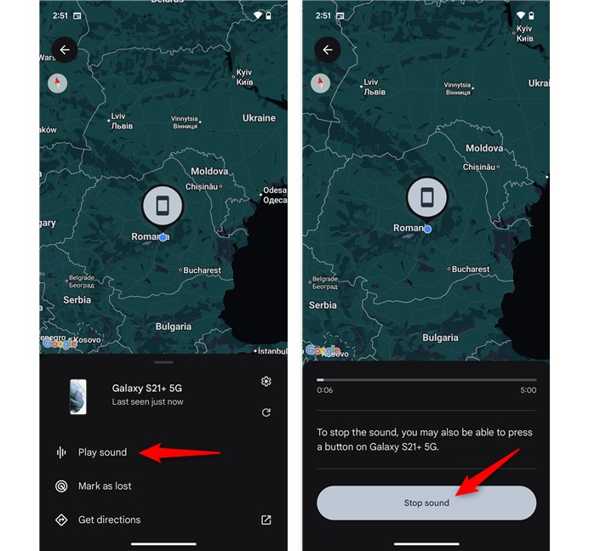
If you cannot find your phone temporarily, tap the Play Sound button.
Next, tap the Stop sound button after you find your device.
Secure device
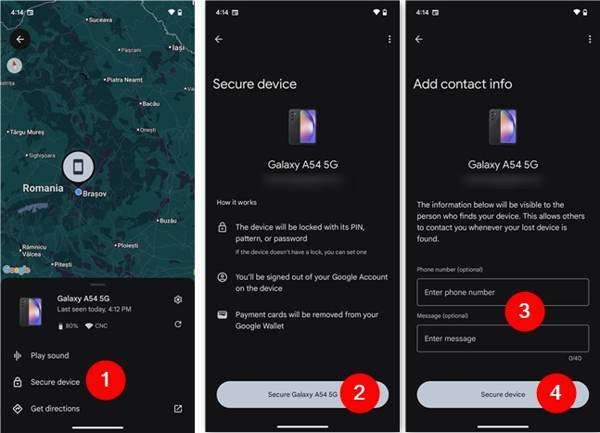
If you intend to protect your private information, like your payment password, tap the Secure device button.
Read the how-it-works message and tap the Secure [your phone] button.
Optionally, input your phone number and type in a message.
Finally, tap the Secure device button to lock your device remotely.
Mark as lost
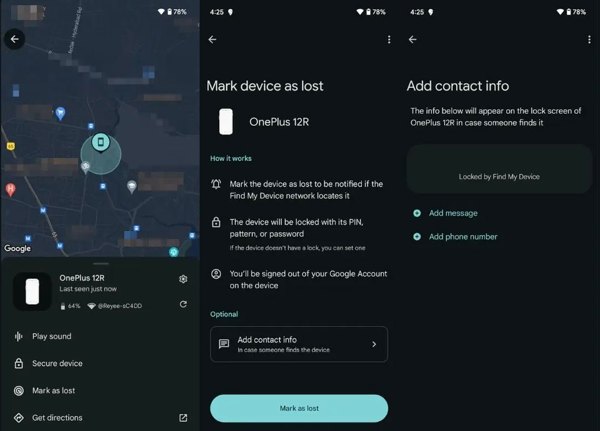
Tap the Mark as lost button if your phone or tablet is stolen.
Read the message and tap Mark as lost to confirm it.
Follow the onscreen prompts to add contact information.
Get directions
Tap the Get directions button if you cannot find your phone.
Then, follow the onscreen instructions on how to get to your missing device.
Factory reset
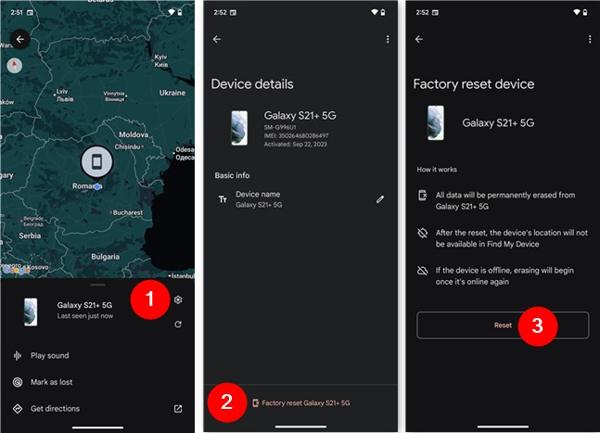
While you cannot find the Unlock option on Google Find My Device, you can factory reset it and remove the screen lock.
Tap the Settings button next to your phone icon.
Tap the Factory reset [your device name] button.
Read the notification and tap the Reset button to begin wiping everything on your device.
Find Nearby
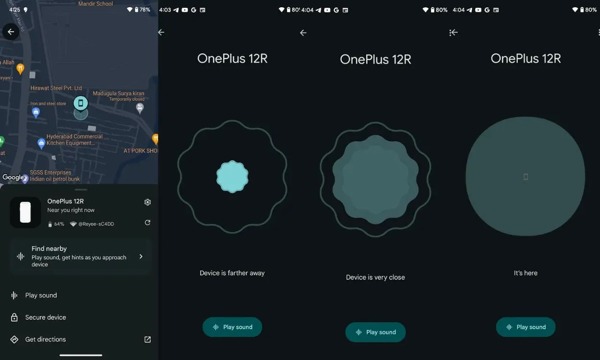
If your missing phone is turned on but not connected to the internet, tap the Find nearby button on the toolbar.
When the device catches a Bluetooth signal, it will connect to the lost device, offering clues about its proximity.
Follow the clues to pinpoint the location of the missing device.
Check Your Device Information
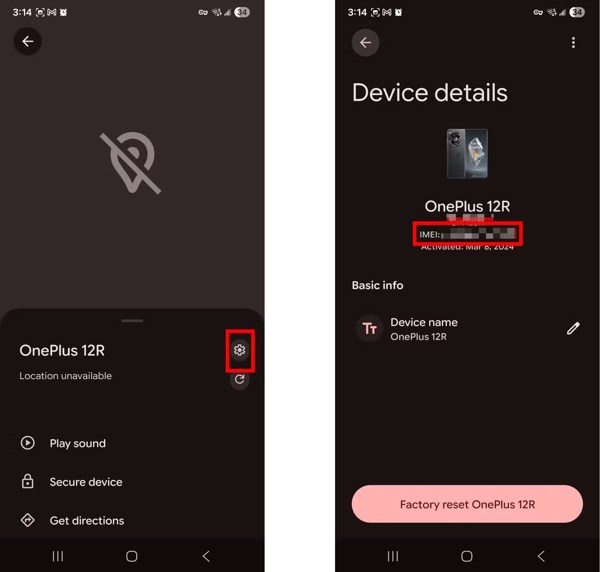
Tap the Settings button
Then, you will see the IMEI number, device name, and other basic information.
You May Also Like:
Part 5: Bonus Tip: How to Unlock Android Without Google Find My Device
Google Find My Device service is a quick way to track and manage your Android phone or tablet. However, you must set up Find My Device and turn on Location on your device before it goes missing or is lost. Therefore, you may be looking for an alternative solution, such as imyPass AnyPassGo. It is able to unlock your Android device without the password, even if Find My Device is disabled.
4,000,000+ Downloads
Remove the screen password from an Android device quickly.
Work for digit passwords, Face IDs, patterns, and fingerprints.
Bypass Google FRP lock from your device easily.
Integrate an intuitive interface.
Support almost all Android brands and models.
How to Unlock Your Phone Without Google Find My Device
Install AnyPassGo
Launch the alternative to the Google Find My Device service after you install it on your computer. Choose the Remove Screen Password mode. Select your device brand to proceed.
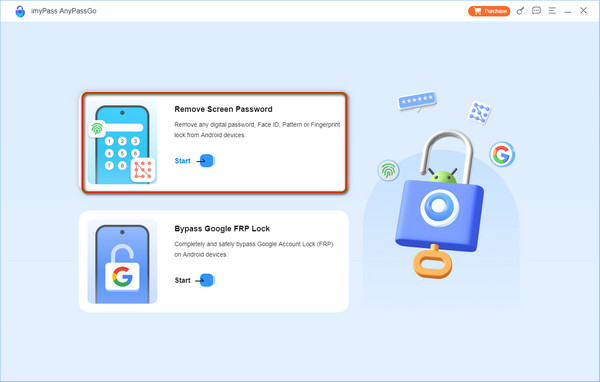
If you need to get rid of FRP when you forgot your Google account password, choose the Bypass FRP Lock mode instead.
Connect to your phone
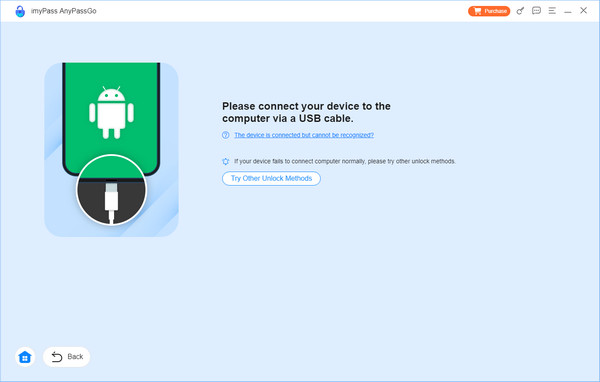
Connect your Android device to your computer with a compatible USB cable. If prompted, tap Trust on your screen to trust this computer. The software will detect your device immediately. If it fails to detect your phone, click The device is connected but cannot be recognized and follow the onscreen instructions to rebuild the connection.
Unlock your device
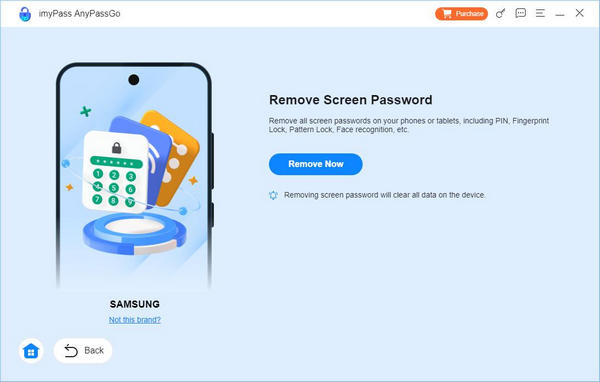
After the software recognizes your device, click on the Remove Now button to begin removing all types of screen locks and unlocking your phone or tablet.
Note:
The process will erase all data on your device. You’d better back up your device first.
Conclusion
This article discussed one of the professional services for Android devices, called Google Find My Device. Following our introduction, you can learn what the service can do, when you should use it, and other necessary information. More importantly, you can follow our detailed steps to track, lock, and reset an Android device on the web portal or Find My Device app. Plus, we recommended an alternative solution to unlock your device, imyPass AnyPassGo. It enables you to regain access to your device without a password or restrictions.
Gideon writes about unlocking iOS, Android, and Windows devices. He previously worked as a mobile device specialist in a repair center, assisting customers with locked devices and password recovery. In his spare time, he tests new unlock tools, customizes smart devices and makes complex unlock processes simple and safe.
Hot Solutions
-
Unlock Android
-
Unlock iOS
-
Password Tips
-
iOS Tips