Solution
 Support Center
 About Us
 Contact
How to Unlock a Tablet When You Forgot Your Password
 Penny Warren Published on June 01, 2026Unlock Android3-min reading
Android tablets are popular smart devices because of their large screens. Similar to Android phones, they use screen locks to protect user data and prevent unauthorized access. However, forgetting your password can lock you out of your device. In this guide, we'll explore five easy ways to unlock a tablet in different situations so you can regain access even if you forget your PIN, pattern, or password.

In this article:
Part 1: How to Unlock a Tablet Without Resetting
Way 1: Unlock Your Tablet with a Google Account
Requirements: Android 4.4 or earlier; Google account linked.
Best for: Users with older tablets who still remember their Google login.
On Android 4.4 and below, you can unlock an Android tablet if you forgot the PIN lock. This way requires nothing except the associated Google account. Here are the steps to get the job done.
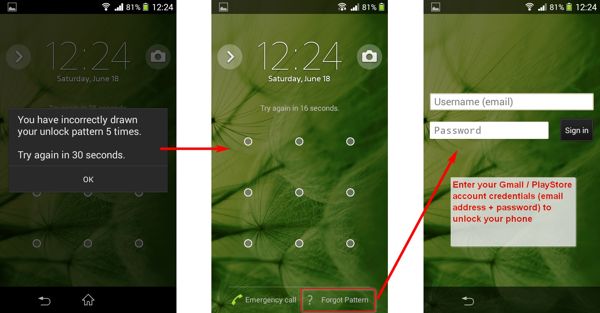
Repeatedly enter the wrong PIN or pattern until your tablet is disabled.
Tap the FORGOT PATTERN or FORGOT PIN at the bottom.
Then type the associated Google account and password to unlock your tablet immediately.
Way 2: Unlock Your Tablet via ADB
Requirements: USB debugging enabled; PC with ADB installed.
Best for: Advanced users who are familiar with command prompts.
As a command-line tool, ADB lets you access the system features on Android tablets with a computer. This way requires a PC with ADB installed and a USB cable. Plus, this method is not suitable for beginners.
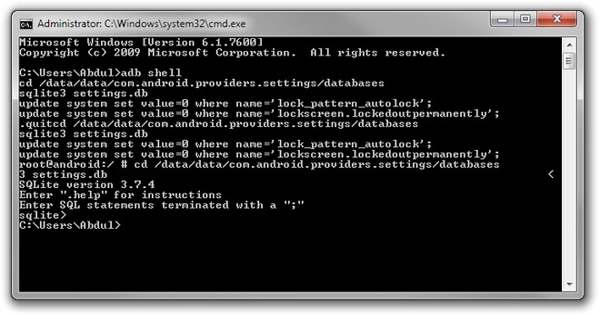
Download ADB to your PC, unzip the archive, and open a command prompt window in the folder.
Connect your tablet to your PC with a USB cable.
Then perform the commands below:
adb devices
adb shell
cd /data/system
su
rm *.key
adb reboot
Part 2: How to Unlock a Tablet by Resetting
Most reset-based methods will erase all data on your tablet. Make sure to back up important files before proceeding.
Way 1: Erase Your Tablet with Find My Device
Requirements: Tablet is connected to the internet with Find My enabled.
Best for: Remote unlocking when you cannot access the tablet physically.
Find My Device is an Android device tracking service provided by Google. It allows you to remotely erase your tablet for free. The prerequisite is that the Find My Device feature has been enabled on your device.
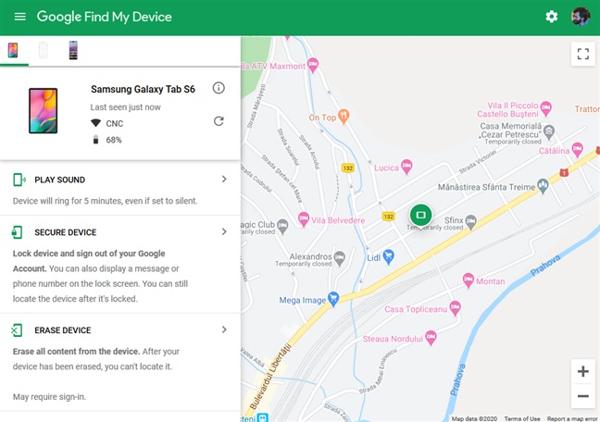
Visit the website of Find My Device in a browser, and log in to your Google account. Or open the Find My Device app on another Android device.
Choose your tablet from the device list.
Click ERASE DEVICE or tap the ERASE button. When prompted, confirm the action.
Way 2: Reset Your Tablet in Recovery Mode
Requirements: Tablet can enter Recovery Mode.
Best for: When all other methods fail and tablet is completely locked.
If you do not have a computer, you can unlock your Android tablet by performing a factory reset in Recovery Mode. This way does not require extra software or hardware. Make sure to back up your tablet before the process.
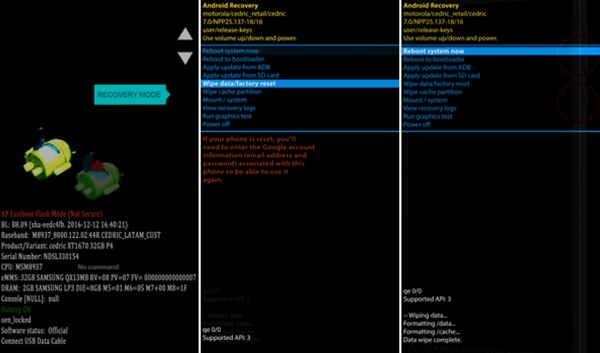
Put your tablet in Recovery Mode by holding the Volume Down + Power buttons. The button combination may vary from device to device.
Use the volume buttons to highlight the Wipe data/factory reset, and press the Power button to select it. When prompted, highlight and select Yes.
When it is done, highlight and select Reboot system now.
Way 3: Unlock Tablet Using Third-Party Software
Requirements: A computer and a USB cable.
Best for: Non-technical users who want a fast and simple unlock solution.
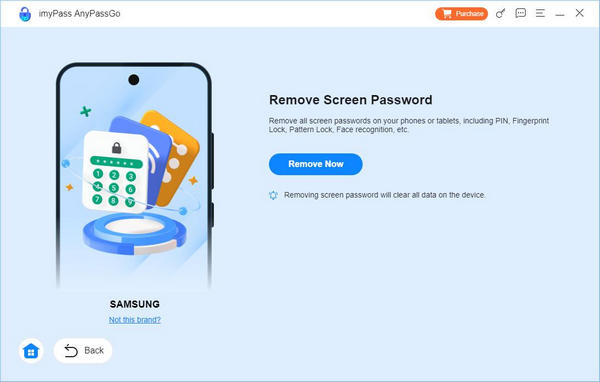
Another way to unlock an Android tablet is third-party unlock software, such as imyPass AnyPassGo. It allows you to remove a variety of screen locks without a password. Moreover, the software is easy to use.
4,000,000+ Downloads
Remove screen locks on Android tablets easily.
Available to almost all screen locks.
Don't require technical skills.
Support a wide range of tablet models.
Here is a procedure to unlock your Android tablet without the password:
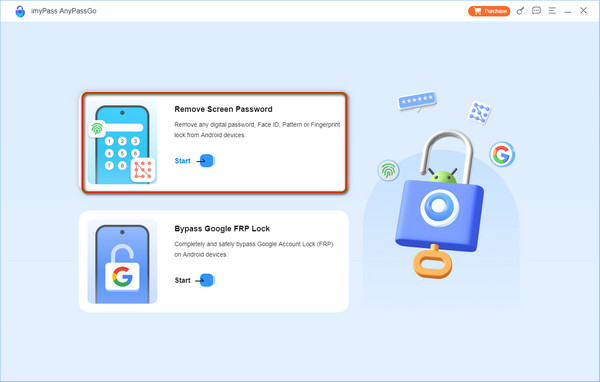
Install the tablet unlock software on your PC and launch it. Choose Remove Screen Password.
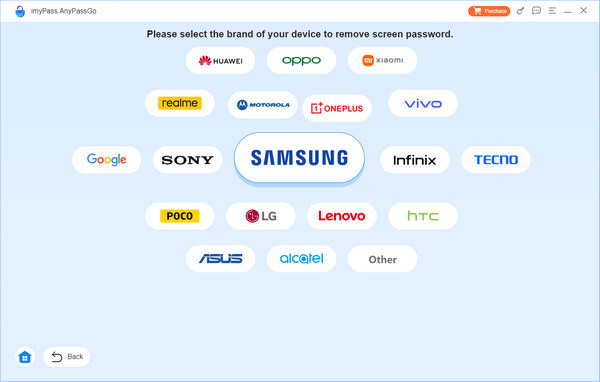
Choose your device brand, and connect your tablet to your PC with a USB cable.
Finally, click Remove Now, and follow the on-screen instructions to unlock your 5G tablet.
FAQs.
-
Is it possible to unlock Samsung tablet cellular?
Yes. You can unlock your cellular tablet by submitting a request if you meet the device unlock policy. If not, you have to use a third-party unlock service.
-
What happens if I forgot the pattern lock on my tablet?
As long as you forgot the pattern lock on your tablet, you will be locked out of your device. All data and files are inaccessible unless you unlock the pattern lock.
-
Does unlocking a tablet remove data on the device?
The answer is determined by the unlocking method. If you unlock your tablet without factory resetting, your data won't be erased.
Conclusion
This guide has introduced five effective methods to unlock an Android tablet in different situations. If you want remote access, you can use a Google Account or Find My Device. If you want a system reset, Recovery Mode is available without installing extra software. ADB is best for advanced users, while third-party unlock software is the easiest option for most users.
Penny focuses on GPS troubleshooting and Windows optimization. She formerly worked as a technical support engineer, helping clients solve location-based and system issues efficiently. Backed by IT support experience, she provides practical solutions that really work. In her free time, she likes hiking and geocaching, testing GPS tech in the real world.
Hot Solutions
-
Unlock Android
-
Unlock iOS
-
Password Tips
-
iOS Tips