



 Solution
 Support Center
 About Us
 Contact
How to Fake GPS on iPhone, iPad and Android Device
 Penny Warren Published on January 09, 2026GPS Location3-min reading
GPS faking, also known as GPS spoofing or GPS simulation, is a malicious technique that manipulates the Global Positioning System data. It misleads a GPS receiver about the actual location. That could be helpful when protecting privacy, playing AR games, access GPS-restricted content, and more. This article intends to delve deeper into this technique, including sharing proven methods and demonstrating workflow for each method for iPhone and Android devices.

In this article:
Part 1: One-stop Solution to Fake GPS on iPhone and Android
Faking GPS location on an iPhone requires more effort than with Android devices because Apple doesn't allow users to install a spoofer app. The easiest method is to complete the job using a computer. From this point, we recommend iLocaGo. It is able to change your geolocation to any address around the world. Plus, it is easy to use and doesn't require technical skills.
Advantages
1. Change the GPS location on a device with one click.
2. Create virtual locations and routes simulating a life walk.
3. Offer multiple modes for different purposes.
4. Customize speed and other options.
5. Support both iOS and Android devices.
Disadvantages
1. It requires a computer to fake GPS on mobile devices.
How to Fake GPS on Your Mobile Device
Connect to your phone
Start the best fake GPS GO location spoofer software after you install it on your PC. There is another version for Mac users. Connect your iPhone or Android phone to your PC with a compatible cable. If you are using Android, you can also connect it to your PC with a Wi-Fi wirelessly.

Choose Modify Location
After your device is detected, you will be presented with the mode screen. If you want to fake GPS on your iPhone or Android device, choose Modify Location. The other three modes, One-stop Mode, Multi-stop Mode, and Joystick Mode, are used to create virtual routes.

Fake GPS on your phone
Next, type an accurate address into the field on the pop-up dialogue. If you don't have an address, click a position on the map. Finally, click on the Modify button. Now, you can access the location-based app on your phone.

Part 2: How to Fake GPS Using a VPN
Another way to fake GPS location on an Android phone and iPhone is a VPN service. Apps and services track your location using GPS data and your IP address. VPNs are able to fake an IP address and switch your location to any other country.
Advantages
1. Fake GPS location without a computer.
2. Lots of VPNs are available.
3. Works on both iPhones and Android devices.
4. Easy to use.
Disadvantages
1. It cannot change to accurate addresses.
2. The prices are high.
We use ExpressVPN as an example to show you how to fake GPS on your device.

Go to the ExpressVPN website in your mobile browser.
Tap the Hamburger button and choose My Account.
Create an account with your email and a password.
Next, choose your device type, like iPhone & iPad and download the VPN app.
Open the app and log in to your account.
Read the terms and tap Agree and Continue.
Hit Continue, tap Allow, and enter your iPhone passcode to configure the VPN.
After configuration, tap the More button and choose a country.
You can also search for a city or country.
Tap the Connect button to fake a GPS location.
Part 3: How to Fake GPS on iPhone with 3uTools
3uTools is an iOS toolkit that comes with a free fake GPS GO location spoofer feature. While it only works for limited iOS devices, it is worth using if you want to change your iPhone location without paying a penny.
Advantages
1. Free to use.
2. Fake GPS location on iOS devices.
3. Offer lots of bonus features.
4. Won't install apps on your iPhone.
Disadvantages
1. It is not compatible with iOS 18 or later.
2. The success rate is low.
Install the free location spoofer software on your PC and open it.
Plug your iPhone into your PC with a USB cable.
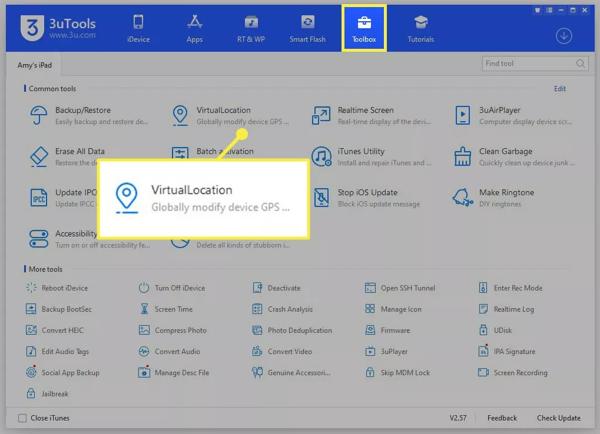
Go to the Toolbox tab on the top ribbon, and choose VirtualLocation.
Type the coordinates of the desired location.
Or click a place on the map.
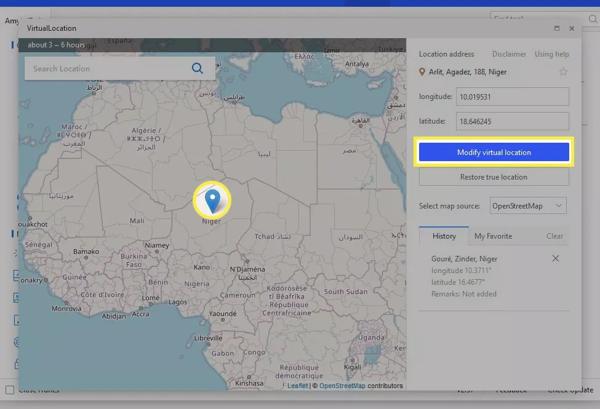
Click the Modify virtual location button to apply the change.
Part 4: How to Fake GPS on iPhone by GeoPort
When faking GPS for iOS free, 3uTools is not the only option. Due to the poor performance and low success rate, many people don't like 3uTools. Thankfully, there is another free option, GeoPort. It is an open-source project that lets you fake GPS location on your iPhone using a computer.
Advantages
1. Free and open source.
2. Spoof your location quickly.
3. Test location-based apps.
4. Simulate diverse scenarios.
Disadvantages
1. It may bring risks to your device.
2. It is difficult to set up.
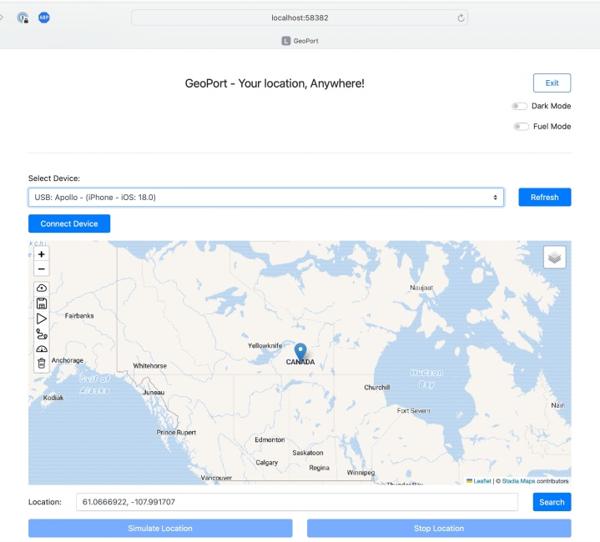
Download and install the latest version of GeoPort on your computer. It is available on Windows, macOS, and Linux.
Hook up your iPhone to your computer with a compatible cable.
Open the free fake GPS go location spoofer and input your admin password.
Then, a web page will open in your default browser.
Click and expand the drop-down list under Select Device and choose your iPhone.
Follow the onscreen instructions to put your device in Developer Mode.
Remember that Developer Mode requires you to remove your iPhone passcode and Apple Pay payment cards.
Next, enter the desired address in the Location field or click a position on the map.
Once everything is ready, click the Simulate Location button to fake GPS on your iPhone.
Part 5: How to Fake GPS on Android with a Mock Location App
There are a few fake GPS apps for Pokémon GO on Android devices. In addition to installing an app, you also need to set up the Mock Location App on your device. We use Fake GPS as an example to show you how it works.
Advantages
1. Easy to use.
2. Fake GPS without extra hardware.
3. Free to download.
Disadvantages
1.Your account may be banned.
Run the Play Store, search for Fake GPS, and install it.
Open the Settings app on your phone.
Go to Developer options.
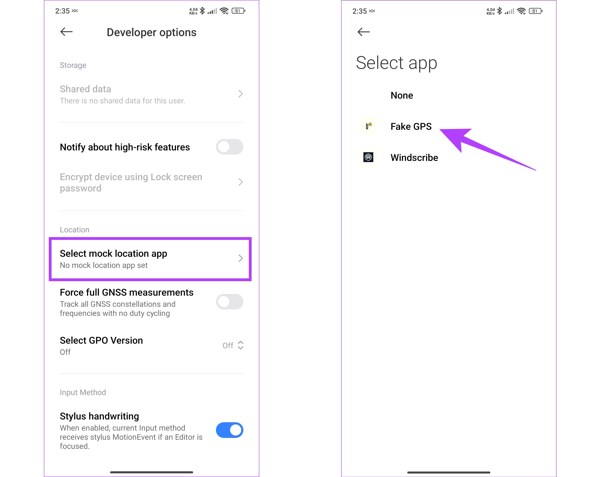
If you cannot find Developer options, go to About, and tap Build Number seven times.
Tap Select mock location app, and select your Fake GPS app.
Next, return to the Fake GPS app from your app tray.
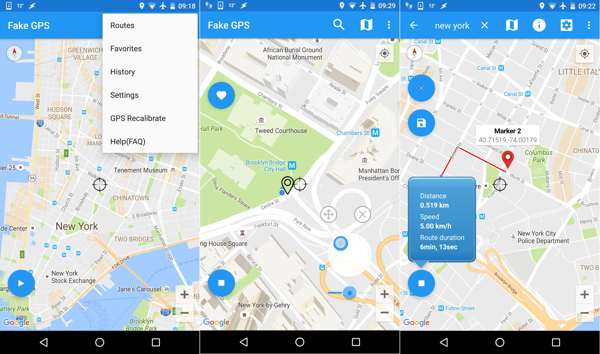
Drag the map to the desired location, and pin the right place.
Then, tap the green Play button to begin fake GPS on your Android phone.
Conclusion
This guide shared multiple methods to fake GPS location on your iPhone and Android device. 3uTools and GeoPort are free ways to change the GPS location on an iOS device. A mock location app is a simple option to fake GPS on Android devices. VPN services are a good option to fake GPS for websites. iLocaGo is the best option to change your iPhone or Android phone location quickly.
Penny is a senior editor from imyPass. She has focused on discovering perfect GPS location solutions in all scenarios, and also has experience in fixing computers.
Hot Solutions
-
GPS Location
- Best Pokemon Go Locations with Coordinates
- Turn Your Location Off on Life360
- How to Change Location on iPhone
- Review of iSpoofer Pokemon Go
- Set Virtual Locations on iPhone and Android
- TikTok Track Your Location
- Monster Hunter Now Joystick
- Review of IP Location Finder
- Change Mobile Legends Location
- Change Location on Tiktok
-
Unlock iOS
-
iOS Tips
-
Unlock Android


