



 Solution
 Support Center
 About Us
 Contact
How to Recover Old Messages on iPhone: Redeem Important Conversations
 Clara Prescott Published on January 13, 2026Recover Data3-min reading
Text messages are digitally short written texts on your iPhone and other devices. Your iPhone stores the old and new messages. It does not automatically delete them from the Messages app. However, there are times when the iPhone deletes the old messages. It happens when the automatic deletion feature is turned off. It deletes them after 30 days or 1 year after sending or receiving the messages.
Some iPhone users are not aware of this feature. They tend to lose their old messages without them knowing. How to recover old text messages on iPhone? The four easy ways for the process are available in this article.

In this article:
Part 1. Can You Recover Old Messages on iPhone via the Recently Deleted Folder
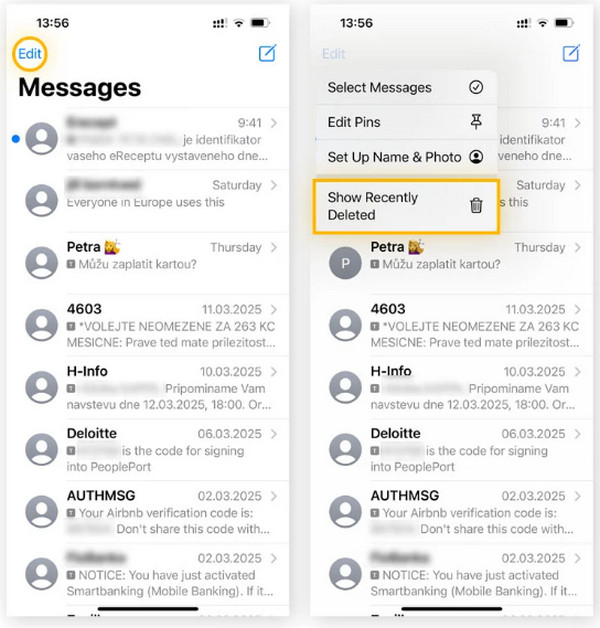
iPhone has a Recently Deleted folder from the Messages app. This folder allows you to recover your old and new messages that have been recently deleted. However, there is a catch. The Recently Deleted folder only stores the recently deleted messages for 30 to 40 days. If the time limit is reached, the text messages will also be deleted from the folder. This procedure is the same way to recover iPad deleted messages. How to recover old messages on the iPhone Messages app from the Recently Deleted folder? The steps are available below.
Open the Messages app on your iPhone. The recent messages will appear on the screen. After that, select the Edit button at the top left. Drop-down options will appear on the screen. Please tap the Show Recently Deleted button from the list.
The recently deleted messages will appear. Then, long-press the old messages you want to retrieve from the screen. More options will appear. Tap the Recover [Quantity] Messages button at the bottom.
Part 2. How to Recover Old Messages on iPhone with Backups
If the old messages are deleted from the Recently Deleted folder, there are still chances to recover them. It is only possible if you have their backups before they are deleted. iCloud, iTunes, and Finder are the local backups that can recover your old messages. Please continue browsing to see the restore process of the mentioned methods.
1. iCloud
When backing up your iPhone data, including messages, iCloud is the most recommended. It is the built-in backup and restore account on your Apple devices, including your iPhone. It is commonly used to recover deleted TikTok messages when lost. However, restoring the iCloud backup requires your iPhone to be new. You need to factory reset your iPhone if it has contents before restoring it. The reason is that there is no such option to restore messages only. Please recover messages from iCloud backup using the steps below.
If your iPhone is not new, factory reset it. To do that, please open the Settings app on your iPhone and tap the Settings app to open it from the Home Screen. After that, tap the General button from the list and select the Transfer or Reset iPhone.
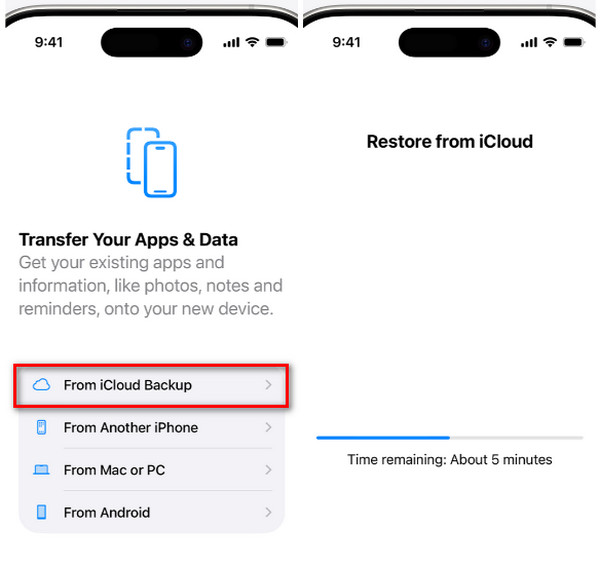
Please select the Erase All Content and Settings button. Set up the iPhone until the Transfer Your Apps & Data screen is shown. Tap the From iCloud Backup button and enter the iCloud account associated with the messages backup. Enter the authentication information.
Choose your preferred backup, and the Restore from iCloud screen is shown. Wait for the progress to be completed. Continue setting up the iPhone afterward.
2. iTunes/Finder
iTunes and Finder are other backup tools that can make a local backup for your iPhone. Did you back up your iPhone messages before they disappeared using them? This section is for you! iTunes is available on Windows and earlier versions of macOS. On the other hand, you can access Finder on the latest versions of macOS. Additionally, you can fix an iPhone that is Disabled Connect to iTunes with this tool. Follow the instructions below on how to use Finder or iTunes to restore your iPhone, including messages.
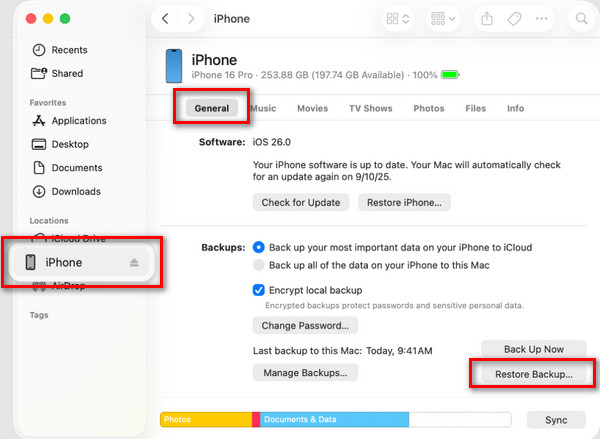
Open your iTunes or Finder on your Mac or Windows. Plug the iPhone into the computer using your USB wire. Then, select the iPhone button at the top or bottom left of the screen. More options will appear on the screen. Click the Summary or General button to proceed.
Click the Restore Backup option at the bottom right. Then, select your preferred backup from the screen. Enter the encryption password if required. Finally, click the Restore option to start restoring the iPhone.
Part 3. How to Recover Old Messages on iPhone Without a Backup
Unfortunately, some iPhone users did not back up their messages before they lost them. imyPass iPhone Data Recovery is the best tool that can help you. It can recover your old messages without a backup. It can retrieve them directly from your iPhone. The best thing about it is that it can also recover the attachments included in the messages. The latest and earlier versions of iOS are also supported. Photos, contacts, WhatsApp, videos, notes, call history, and app data are other data types that can be recovered with this tool. How to recover old messages on iPhone? The steps for this tool are available below.
Search for the main website of imyPass iPhone Data Recovery. After that, locate the download file from the computer and set it up. Later, install the file to launch it on your computer. Plug the iPhone into a computer with a USB cable afterward.
Click the Recover from iOS Device button at the top left. Wait for the iPhone information to be prompted. Click the Start Scan option to locate the deleted messages. The results will appear on the right side.
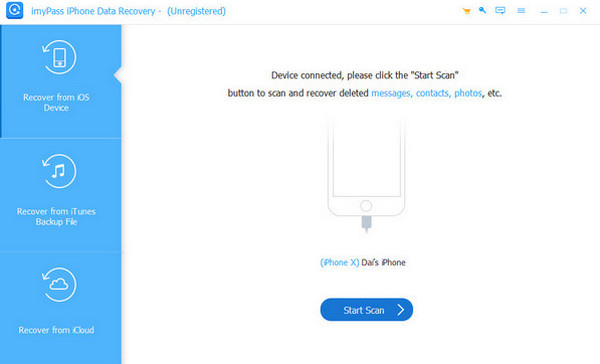
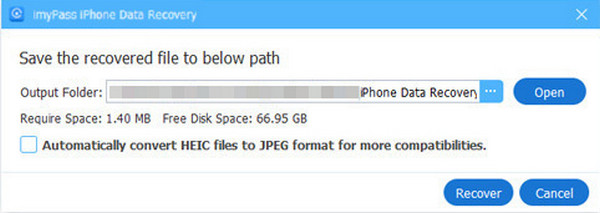
Please locate and select the old messages you need to restore. After that, click the Recover button. Choose their destination path and click the mentioned button again to start recovering your old messages.
Part 4. Can You Get Old Messages by Contacting the Carrier
Some believe that contacting the carrier can recover the old messages. It is one of the most common misconceptions about the iPhone carriers. Carriers do not store the old and new messages that your iPhone receives. Your iPhone carriers only store the metadata of the messages. It means that the phone numbers, date, time, and status of the messages are stored.
Additionally, some decide to visit their carrier for the message retrieval. It will only be a waste of time because they cannot retrieve your old or even new messages.
Conclusion
In conclusion, you can recover old messages on iPhone with or without a backup. imyPass iPhone Data Recovery can do both! This tool can recover your old messages directly from your iPhone and iTunes or iCloud backups. We recommend that you download the tool on your computer to explore more of the features.
Clara is an editor from imyPass. She specializes in data recovery. You can find professional tutorials and solutions for recovering lost data from any device. Many users reported that his tutorial is easy and useful.
Hot Solutions
-
Recover Data
- Recover WhatsApp View Once Photo
- Recover Deleted TikTok Videos on Mobile
- Recover Deleted Facebook Photo
- Recover Viber Messages, Photos, etc.
- Recover Deleted Snapchat Photos
- 5 Best Contact Recovery Apps
- Recover Deleted Discord Messages
- AppGeeker iOS Data Recovery Review
- Recover Data from DFU Mode
- Cannot Restore iPhone Backup
-
Unlock iOS
-
iOS Tips
-
Password Tips

