



 Solution
 Support Center
 About Us
 Contact
How to Recover Deleted Instagram Photos on Android/iPhone
 Clara Prescott Published on November 21, 2025Recover Data3-min reading
Since Instagram was released, it has had hundreds of millions of users around the world. Although it won’t erase your posts automatically, your Instagram photos still may disappear due to accidentally deleting, violating the rules, malicious attacks, and more. Fortunately, you have multiple ways to retrieve Instagram deleted photos on an Android phone or iPhone. This guide identifies the effective methods and demonstrates the workflow for each method with details.

In this article:
Part 1: How to Recover Recently Deleted Instagram Photos
Instagram has rolled out the Recently Deleted feature in 2021. It stores content that was deleted within 30 days. It means that you can get back deleted photos on Instagram before the expiration date. This way is available on both Android and iOS. You must not forget your Instagram password, or you can't access this feature in the app.
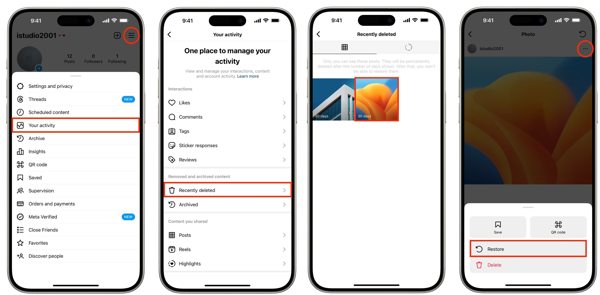
Run your Instagram app, and log in to your account.
Tap on your profile at the right corner, hit the Menu button with a three-line icon, and choose Your Activity. Choose Recently Deleted at the bottom.
Next, tap a post that contains the lost photo, press the More button with a three-dot icon, and choose Restore. Then you can recover deleted photos on IG from the original post.
Note:
The recovered post will have its original post-date.
Part 2: How to Recover Deleted Instagram Photos from the Archive
Some people wish to remove Instagram posts that are no longer visible to followers. In fact, it is not intuitive to delete photos and videos on Instagram. Alternatively, you archive them. Therefore, you can view deleted photos on Instagram by unarchiving them.
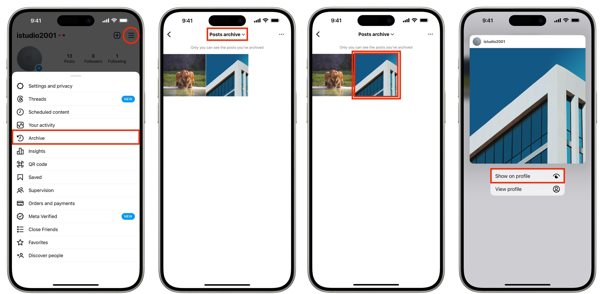
Tap the Menu button on the profile screen in your Instagram app.
Pick the Archive option, and pull down the top option. Here you can decide to view the Stories archive, Posts archive, or Live archive depending on where your photos are posted.
Next, tap and hold the post that you want to recover, and choose Show on profile on the context menu.
Part 3: [2 Ways] Recover Deleted Instagram Photos on iPhone
Use a Photo Recovery Tool
For iPhone users, imyPass iPhone Data Recovery is the easiest option to retrieve permanently deleted Instagram photos. It scans your device memory, looks for lost app photos, and lets you recover precious memories without backup.
4,000,000+ Downloads
Recover deleted Instagram photos on iPhone.
Extract lost photos from iTunes or iCloud backup without resetting your device.
Supports many social media, including Instagram, Facebook, and more.
Recover 20+ types of data, including photos, videos, music, etc.
Here are the steps to get back deleted Instagram photos on iPhone without backup:
Scan your iPhone
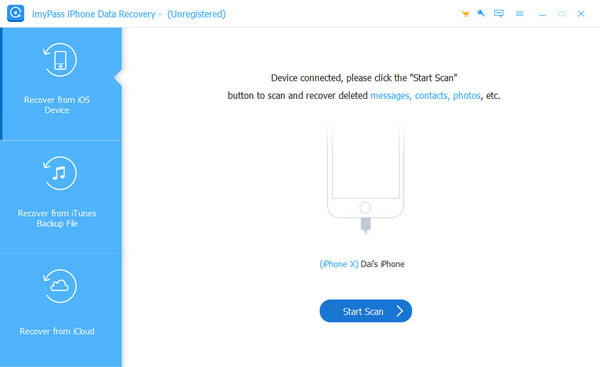
Install the best photo recovery software for iPhone on your PC and launch it. There is another version for Mac. Choose Recover from iOS Device on the left side, and connect your iPhone to your PC with a Lightning cable. Tap Trust on your screen if prompted. Next, click Start Scan to start scanning data on your device.
View Instagram photos
When it is done, you will be presented with all data recoverable. Locate the Meda heading, choose App Photos, and pick Show Deleted Only from the top drop-down option. Now, you can view deleted Instagram photos on the main panel.
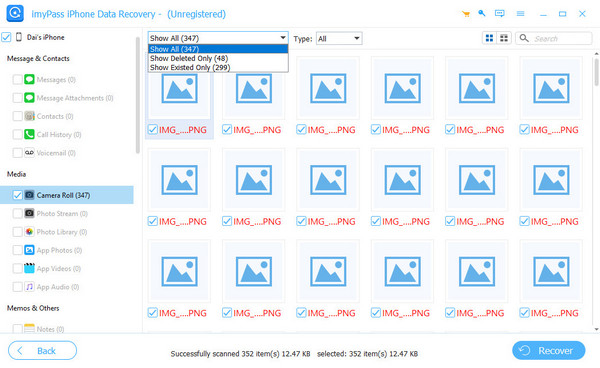
Retrieve deleted Instagram photos
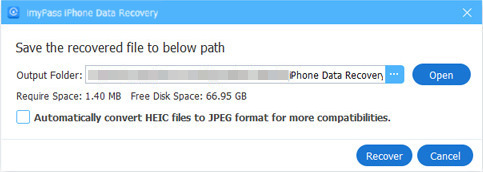
Select the photos that you wish to get back, and click the Recover button. Finally, set an output folder, and hit Recover again.
Use a Local Backup
If you are using both an iPhone and a Mac computer, you may have backed up your iPhone through iTunes/Finder. This backup will include Instagram data, including Instagram photos. After accidentally deleting Instagram photos, you can restore the backup that contains the deleted photos.
First, update the iTunes/Finder on your computer. And then, connect your iPhone to this computer.
Click your iPhone name on the left. Tap General or Summary.
Click the Restore Backup button. Select the backup that contains the lost Instagram photos.
Click the Restore button to restore the photos to your iPhone.

Part 4: [2 Ways] Recover Deleted Instagram Photos on Android
On Android, you have two other ways to get back deleted photos from Instagram depending on your settings. If you cannot find your photos in the Recently Deleted folder or Archive, try the ways below.
Way 1: How to Recover Deleted Instagram Photos from Gallery
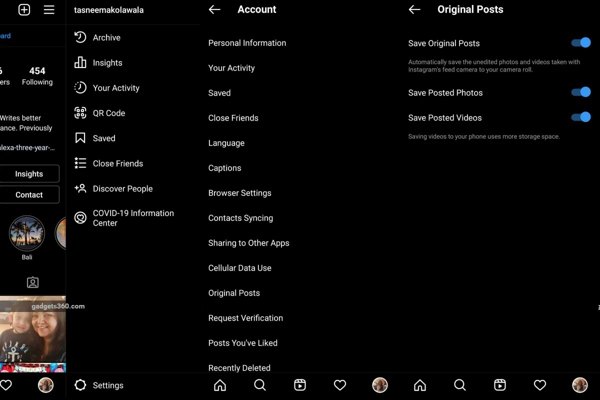
Tap the Menu button on the profile screen in the Instagram app, and choose Original Posts.
If the Save Posted Photo option is enabled, turn to your Gallery app.
Find and open the Instagram album and you can view the deleted Instagram photos.
Way 2: How to Recover Deleted Instagram Photos from Cache
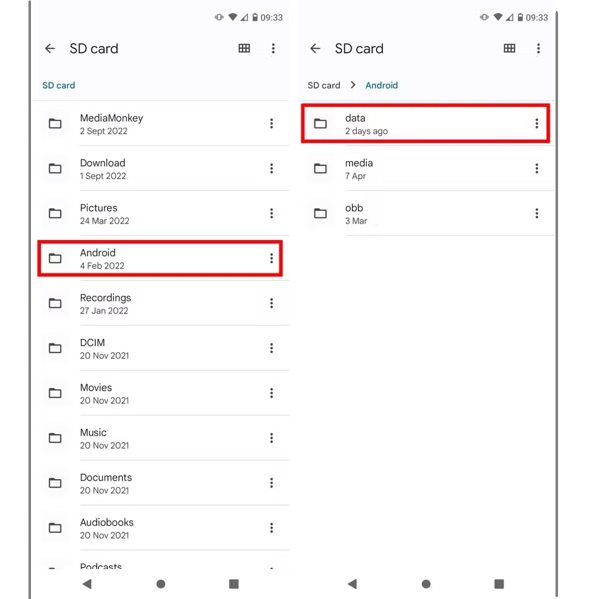
If you didn’t turn on the Save Posted Photo option in Instagram, run the File Manager app or a third-party file explorer app. Go to the Android folder, and next choose the data folder. Then search for the cache folder related to Instagram. You might get back the deleted Instagram photos from the Android cache.
Conclusion
Now, you should understand how to recover deleted photos from Instagram on an Android device or iPhone. The Recently Deleted folder built into Instagram is the first place to find your lost photos. Plus, you can try the Archive folder. Android users can look for deleted Instagram photos in the Gallery or cache, too. If none of the methods work, you can use imyPass iPhone Data Recovery as the ultimate way.
Clara is an editor from imyPass. She specializes in data recovery. You can find professional tutorials and solutions for recovering lost data from any device. Many users reported that his tutorial is easy and useful.
Hot Solutions
-
Recover Data
- Recover WhatsApp View Once Photo
- Recover Deleted TikTok Videos on Mobile
- Recover Deleted Facebook Photo
- Recover Viber Messages, Photos, etc.
- Recover Deleted Snapchat Photos
- 5 Best Contact Recovery Apps
- Recover Deleted Discord Messages
- AppGeeker iOS Data Recovery Review
- Recover Data from DFU Mode
- Cannot Restore iPhone Backup
-
Unlock iOS
-
iOS Tips
-
Password Tips

