Solution
 Support Center
 About Us
 Contact
How to Unlock a Samsung Phone Remotely Using Find My Mobile
 Gideon Byron Published on April 16, 2026Unlock Android4-min reading
Find My Mobile once provided an official way to unlock a Samsung phone remotely without a passcode. However, Samsung has removed the Remote Unlock feature through system updates starting with Q OS. As a result, it is no longer available on modern Galaxy devices running Android 10 or later.
Many users ask: "I can still see Remote Unlock option on my phone, is it working?" "What to do if the Remote Unlock option is missing?" In this guide, we'll explain how Find My Mobile used to unlock a Samsung phone step by step and also share an alternative if the Remote Unlock feature is unavailable on your phone.

In this article:
Part 1: What Is Samsung Find My Mobile
Samsung's Find My Mobile is a free feature to access and manage Samsung phones and tablets via your Samsung account. It lets you locate, track, manage, lock, and unlock your Samsung device remotely.
Key Features of Samsung Find My Mobile
- 1.Unlock a Samsung phone or tablet without the password. (For old Android versions)
- 2.Track and display the current location of a Samsung phone.
- 3.Back up data from Samsung to Samsung Cloud.
- 4.Bring a Samsung phone to factory status remotely.
- 5.Retrieve phone calls and messages from Samsung.
- 6.Manage all Samsung devices under your account online.
Samsung Find My Mobile uses location services and wireless network data to help locate your device if it is lost, accidentally left behind, or stolen. It is now integrated with SmartThings for a more seamless experience.
Part 2: How to Activate Find My Mobile
Obviously, the Samsung Find My Mobile feature is available to almost all Samsung phones and tablets including the latest flagships. It requires you to set up your Samsung account on your phone. Moreover, you must allow Google to collect your location information and agree to the Use wireless networks term and conditions. More importantly, you have to activate Find My Mobile on Samsung before unlocking it remotely.
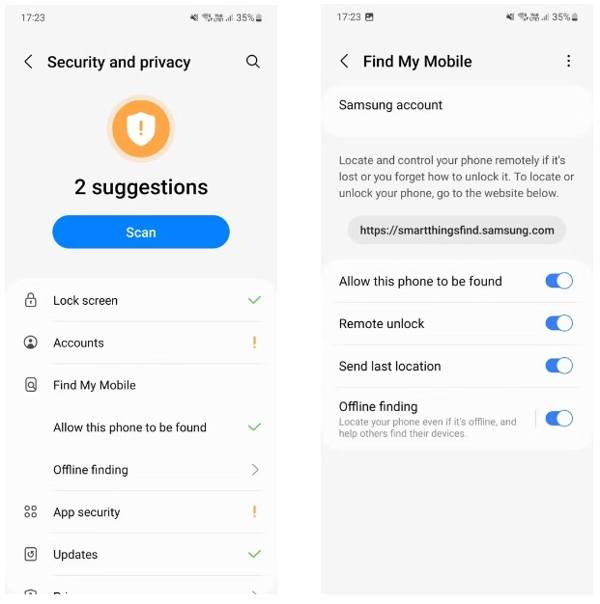
Open the Settings app on your Galaxy phone or tablet.
Go to Security and privacy or Lock screen and security (depending on your device model), then tap Find My Mobile.
Tap Allow this phone to be found and turn on the option.
Enable additional options such as Remote unlock, Send last location, and Offline finding.
Part 3: How to Unlock Samsung Phone via Find My Mobile
If the Remote Unlock function is still enabled in your Find My Mobile menu, you can unlock your Samsung phone via your Samsung account when you forget your PIN, pattern, or lock screen password. Before using Samsung Find My Mobile to unlock your phone, make sure:
- 1.Your Samsung phone connects to a network.
- 2.The Samsung account and password are used to set up your phone.
- 3.Find My Mobile is enabled on your phone.
- 4.Remote Unlock is turned on.
If you meet all the prerequisites, follow the steps below to unlock your device remotely.
Visit smartthingsfind.samsung.com and sign in with your Samsung account.
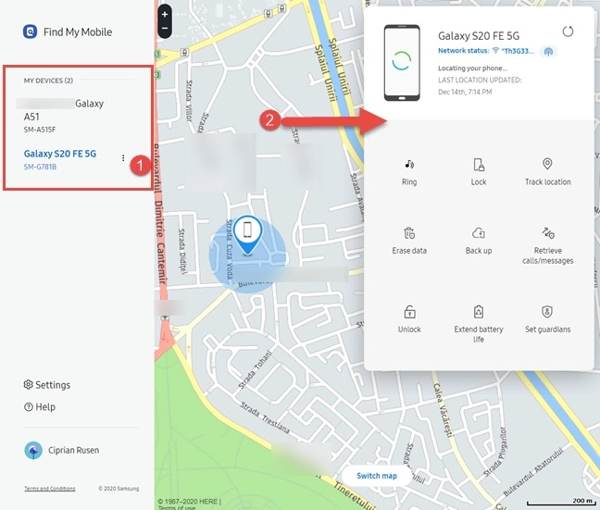
Then all associated devices will be listed on the left sidebar. Choose your locked Samsung phone to display its location on the map. Here you can see its status, battery level, network connection, and toolbox.
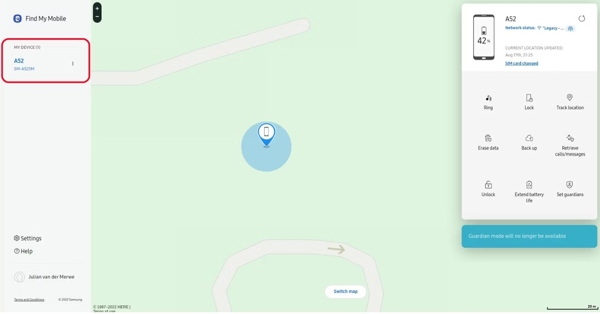
Click the Unlock button on the toolbox. When prompted, read the alert message carefully, and hit Unlock again. Then input the password of your Samsung account, and confirm that you are not a robot.
Once you are ready, click on the NEXT button. If your Samsung phone is powered on and connected to a network, it will be unlocked by Samsung Find My Mobile immediately.
Part 4: Best Alternative to Unlock Samsung Without Find My Mobile
Find My Mobile is only available on limited versions of Samsung devices and must be set up in advance before your phone gets locked. In addition, the feature is only working when your phone is online.
If the Remove Unlock function in Find My Mobile menu is missing, or your phone is offline, you won't be able to unlock it using this method. In that case, you may need an alternative solution, such as imyPass AnyPassGo, which is designed to help remove screen locks on most Android devices.
4,000,000+ Downloads
Remove the lock screen on Android without a password.
Support PIN, fingerprint, password, and more.
Work on 20+ Android phone brands.
Won't root your smartphone during the process.
Let's see how to unlock a phone with the alternative to Find My Mobile.
Install the unlocking software
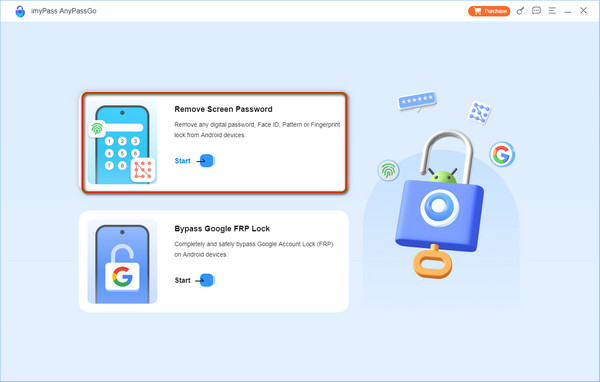
Launch the alternative to Samsung Find My Mobile after you install it on your computer. Choose the Remove Screen Password option in the home interface. Then connect your locked phone to your computer with a USB cable.
Select your device brand
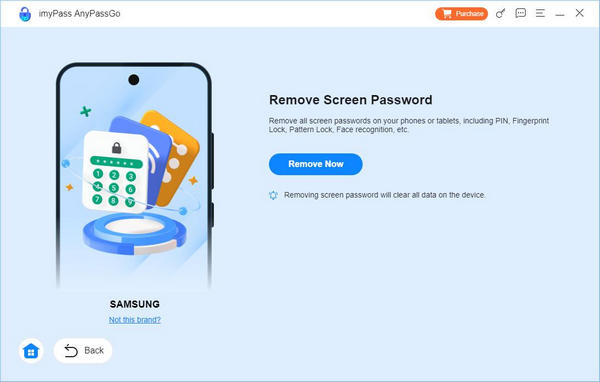
You will be led to select your phone brands, After that, click the Remove Now button and move on.
Remove the lock screen
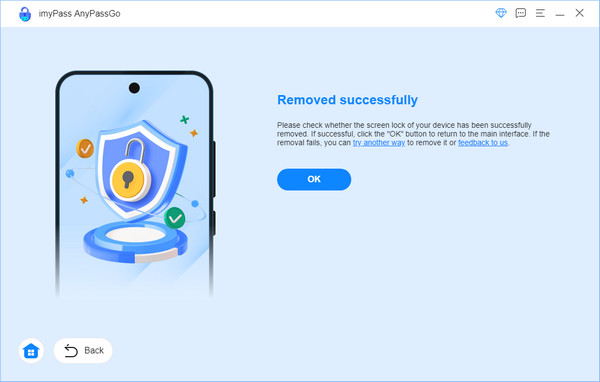
As long as you finish the steps above, the software will begin removing the lock screen immediately. A few minutes later, you can regain access to your phone.
Note:
This method will erase data on your device. It is recommended to back up your files in advance so that you can restore your phone from backups.
FAQs.
-
Can I unlock my Samsung phone myself?
Yes, you have a few ways to unlock your Samsung phone on your own. Samsung's Find My Mobile, for example, lets you unlock a supported device remotely if you have activated the feature on your phone.
-
What is the device unlocking app on Samsung?
There is no device unlocking app on Samsung phones, but you can use Find My Mobile to unlock your device, which is a web-based service for managing Samsung devices online for free.
-
Why Find My Mobile is not working for my Samsung phone?
When using Find My Mobile, you must have activated this feature on your phone. Plus, your phone must be online. If this feature is not working for your phone, you can use third-party Android unlocking tool like DroidKit recommended above.
Conclusion
This guide has introduced how to unlock Samsung devices using Find My Mobile. As a convenient way to track Samsung phones and tablets through the Samsung accounts, it lets you manage your devices remotely. Plus, we also shared an alternative solution.
Gideon writes about unlocking iOS, Android, and Windows devices. He previously worked as a mobile device specialist in a repair center, assisting customers with locked devices and password recovery. In his spare time, he tests new unlock tools, customizes smart devices and makes complex unlock processes simple and safe.
Hot Solutions
-
Unlock Android
-
Unlock iOS
-
Password Tips
-
iOS Tips