



 Solution
 Support Center
 About Us
 Contact
Restore email on iPhone with Ease in 5 Methods We List Below
 Clara Prescott Published on November 21, 2025Recover Data3-min reading
"I have accidentally deleted an important email from my iPhone. How to restore my email on my iPhone? "
Most people may encounter the same question when they delete significant emails on iPhone. Don't worry! This tutorial will show you the most comprehensive guide on how to recover deleted emails on iPhone. Read more.

In this article:
Method 1: Use the Undo Feature
As we know, the iPhone has a cool feature that enables you to undo your last operation. This is particularly useful when we delete some files by mistake. If you want to restore deleted emails on your iPhone, this method should be your first try.
However, while using this feature, you should keep in mind that it only works if you've just deleted an email and you're not doing anything else on your iPhone.
Here are the simple steps:
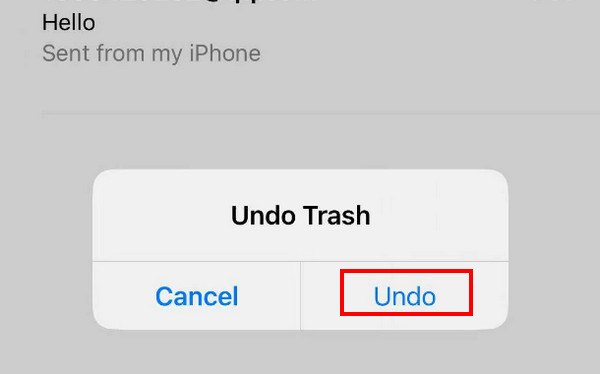
Shake your iPhone up and down or from side to side immediately after you accidentally delete the email. Do not do anything on your iPhone before that.
There will be a pop-up window on your screen. Choose Undo, and your deleted email will go back to your list.
Method 2: Restore Email on iPhone from the Trash
Usually, nearly all iPhone built-in apps like Message, Note, Photo, Mail, etc., have the feature to keep your recently deleted photos or other files for another 30 days. You can retrieve them anytime within 30 days if you haven't deleted them forever.
This method is applicable only if you have deleted your emails in less than 30 days. If over 30 days, the system will automatically delete your emails in the Trash.
Here are the steps on how to restore emails on iPhone through the Trash:
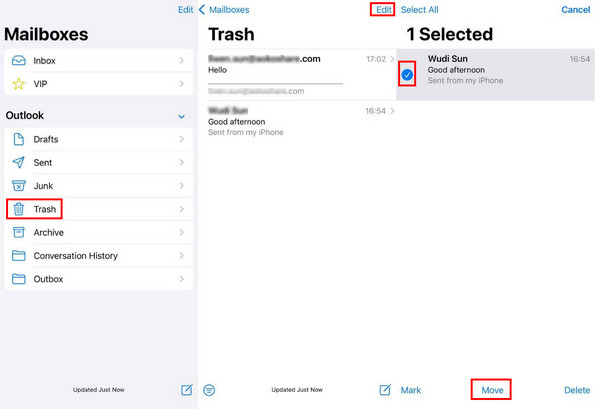
Open the Mail app on your iPhone.
Click the sidebar menu in the top left corner. Locate the Trash option and click it.
Tap the Edit button in the top-right corner and then scroll up and down to find your desired emails. Check them.
Click the Move button in the middle of the bottom line. Choose the location where you usually save your email.
Method 3: Restore Deleted Data on iPhone with a Recovery Tool
The former methods help you recover accidentally deleted emails on iPhone when you haven't turned off the app, or the emails have been deleted within 30 days. They always work well. However, if you can't find them with the two methods, the emails may be permanently deleted. In this case, if you don't have a backup, we recommend you to use imyPass iPhone Data Recovery.
What Is the iPhone Data Recovery Tool
It can scan even more than 30 days or permanently deleted emails on iPhone without backup. However, the longer your email is deleted, the lower the success rate it will be. In case you can't recover the desired emails you want, you can preview all the deleted data that this program finds on your iPhone. If you can find the deleted emails, you can get them with just by several clicks.
See its main features and usage tutorials below:
4,000,000+ Downloads
Recover permanently deleted emails from iPhone without backup.
Preview the scanned deleted emails for free.
Support the latest iPhone 17 and iOS 26.
Extract files from iTunes backup without erasing iPhone.
It supports over 20+ types of data, including emails, notes, contacts, photos, and more.
Steps to Recover iPhone Email with a Recovery Tool
Download imyPass iPhone Data Recovery to your computer by clicking the button above. It is available on both Windows and Mac computers. Launch it after installation.
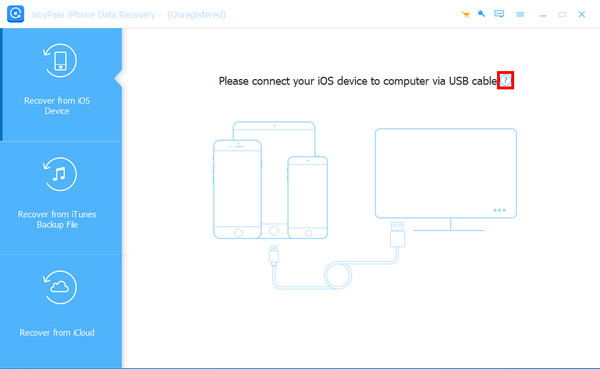
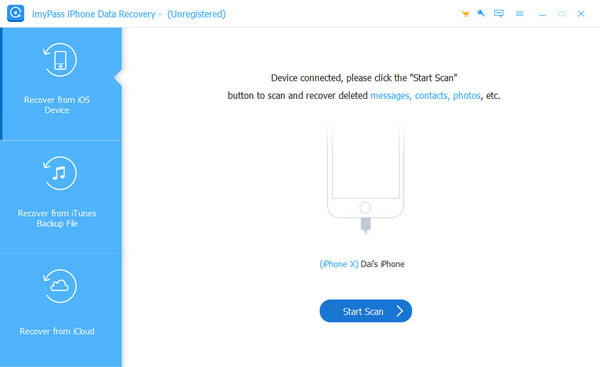
Connect your iPhone to the computer with a USB cable. You need to tap Trust on your iPhone if you first connect the two devices. When successfully connected, click the Start Scan button on the interface.
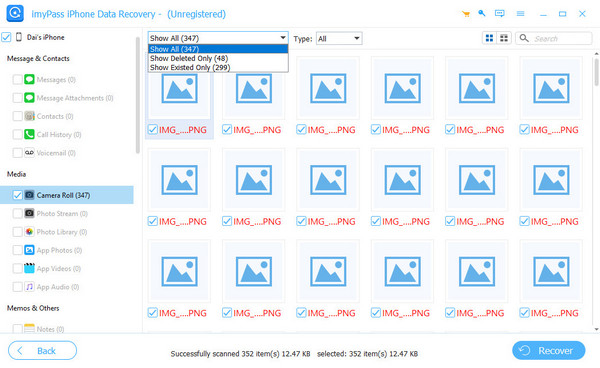
Wait for a moment in patience. Please don't disconnect your device midway. Then, you will see the data types in the left panel. Choose Emails under Memos & Others, and you will see all emails on the right. Check all emails you want to recover. After selection, hit the Recover button in the bottom-right corner.
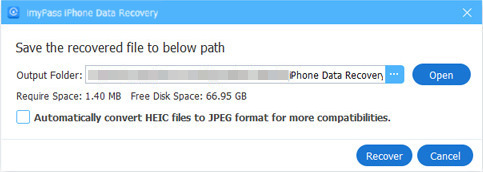
Specify the output path and export the deleted emails.
Method 4: Recover Deleted Emails on iPhone via iCloud
From iCloud Backup
Before the introduction, we have to note that you must have a backup of your iPhone first because this method requires you to erase all the data on your iPhone. You should perform the steps with caution.
Here are the steps on how to recover permanently deleted emails from iPhone via iCloud backup:
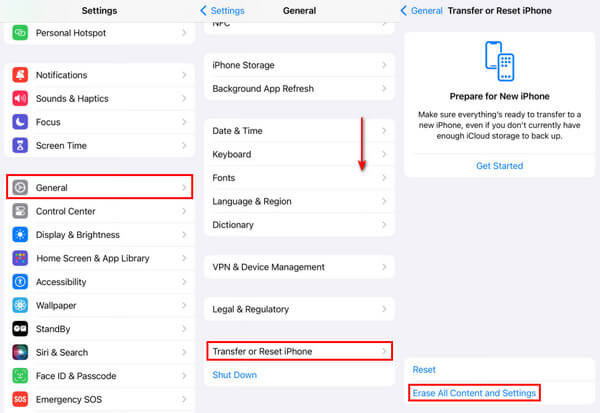
Go to your iPhone Settings and find General.
Scroll down to the bottom and click Transfer or Reset iPhone. Click Erase All Content and Settings on the next page and confirm.
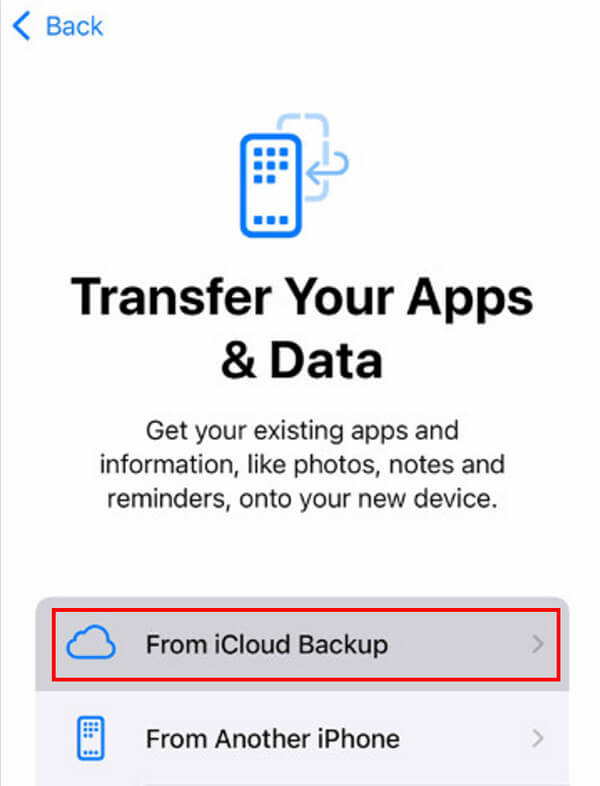
Then, on the iPhone screen, click the From iCloud Backup option to restore all the data from iCloud to your iPhone. This may include the emails you've deleted.
From iCloud Account
You can also restore iCloud email on iPhone from the iCloud account. The steps are as follows:
Using a browser on your iPhone, go to the icloud.com website.
Log in to your iCloud account using your Apple ID and password.
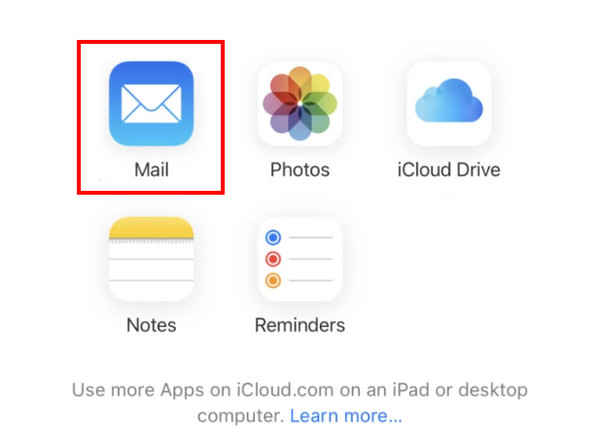
Tap the Mail.
Go to the Trash tab and select the emails you want to recover.
Tap the Move option at the bottom and choose your saving path, such as recovering on the Mail app.
Method 5: Final Method: Contact the Email Provider
Some email providers have a service that enables users to restore deleted emails from their servers. This feature is usually built into the Account Settings or Help Center.
The steps to restore emails to iPhone are as follows:
First, you should find out who your email provider is.
Go to your email provider's official website and find the Account Settings or Help Center.
Usually, there will be contact information for technical support. You can read the information in detail and follow the steps to get in touch.
Conclusion
To conclude, this post has analyzed in detail how to restore deleted emails on an iPhone. We mainly introduced 5 methods that are suitable for different occasions.
At the end of the post, we have recommended a powerful and efficient tool - imyPass iPhone Data Recovery to help you recover permanently deleted emails when you permanently delete them.
Clara is an editor from imyPass. She specializes in data recovery. You can find professional tutorials and solutions for recovering lost data from any device. Many users reported that his tutorial is easy and useful.
Hot Solutions
-
Recover Data
- Recover WhatsApp View Once Photo
- Recover Deleted TikTok Videos on Mobile
- Recover Deleted Facebook Photo
- Recover Viber Messages, Photos, etc.
- Recover Deleted Snapchat Photos
- 5 Best Contact Recovery Apps
- Recover Deleted Discord Messages
- AppGeeker iOS Data Recovery Review
- Recover Data from DFU Mode
- Cannot Restore iPhone Backup
-
Unlock iOS
-
iOS Tips
-
Password Tips

