



 Solution
 Support Center
 About Us
 Contact
Fix iAnyGo Not Working to Simulate Your Location for Various Apps
 Penny Warren Published on December 19, 2025GPS Location3-min reading
Tenorshare iAnyGo is a program that is made for location modification on your mobile phones, like iPhone and Android phones. It is a good tool that can be used by professionals and beginners. However, some users report that there are issues that commonly happen when they use the software.
In this article, the six common issues why Tenorshare iAnyGo is not working are listed. The best thing about it is that it helps you fix them quickly. Please continue browsing this article to see their full details.

In this article:
Part 1. Fix 6 Issues of iAnyGo Not Working
Tenorshare iAnyGo can change or mock a location on your Android phone or iPhone. However, this convenience sometimes turns to disaster when the software experiences an issue. Here are the six most common issues on the tool and how to fix them immediately.
Issue 1: iAnyGo Bluetooth Not Working
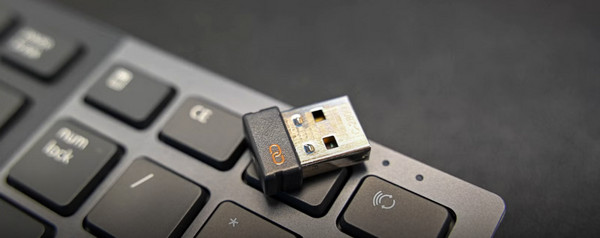
The iAnyGo Bluetooth not working issue can occur when the computer on which you downloaded it experiences hardware or driver issues. It can also happen when there is a glitch in the computer system. If so, you can turn off and turn on the Bluetooth feature to restart its connection.
Click the Notification Center button on your computer. Click the Bluetooth button to turn it off.
Please turn on the Bluetooth feature by clicking it again. On the other hand, some computers do not have a built-in Bluetooth feature. You may use a Bluetooth adaptor.
Issue 2: iAnyGo Don't Change Location [Error 12]
Some users experience Tenorshare iAnyGo not working with Error 12. It happens when there is a glitch in the software. Alternatively, it can also be caused by failed USB connections. Here is how to fix it.
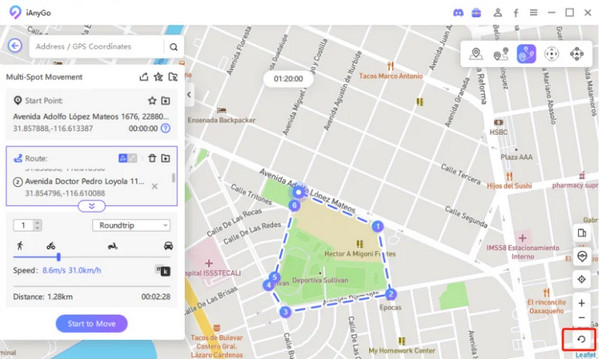
Suppose that you are on the interface of Tenorshare iAnyGo, where you change your location. Try to change the location once more.
Click the Reset option at the bottom right. Then, the location will reset. Try to change the location to your preferred one afterward.
Issue 3: iAnyGo iOS 18 Not Working
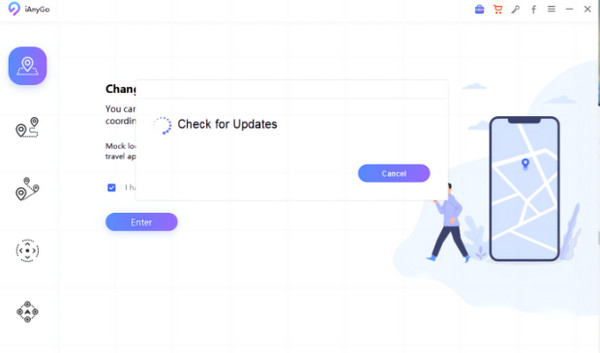
iAnyGo supports various iOS versions. However, you can still experience where iAnyGo iOS 18 is not working due to limitations. If so, you should update the version of Tenorshare iAnyGo because its version might be updated. The steps below will show you how.
Visit the official website of Tenorshare iAnyGo on your web browser. Then, look for the latest version of the tool.
Once you see the latest version and you do not have it, open the software. Then, the tool will automatically ask to update it. Update the tool and wait for it to be completed.
Issue 4: iAnyGo Failed to Load Resource
Sometimes, iAnyGo fails to load its resources once you open it on your computer. If that is the case, you can simply check your network stability or connect your computer to the fastest internet connection. You can also restart your computer or the mentioned software to fix this common issue.
Issue 5: iAnyGo Failed to Apple Driver Installation
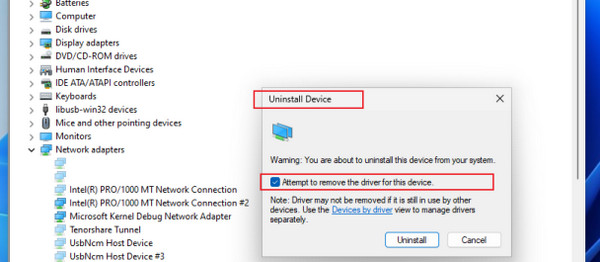
The Apple driver installation refers to the software that allows you to communicate with Apple hardware and software on your PC. Since iAnyGo changes the location on your iPhone, a failed Apple driver installation will be a hindrance to the process. The steps will help you uninstall the Apple driver from your computer.
Right-click on the Windows option at the bottom left of the screen. Then, more options will be prompted on the screen. Please select the Device Manager button from the list to open the correct tool for the process.
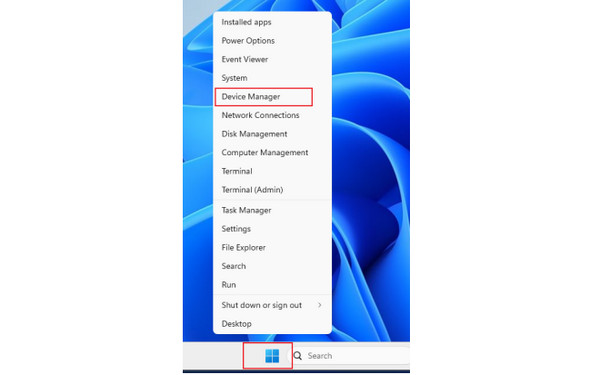
Please select the Show Hidden Devices button from the screen. Locate the Tenorshare tsncmdevice from the network screen. Right-click on the screen and select Remove Device. Choose Remove Driver and uninstall Apple NCM Device for iOS17.
Issue 6: iAnyGo Network Abnormal
When the network of Tenorshare iAnyGo fails, it will also affect the performance of the tool. If so, you need to fix the network issues on your computer first. The best thing to fix this issue is to restart Tenorshare iAnyGo. This procedure is simple but effective.
Part 2. Reviews of iAnyGo
Tenorshare iAnyGo is a location changer tool that does not require a crack process for your Android phone and iPhone. You can also do it without a jailbreak or root. You can use this tool without a computer because you can download it on your Android phone. However, it does not have an app version for your iPhone.
Another good thing about this tool is that you can use it for different famous apps. It includes Facebook, X, PoGo, WhatsApp, MHunter, and more. To complete the Tenorshare iAnyGo review, see its pros and cons below.
Pros
- It supports multiple spoofing modes.
- It has anti-ban protections.
- It encounters regular updates.
Cons
- It still has a high risk of account ban.
- Performance issues are experience.
- It offers a limited trial.
- iAnyGo is not working with iOS 17 and other versions when outdated.
- It drains the battery of the device.
- It is a bit expensive.
- It experiences a failure in plugging in the devices.
Part 3. Alternative to iAnyGo
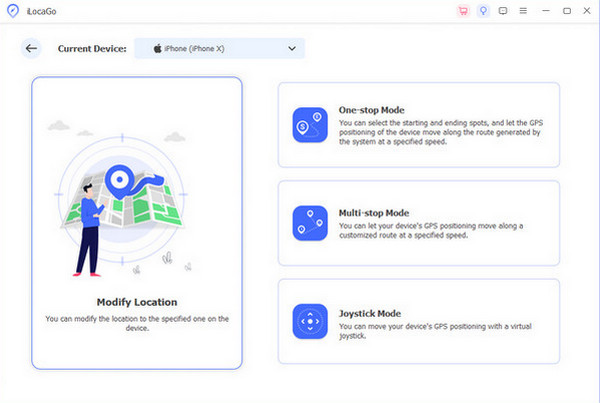
Due to the experienced issues of iAnyGo, you might want to look for an alternative. imyPass iLocaGo is the best choice! It is also a tool that can change your iPhone and Android phone location. Its main focus is to modify your location in one click, play GPS joystick with mobile games, and simulate routes around the globe.
It is the best alternative when iAnyGo is not working for Pokémon GO because it supports the app. Its intuitive interface is best for users who do not have experience in changing locations. Also, you do not need an internet connection to make this tool work. It only requires a wired connection to change your iPhone and Android phone location. Its steps are listed below to help you use this tool.
Open a web browser to visit the website of imyPass iLocaGo. Then, set up, install, and launch it to see the interface.
The tool will require you to plug your iPhone or Android phone into the computer. Please use a USB cable for this process. Follow the on-screen instructions to complete the process correctly.
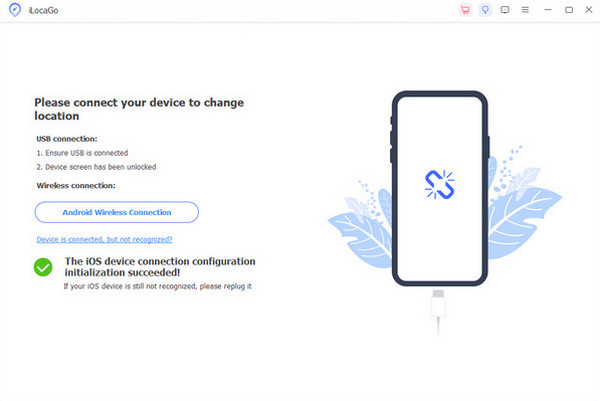
Select the Modify Location button on the left. Then, go to the Modify Location section and enter your preferred location. Finally, click the Modify button at the bottom right to change your iPhone or Android phone location.
Conclusion
This article is about determining and fixing the issues why iAnyGo is not working. imyPass iLocaGo is listed in this post as an alternative to the mentioned software. It can modify the location from an iPhone or Android phone in just a few clicks. Download the software on your computer to experience all its features.
Penny is a senior editor from imyPass. She has focused on discovering perfect GPS location solutions in all scenarios, and also has experience in fixing computers.
Hot Solutions
-
GPS Location
- Best Pokemon Go Locations with Coordinates
- Turn Your Location Off on Life360
- How to Change Location on iPhone
- Review of iSpoofer Pokemon Go
- Set Virtual Locations on iPhone and Android
- TikTok Track Your Location
- Monster Hunter Now Joystick
- Review of IP Location Finder
- Change Mobile Legends Location
- Change Location on Tiktok
-
Unlock iOS
-
iOS Tips
-
Unlock Android


