



 Solution
 Support Center
 About Us
 Contact
How to Change iPad Location to Access Contents from Various Regions
 Penny Warren Published on December 19, 2025GPS Location3-min reading
The iPad location is a must because some of the applications rely on it. For instance, you are playing a mobile game that uses your real-time location. Enabling the Location Services feature is needed to make it function accordingly.
However, some iPad users are not comfortable sharing their real-time location with most third-party apps. They tend to fake the location on their iPad to hide their real location. You might wonder: How to change my location on my iPad? The easiest methods to change your iPad location are here! Please scroll below to take a look at them and use them conveniently.

In this article:
Part 1: How to Change iPad Social Apps Location
The iPad can store multiple apps in its storage. It could be about mobile games, managing apps, or social media apps. Some of the applications can change their location using their built-in settings. How convenient, right? WhatsApp and Facebook are some of them. Change their location with their full descriptions below.
1. Change Location on WhatsApp
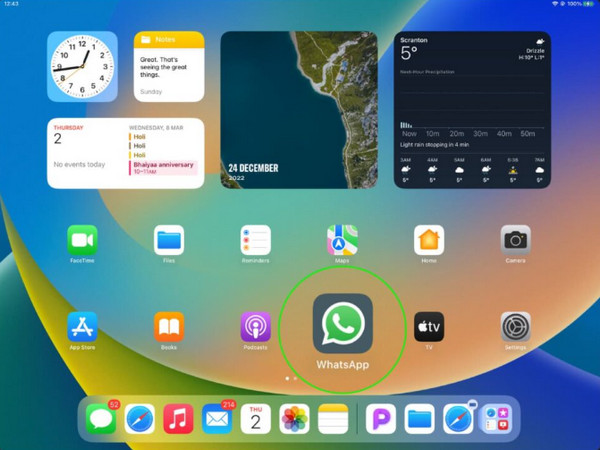
One of the most used free cross-platform messaging and video calling apps is WhatsApp. This application permits you to share your location with your contacts. However, some individuals do not want to use their real-time location with WhatsApp due to privacy concerns. Change the WhatsApp location on iPad with the steps below.
Please turn on the GPS location services on your iPad. To do that, open the Settings app and tap the Privacy and Location Services button. Open WhatsApp.
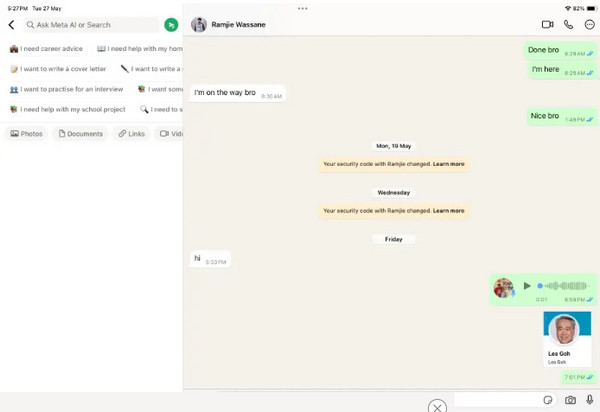
Open the conversation where you want to fake the location. Tap Search to proceed. Please search for your preferred location and type it at the top. Tap it to change your WhatsApp location on iPad.
2. Change Location on Facebook
Facebook is another famous social media platform that is available on iPad. This app requires an enabled location service for personalized experiences. It includes relevant advertisements, content from countries, businesses, and more. The location commonly appears in the posts, including videos and photos.
However, some Facebook users are afraid to share their real-time location. On the other hand, some users prefer to see content from other countries. Follow the steps below to change your location on the iPad Facebook app.
Unlock the iPad, and you will be prompted from its Home Screen, which is where the applications are stored. Please tap the Facebook app to open it on the mentioned Apple device and sign in. After that, go to the post where you want to change the location from your account.
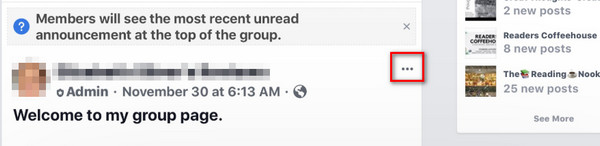
Tap the Three Dots button and select the Edit Post button from the options list that will be prompted. Tap the Location button from the list and click the Check-in button. Please choose your preferred location and tap the Save button to change it.
Part 2: How to Break the Geo-limitation and Download Apps?
Some applications that are downloadable on your iPad have geo-limitations. It happens when the apps are only made or accessible to some countries. The good thing is that you can break the geo-limitation. You do not need any third-party apps or tools for this procedure. iPad allows you to use the App Store, which is the app where you can download apps, to do. It only means that you can change the location of multiple restricted apps on your iPad. For example, you can change location from Spotify, WhatsApp, Instagram, and more. The steps below will guide you on how.
Go to the App Store, and the suggested apps will appear on the screen. Please select the Featured button at the bottom left.
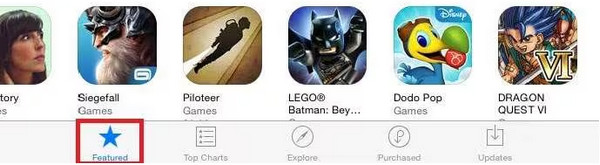
You will see more options on the next screen. Please select your Apple ID from the options list. Tap the View Apple ID button from the small dialog box and select the Change Country or Region button. Please select your preferred country afterward.
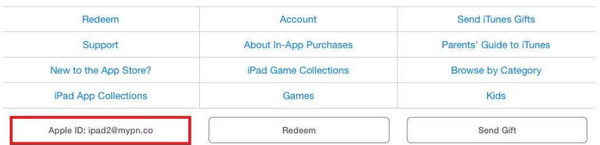
Ensure that you agree with the Terms & Conditions of the app. Follow the on-screen instructions to complete the changes from the iPad location. Finally, tap the Done button to save the location adjustments.
Part 3: How to Fake GPS on iPad and Play Pokémon GO?
Changing the iPad location is sometimes due to mobile games, like Pokémon GO. imyPass iLocaGo is a third-party tool that can help you with that. You can use it as your GPS joystick to catch multiple Pokémon without moving to your place. This third-party tool can be used on your iPhone, iPad, and Android phone by downloading it on your Windows or Mac.
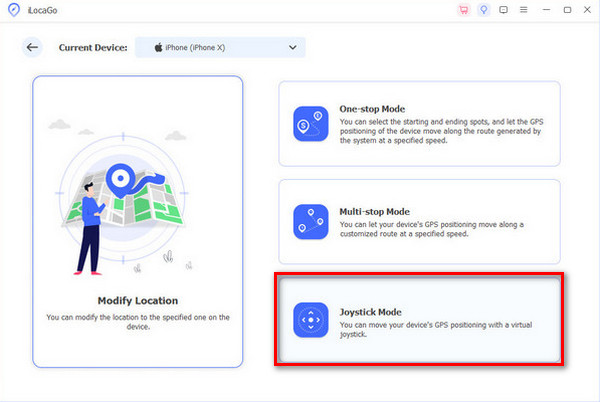
Besides the Joystick Mode feature, it has three other modes for changing your location. It includes One-stop Mode, Multi-stop Mode, and Modify Location. Change the location on the iPad to play Pokémon GO using this tool with the steps below.
Please open the web browser on your computer to search for the website of imyPass iLocaGo. After that, set up the downloaded file and ensure that you install it afterward. This way, the tool will be automatically launched on your computer.
Get a compatible USB cable and plug the iPad into the computer using it. Ensure that it is working. The full description of the four modes will appear on the screen. Please select the Joystick Mode button at the bottom right of the screen.
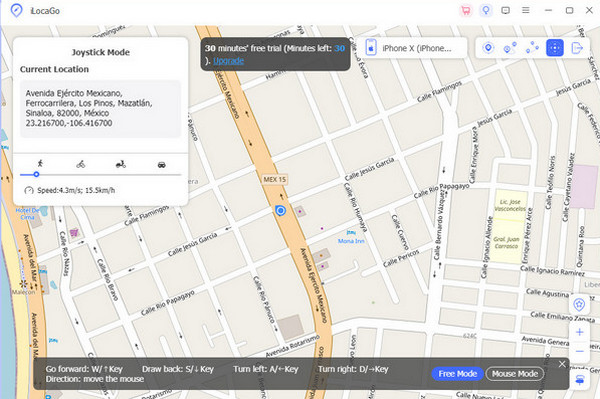
The related features on the mentioned mode will be prompted along the map interface. Then, click the Start Move button. After that, you can use your keyboard or mouse to navigate the location on your iPad.
Part 4: Tips: How to Change Location to iPad
Besides changing the location on your iPad, you can also change it directly by installing a VPN. Flow VPN is one of the used VPN apps to change your iPad location. Please note that there is no built-in app or feature on iPad that can change your location. You might also need to review the best location changer reviews as an alternative. Set up and configure the VPN app to change your iPad location with the steps below.
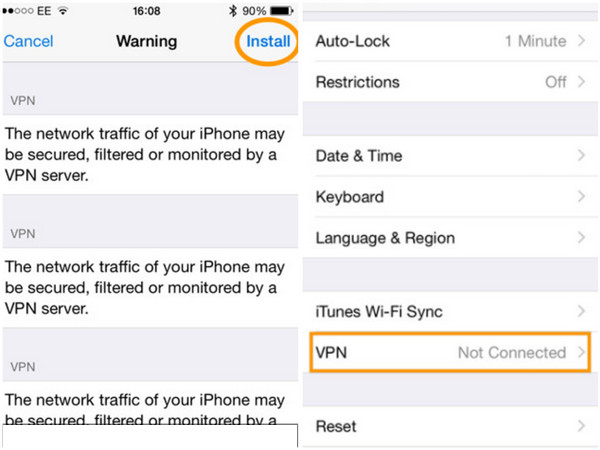
Download Flow VPN. After that, tap Install Profile and enter your passcode. Tap Install afterward. Go to the Settings application and choose the General button from the options list. Tap the VPN button and select Add VPN Configuration. Select PPTP.
You are required to insert the following information from the configuration. Enter Flow VPN from the Description. Type uk.fv.pn from the Server section. From the Account section, enter your email address. Enable the Send All Traffic slider and tap Save to change the location.
Conclusion
All in all, you can change the location on an iPad in different ways. You can change the social apps on your iPad and more. Users can also use imyPass iLocaGo to fake the GPS from their iPad to play Pokémon GO. Download the tool now to your computer and learn more about its features that will give you convenience.
Penny is a senior editor from imyPass. She has focused on discovering perfect GPS location solutions in all scenarios, and also has experience in fixing computers.
Hot Solutions
-
GPS Location
- Best Pokemon Go Locations with Coordinates
- Turn Your Location Off on Life360
- How to Change Location on iPhone
- Review of iSpoofer Pokemon Go
- Set Virtual Locations on iPhone and Android
- TikTok Track Your Location
- Monster Hunter Now Joystick
- Review of IP Location Finder
- Change Mobile Legends Location
- Change Location on Tiktok
-
Unlock iOS
-
iOS Tips
-
Unlock Android


