



 Solution
 Support Center
 About Us
 Contact
How to Restore Contacts from iCloud to Your iPhone
 Clara Prescott Published on March 27, 2026Recover Data3-min reading
Contact book is a useful feature on the iPhone. It stores unlimited contacts and allows you to keep in touch with your friends, family, colleagues, clients, and more. However, accidental deletion or software glitches can lead to contact loss. It makes sense that many iPhone users back up their contacts to iCloud, which can save up to 50,000 contacts. This tutorial tells you how to restore contacts from iCloud to your iPhone in various situations.

In this article:
Part 1: Restore Contacts from iCloud
You have two options to save your iPhone contacts to iCloud: syncing and backup. According to Apple, the contacts you synced to iCloud won’t include iCloud backup. If you have synced your contacts, follow the steps below to restore contacts on your iPhone from iCloud.
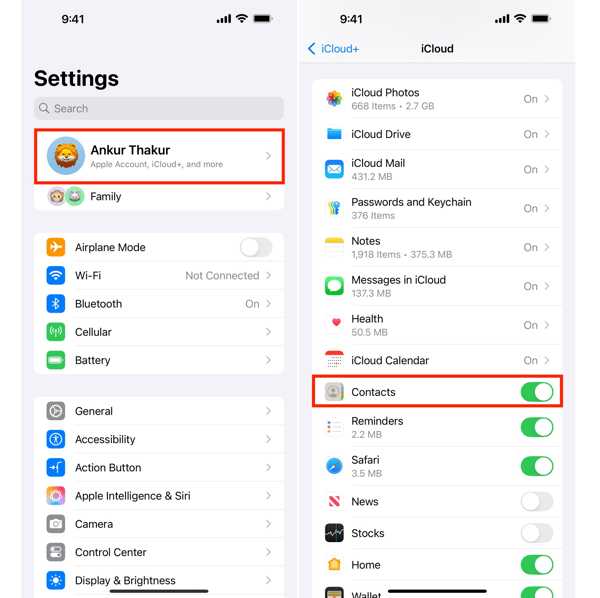
Open the Settings app on your iPhone.
Tap on your profile and choose iCloud.
Tap See All, and scroll down to locate Contacts.
Toggle off Contacts and choose Keep on My iPhone.
Next, turn Contacts back on and tap Merge.
Run the Contacts app from your home screen.
Then, check whether your contacts are successfully retrieved.
Part 2: Restore Contacts from iCloud Backup
As mentioned previously, your contacts will be backed up to iCloud if you didn’t sync them. Once you find that some important contacts have disappeared, you can get contacts from the iCloud without resetting your device.
Make sure your iPhone is online.
Go to www.icloud.com and sign in with your Apple ID and password.
If you have set up Two-factor authentication, enter the verification code.
Click your profile picture and choose iCloud Settings.
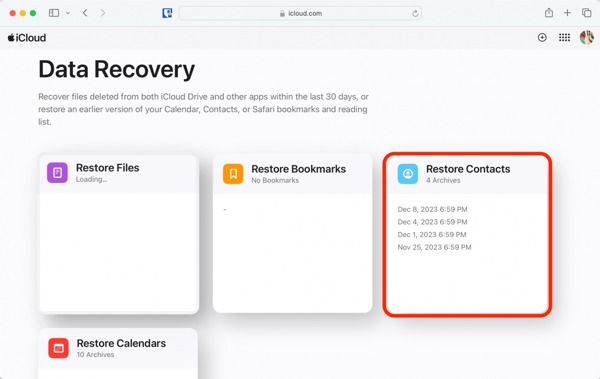
Scroll down to the bottom and click Data Recovery.
Choose Restore Contacts.
Locate the right backup according to the date.
Then, click the Restore button.
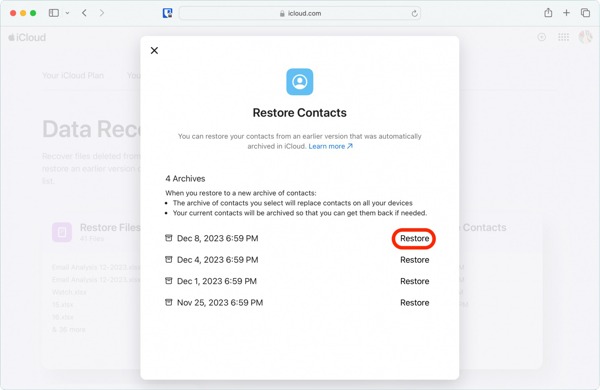
When prompted, click the Restore button on the confirmation dialog.
After the restore completes, go to the Contacts app on your iPhone to check your contacts.
Part 3: Recover iCloud Contacts on iPhone
Another way to recover contacts from iCloud backup is imyPass iPhone Data Recovery. It is able to open iCloud Contacts, preview your contacts, and retrieve selected contacts to your iPhone. Moreover, it is available to contacts synced to iCloud, too. Even if you don’t have an iCloud backup, the software can help you get back lost contacts from your iPhone's memory.
4,000,000+ Downloads
Retrieve iCloud contacts to the iPhone from backup.
Recover deleted contacts without backup.
Preview lost contacts for selective recovery.
Restore iCloud contacts to iPhone or computer.
Support a wide range of iPhone and iPad models.
How to Recover iCloud Contacts to iPhone
Download iCloud backup
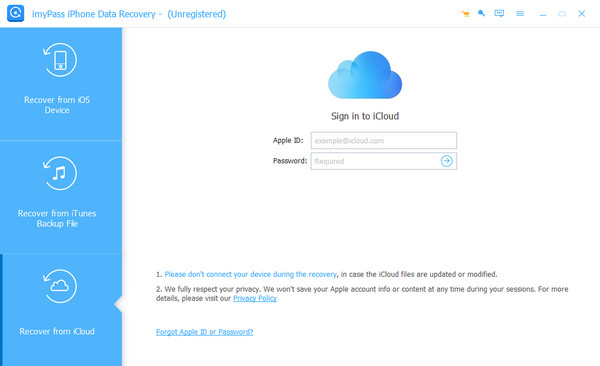
Launch the contact recovery software once you install it on your computer. It is available on Windows 11/10/8/7 and macOS 10.12 or above. Go to the Recover from iCloud Backup File tab. Input your Apple ID and password. Then, input the verification code if Two-factor authentication is enabled.
Preview contacts
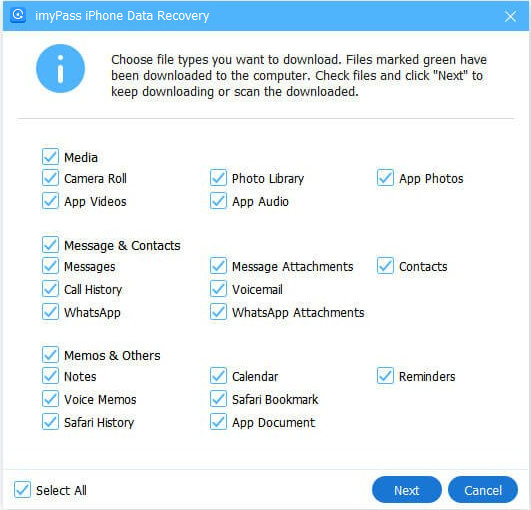
Choose iCloud Backup and click the Start button. Find the right iCloud backup and hit Download to get the backup. On the data type screen, select Contacts and other data types you want to retrieve. Click the Next button to view your recoverable contacts.
Restore iCloud contacts
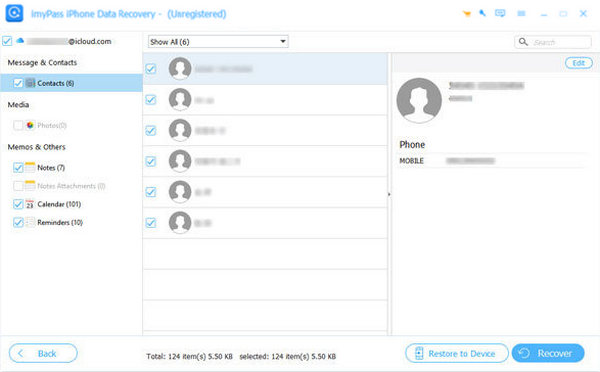
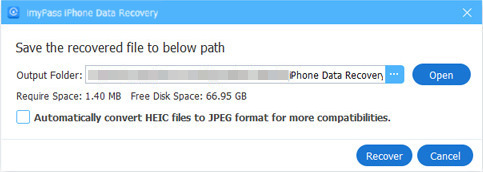
Check the contacts you wish to recover. To restore contacts on iPhone from iCloud, click the Restore to Device button. If you wish to recover iCloud contacts on your computer, click Recover, set an output folder, and hit Recover.
Extended Reading:
How to Retrieve Contacts on iPhone Without iCloud Backup
Connect to your iPhone
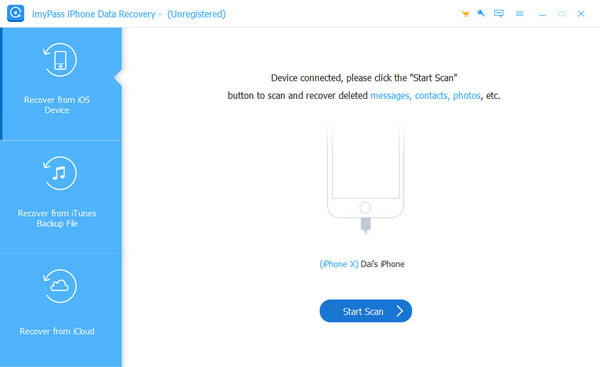
Run the contact recovery software from your desktop when you need to restore your contacts. Plug your iPhone into your computer with a compatible cable. Choose the Recover from iOS Device tab on the sidebar, and click the Start Scan button to start looking for contacts on your device.
Retrieve contacts on iPhone
After iPhone scans, select Contacts under the Message & Contacts section on the sidebar. Now, you can view all your contacts. Optionally, pick Show Deleted Only from the top drop-down option to filter deleted contacts. Select the contacts you wish to retrieve. Click the Recover button and follow the onscreen instructions to complete it.
Conclusion
This guide explained efficient methods to recover contacts from iCloud to your iPhone or iPad. If you have synced contacts to iCloud, you can retrieve them on your device directly. The contacts backed up to iCloud can be restored to your iPhone on the iCloud website. imyPass iPhone Data Recovery is an alternative solution to retrieve contacts from iCloud backup or from your iPhone memory.
Clara is an editor from imyPass. She specializes in data recovery. You can find professional tutorials and solutions for recovering lost data from any device. Many users reported that his tutorial is easy and useful.
Hot Solutions
-
Recover Data
- Recover WhatsApp View Once Photo
- Recover Deleted TikTok Videos on Mobile
- Recover Deleted Facebook Photo
- Recover Viber Messages, Photos, etc.
- Recover Deleted Snapchat Photos
- 5 Best Contact Recovery Apps
- Recover Deleted Discord Messages
- AppGeeker iOS Data Recovery Review
- Recover Data from DFU Mode
- Cannot Restore iPhone Backup
-
Unlock iOS
-
iOS Tips
-
Password Tips

