



 Solution
 Support Center
 About Us
 Contact
Guide on How to Fix an IT Administrator Having Limited Access on Windows
 Penny Warren Published on April 15, 2026Windows Password3-min reading
Seeing the message that your IT Administrator has limited access can feel confusing, especially on a personal computer. This warning often links to system policies, user account settings, or security restrictions applied by Windows. As someone who has handled many access control issues, I know the cause is usually simple once identified. In this guide, you will learn what this notification means and how to fix it.

In this article:
Part 1. Understanding the Message (Is Your PC Really Managed?)
No, your PC is not necessarily managed by someone else just because you see Windows security IT Administrator limited access. This often happens because of the security measures included in the Windows system, group policy, or user account permission settings. It does not necessarily mean that the system is being managed by someone outside. Instead, it reflects a built-in limitation within the system. This understanding helps you grasp the fixes you will implement, so you know if you're addressing true system management issues or just the system's natural limitations.
Part 2. Quick & Easy Fixes (Try These First)
If you encounter the message that your IT Administrator has limited access, most issues can be resolved quickly without complicated tools. On Windows Defender Windows 11, these blocks often come from security settings or policies that restrict changes. Below are two reliable fixes to try first.
Fix 1: The Registry "PUA" Tweak (Most Common Fix)
One of the most frequent causes of your IT Administrator having limited access is Windows Defender Windows 11’s Potentially Unwanted Application (PUA) protection. This feature blocks certain apps, but it can also prevent legitimate actions.
Hit Win + R, type regedit to open the Registry Editor.
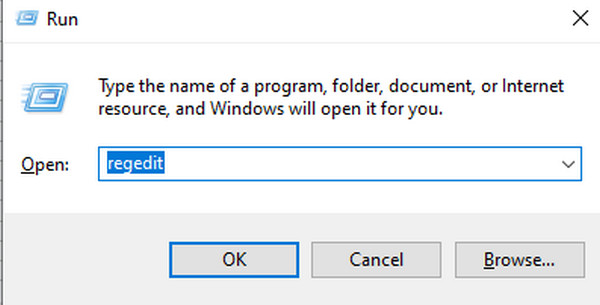
Navigate to: HKEY_LOCAL_MACHINESOFTWAREPoliciesMicrosoftWindows DefenderWindows Defender Exploit GuardPUA.
Look for a value named PUAProtection. If it exists, double-click it and change the value from 1 to enabled to 0 to disabled.
Exit the Registry Editor and restart.
This tweak often clears it has limited access message by allowing Windows Defender to operate without unnecessary restrictions. Always back up the registry before making changes.
Fix 2: Reset Windows Security via Local Group Policy
If the registry tweak does not work, some restrictions may come from Group Policy settings in Windows Defender on Windows 11. With access to it, you can disable Windows ask password after sleep, making it an important feature to know on Windows. Resetting these policies restores default permissions and removes blocks.
Press Win + R, type gpedit.msc to open the Local Group Policy Editor.
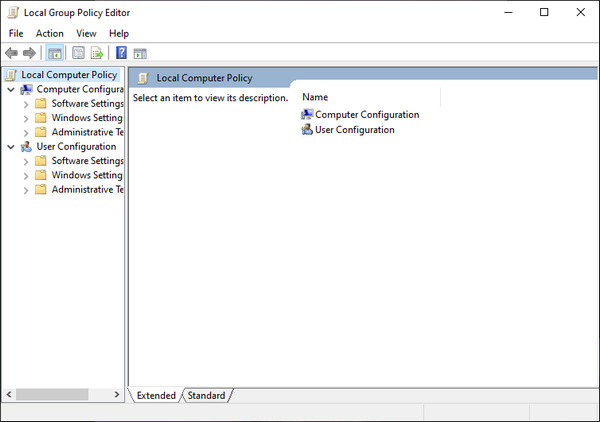
Hit the Computer Configuration > Administrative Templates > Windows Components > Microsoft Defender Antivirus.
Identify any policies that are enabled and relate to PUA protection, scanning, or security restrictions. Right-click each and select Not Configured.
Repeat the same process under Windows Components > Windows Security. Close the Group Policy Editor and restart your PC.
Resetting these policies ensures Windows Defender on Windows 11 returns to default behavior and removes the limited access notification safely, without affecting system security.
Part 3. Advanced Fixes for Persistent Issues
If the previous quick fixes did not clear the problem, deeper system issues may be causing your IT Administrator to have limited access to messages. Advanced tools like the Command Prompt and system file repair utilities can help resolve underlying permissions or corruption that prevent Windows Security from functioning correctly on Windows Defender Windows 11.
Fix 3: Use Command Prompt as Administrator
Running these commands as an Administrator restores permissions and resets critical configurations that may be blocking access. This method is especially useful for stubborn restrictions and provides a practical approach to how to fix IT Administrator has limited access.
Press Win + S and type Command Prompt.
Right-click Command Prompt and select Run as Administrator.
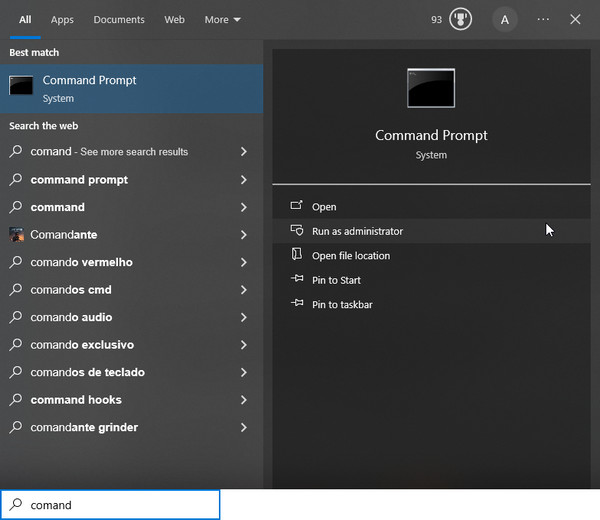
Enter the following commands to reset Windows permissions and policies:
• net user Administrator /active:yes to activate the built-in Administrator account.
• icacls C:WindowsSystem32 /reset /t /c /q to reset permissions on core system folders.
• powershell -Command "Get-AppxPackage -AllUsers| Foreach {Add-AppxPackage -DisableDevelopmentMode -Register '$($_.InstallLocation)AppXManifest.xml'}" to re-registers all Windows apps.
Exit the Command Prompt and restart.
Fix 4: Check for Corrupted System Files
Corrupted or missing system files can trigger Windows security restrictions and cause your IT Administrator to have limited access notification. Using DISM and SFC ensures that all critical files are restored, stabilizing Windows Defender and resolving access issues safely.
Press Win + S and type Command Prompt.
Right-click Command Prompt and Run as Administrator.
Type the following commands and press Enter after each:
• DISM /Online /Cleanup-Image/RestoreHealth to repair the Windows system image.
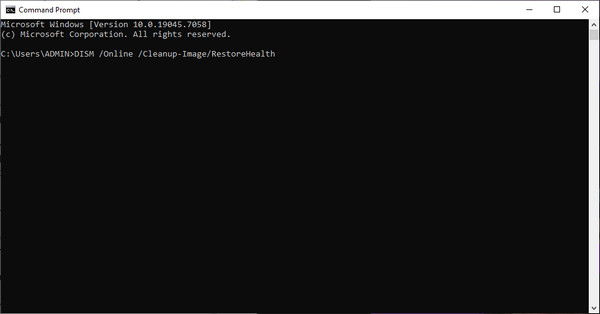
• sfc /scannow to scan for and repair corrupted system files.
Exit the Command Prompt and restart.
Bonus: Best Solution to Handle Windows Password & Account Issues
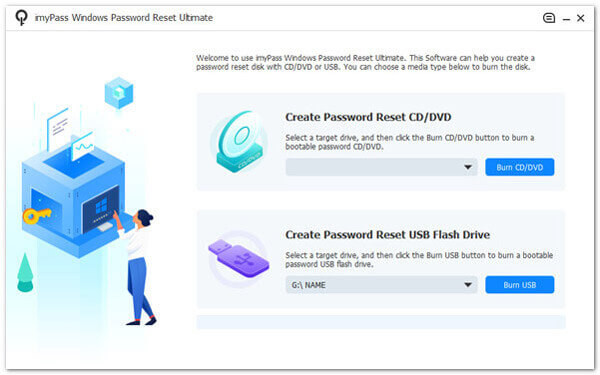
In situations like this, a tool like imyPass Windows Password Reset can help reset a forgotten password, unlock a disabled or locked user account, and recover Administrator access without needing to reinstall the operating system. It also allows you to create a bootable USB or CD, which provides access to the system if you don't have information on how to log in.
Additionally, the tool can help manage account restrictions by controlling login information. It can bypass administrative restrictions. This is especially useful when other options don't work or when access is limited due to incorrect settings. The tool also saves data and system settings. It offers a secure way to regain access to a Windows system without losing data.
Conclusion
Dealing with restricted settings can be frustrating, but the issue is often easier to resolve than it seems. Most cases stem from system policies, permission conflicts, or minor file corruption rather than true administrative control. By applying the fixes covered in this guide, you now understand how to fix IT Administrators have limited access using safe and effective methods. With a step-by-step approach, you can restore full access, maintain system stability, and avoid similar issues moving forward.
Penny focuses on GPS troubleshooting and Windows optimization. She formerly worked as a technical support engineer, helping clients solve location-based and system issues efficiently. Backed by IT support experience, she provides practical solutions that really work. In her free time, she likes hiking and geocaching, testing GPS tech in the real world.
Hot Solutions
-
Windows Password
-
Windows Tips
-
Fix Windows
-
Password Tips


