



 Solution
 Support Center
 About Us
 Contact
How to Get Rid of Lock Screen Passcode from Your iPad
 Clara Prescott Published on May 09, 2026iOS Tips3-min reading
While screen locks can protect iPad devices, there are scenarios where users wish to turn off the passcode on the iPad. For example, you want to access your home screen directly without entering the passcode frequently. Moreover, you can remove the lock screen temporarily if you need to access your iPad for a period. Anyway, this guide shares the proven methods even if you forgot your passcode and were locked out of your iPad.

In this article:
How to Turn off Passcode on iPad
If your device is still accessible, it is simple to take the passcode off the iPad. You can access the Settings app and turn off the lock screen directly. Bear in mind that there are risks if you disable the lock screen.
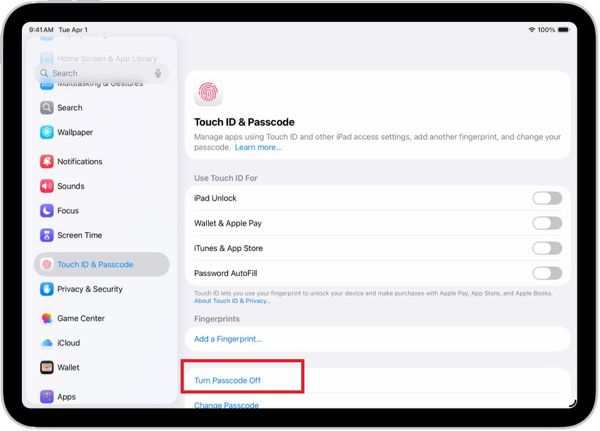
Open the Settings app from your home screen.
Choose Face ID & Passcode or Touch ID & Passcode.
If prompted, enter your current passcode.
Next, tap the Turn Passcode Off button.
Then, read the warning and choose Turn Off.
How to Temporarily Take the Passcode off an iPad
If you wish to disable the passcode on your iPad temporarily but not delete it, you can switch the Auto-Lock feature to Never. Then, you can control your lock screen with the Power button, and your device won’t be locked automatically.
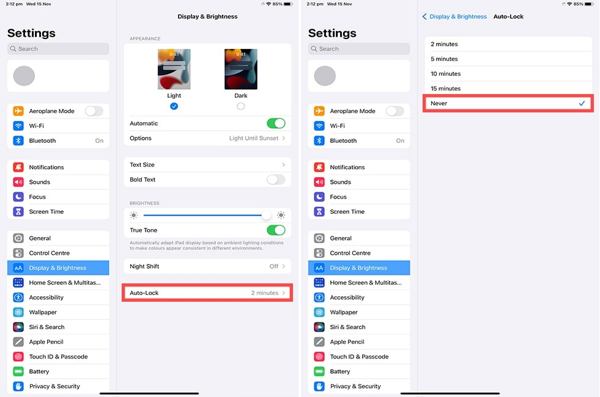
Run the Settings app.
Go to the Display & Brightness option.
Choose Auto-Lock and pick Never.
Now, you can access your device directly. Without pressing the Top or Side button, your iPad won’t be locked.
Part 2. How to Cancel Passcode on iPad with iTunes
Once you forget your passcode, you are locked out of your iPad. If you still wish to cancel the passcode on your iPad, you have to restore your device in Recovery Mode. This method requires a computer and a USB cable.
Connect your iPad to your computer with a compatible cable.
Open the latest version of iTunes on Windows and macOS Mojave or earlier. On macOS Catalina or later, open Finder instead.
Put your iPad in Recovery Mode:
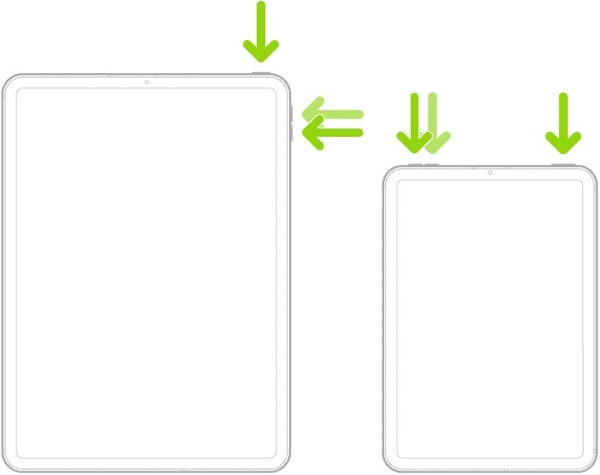
iPad without a Home button
Quickly press and release the Volume Up button.
Quickly press and release the Volume Down button.
Hold down the Side or Top button until your iPad is in Recovery Mode.
iPad with a Home button
Long-press the Home + Power buttons together.
Release the buttons once Recovery Mode appears.
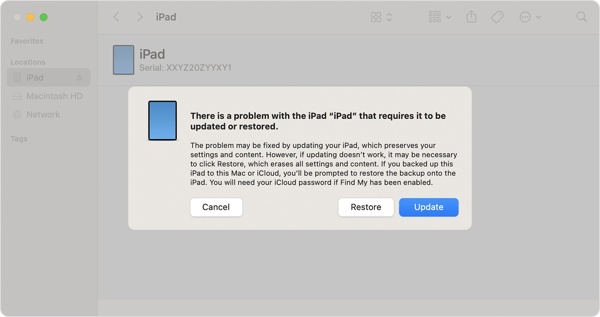
Next, click the Restore button to cancel the passcode on your iPad.
Note:
This method will bring your device to the factory status and remove all data.
Extended Reading:
Part 3. How to Remove the Passcode on an iPad Using Find My
If you have turned on Find My iPad on your device, you can control your iPad remotely using the Find My feature. You can borrow another Apple device or get rid of the iPad passcode on the web. This way requires your Apple ID password and an internet connection.
On Another Apple Device
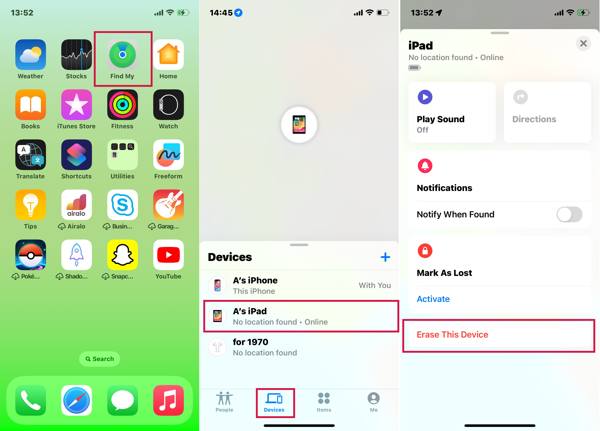
Run the Find My app.
Go to the Devices tab.
Choose your iPad from the list.
If you cannot find your iPad, press Add next to Devices, choose Add AirTag, and add your device through your Apple ID credentials.
Expand the toolbar and choose Erase This Device.
If prompted, enter your Apple ID password again.
Tap Next and confirm passcode removal on your iPad.
On the Web
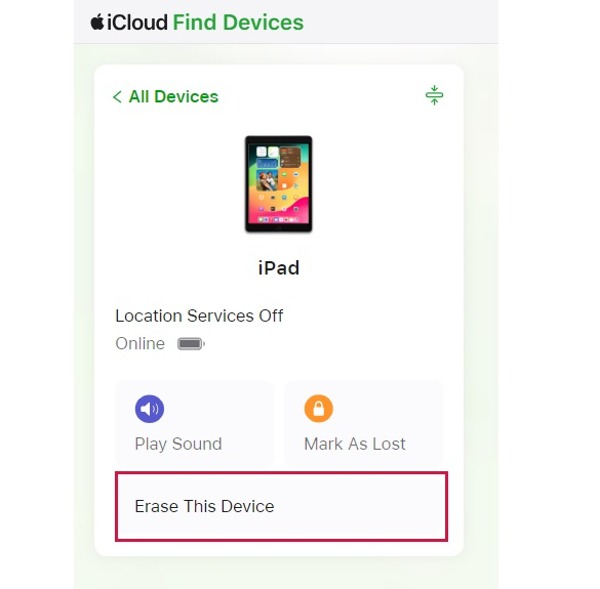
Go to www.icloud.com/find in a web browser.
Log in with the Apple ID and password associated with your device.
If Two-factor Authentication is enabled, enter the verification code that appears on your screen.
Click the All Devices option and choose your iPad from the list.
Next, click the Erase This Device button after your device is tracked.
Then, click Erase again to delete the passcode and other data on your iPad remotely.
Part 4. How to Delete a Passcode on an iPad Without a Password
Without your Apple ID password, it is difficult to delete the passcode on your iPad. Fortunately, imyPass iPassGo can help you resolve this problem. It is able to remove both digit passcode and biometric security systems on an iPad without restrictions.

4,000,000+ Downloads
Remove the passcode from an iPad in three steps.
Unlock digit passcodes, Face IDs, and Touch IDs.
Work for any locked or disabled iPad.
Support almost all iPad models.
How to Delete a Passcode on Your iPad Without a Password
Detect your iPad
Launch the iPad unlocking software once you install it on your PC. There is another version for Mac. Plug your iPad into your PC with a Lightning cable. If prompted, tap Trust on your screen to trust this PC. Choose the Wipe Passcode mode to proceed.
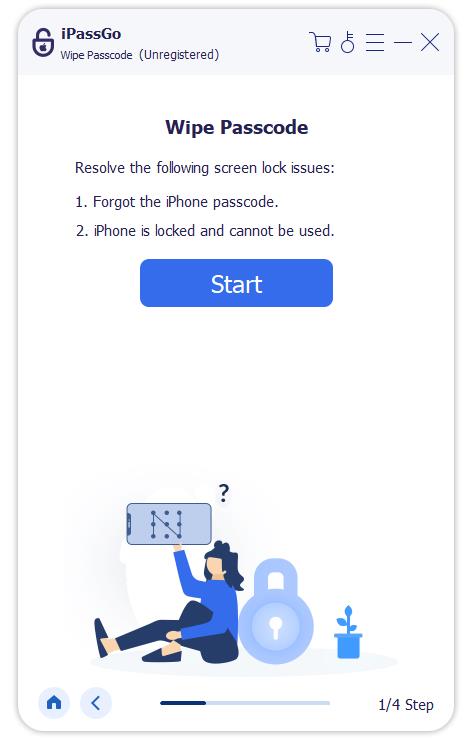
To avoid data loss, you’d better back up your iPad first.
Download the firmware
Click the Start button after your iPad is detected. Next, check your device information and click the Start button to start downloading the firmware. It takes a while to complete downloading, depending on your internet connection.
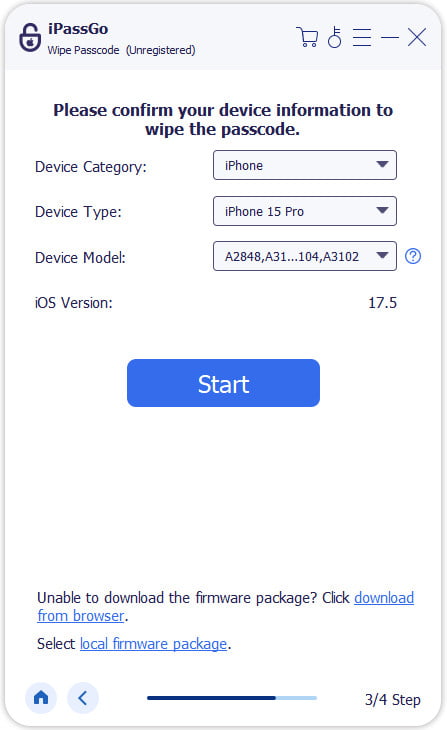
Delete iPad passcode
As long as the firmware is ready, click the Unlock button to continue. You should read the warning carefully. If you agree to remove the passcode from your iPad, confirm the process again. Then, follow the prompts to ensure and initiate the process. When it is done, your iPad will restart. Disconnect it and set it up again.

Conclusion
This guide explained how to remove a passcode from an iPad. If you still remember the current passcode, you can access your device and turn off screen locks in the Settings app. Otherwise, you have to restore and reset your device to get rid of the lock screen. Of course, you still need to meet the preconditions. imyPass iPassGo is the ultimate way to remove all screen locks from an iPad without any restrictions.
Clara has over 8 years of experience helping users recover lost files and transfer data. She previously worked as a data recovery technician for a major IT service company. Certified in Data Recovery and Digital Forensics, her articles focus on simple solutions that make complicated recovery tasks easier for everyday users.
Hot Solutions
-
iOS Tips
-
Unlock iOS
-
GPS Location
-
Windows Tips


