



 Solution
 Support Center
 About Us
 Contact
Can the Apple Store Unlock Your iPhone Without Password
 Samuel Spenser Published on May 09, 2026Unlock iOS3-min reading
"I accidentally changed my password, and now I cannot remember it. Could Apple stuff at the Apple Store help me to unlock my iPhone without losing any data?" If you have the same question, maybe you are locked out of your iOS device and forgot the lock screen passcode. In fact, you have options to regain access to your device even if you forgot your passcode. Anyway, this article will answer this question and share more information.

In this article:
Part 1. Can iPhone Unlock My iPhone
The lock screen passcode is used to protect your iPhone and data. You can enter the passcode and unlock your device to get to the Home screen. Can the Apple Store unlock your iPhone? Unfortunately, the answer is no. If you have forgotten the passcode, you will have to reset your device.
Part 2. How to Unlock a Locked iPhone
As mentioned previously, you have several ways to unlock a locked iPhone on your own when you forgot your passcode. Of course, these methods have some prerequisites. We share the proven methods respectively.
How to Unlock an iPhone Without Apple Store on Computer
Preconditions
- 1.The latest version of iTunes or Finder.
- 2.A computer.
- 3.A USB cable.
On Windows and macOS Mojave or earlier, open iTunes.
On macOS Catalina or later, open Finder.
Connect your iPhone to the computer with a compatible cable.
Put your iPhone in Recovery Mode:
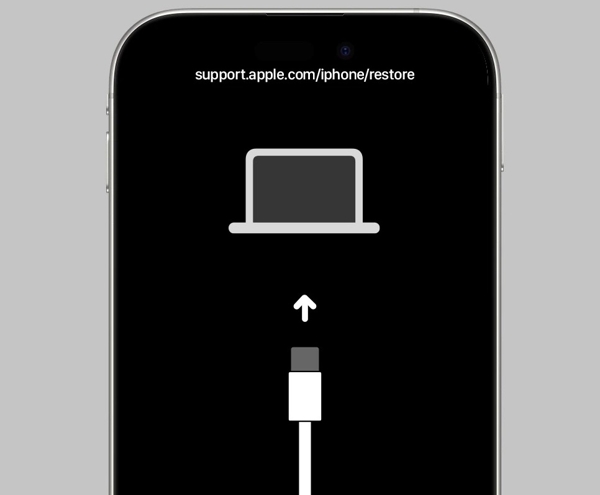
iPhone with Face ID
Press and quickly press the Volume Up button.
Do the same thing to the Volume Down button.
Hold down the Side button to enter Recovery Mode.
iPhone 7/7 Plus
Press and hold the Volume Down + Side buttons together.
When the Recovery Mode screen appears, release the buttons.
iPhone with a Home button
Long-press the Home + Power buttons simultaneously.
Let the buttons go once your device enters Recovery Mode.
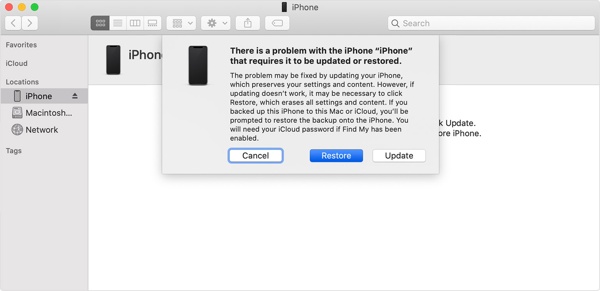
Once iTunes or Finder detects your iPhone, click the Restore button.
When restoring finishes, your iPhone will restart.
Then, you can unlock your iPhone without Apple and set it up as a new device.
How to Unlock an iPhone Without Apple Using Another Apple Device
Preconditions
- 1.Find My iPhone has been enabled.
- 2.Another Apple device associated with the same Apple ID.
- 3.Your Apple ID password.
- 4.The Find My app.
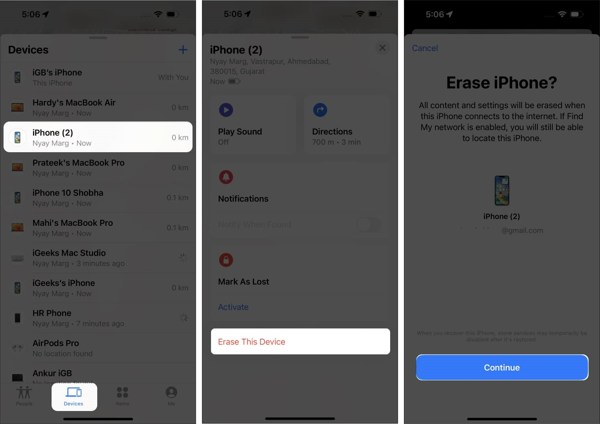
Run the Find My app.
Go to the Devices tab and choose your iPhone.
If you cannot find your iPhone, tap Add next to Devices, choose Add AirTag, and add your device.
Tap or click the Erase This Device button.
When prompted, tap Continue.
Follow the on-screen instructions to erase your device and unlock your iPhone without going to the Apple Store.
How to Unlock an iPhone Without Apple Store Online
Preconditions
- 1.Find My iPhone has been turned on.
- 2.Your Apple ID and password.
- 3.Your iPhone is online.
- 4.A web browser.
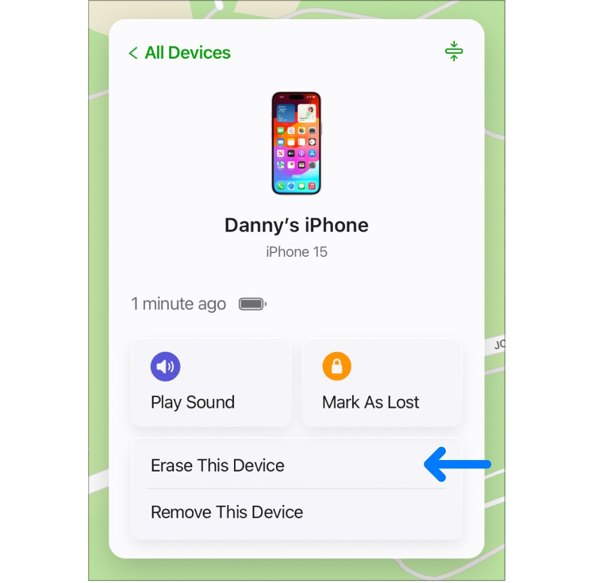
Go to www.icloud.com/find in a web browser.
Log in with your Apple ID and password.
Choose your iPhone from the All Devices list.
Click the Erase This Device option on the pop-up dialog.
Enter your Apple ID password again.
Click Erase again to confirm unlocking your iPhone without Apple Store.
Extended Reading:
How to Unlock a Disabled iPhone Without Apple Store
Preconditions
- 1.Your iPhone has been updated to iOS 15.2 or above.
- 2.Your iPhone is disabled due to too many failed passcode attempts.
- 3.Your Apple ID password.
On iOS 17 and above
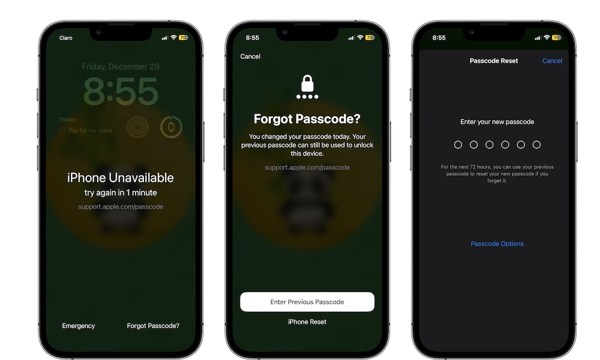
Tap the Forgot Passcode button at the bottom.
If you just changed your passcode within 72 hours, choose Enter Previous Passcode.
Unlock your iPhone with the old passcode and enter a new passcode.
If not, choose iPhone Reset, enter your Apple ID password, and begin erasing your device.
On iOS 15.2 and above
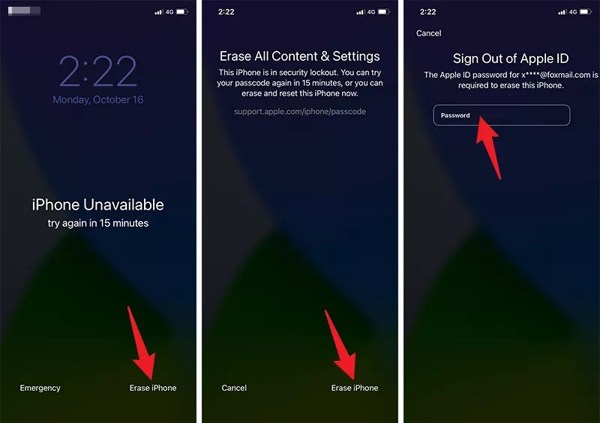
Tap the Erase iPhone button at the bottom.
Read the warning and tap Erase iPhone.
Next, input your Apple ID password to begin unlocking your iPhone without Apple.
Part 3. How to Unlock a Locked iPhone Without a Password
Your Apple ID password plays a key role in unlocking an iPhone without the Apple Store. In fact, Apple staff also need your password to unlock your device. However, imyPass iPassGo can unlock any iPhone without restrictions.

4,000,000+ Downloads
Unlock an iPhone without a password.
Remove digit passcodes, Face IDs, and Touch IDs.
Work for a locked or disabled iOS device.
Offer bonus features, like MDM bypassing.
Support a wide range of iPhones and iPads.
How to Unlock Your iPhone Without the Password
Connect to your device
Download and install the iPhone unlocking software on your PC and Mac. Launch it and choose the Wipe Passcode mode to proceed. Plug your iPhone into your computer with a Lightning cable. If prompted, trust this computer.
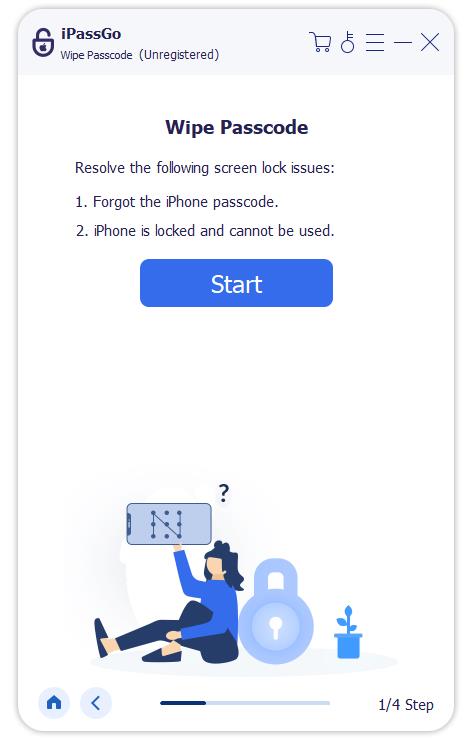
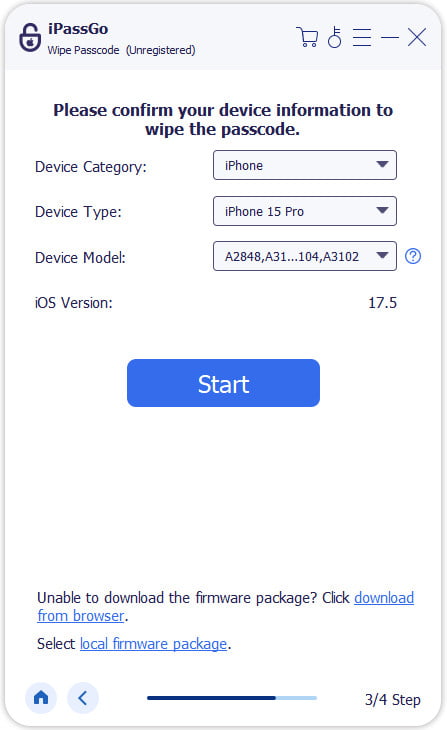
Download the firmware
Click the Start button after your iPhone is recognized. Once your device information is loaded, check it. Then, click the Download button to begin downloading the firmware.
Unlock your iPhone without Apple
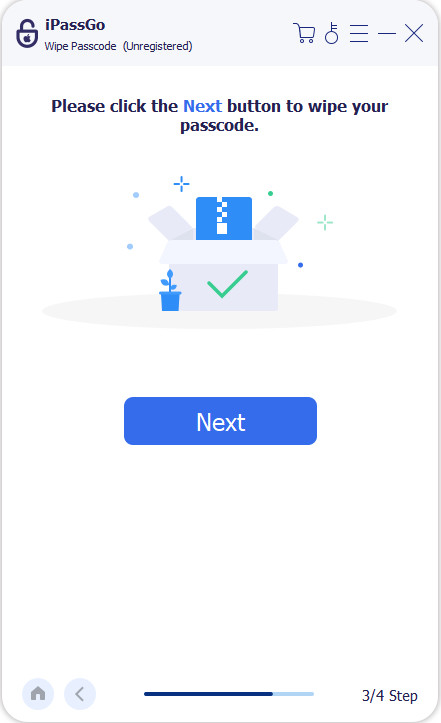
When the firmware downloading finishes, click the Unlock button to continue. Read the notification and confirm unlocking your iPhone without the Apple Store. Follow the prompts to complete the process. When it is done, your iPhone will restart. You can set it up as a new device.
Note:
To avoid data loss, back up your iPhone before the process. Then, you can restore the backup when setup.
Conclusion
This article answered whether Apple can unlock your iPhone. More importantly, we shared multiple ways to unlock your iOS device on your own when you forgot your lock screen passcode. In other words, you can unlock a locked iPhone if you can meet the preconditions. imyPass iPassGo is the ultimate option to remove screen locks on your iPhone without any restrictions.
Samuel specializes in password security and digital privacy. He used to work as a cybersecurity consultant for small businesses to protect digital assets. With certifications in Cybersecurity and Ethical Hacking, he turns complex security topics into easy-to-follow advice. He also enjoys sharing password tips to help users protect their accounts more confidently.
Hot Solutions
-
Unlock iOS
-
iOS Tips
-
Unlock Android
-
Password Tips


