



 Solution
 Support Center
 About Us
 Contact
How to Sync between iPhone and iPad Without Data Loss
 Clara Prescott Published on December 19, 2025Transfer Data3-min reading
There are a few reasons why you need to sync your iPad and iPhone. For example, you have both an iPhone and an iPad, as well as hope to access data across devices. If you just purchased a new iPhone or iPad, you may need to sync all data from another iOS device. This guide shares multiple ways to access contacts, reminders, photos, videos, apps, files, and more on both your iPhone and iPad.

In this article:
Part 1: Sync iPhone and iPad Manually
One easy way to sync iPhone and iPad is imyPass iPhone Transfer. It enables you to move photos, music, videos, contacts, messages, and more from an iPhone to an iPad or vice versa. You can decide to sync all data or specific data types. Furthermore, the process is fast due to the physical connections.

4,000,000+ Downloads
Sync data between iPhone and iPad with one click.
Support almost all data types on iOS.
Provide high speed when syncing data.
Offer bonus features, like a ringtone maker.
Compatible with the latest models of iPhone and iPad.
How to Sync iPhone and iPad Quickly
Link your iPhone and iPad
Run the best data syncing software after you install it on your PC. There is another version for Mac. Link both your iPhone and iPad to the same PC with Lightning cables. For iOS 13 or later, enter your passcode to permit the connection. Pick the source device from the top option. Then, go to the Toolbox tab on the sidebar, and choose Device to Device.
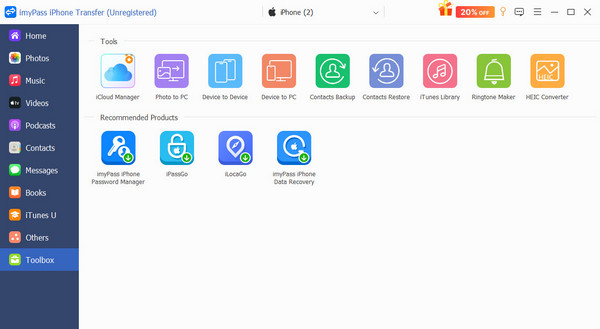
Sync iPhone and iPad
Make sure the source iPhone appears on the left side, and choose the target iPad on the right side. Check the data types you want to sync, like Photos, Music, Videos, and more. Once you are ready, click the Start button. When it finishes, disconnect the two devices.
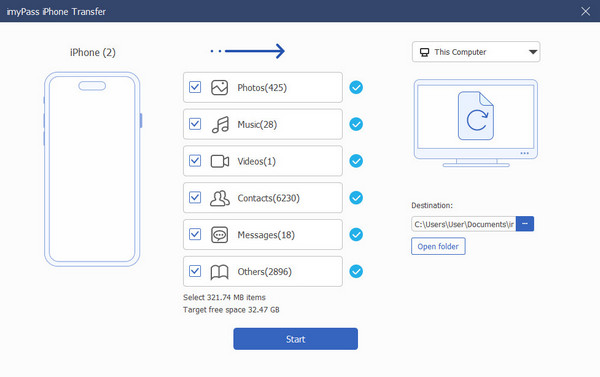
Part 2: Sync iPhone and iPad Wirelessly
iCloud is a reliable way to sync iPhone to iPad wirelessly. It can sync contacts, photos, videos, messages, calendars, Safari bookmarks, passwords, and more. It just requires your Apple ID account and a stable Wi-Fi network.
Run the Settings app on your iPhone, and connect to a Wi-Fi network.
Tap on your profile and choose iCloud.
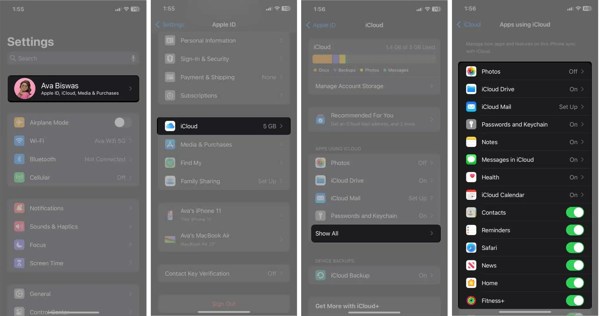
Tap Show All under APPS USING ICLOUD.
Choose Photos, and toggle on Sync this iPhone.
Then, sync other desired data types to iCloud.
Turn on your iPad and enter the Settings app.
If you have signed in with the same Apple ID account on your iPad, connect to an internet connection. If not, move on.
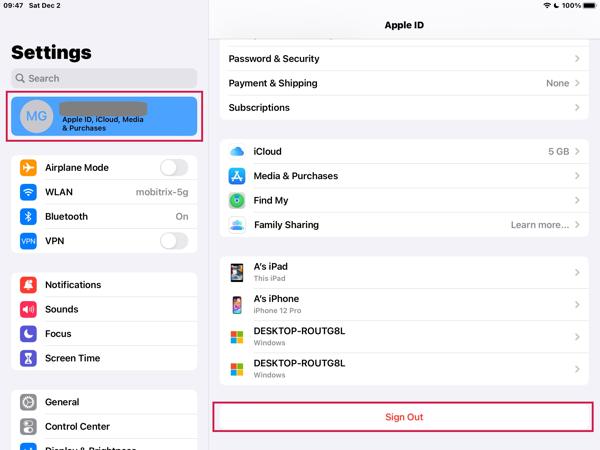
Tap on your profile, scroll down, and tap Sign Out.
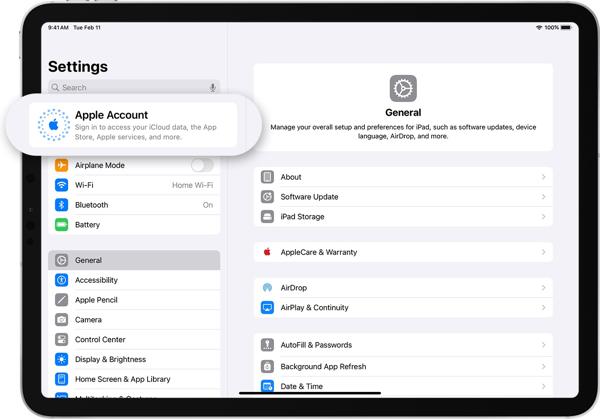
Press Apple Account and choose Use Another Apple Device or Sign in Manually.
Follow onscreen instructions to sign in with the same Apple account.
Next, choose iCloud and toggle on the data types you want to sync.
Part 3: Sync iPhone and iPad When Setup
Quick Start is a quick way to sync an iPhone to an iPad wirelessly when you are setting up your new iPad. It can transfer app data, Wi-Fi password, Apple ID and iCloud settings. Moreover, it doesn't require any hardware.
Make sure to turn on Wi-Fi and Bluetooth on your iPhone.
Turn on your new iPad and place it near your iPhone.
Follow onscreen instructions to set up your iPad.
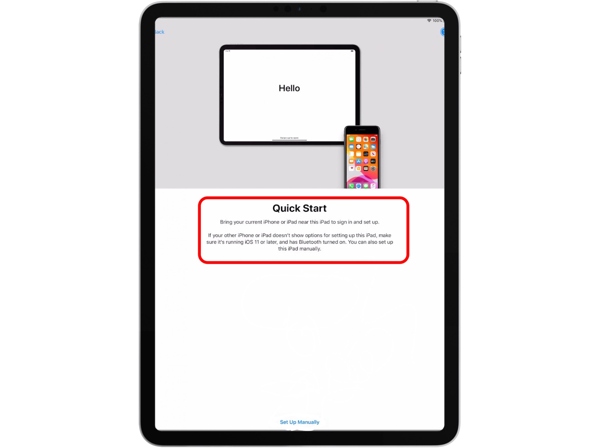
Once the Quick Start screen appears, tap Unlock to Continue on your iPad.
Wait for a message that says Finish on New iPad. Then, enter your iPhone passcode on your iPad.
Set Face ID or Touch ID.
Tap Transfer from iPhone on the Transfer Your Data screen to begin syncing iPhone to iPad immediately.
Part 4: Stop iPad from Syncing with iPhone
If one of your iOS devices is regularly used by other family members, you may wish to stop the iPad from syncing iPhone to protect your private messages and multimedia files. You can stop syncing all data types or specific data.
How to Stop iPad from Syncing with iPhone
Turn on your iPad.
Go to the Settings app and tap on your profile.
Scroll down and tap Sign Out.
Then, sign in with another Apple ID or create a new Apple ID.
How to Stop iPad from Syncing with iPhone for Specific Data Types
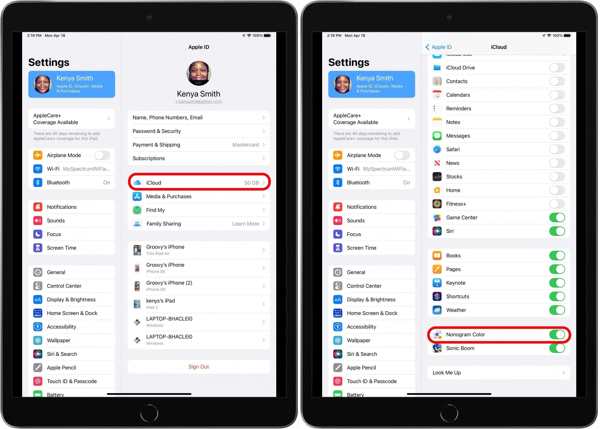
Open the Settings app on your iPad.
Tap on your profile and go to iCloud.
Toggle off the data types you don't like to sync.
Part 5: Fix iPad Not Syncing with iPhone
Why is my iPad not syncing with my iPhone? Sometimes, syncing with iCloud may be paused. The primary causes include an inconsistent account, insufficient iCloud storage, a poor internet connection, conflicting date and time settings, or outdated software. Here are proven solutions to fix this problem:
Solution 1: Verify Apple ID
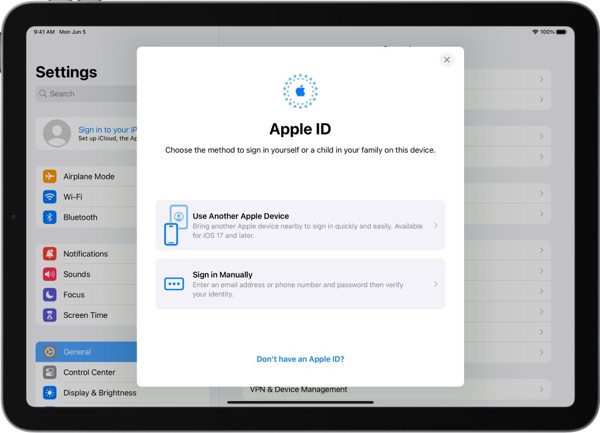
Turn on your iPhone and tap the profile in the Settings app.
Display your Apple ID in the Settings app on your iPad.
Look at the account and make sure they are the same.
Solution 2: Check iCloud Storage
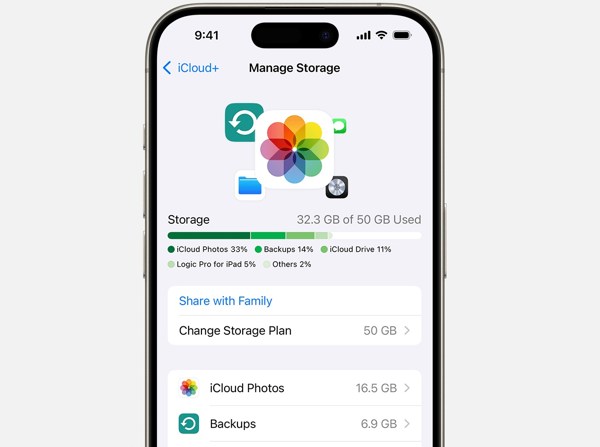
Tap on your profile in the Settings app.
Choose iCloud.
Tap Storage or Manage Account Storage to check your iCloud usage. If your iPad doesn't sync with your iPhone, free up your iCloud storage.
Solution 3: Evaluate Network
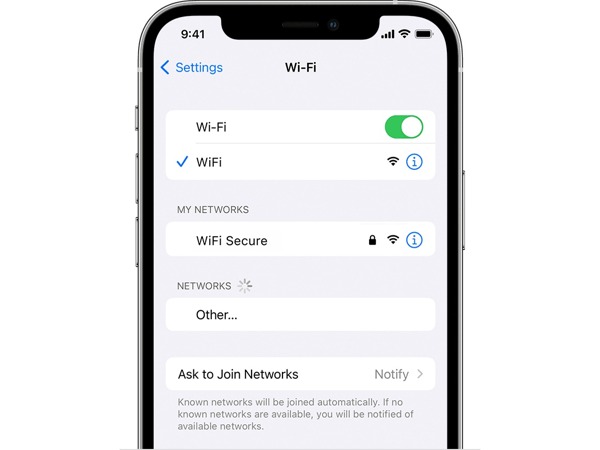
Syncing iPad to iPhone requires a stable internet connection. If your Wi-Fi network is poor, use cellular data on both your iPhone and iPad directly or vice versa. Remember that you don't need to use the same network on your iPhone and iPad.
Solution 4: Correct Date and Time
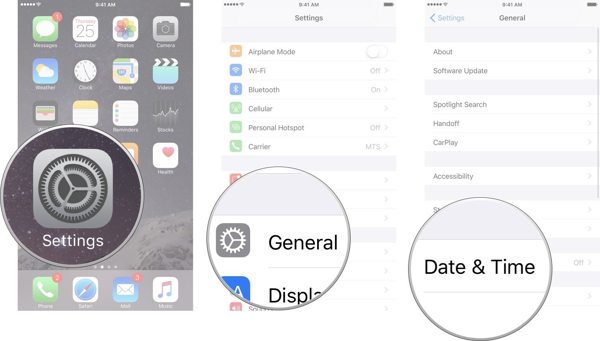
Run the Settings app on your iPhone.
Go to General, Date & Time, and turn on Set Automatically.
Next, repeat the steps above to correct the date and time on your iPad.
Solution 5: Update Software
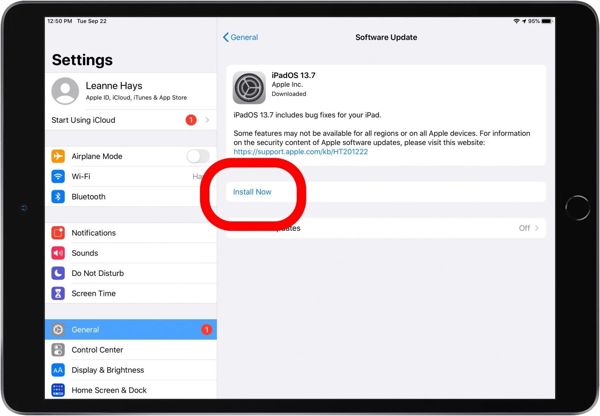
Go to General in your iPhone Settings app.
Choose Software Update to search for updates.
Next, install the available update.
Update software on your iPad, too.
Then, try syncing your iPhone and iPad again.
Solution 6: Reset Network Settings
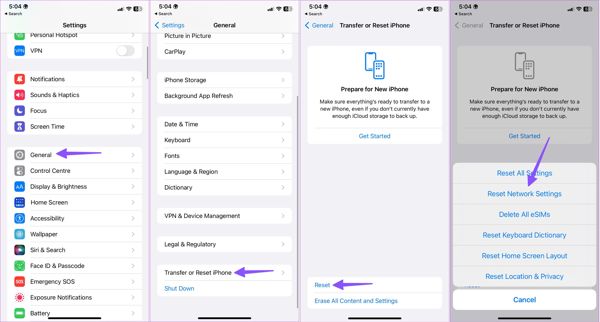
Enter the General tab in Settings.
Choose Transfer or Reset iPhone, and tap Reset.
Tap Reset Network Settings.
When prompted, input your iPhone passcode and confirm resetting the network.
Then, repeat the steps above on your iPad to reset network settings, too.
Next, connect both your iPhone and iPad to the internet, and sync your iPhone with your iPad.
Conclusion
Now, you should understand how to sync your iPhone to your iPad or vice versa. iCloud allows you to sync a variety of data types between your Apple devices through the same Apple ID account. imyPass iPhone Transfer is the best alternative solution to sync data between your iPhone and iPad with physical connections. Moreover, you can follow our solutions to fix issues when syncing your device.
Clara is an editor from imyPass. She specializes in data recovery. You can find professional tutorials and solutions for recovering lost data from any device. Many users reported that his tutorial is easy and useful.
Hot Solutions
-
Transfer Data
-
Recover Data
-
Unlock iOS
-
iOS Tips

