



 Solution
 Support Center
 About Us
 Contact
How to Sync Photos to iCloud on iPhone, iPad, Mac, and PC
 Clara Prescott Published on December 19, 2025Transfer Data3-min reading
Considering the limited storage, Apple had released cloud storage for users to expand memory. In other words, you can sync photos to iCloud on your Apple product and access them across your devices. Thus, you can free up space while keeping your photos without quality loss. In this article, you can learn the process and what you can do if you encounter issues when syncing photos on your device.

In this article:
Part 1: How to Sync Photos to iCloud on iPhone
Once you create an Apple account, you will be assigned 5GB of free iCloud storage. That allows you to sync photos with iCloud on your iPhone or iPad wirelessly. If the storage is not enough, you can purchase iCloud+. The 50GB plan costs $0.99, the 200GB plan costs $2.99, the 2TB plan costs $6TB, 12TB plan costs $59.99.
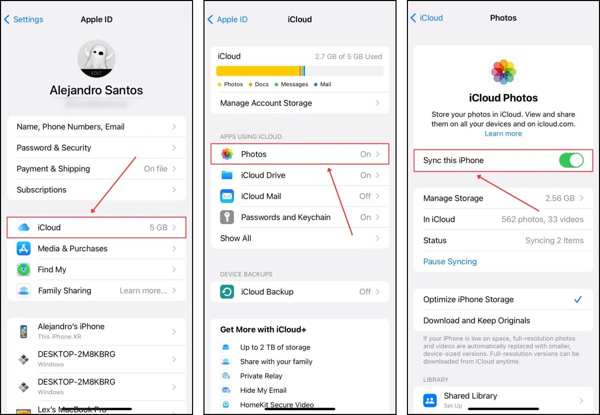
Open the Settings app on your iPhone or iPad.
Connect your iPhone to a Wi-Fi network or cellular data.
Tap on your profile and choose iCloud.
Press Photos and toggle on Sync this iPhone.
Note: If you want to stop syncing photos to iCloud, turn off Sync this iPhone on the iCloud Photos screen.
Part 2: How to Sync Photos to iCloud on Mac
If you are using macOS, you can back up photos to iCloud, too. Then, any changes, like photo editing, photo deletion, and photo adding, will be synced to all your devices through an internet connection.
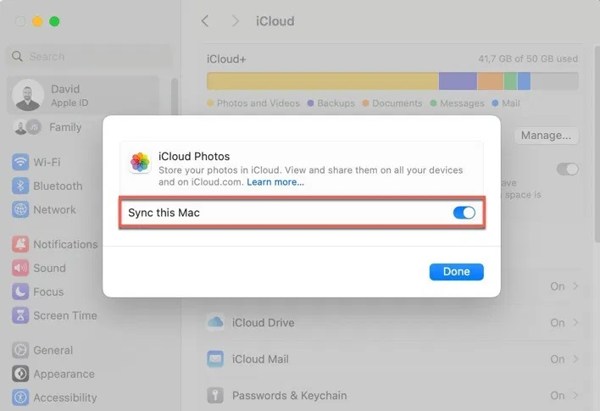
Click the Apple menu and choose System Settings.
Navigate to the iCloud tab.
Choose the Photos app on the app list.
Turn on Sync this Mac and click Done.
Once your Mac connects to the internet, photos will go to your iCloud account.
Part 3: How to Sync Photos to iCloud on PC
While iCloud is Apple's cloud service, it is available on PC. If you set up iCloud on your PC, you can move photos to iCloud on your computer with a Wi-Fi network. Then, these photos are accessible on all your Apple devices.
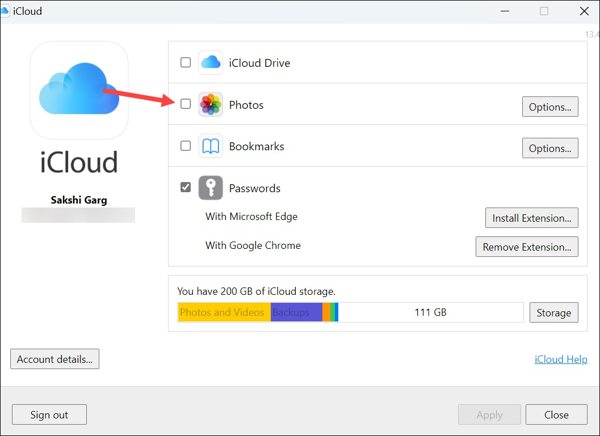
Install iCloud on your PC from the Microsoft Store.
Launch the app and sign in with your Apple ID credentials.
Check the box next to Photos to enable iCloud Photos on PC.
Click the Options button, check iCloud Photos, and click Done.
Click the Apply button to confirm it.
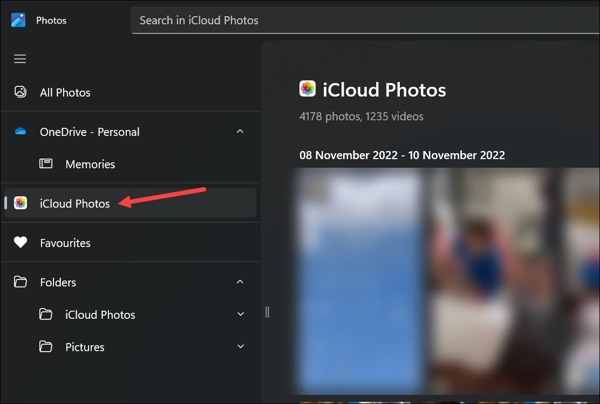
Open the Photos app on Windows 11/10. For older versions of PCs, open File Explorer.
Select iCloud Photos on the sidebar and view or manage photos.
Part 4: How to Fix Photos Not Syncing to iCloud
How long does it take to sync photos to iCloud? The answer depends on your internet condition and the number of your photos. Sometimes, it may take days or syncing to iCloud is paused. The reasons why my photos are not syncing to iCloud are complicated, but you can fix this problem by following the solutions below:
Solution 1: Check Your Internet Connection
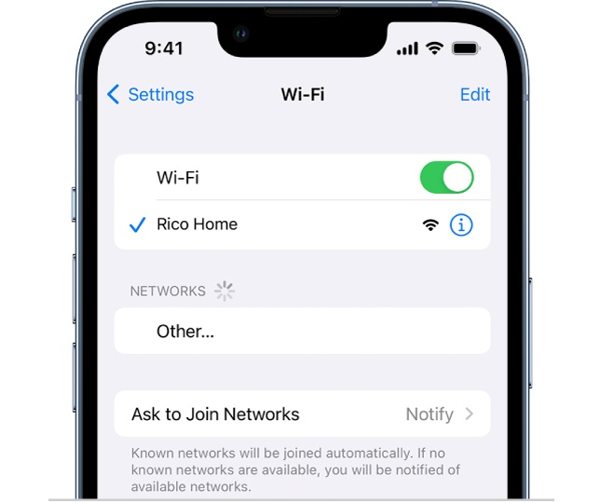
To save photos to iCloud, you need a stable internet connection. If your network is poor, the process may be slow or freeze. The solution is simple: check your internet connection and use a good one.
On an iPhone or iPad, you can use either a Wi-Fi network or cellular data, depending on your situation. For a computer, you'd better use a fixed network instead of Wi-Fi.
Solution 2: Force Sync iCloud Photos
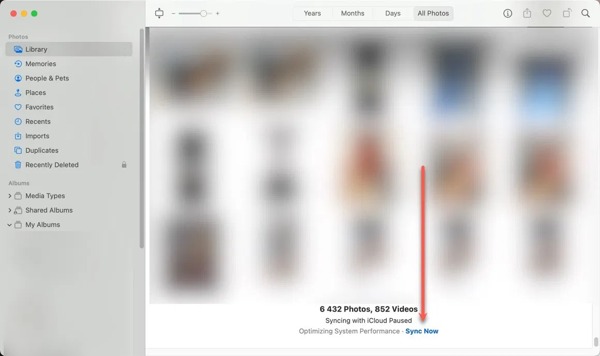
Sometimes, transferring photos to iCloud is paused because your device is trying to conserve battery life or waiting for a stable Wi-Fi connection. You can force sync your photos to iCloud on iPhone, iPad, or Mac.
For iPhone/iPad
Run your Photos app.
Enter the Recents album.
If you see a status message at the bottom, tap Sync Now.
For Mac
Open the Photos app on your computer.
Go to the Library album on the sidebar.
Click the Sync Now button on the status message.
Solution 3: Turn off iCloud Photos and Turn It on
When sending photos to iCloud on your iPhone, it may stop due to software glitches, such as iCloud Photos getting stuck. You can turn off this feature and turn it back on to resolve this issue on your iPhone or iPad.
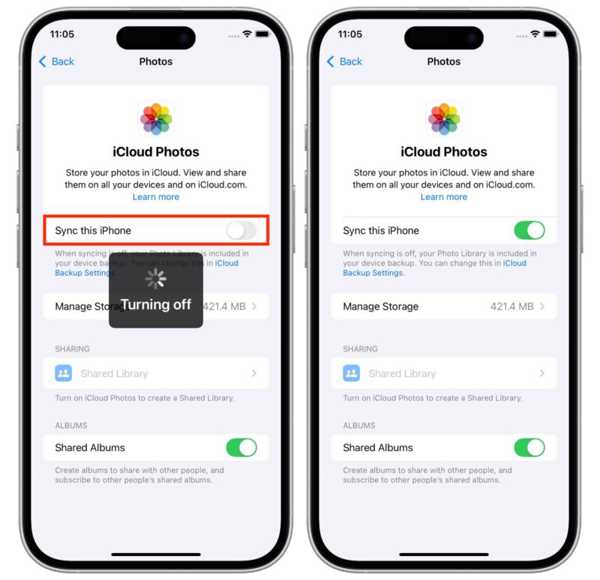
Open Settings and tap on your profile.
Navigate to iCloud and Photos.
Toggle off Sync this iPhone.
A few minutes later, turn on Sync this iPhone.
Solution 4: Free up iCloud Storage
Exporting photos from an iPhone to iCloud requires storage space. If you have lots of files and backups in your iCloud account, iCloud Photos may stop due to a lack of storage. You can delete iCloud backups and free up space.
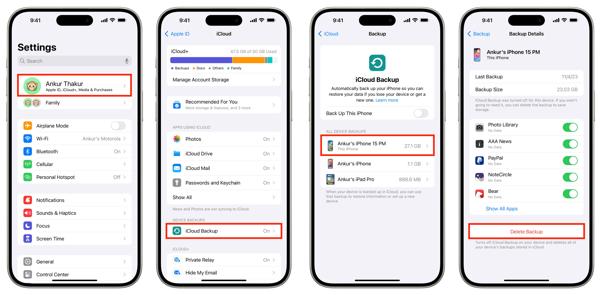
Tap on your profile in Settings.
Choose iCloud, and tap iCloud Backup.
Pick a backup under ALL DEVICES BACKUPS.
Tap Delete Backup and confirm it.
Part 5: How to Sync iPhone Photos Without iCloud
If you cannot fix iCloud photo sharing stops, try an alternative solution, such as imyPass iPhone Transfer. It enables you to sync photos between iPhone and computer, between iPhone and iPhone/iPad, or between iPhone and Android.

4,000,000+ Downloads
Sync photos between iPhone and computer quickly.
Transfer photos without an internet connection.
Protect photo quality.
Work for almost all iPhone and iPad models.
How to Sync Photos on iPhone Without iCloud
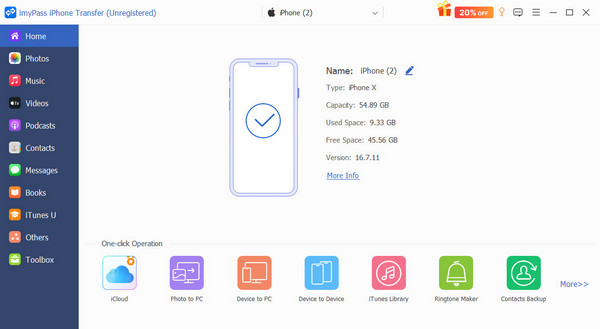
Connect to your device
Run the best photo transferring software after installing it on your computer. Plug your iPhone into your computer with a Lightning cable.
Preview iPhone photos
Go to the Photos tab on the sidebar after your device is recognized. View photos on your device.
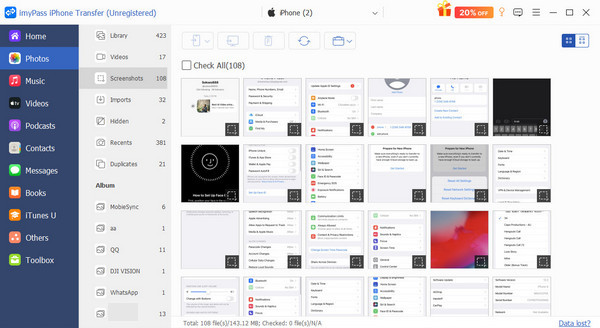
Transfer photos from iPhone to PC
Select the desired photos, click the PC button on the top ribbon, and choose a location folder. You can also share contacts on iPhone with other devices.
Conclusion
This guide shared how to synchronize photos to iCloud from iPhone, iPad, Mac, and PC. You can follow our steps to upload your photos to your iCloud account. Plus, you should understand what to do if iCloud Photos stops syncing. imyPass iPhone Transfer can help you transfer photos and other data between an iPhone and other devices.
Clara is an editor from imyPass. She specializes in data recovery. You can find professional tutorials and solutions for recovering lost data from any device. Many users reported that his tutorial is easy and useful.
Hot Solutions
-
Transfer Data
-
Recover Data
-
Unlock iOS
-
iOS Tips

