



 Solution
 Support Center
 About Us
 Contact
How to See Backup Files on iTunes: A Complete iPhone Data Guide
 Clara Prescott Published on January 23, 2026Recover Data3-min reading
iTunes backups store a large amount of personal data, but they are not designed for easy access. Apple structures these files for system restore, not for browsing. This causes many users to assume something is broken. This article shows how to view an iTunes backup using proven methods that respect data integrity. From there, it introduces practical tools that allow safe access. Follow along as each section builds on the last.

In this article:
- Part 1. Locate Your iTunes Backup Files (The First Step)
- Part 2. You Cannot View Backups Directly in iTunes (Important Reality Check)
- Part 3. How to Actually View iTunes Backup Contents
- Part 4. How to See Photos in an iTunes Backup (Specific Guide)
- Part 5. What About Encrypted Backups
- Bonus: How to Restore Your iTunes Backup Easily
Part 1. Locate Your iTunes Backup Files (The First Step)
1. On Windows 10/11
On Windows, iTunes saves iPhone backups in a hidden system folder. The files are built for full device restore, not for reading. File Explorer cannot show photos or messages from these backups. This is why users searching for how to see photos on iTunes backup often think their data is missing. The data is still there, but it requires a backup viewer to access it safely.
Press Windows + R on your keyboard, type %appdata%, and hit Enter to open the hidden AppData directory.
Open Apple Computer, then MobileSync, and then Backup. The entire path is C:Users(your username)AppDataRoamingApple ComputerMobileSyncBackup, where each folder represents a complete iPhone backup.
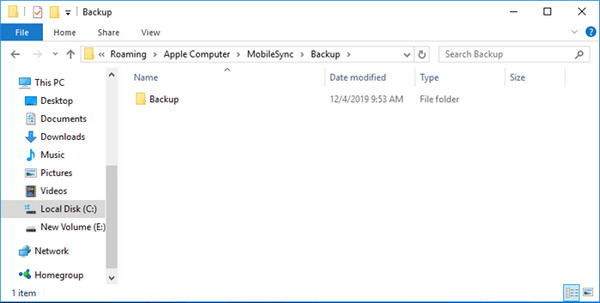
Identify the correct backup by checking the folder date or size, and avoid renaming, moving, copying, or opening any files inside the folder.
2. On Mac
On macOS, iPhone backups are stored inside a hidden Library folder. Finder can show where the backup is saved, but it cannot display the contents. This limitation explains why users looking for how to view backup photos in iTunes often feel blocked.
Tick the search icon in the menu bar, paste ~/Library/Application Support/MobileSync/Backup/, and press Enter to open the folder that contains all local iPhone backups.
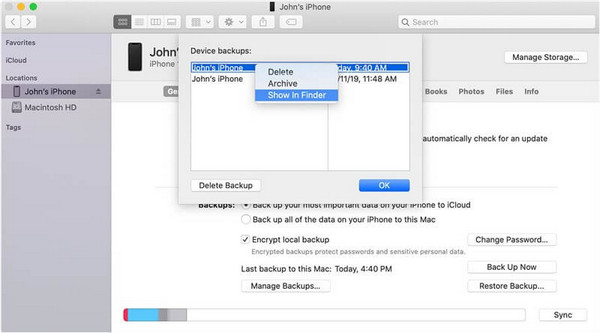
On macOS 10.15 or later, open Finder, select your iPhone, and click Manage Backups, or on macOS 10.14 or earlier, open iTunes, go to Preferences, and select Devices to view the backup list.
Right-click a backup and choose Show in Finder to reveal its exact location without changing or damaging the backup files.
Part 2. You Cannot View Backups Directly in iTunes (Important Reality Check)
1. iTunes Cannot Display Backup Contents
iTunes is designed to create and restore backups, not to allow browsing. Users searching for how to see backup files in iTunes will find that the app does not show photos, messages, or app data directly. This limitation protects the integrity of your backup.
2. Direct Access to iTunes Backup Files Is Not Available
There is no built-in option to open or read an iTunes backup. Users looking for how to see iTunes backup files need a dedicated backup viewer or recovery tool to access the contents safely.
3. Backups on PC Cannot Be Viewed Directly
On Windows computers, iTunes stores backups in a system folder, but the files cannot be browsed using File Explorer. Searching for how to see iTunes backup on PC will not change this restriction; specialized software is required to access the data.
4. iTunes Does Not Let You Preview iPhone Backup Files
Even though iTunes manages backups, it does not allow previewing content. Users looking for how to view iPhone backup files on iTunes must use third-party tools to extract data safely.
5. Windows 10 Users Cannot Open Backup Files in iTunes
Windows 10 users also cannot read or view backup contents directly inside iTunes. Anyone searching for how to view iTunes backup files on Windows 10 will need a proper backup viewer to access photos, messages, contacts, and other data safely.
Part 3. How to Actually View iTunes Backup Contents
1. Using Free iTunes Backup Viewers
iTunes cannot show the contents of backups directly. To browse contacts, messages, photos, and other data, you can use iBackup Viewer, a tool that works with both normal and encrypted backups. This is helpful for users who want to see backup files in iTunes. iBackup Viewer also supports other data like Notes, Calendar, Safari history, and app data.
Open the app from Applications or Start Menu. It will automatically detect local iTunes backups. If your backup is in a different location, you can change the folder in Preferences.
Each backup appears as a thumbnail showing the device name, iOS version, backup date, and a lock icon if it is encrypted. Click the backup to view its contents.
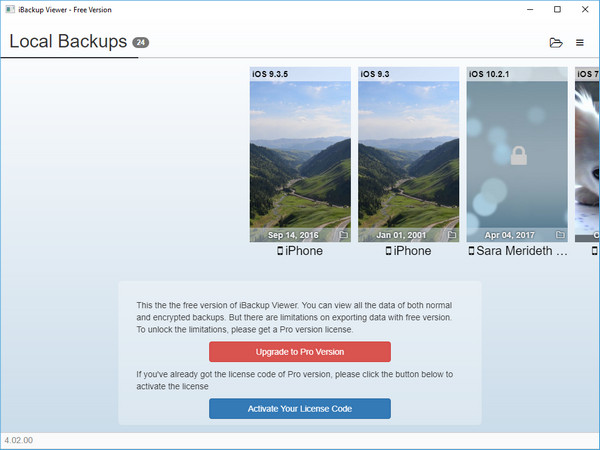
Inside the backup, browse categories such as Contacts, Call History, iMessages, Calendar, Photos, Apps, and Raw Files. Select the items you want and click Export to save them to your computer.
2. Using Paid Software (For Full Extraction & More Data Types)
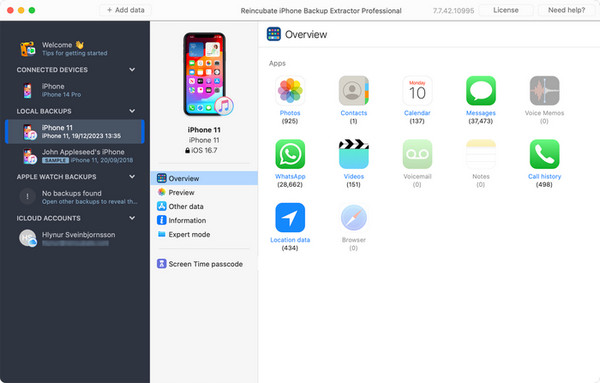
iPhone Backup Extractor is a paid tool that allows full access to all backup data, including encrypted backups and app data. It supports newer iOS versions and enables bulk export of files. This tool is ideal for users who need a comprehensive solution to view iTunes backup contents safely.
Go to the official website and install the software for Windows or Mac. Launch the program and point it to your iTunes backup folder on your computer.
Browse all available content, including photos, messages, contacts, call logs, and app files.
Choose the files you need and export them to your computer. Paid features allow bulk extraction and support encrypted backups.
Part 4. How to See Photos in an iTunes Backup (Specific Guide)
iTunes backups cannot be browsed directly to view individual files, such as photos. However, you can access the backup to restore it to an iPhone and then view the photos. This method uses only iTunes and does not require third-party software, making it the safest approach. It addresses the common question of how to see iTunes backup files containing images.
Connect the iPhone to your computer using a USB cable. Open iTunes or Finder on macOS Catalina 10.15 and later.
In iTunes, click the small device button near the top-left corner. On Finder, select your iPhone from the sidebar.
In the Summary or General tab, click Restore Backup. Choose the backup that contains the photos you want to see and confirm the restore.
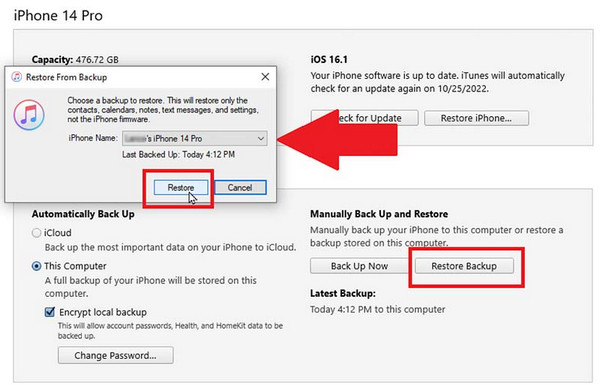
After the restore completes, open the Photos app on your iPhone. All images from the backup will be accessible on the device. Not only you can restore content from the backup on your Tunes, but you can also use it to unlock iPhone via iTunes.
Part 5. What About Encrypted Backups
Encrypted iTunes backups protect your data with a password. They include sensitive information like passwords, Health data, and Wi-Fi settings. You cannot access or restore an encrypted backup without the password. If you forgotten iTunes backup password, then look for a way to restore it first.
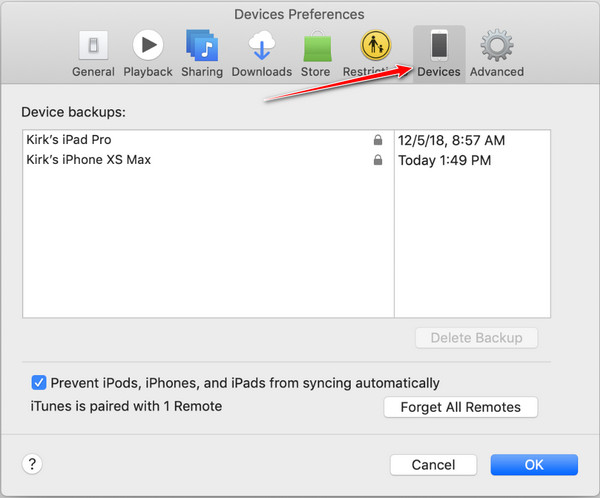
In iTunes, look for a lock icon next to the backup in Preferences > Devices to see if it is encrypted. To restore, connect your iPhone, select the backup, and enter the password. Keep your password safe, because if you forget it, you cannot recover the backup.
Bonus: How to Restore Your iTunes Backup Easily
imyPass iPhone Data Recovery is a tool that helps you access and recover files from iTunes backups. It works with both normal and encrypted backups and can show you the contents of a backup without restoring your iPhone. You can preview photos, messages, contacts, and other files, then choose which ones to save. This makes it a simple way to how to view iPhone backup files on iTunes safely.
Go to the official website and download the tool. Install it on your computer and make sure iTunes is also installed.
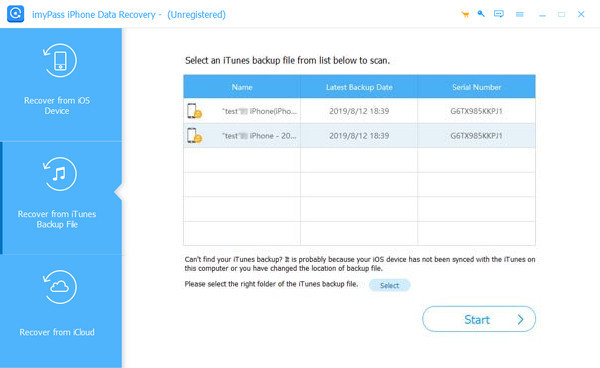
Launch imyPass and select Recover from iTunes Backup File. The program will detect all iTunes backups on your computer. Choose the backup you want to recover.
After scanning, the program will display all files in the backup. Check the items you want to recover, such as photos, messages, or contacts.
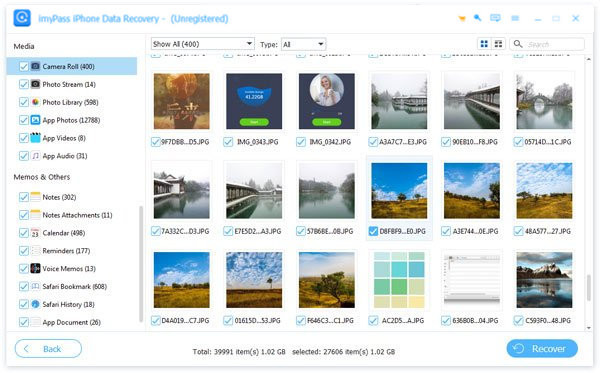
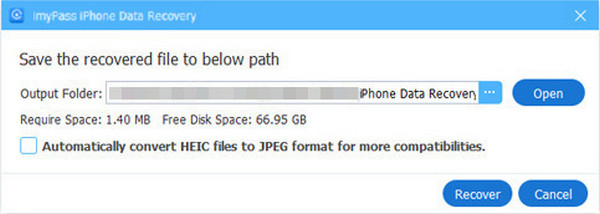
Pick a folder on your computer to save the recovered files and click Recover. The process will finish in a few seconds, and your files will be saved safely.
Conclusion
Do you want to know how to see photos on an iTunes backup? This guide has shown you how to find your backups, understand iTunes limits, and safely view or recover your data. You can now access photos, messages, contacts, and other files, and restore them when needed.
Clara is an editor from imyPass. She specializes in data recovery. You can find professional tutorials and solutions for recovering lost data from any device. Many users reported that his tutorial is easy and useful.
Hot Solutions
-
Recover Data
- Recover WhatsApp View Once Photo
- Recover Deleted TikTok Videos on Mobile
- Recover Deleted Facebook Photo
- Recover Viber Messages, Photos, etc.
- Recover Deleted Snapchat Photos
- 5 Best Contact Recovery Apps
- Recover Deleted Discord Messages
- AppGeeker iOS Data Recovery Review
- Recover Data from DFU Mode
- Cannot Restore iPhone Backup
-
Unlock iOS
-
iOS Tips
-
Password Tips

