



 Solution
 Support Center
 About Us
 Contact
How to Restore a Disabled iPhone with iTunes: Step-by-Step Guide
 Samuel Spenser Published on September 09, 2026Unlock iOS3-min reading
If you've forgotten your iPhone passcode and try wrong passcode multiple times, your iPhone may show "iPhone is disabled, connect to iTunes." If you see this message, it means you may need to restore your device using iTunes. In this guide, you'll learn how to unlock iPhone with iTunes step by step and what to do if you don't have a computer.

In this article:
Part 1: Can You Unlock an iPhone with iTunes
Quick Answer: Yes, but if you've forgotten your iPhone passcode, iTunes unlocks the device by restoring it to the factory settings. After the restore, you can set up the iPhone as new or restore your data from a backup. If your computer doesn't recognize the iPhone, you'll need to put it into Recovery Mode first.
| Your Situation | Recommended Method | Data Erased? |
| Forgot your iPhone passcode | Restore iPhone with iTunes | Yes |
| iPhone is disabled/unavailable | Restore iPhone with iTunes | Yes |
| You don’t have a computer | Use Forgot Passcode? if available | Yes |
| Find My enabled but no computer | Erase your iPhone remotely with Find My | Yes |
| Official recovery methods don’t work | Use a professional iPhone unlocker such as imyPass iPassGo | Yes |
Part 2: How to Unlock iPhone with iTunes
If your iPhone is disabled after multiple wrong passcode attempts, you can use iTunes to restore it and remove the screen passcode. Keep in mind that this process erases all content and settings on your iPhone.
Note:
iTunes is available on Windows. If you're using a newer version of Windows, you may need to use the Apple Devices app instead. On macOS Catalina or later, use Finder to restore your iPhone.
Method 1: Restore iPhone with iTunes
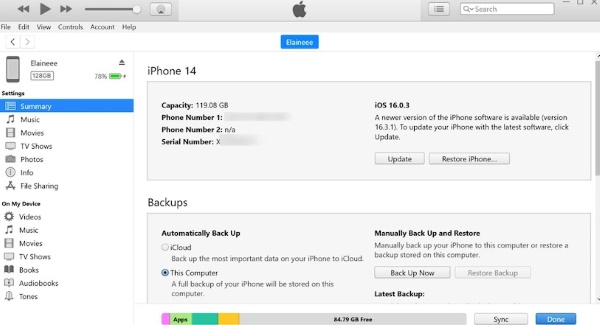
If iTunes recognizes your iPhone, follow these steps:
Connect your iPhone to the computer using a USB cable.
Open iTunes and select your iPhone when it appears.
Click Summary in the sidebar, then select Restore iPhone.
Follow the on-screen instructions and wait for iTunes to download the software and restore your iPhone. Once the restore is complete, your iPhone will restart.
Method 2: Restore a Disabled iPhone in Recovery Mode
If iTunes doesn't recognize your iPhone, you need to enter iPhone Recovery Mode before restoring it.
Turn off your iPhone.
Connect your iPhone to the computer while holding the button required for your iPhone model to enter Recovery Mode.
- iPhone 8 and later: Press and hold the Side button.
- iPhone 7 and iPhone 7 Plus: Press and hold the Volume Down button.
- iPhone 6s and earlier: Press and hold the Home button.
Keep holding the button until the Recovery Mode screen appears on your iPhone.
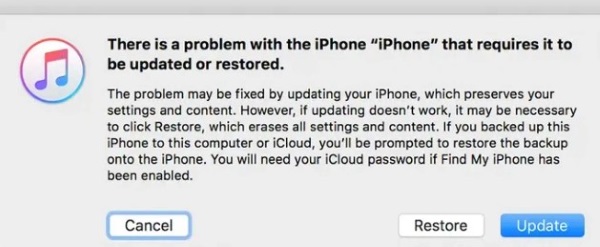
Open iTunes on your computer. When iTunes detects your iPhone in Recovery Mode, select Restore.
Wait for the restore to finish. Your iPhone will restart and can then be set up again or restored from a backup.
Part 3: How to Unlock iPhone Without iTunes
If you can't use iTunes or it doesn't work on your computer, you still have other ways to remove the screen passcode from a disabled iPhone. A professional iPhone unlocker such as imyPass iPassGo can remove the forgotten passcode and all kinds of screen locks easily when your iPhone get disabled.

4,000,000+ Downloads
Unlock a disabled iPhone when you forgot passcode.
Fix the iPhone Unavailable issue easily without iTunes.
Remove 4-digit/6-digit passcodes, Face ID and Touch ID.
Support a wide range of iPhones and iOS versions.
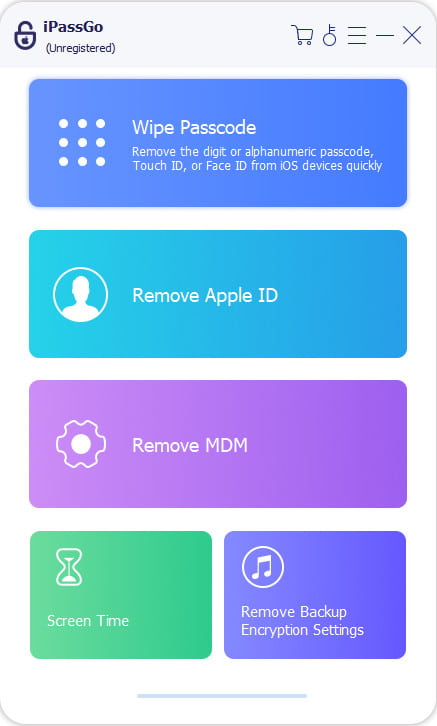
Download and install imyPass iPassGo on your computer. Launch the program, connect your iPhone with a USB cable, and select the Unlock iOS Screen mode from the interface. Click Start Now to continue.
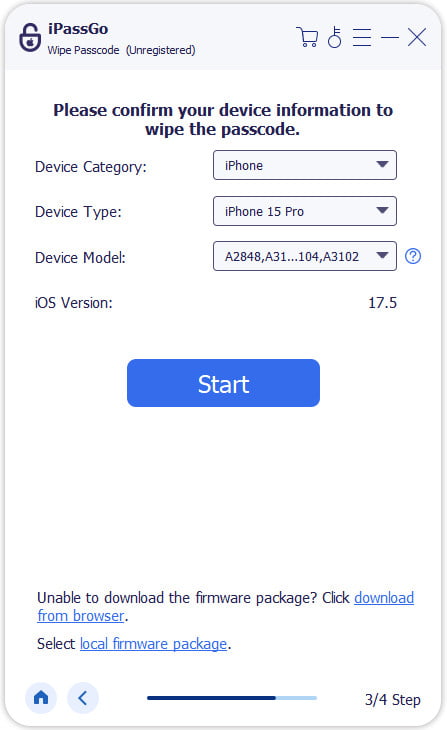
Check your device information and click the Start Now button to download the firmware package. Wait for the download to complete and the firmware to be verified.
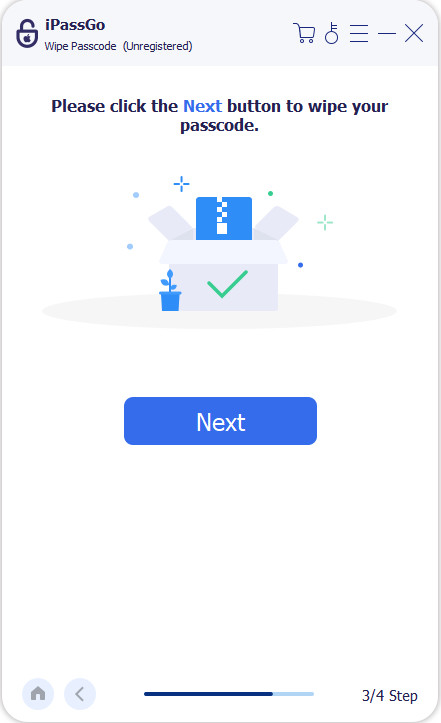
After verification, click the Start Removing button and confirm again. The software will automatically remove the screen lock, then you can use your iPhone again.
Note:
iPassGo offers more than iPhone screen passcode removal. It can also remove MDM restrictions and Screen Time limits from iOS devices.
Part 4: How to Unlock iPhone Without a Computer
Don't have a computer at hand? There are actually other methods to unlock your disabled iPhone without a computer.
Method 1: Use the Forgot Passcode? Option
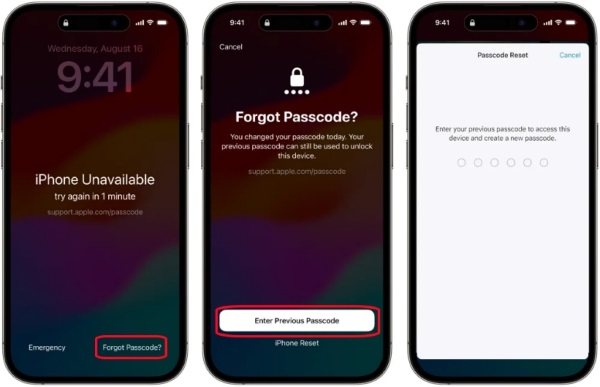
If your iPhone is running iOS 17 or later, you can use the Forgot Passcode? option to erase the device directly from the Lock Screen. Here are the steps:
Note:
On iOS 15.2 and iOS 16, the Lock Screen may instead show Erase iPhone. Tap it to erase and reset your iPhone.
Enter the wrong passcode repeatedly until the screen shows "iPhone Unavailable" or "Security Lockout."
Tap Forgot Passcode? at the bottom of the screen.
If you recently changed your passcode within 72 hours, you can tap Enter Previous Passcode and use your old passcode to create a new one.
If you don't have your previous passcode, tap iPhone Reset, then enter the Apple Account password associated with your iPhone.
Confirm that you want to erase the iPhone. After the reset is complete, set up your iPhone again and restore your data from an iCloud backup if available.
Method 2: Erase Your iPhone Remotely with Find My
If Find My is enabled on your iPhone and you know your Apple Account credentials, you can erase the device remotely without connecting it to a computer.
Open Find My on another Apple device, or visit iCloud.com to log in to your account.
Select your disabled iPhone from the list of devices.
Choose Erase This Device and follow the on-screen instructions. Then, your iPhone will be erased in minutes.
Conclusion
If you're looking for an iTunes unlock iPhone solution, restoring your device with iTunes is a practical option. No computer? Try Forgot Passcode? or Find My instead. And if iTunes isn't working or you want a simpler alternative, imyPass iPassGo can help remove the screen passcode. Keep in mind that these methods erase your iPhone, so if you have a backup, you can restore your data after resetting the device.
Samuel specializes in password security and digital privacy. He used to work as a cybersecurity consultant for small businesses to protect digital assets. With certifications in Cybersecurity and Ethical Hacking, he turns complex security topics into easy-to-follow advice. He also enjoys sharing password tips to help users protect their accounts more confidently.
Hot Solutions
-
Unlock iOS
-
iOS Tips
-
Unlock Android
-
Password Tips


