



 Solution
 Support Center
 About Us
 Contact
How to Fix Windows 10 Stuck on Welcome Screen Problem
 Penny Warren Published on January 16, 2026Fix Windows3-min reading
Many users encounter the following situation when starting their computers: the computer gets stuck on the "Welcome" screen for a long time, the mouse works, but the system never fully boots. This problem not only delays work but may also indicate corrupted system files or conflicts with startup items. In fact, Windows stuck on the Welcome screen is not unsolvable; as long as the root cause is identified and the correct steps are taken, the computer can quickly return to normal operation.

In this article:
Part 1. Why Is Windows Stuck on the Welcome Screen
When you find that Windows is stuck on the welcome screen, this usually indicates that the system has encountered an obstacle during the startup phase. Whether you are using Windows 10 or an earlier version, the causes behind the problem often fall into the following categories:
System updates or startup file corruption
During the installation of updates or reboot, if system files fail to be written correctly, it may cause Windows 10 to get stuck on the welcome screen. Some update package conflicts can even prevent the system from completing the loading process.
User profile or password verification issues
If your Windows 10 gets stuck on the welcome screen after entering the password, it means there is an error with the user profile, or account verification has failed.
External devices interfere with system startup
Sometimes, USB devices, external hard drives, or printers can interfere with the system loading process, causing the Windows welcome screen to get stuck and preventing the system from entering the desktop smoothly.
System driver or startup item conflicts
Abnormal drivers or too many startup items can also cause the Windows welcome screen to get stuck, especially after updating the graphics driver or modifying startup configurations.
Hard drive or system file damage
When the system disk has bad sectors or critical system files are corrupted, Windows may get stuck in a boot loop, resulting in the phenomenon of Windows being stuck on the welcome screen.
Part 2. How to Fix Windows Stuck on the Welcome Screen
After identifying the cause of Windows being stuck on the welcome screen, you can try several effective methods. The most hassle-free one, especially for users who don't want to reinstall the system, is to use a professional tool to bypass the welcome screen while keeping all your data.
Method 1. Use imyPass Windows Password Reset - Skip Welcome Screen with No Data Loss
imyPass Windows Password Reset can unlock your computer, bypass the login screen, and keep your data intact when the system is stuck at the Welcome screen. It is ideal for dealing with startup issues such as corrupted user accounts or password verification failures.
4,000,000+ Downloads
Skip the welcome screen and reset the password without logging into the system.
Supports creating a USB boot disk, allowing the system to be unlocked without a complicated setup.
Compatible with a wide range of Windows versions, suitable for various situations where the welcome screen is stuck.
The process is fully visualized, making it easy for beginners to complete.
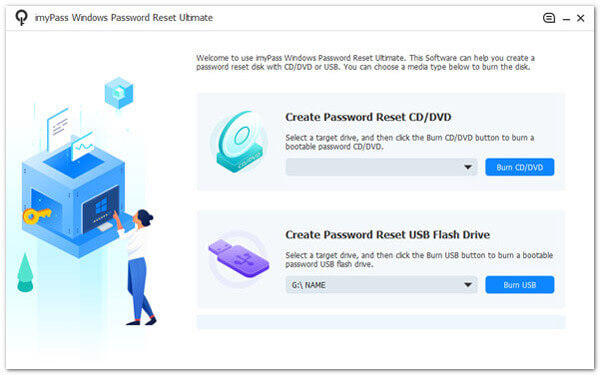
After opening the software, choose to create a boot disk. This is an essential step when your Windows gets stuck and cannot enter the system. Select Create Boot Disk, and the software will automatically write the boot files. Once completed, your USB can be used to bypass the welcome screen.
Then insert the USB into the faulty computer. When starting the computer, you can press the corresponding key for your brand to enter the Boot Menu:
| Brand | Key |
| Dell | F12 |
| HP | Esc / F9 |
| ASUS | Esc / F8 |
| Lenovo | F12 / Novo Key |
| Acer | F12 |
| MSI | F11 |
If you fail to enter successfully, you can try several more times; this step is key to skipping the welcome screen.
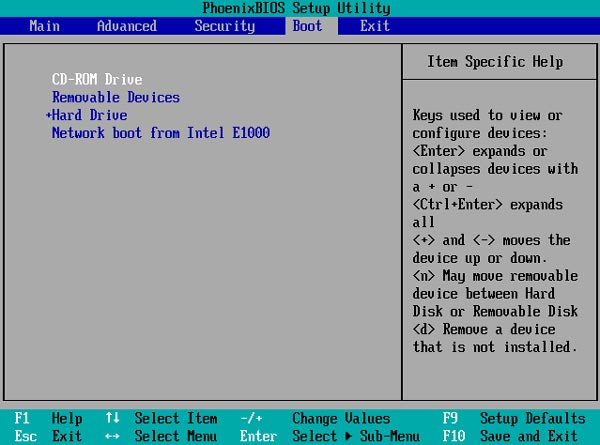
Most computers only need to select the USB directly in the Boot Menu. But if the USB doesn't boot, you can go to the Boot page, use the arrow keys to move the USB drive to the first position, and then press F10 to save and exit.
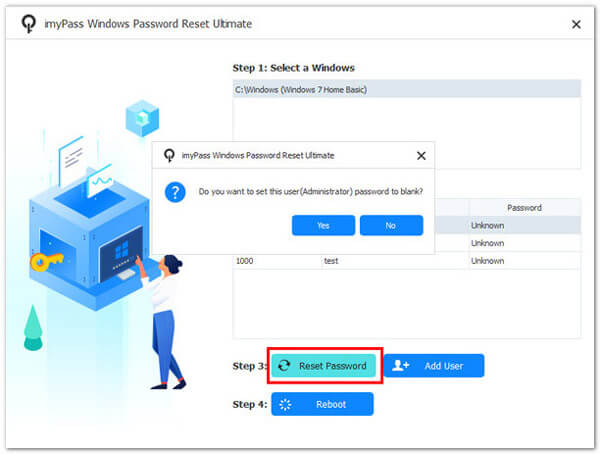
After successfully entering the imyPass startup interface, the software will automatically detect all user accounts and select your Windows system account.
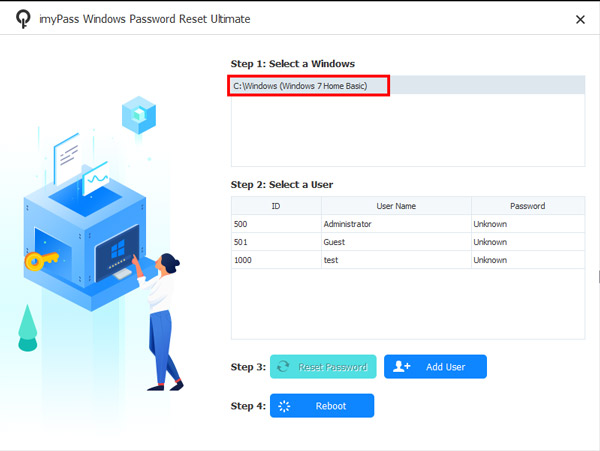
Finally, click Reset Password, and after completion, restart the computer. You will automatically skip the welcome screen, and you won't need to enter a password or lose any data.
Method 2. Restart Windows in Safe Mode
If there are conflicts with your system files, drivers, or startup items, entering Windows 10 Safe Mode can help you bypass the loading process and fix the issue of Windows being stuck on the welcome screen.
At the welcome screen, press Power > Restart.
Hold down the Shift key while restarting to enter Advanced Startup Options.
Select Troubleshoot > Advanced options > Startup Settings.
After restarting, press 4 or F4 to enter Safe Mode.
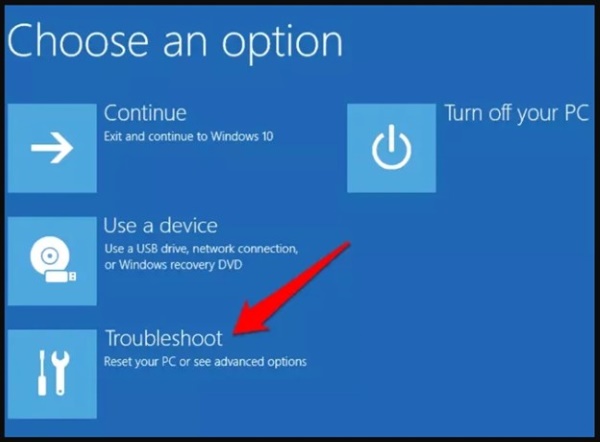
Once inside, you can uninstall recent drivers, remove problematic software, or check user account settings.
Method 3. Update Windows After Login
In some cases, a failed system update can also cause the Windows welcome screen to get stuck.
Open Settings.
Go to Update & Security.
Click Windows Update and install all pending updates.
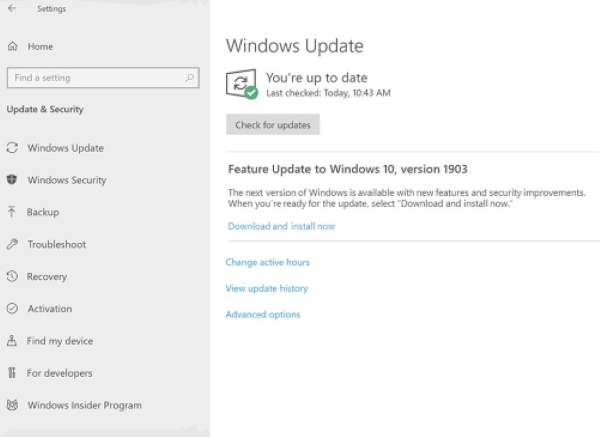
After the updates are completed, the issue of the welcome screen being stuck usually disappears.
Method 4. Use Windows Automatic Repair
Windows' Automatic Repair feature can check and restore critical startup files, serving as a common rescue solution when the system fails to start normally.
Force shutdown and power on continuously 3 times to trigger the repair interface.
Click Advanced Repair Options.
Select Startup Repair.
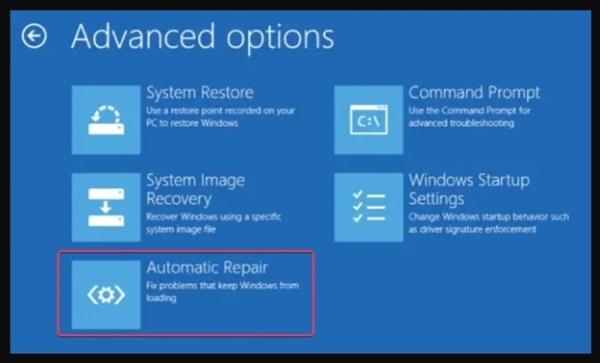
The system will automatically scan for file errors, causing Windows to be stuck on the welcome screen, and attempt to fix them.
Method 5. Using CMD
When system files are corrupted, startup items are abnormal, or there are issues with the disk, you can repair them through CMD.
Access the CMD path:
Advanced Options > Command Prompt
Execute the following commands (in order):
- sfc /scannow (scan system files)
- chkdsk C: /f /r (check for disk bad sectors)
- bootrec /fixmbr
- bootrec /fixboot
- bootrec /rebuildbcd
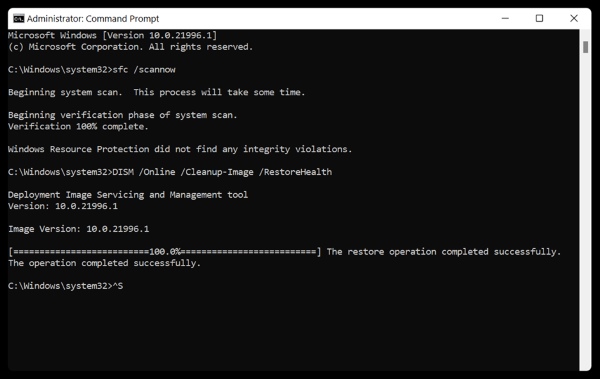
These commands can fix the underlying issues that cause Windows 10 to get stuck on the welcome screen. If you are familiar with CMD, you can also show the administrator password using CMD.
Part 3. Tips for Preventing Welcome Screen Issues
After you successfully repair the system and return to the desktop, it's best to take some preventive measures to avoid the welcome screen freezing again in the future.
- Regularly update the system
System updates not only provide new features but also fix potential system vulnerabilities and compatibility issues. - Ensure your disk is in good health
A full disk, severe fragmentation, or an aging hard drive can all slow down system startup. It is recommended to perform regular disk checks, free up space, or replace an old HDD with an SSD to improve stability. - Back up files regularly
Even if a similar issue, like Windows 10 stuck on the welcome screen, occurs again, you can quickly recover without needing to reinstall the system or worry about data loss.
Conclusion
As long as you use the correct method, or with the help of an excellent tool like imyPass Windows Password Reset, you can successfully bypass the welcome screen and regain access to your system. In the future, by maintaining good system upkeep habits, you can avoid the issue of Windows 10 stuck on the welcome screen, allowing your computer to start more smoothly and run more stably.
Penny is a senior editor from imyPass. She has focused on discovering perfect GPS location solutions in all scenarios, and also has experience in fixing computers.
Hot Solutions
-
Fix Windows
-
Windows Tips
-
Windows Password


