



 Solution
 Support Center
 About Us
 Contact
Windows Stuck on Getting Windows Ready? Try These Solutions
 Penny Warren Published on January 16, 2026Fix Windows3-min reading
When Getting Windows Ready gets stuck, your first reaction might be that your system is broken. But in fact, this process is not simply "loading the interface"; it may be performing updates, optimizing startup items, or repairing files. If progress is slow, it means that some system process is blocked, and human intervention is needed. The good news is that most of the time, there's no need to reset the system or do anything complicated.

In this article:
Part 1. How Long to Wait for Getting Windows Ready
Sometimes it feels like Windows is stuck on Getting Windows Ready, but in fact, in some cases, this is normal. In particular, computers with older hard drives, such as mechanical HDDS, can expect longer wait times.
In general, if the system is operating normally, it is reasonable to wait 5 to 30 minutes. Some users may have to wait up to 1 hour after a large update, especially if the device has ever been forced to shut down, the update has not been fully installed, or the network has been disrupted.
But if there is no change in the computer for a long time, such as more than 1-2 hours of still stuck on the screen, then this may be a situation of Getting Windows Ready stuck, and follow the steps to intervene. Therefore, before you immediately choose to force a restart, give the system some time to process the ongoing tasks.
Part 2. Why Windows Gets Stuck on Getting Windows Ready
If there is no change after waiting for a period of time, it indicates that the system has encountered obstacles in the process of operation. Windows stuck on Getting Windows Ready does not necessarily mean that the computer is damaged, but that Windows is unable to continue smoothly while processing tasks.
Here are the most common triggers:
- System updates are not installed properly
Suppose previous updates are interrupted, such as a sudden power outage, closing the laptop cover, or running out of power. In that case, the system can get stuck in a loop when it boots up, leading to a situation where Windows Getting Ready gets stuck. - Corrupted system files
This mainly occurs after multiple failed updates, driver conflicts, or the use of third-party optimization tools. The system will try to repair the file, and this process can be more time-consuming than you think. - Low disk performance
Mechanical hard drives and devices that run out of space are more prone to a laptop stuck on Getting Windows Ready because system operations require extra space to perform temporary writes and profile updates. - Network-related tasks are not completed
Windows requires network validation licenses or sync Settings in some versions. If the network is unstable, the process may be delayed, and a message indicating that the computer is stuck on Getting Windows Ready appears.
Knowing what's causing the problem can help you decide whether to wait or take the next step.
Part 3. How to Fix Getting Windows Ready Stuck
If the computer has been in this interface for a long time, and there is no progress change, you can follow the following steps. The following methods will start with the lightest, safest operations and work your way up to deeper system fixes to ensure that you can fix Getting Windows Ready stuck or similar issues without damaging your system.
Wait Patiently
If your device has just undergone a system update, restart, or is applying a patch, it is recommended to wait at least 15 to 60 minutes again, especially if you use a traditional mechanical hard drive. If you wait more than two hours and there is no change, you can continue to the next step.
Disconnect External Devices
An external hard disk, USB drive, printer, camera, or mobile storage device may interfere with the startup process. Disconnecting these devices and restarting them can sometimes solve the problem of a computer stuck on Getting Windows Ready. In particular, some USB sticks, although very useful, can even allow you can complete a Windows password reset via USB, but it also makes the system think that you need to continue to perform updates or driver installation.
Force Restart
If the system continues to be unresponsive, press and hold the power button for more than 10 seconds to force a shutdown, and then restart. This step allows the system to try to reload the startup file and clear the currently frozen process. In many cases, this step is all it takes to get the device out of the PC stuck on the Getting Windows Ready interface.
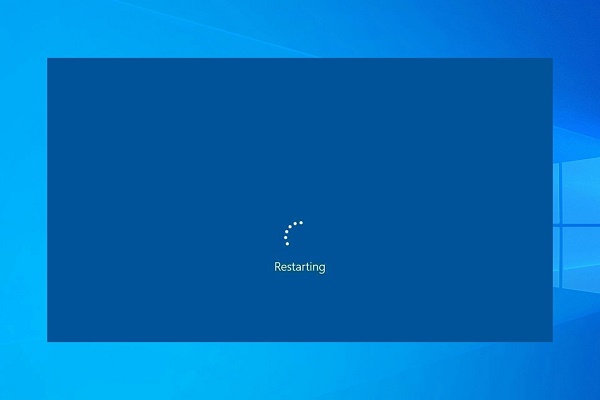
If you still stop at the same screen after restarting, continue to the next method.
Startup Repair
If system files are damaged or updates don't install properly, Windows' auto-repair feature may help the device recover.
After a forced shutdown, wait a few seconds before restarting
When the Windows logo appears, press and hold the power button again to force the shutdown
After the third boot, Windows Recovery Environment (WinRE) will be entered
Select Troubleshoot > Advanced options > Startup Repair.
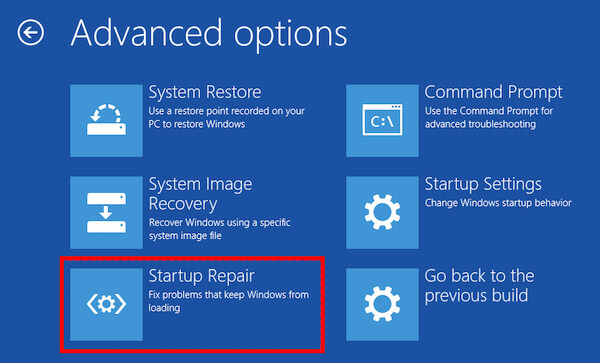
The system scans for the error file and tries to fix the problem that caused Windows Getting Ready to get stuck.
Safe Mode
If you can get into Windows 10 Safe Mode, your hardware is working, and the problem is probably related to updating tasks or caching files. The entry method is as follows:
In WinRE, select Troubleshoot > Advanced options > Startup Settings.
Click Restart.
Press F4 or the number 4 to enter Safe Mode.
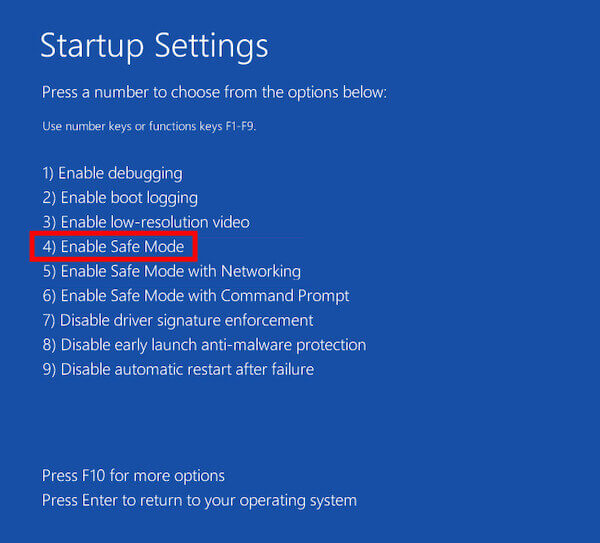
After entering, you can:
- Clean up the SoftwareDistribution folder
- Uninstall the latest Windows update
- Perform disk check (CMD input: chkdsk /f /r)
This step usually resolves the more stubborn situation of Getting Windows Ready stuck.
Part 4. Fix Getting Windows Ready Stuck Caused by Password Error
Suppose you have tried the previous repair method, but the computer still stops on the interface, and the password cannot be verified after restarting. In that case, it is more efficient to use a professional tool to restore or reset the account password. imyPass Windows Password Reset is best used when you cannot log in to the system, forget your password, your account is corrupted, or your permissions are abnormal.
4,000,000+ Downloads
Support for resetting all Windows local account passwords.
No technical basis is required for operation and can be used even if the computer does not start up properly.
Supports all server versions of Windows.
Resetting passwords does not affect system files or personal data.
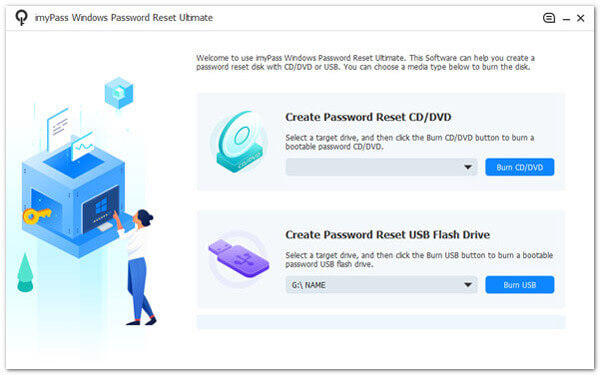
Create a reset disk on the available computer
Download and install the software on another normal computer and insert a USB or blank DVD/CD. Click Create Boot Disk to create the boot disk. USB is recommended for faster speed and better compatibility.
Boot the boot disk on the jammed device
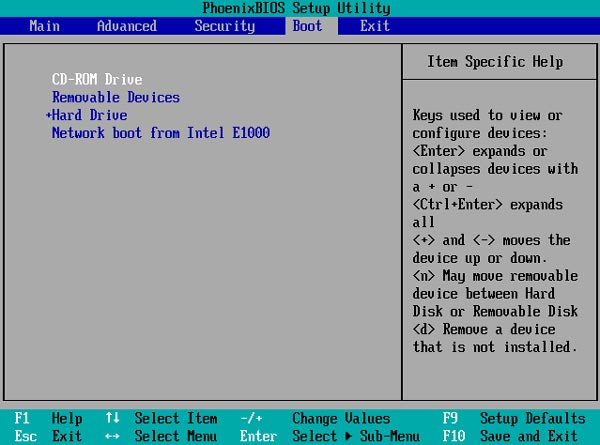
Plug the created USB into the problematic computer. Immediately after startup, press the corresponding shortcut key several times to enter the Boot Menu.
The common Boot Menu buttons of different brands of notebook/desktop computers are as follows:
| Brand | Boot Menu Buttons |
| HP | Esc / F9 |
| Dell | F12 |
| Lenovo | F12 / Novo Key |
| Acer | F12 |
| ASUS | Esc / F8 |
Launch imyPass and reset the password
After starting, the interface will automatically identify the system account. Select the user you want to unlock. Click Reset Password, and click Reboot.
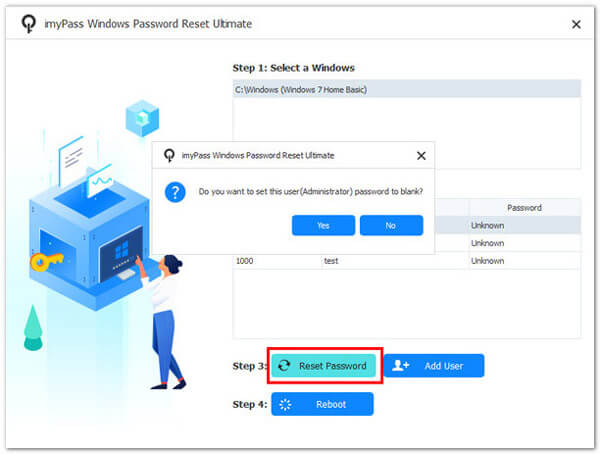
After the computer is restarted, you can enter the system normally, and Windows stuck on Getting Windows Ready will not be repeated due to account verification failure.
Conclusion
A Windows stuck on Getting Windows Ready doesn't mean the system is broken. Most of the time, it's just a failed processing task, an incomplete update, or an abnormal account verification. If the problem is password-related or the system fails login verification, using a reliable tool like imyPass Windows Password Reset can significantly shorten the troubleshooting time and make the device usable again without reinstalling the system or risking the data.
Penny is a senior editor from imyPass. She has focused on discovering perfect GPS location solutions in all scenarios, and also has experience in fixing computers.
Hot Solutions
-
Fix Windows
-
Windows Tips
-
Windows Password


