



 Solution
 Support Center
 About Us
 Contact
How to Effectively Fix No Login Screen on Windows 10
 Penny Warren Published on March 06, 2026Fix Windows3-min reading
"My old laptop installed the latest update of Windows 10. Then, it no longer presents the login box and only displays a black screen. How can I fix this problem?" Normally, you press the Power button, and your PC turns on. Then, you will be presented with the login screen, allowing you to enter the desktop with or without your password. If you experience the same problem, follow our solutions to fix the no Windows 10 login screen.

In this article:
Part 1: Why No Login Screen on Windows 10
Before we walk through the solutions, let's discuss why the Windows 10 login screen is missing first. Understanding the reasons can help you troubleshoot more effectively. The main causes include:
- 1.Corrupted system files can prevent the login screen from loading correctly, for example, the Windows 10 login screen is blurry and no password box.
- 2.Incompatible software, such as a recently installed app or update that conflicts with your OS.
- 3.Issues with your user profile can lead to the login screen missing, too.
- 4.Malware or viruses may interfere with the normal startup process.
- 5.Temporary software glitches.
Part 2: How to Fix No Login Screen on Windows 10
Solution 1: Press Ctrl + Alt + Delete
If your Windows 10 has no switch user option on the login screen, you can press Ctrl + Alt + Delete keys together to force activate the option. The key combination can even restart Windows directly.
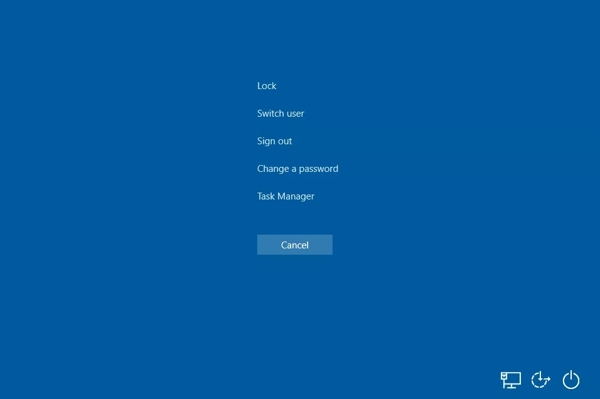
If your PC is in UEFI/BIOS and doesn't boot into Windows, press Ctrl + Alt + Delete keys on your keyboard will instantly reboot your PC.
If you have booted into Windows 10 but the login screen is missing, pressing Ctrl + Alt + Delete keys will interrupt the OS and load a few options. Then, choose Switch user and enter your login credentials.
Solution 2: Boot into Safe Mode
Safe Mode is a vital tool to troubleshoot your Windows 10. It boots a minimal environment that can help you isolate problems, like app conflicts. It can fix the Windows 10 blurry login screen with no password box.
While holding the Shift key, click the Power button on the startup screen and choose Restart.
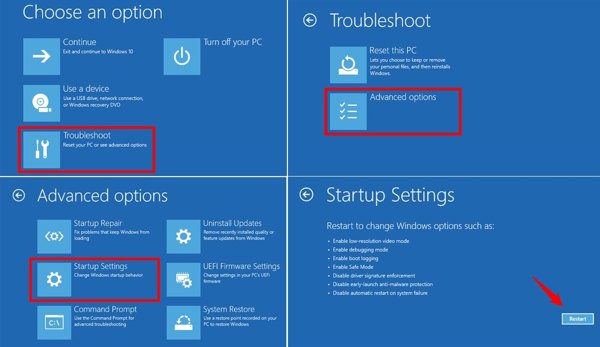
Now, your PC will boot into the Choose an option screen.
Choose Troubleshoot, Advanced options, and Startup Settings.
Click the Restart button.
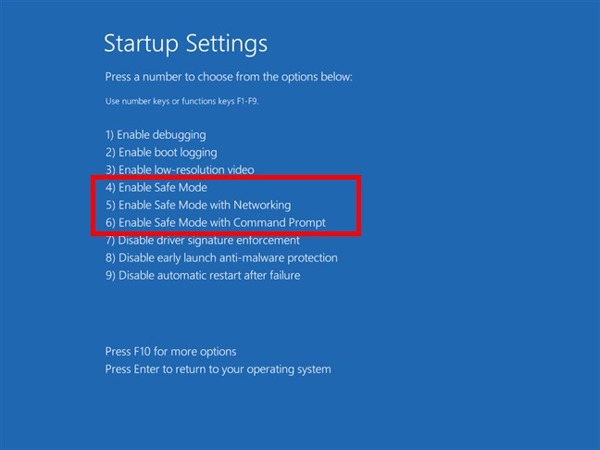
Next, press the 4 key on your keyboard to boot in Safe Mode.
Uninstall conflicting apps and update, and reboot your PC.
Solution 3: Perform a System Restore
If your Windows 10 doesn't show the login screen after an update, you can perform a system restore to uninstall the update. Windows 10 automatically creates a restore point when updating.
Long-press the Power button to force shut down your PC.
Next, press the Power button.
Once your PC restarts, quickly press the F11 key to enter the Recovery Menu screen.
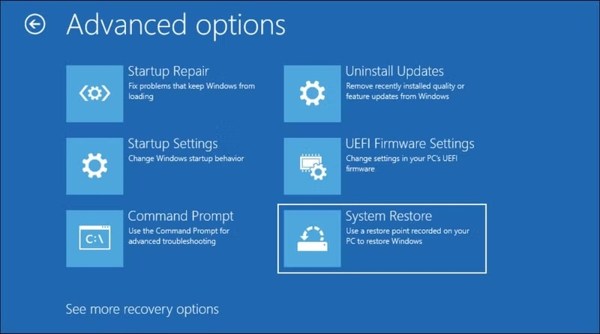
Click Troubleshoot, choose Advanced options, and hit System Restore.
Select the most recent restore point, and click Next to begin restoring your system.
Solution 4: Run Startup Repair
When your Windows 10 displays a black screen with no cursor before login, you can also run Startup Repair. It is a built-in recovery tool on Windows for repairing system and software issues automatically.
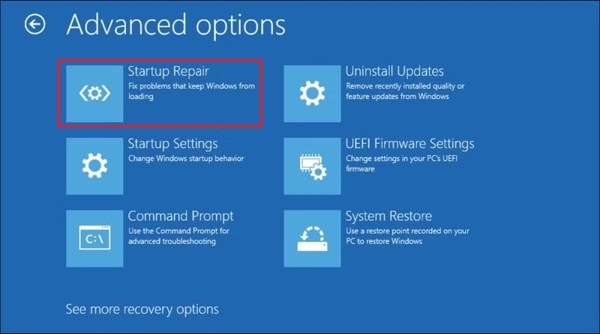
Boot into the Recovery Menu screen.
Click Troubleshoot, choose Advanced options, and pick Startup Repair.
Your PC will start to diagnose.
Next, choose a user account and enter the password.
Click Continue to begin startup repair.
You May Also Like:
Part 3: Ultimate Solution to Fix No Login Screen on Windows 10
If the solutions above are unavailable, imyPass Windows Password Reset can help you fix the no login screen on Windows 10, even if your PC is locked out. The software enables you to reset the forgotten password quickly.
4,000,000+ Downloads
Remove the Microsoft login screen without data loss.
Create new admin accounts without logging in PC.
Make disk or USB boot drives easily.
Work for Windows 11/10/8/7/XP/Vista.
How to Fix No Login Screen on Windows 10
Install Windows Password Reset
Launch Windows Password Reset after installing it on an accessible PC. You can borrow a PC from your friend or family member. Insert a blank DVD or USB drive into the PC.
Create a boot DVD or USB
Click the Burn CD/DVD or Burn USB button, depending on your boot medium. When the boot medium is ready, eject it.
Reset Windows password
Restart your PC and quickly press F12 or ESC key on your keyboard to enter the Boot menu. For ASUS and BenQ, press F8. Insert the bootable disk or USB into your PC, and select it on the Boot menu. Next, select your Windows 10, highlight your account, and click Reset Password. Enter a new password and confirm it. Finally, click the Reboot button to restart your PC to the login screen.
Conclusion
This guide helps you fix the Windows 10 no login screen. You can follow the common solutions to troubleshoot software glitches and boot your PC to the login screen. More importantly, we recommended imyPass Windows Password Reset to unlock your PC even if you forgot the password.
Penny is a senior editor from imyPass. She has focused on discovering perfect GPS location solutions in all scenarios, and also has experience in fixing computers.
Hot Solutions
-
Fix Windows
-
Windows Tips
-
Windows Password


