



 Solution
 Support Center
 About Us
 Contact
How to Add a Location on Instagram on iOS and Android
 Penny Warren Published on January 09, 2026GPS Location3-min reading
Today, Instagram has become one of the most popular social media. Users share oceans of stories and posts on the platform. It is essential to learn strategies to enhance the engagement of your posts. Using a location tag can improve your Instagram strategy, enhance visibility, attract more exposure, and make your content more relevant. Plus, organization accounts can add a business location on Instagram. Here, we share a concrete guide.

In this article:
Part 1: What Is Custom Location on Instagram
Before adding a custom location on Instagram, you should understand what it is. Unlike the location in your profile, a custom location is actually a unique location tag. You can add a location on Instagram that doesn't exist in the location database and apply it to your posts. It is a valuable tool for businesses to increase visibility and strengthen branding.
In short, you can add two types of location on Instagram: the location in your profile and the location tag.
Part 2: How to Add a Location on Instagram
How to Add a New Location on Instagram from Facebook
Currently, users cannot add a new location on Instagram. Alternatively, you have to complete the job from the Facebook app. Then, it will show up on your Instagram, too. Make sure to install Facebook on your device.
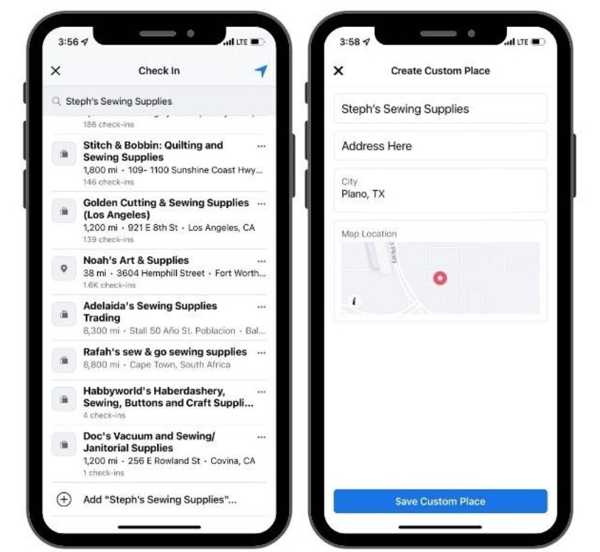
Run the Facebook app and log in to your account.
Tap What's on your mind, and hit Check In.
Search for the desired location and tap Add.
Enter the name, address, and city, and pin the right position on the map.
Tap Save Custom Place.
Note: The new location has been added to both Facebook and Instagram.
How to Add My Business Location to Instagram
You can add your business location on Instagram if you are using a professional account for your account. This feature is unavailable for standard accounts. It is simple to switch to a professional account.
Open your Instagram app and tap on your profile picture.
Tap Edit Profile and select Switch to Professional Account. If you are using a business account, switch to step 5.
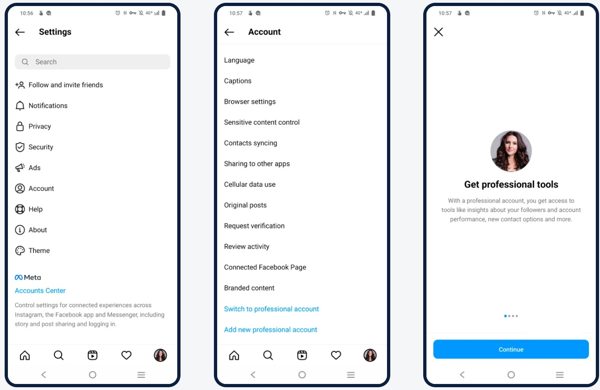
Pick a category that best describes your business, and hit Next.
Choose Business and tap Next. Then, fill out the information.
Next, navigate to the Edit Profile screen and choose Contact Options.
Add your business location to Instagram, and tap Done.
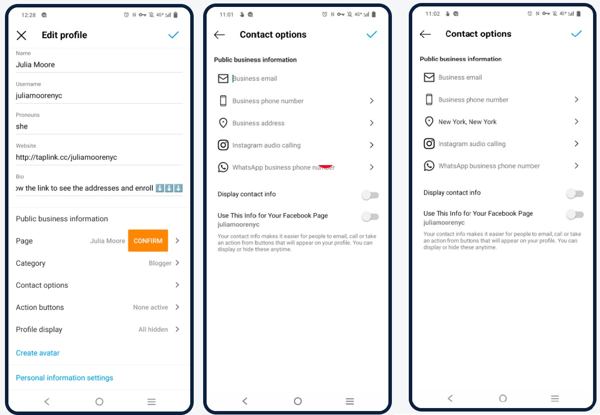
Back to the previous screen, and hit Save.
Locate the Profile Display section, and make sure Display contact info is displayed.
Finally, tap Done.
How to Add Location to an Instagram Post
When sharing images and stories, you are allowed to add a location to an Instagram post. The location tag feature can get more awareness and interest for your post. Here are the steps to add a location tag:
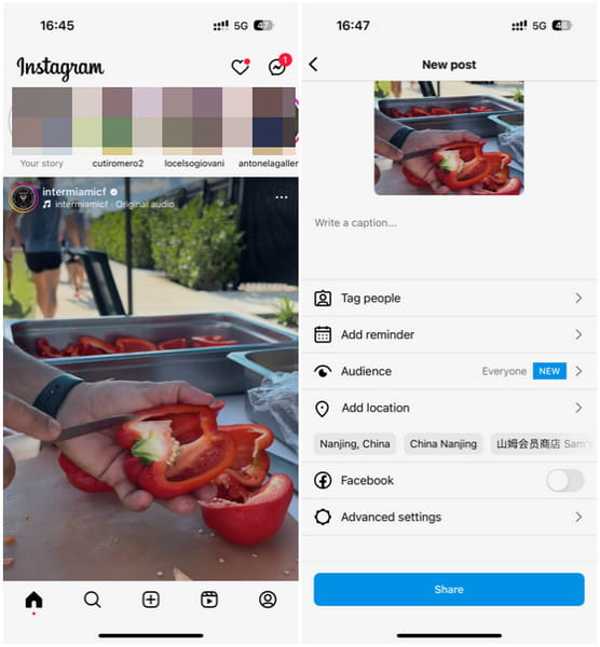
Tap the Plus button in Instagram and choose Post.
Pick the picture or video you wish to share in your Camera Roll or Gallery.
Tap Next, set the filter, and hit Next.
Type your Instagram caption.
Next, tap the Add location button.
Search for the location that you want to use, and choose it from the results.
Tap the Share button.
Then, you will see the address above the image.
How to Add a Custom Location to an Instagram Story or Reel
In addition to standard posts, you can also add a custom location to Instagram Story and Reel. Then, the address will show up on the location page on Instagram. That can expand your reach effectively.
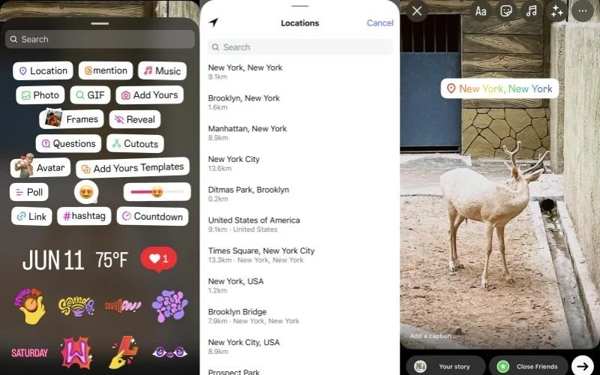
Tap the Plus button in Instagram.
Choose Story or Reel.
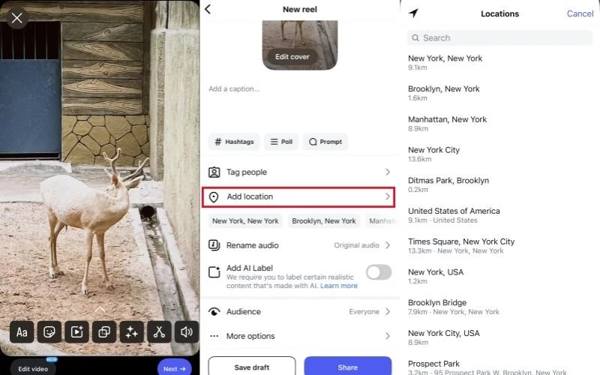
Select the desired pictures and videos, and hit Next.
For Instagram Story, tap the Sticker button, and hit Location.
For Reel, tap Add Location directly.
Then, search for the desired location and upload the Story or Reel as usual.
Part 3: How to Add Not-Exist Location on Instagram
When using location on Instagram, you actually explore the location database. If you want to add a location on Instagram that doesn't exist, iLocaGo can help you. It allows you to change your phone location to any address on earth. Then, you can use the fake location when posting on Instagram.

4,000,000+ Downloads
Create virtual location to any place without moving.
Add any custom location on Instagram quickly.
Available on almost all social media and mobile games.
Work for a wide range of iPhones and Android devices.
How to Add a Location on Instagram that Doesn't Exist
Connect to your phone
Start the best location changing software as long as you install it on your computer. Next, link your mobile device to your computer with a USB cable.

Choose Modify Location
Once the software detects your device, you will be presented with the mode screen. Here you can get four modes: Modify Location, One-stop Mode, Multi-stop Mode, and Joystick Mode. Choose Modify Location and proceed. The other three modes are used for creating virtual routes.

Add a location on Instagram
By default, the software displays your current location on the map. Type an accurate address into the field on the pop-up dialog. Or click a position on the map and check the address. Finally, click on the Modify button. Now, share pictures and videos on Instagram with a fake location. You can also change location on Tinder with this program.

Note: When you want to stop changing location, disconnect your device and close the software.
Conclusion
Now, you should understand how to add a location on Instagram. You can create a custom location for Instagram using the Facebook app or a professional account. Plus, you can add a new location when posting pictures, stories, and reels on Instagram. If you cannot find the desired location or the Instagram location is unavailable, iLocaGo allows you to apply any location to your post without technical skills.
Penny focuses on GPS troubleshooting and Windows optimization. She formerly worked as a technical support engineer, helping clients solve location-based and system issues efficiently. Backed by IT support experience, she provides practical solutions that really work. In her free time, she likes hiking and geocaching, testing GPS tech in the real world.
Hot Solutions
-
GPS Location
-
Unlock iOS
-
iOS Tips
-
Unlock Android


