



 Solution
 Support Center
 About Us
 Contact
How to Enable and Change Location on Google Chrome
 Penny Warren Published on February 06, 2026GPS Location3-min reading
It cannot be denied that Google Chrome is a great web browser on both computers and mobile devices. However, it does monitor your online activity, such as your searches, watch history, and more. More importantly, it collects your location data. According to Google, it uses your location data to provide more personalized experiences. If you worry about your security and privacy, this tutorial tells you how to change Chrome's location settings.

In this article:
Part 1: An Easy Way to Change Location on Chrome for iOS and Android
Google doesn't allow you to set a location in Chrome on a mobile device. Fortunately, iLocaGo can meet your needs. It is able to change your geolocation with a fake region. Then, Google Chrome and websites won't track your real location. More importantly, Chrome cannot recognize your action.

4,000,000+ Downloads
Change the location of Chrome without disabling it.
Support both accurate addresses and any position.
Hide your real location without notifying others.
Offer bonus features, like creating virtual routes.
Compatible with a wide range of iPhones and Android devices.
How to Change the Location of Chrome on iOS or Android
Connect to your phone
Open the location changing software once you install it on your computer. It is available on Windows 11/10/8/7 and macOS 10.12 or above. Link your iPhone or Android phone to your computer with a suitable USB cable. It allows you to link an Android to a computer with Wi-Fi.

Choose Modify Location
Next, you will be presented with the menu window:
Modify Location is used to fake your GPS location on the phone.
One-stop Mode can create a virtual route with starting and ending spots.
Multi-stop Mode is used to make a virtual route with starting and multiple stops.
Joystick Mode can make a route with your mouse or keyboard.
Here, we choose Modify Location.

Change Chrome location
Then, type in an address into the field or click the desired position on the map. Finally, click the Modify button to confirm the change. Now, you can open Chrome on your handset and access websites.

Part 2: How to Change Location on Chrome on Desktop
How to Change the Location of Chrome for Search Settings
Chrome filters your search results according to your region. If you want to set the location in Chrome for search results, you can complete it quickly with the proper settings. Here are the steps below:
Click the Settings button on your Chrome.
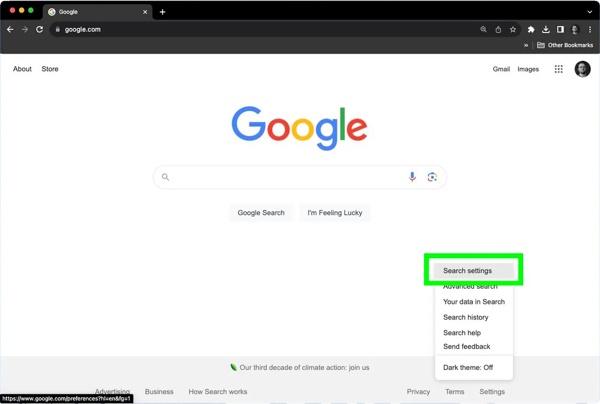
Choose Search settings, and pick Other settings.
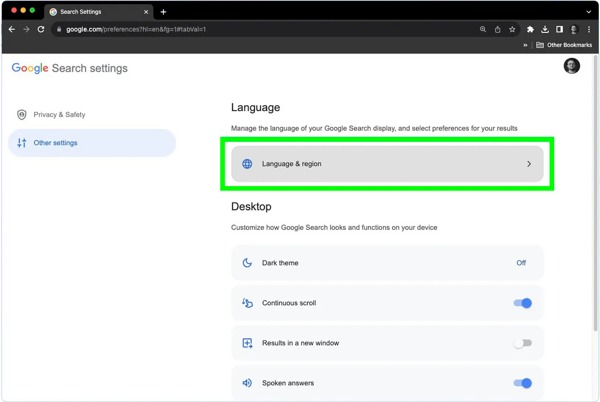
Click the Language & region option.
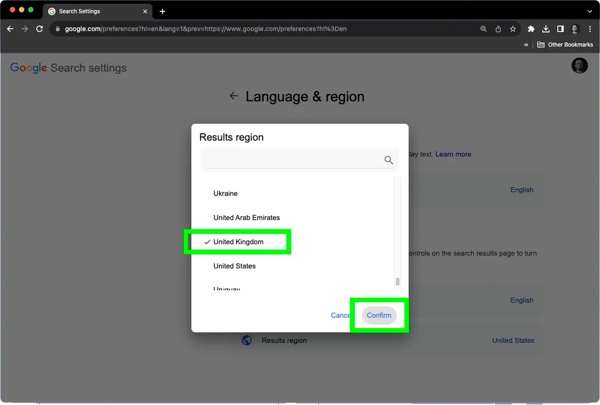
Choose Results region, select the desired country, and click Confirm.
How to Change Location on Chrome with the Developer Tools
A common way to change Google location settings on Chrome is through the Developer Tools. After location changing, all websites cannot detect your real location. The workflow is a little complicated, and we share it below:
Open your Chrome and go to a website.
Press Ctrl + Shift + I on a PC or Cmd + Option + I on a Mac to fire up Developer Tools.
Click the Menu button with a three-dot icon at the top right corner.
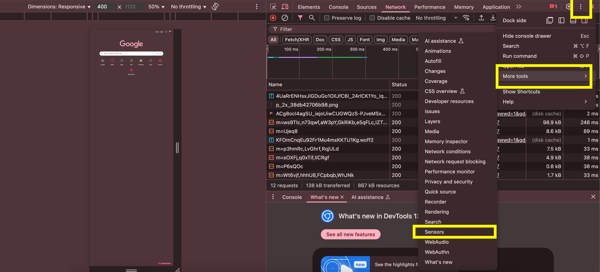
Choose More tools and select Sensors.
Find and click the Location or Geolocation option.
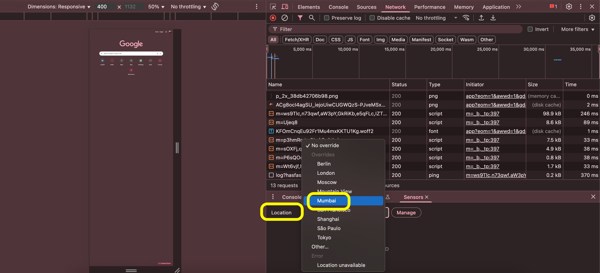
Here, you can pick a proper location. If you want to set it manually, choose Custom location, and enter latitude and longitude.
Extended Reading:
How to Change Location on Chrome Using an Extension
Another way to change location on Google Chrome is to look for a specific extension, such as Location Guard. You can download it from the Chrome Web Store and force modify your Chrome location.
Search for the location changing extension in the Chrome Web Store, and add it.
Next, click the extension button on the top ribbon.
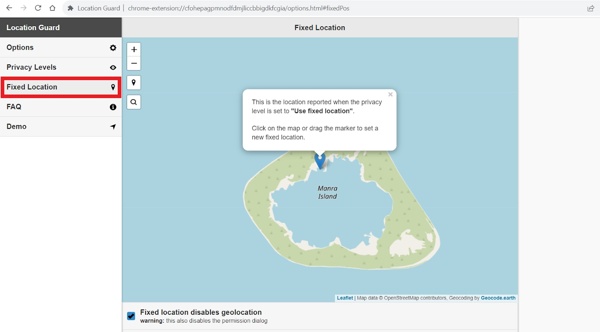
Choose Options, and go to the Fixed Location tab.
Move the location marker to the desired destination.
Then, close the page and visit a test website.
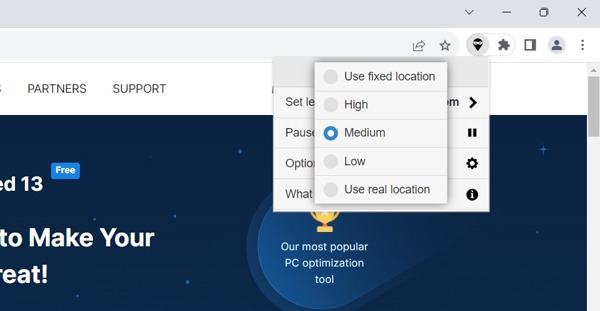
Click the extension button, click Set level for, and select Use fixed location.
Next, close the extension menu.
Part 3: How to Change Chrome Location by Disabling Location
You can decide to enable location permission in Chrome or disable it. Once you disable Location in Chrome, websites cannot recognize where you are currently. That is another way to protect your privacy and enhance security.
How to Stop Allowing Location on Chrome on Desktop
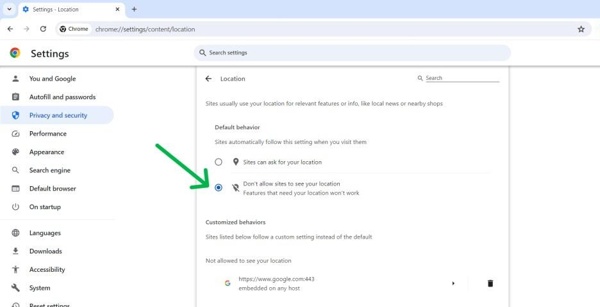
Click the Menu button with a three-dot icon at the top right side.
Choose Settings, and go to the Privacy and security tab.
Click the Site settings option.
Hit Location under the Permissions section.
Select Don't allow sites to see your location.
How to Disable Location on Chrome for iOS
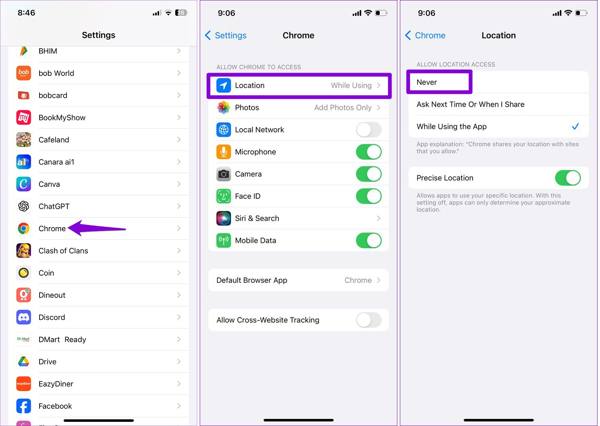
Run the Settings app on your iPhone.
Scroll down, go to Apps, and choose Chrome.
Tap the Location option and select Never.
How to Disable Location on Chrome for Android
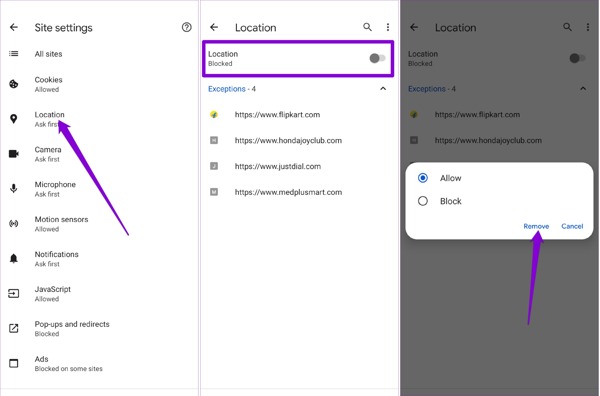
Run your Google Chrome app on your phone.
Tap the Menu button with a three-dot icon.
Choose Settings and pick Site settings under the Advanced section.
Find and tap the Location option.
Toggle off Location to stop allowing location on Chrome.
Note: Besides, you can also disable Chrome location access in the Settings app on your Android phone.
Conclusion
This guide explained how to change location on Chrome on Windows, macOS, iOS, and Android. You can set the location for Google search results in your Chrome directly. If you wish to allow Chrome location and set it manually, the built-in Developer Tools are available. Moreover, you can use a location-changing extension. We also shared the ways to disable location on Chrome. iLocaGo is able to customize your geolocation when accessing websites on Chrome on a mobile device.
Penny focuses on GPS troubleshooting and Windows optimization. She formerly worked as a technical support engineer, helping clients solve location-based and system issues efficiently. Backed by IT support experience, she provides practical solutions that really work. In her free time, she likes hiking and geocaching, testing GPS tech in the real world.
Hot Solutions
-
GPS Location
-
Unlock iOS
-
iOS Tips
-
Unlock Android


