Solution
 Support Center
 About Us
 Contact
How to Change Safari's Location to Protect Your Privacy
 Penny Warren Published on May 27, 2026GPS Location3-min reading
In an era where digital privacy is vital, your geographical footprint is more sensitive than ever. Whether you are a traveler accessing location-based services, a developer testing localized content, or simply a privacy-conscious user, knowing how to change your location on Safari is a vital skill.
Modern websites use your IP address and GPS data to serve localized experiences, which often means targeted ads and regional content blocks. This guide will walk you through the most effective methods to change location on iPhone and Mac Safari to take back control of your virtual coordinates.

In this article:
Part 1. Why Should You Change Your Safari Location?
Before diving into the steps, let's understand the vital reasons why you need to change the location on Safari. Adjusting your digital location isn't just about masking your identity; it can also unlock the full potential of the web.
- Bypass Geo-Restrictions: Access streaming libraries or news sites that are only available in specific countries.
- Secure Better Deals: Prices for flights, hotels, and subscriptions often fluctuate based on your detected region.
- Enhanced Privacy: Prevent websites from building a precise profile of your physical movements.
Part 2. How to Change Location on Safari iPhone
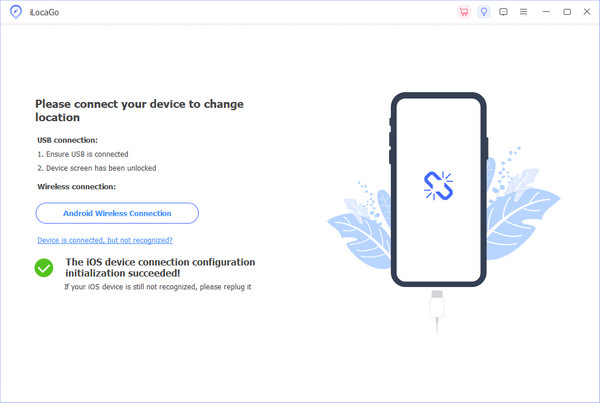
Changing location on Safari on iPhone is not that easy. But fortunately, since iOS 16.3, iPhone and iPad have introduced the Developer Mode. You can turn it on and then use imyPass iLocaGo to change your iPhone's location, and then it will make the Safari location totally changed, not just the IP location. imyPass iLocaGo can let you directly create a virtual location for your iPhone, with just a click, your privacy and data security are assured. Let's check the detailed steps to change your Safari location on your iPhone and iPad.
Note:
If your device runs iOS 16.2 or older, directly go to the second step.
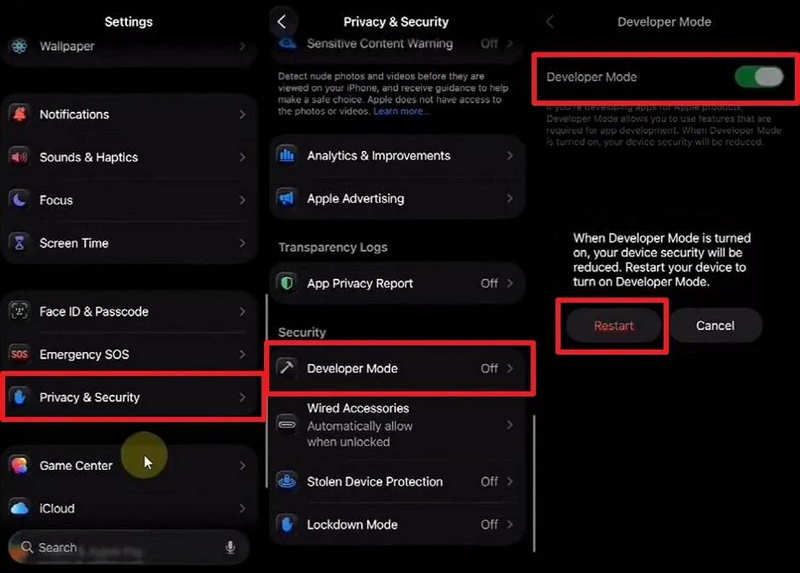
Turn on Developer Mode on Your iPhone
- 1.Open Settings andTu tap Privacy & Settings.
- 2.Slide down to tap Developer Mode. Then, restart your iPhone or iPad.
- 3.When your iPhone is restarted, select Turn On to turn on the Developer Mode.
Get imyPass iLocaGo on Your Computer
Just turning on the Developer Mode is not enough. You should start changing the location now. Download, install, and launch imyPass iLocaGo on your computer. Then, connect your iPhone to your computer.
Change the Safari Location on iPhone
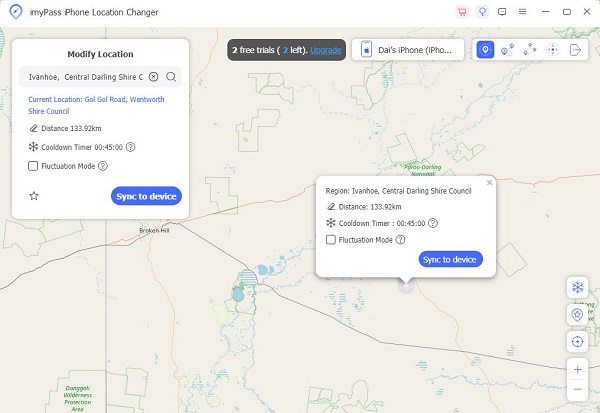
When your iPhone or iPad is connected, click the Modify Location button.
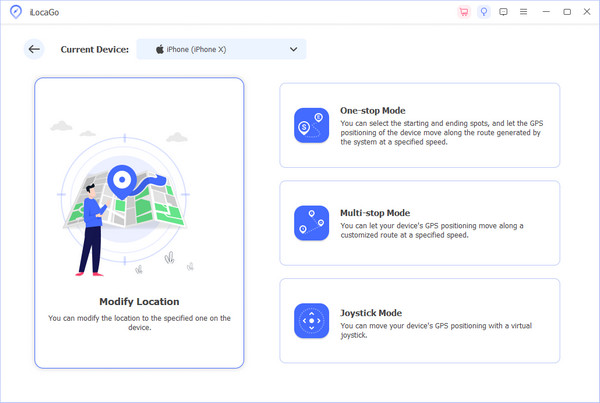
Now, enter a location in the input box on the top left side. Your can also click on a location on the map. Then, click the Modify button to change the location on your iPhone Safari.
Bonus Tip: Prevent Safari from Tracking Your Location
To protect your privacy, you don't need to change the location on Safari. Maybe you can turn on the location service for the Safari app.
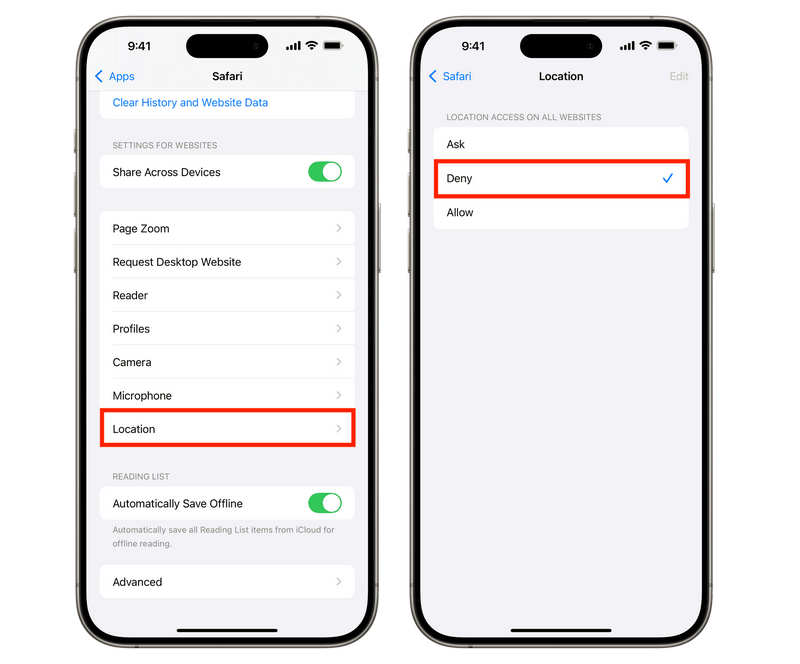
- 1.Open Settings on your iPhone.
- 2.Scroll down and tap Apps. Then, select Safari.
- 3.Scroll down and select Location.
- 4.Tap the Deny button to prevent Safari from accessing your location.
Extended Reading:
Part 3. How to Change Location on Safari Mac
On macOS, your location is typically determined by your Wi-Fi network and IP address. To change your Safari location here, you have two primary options:
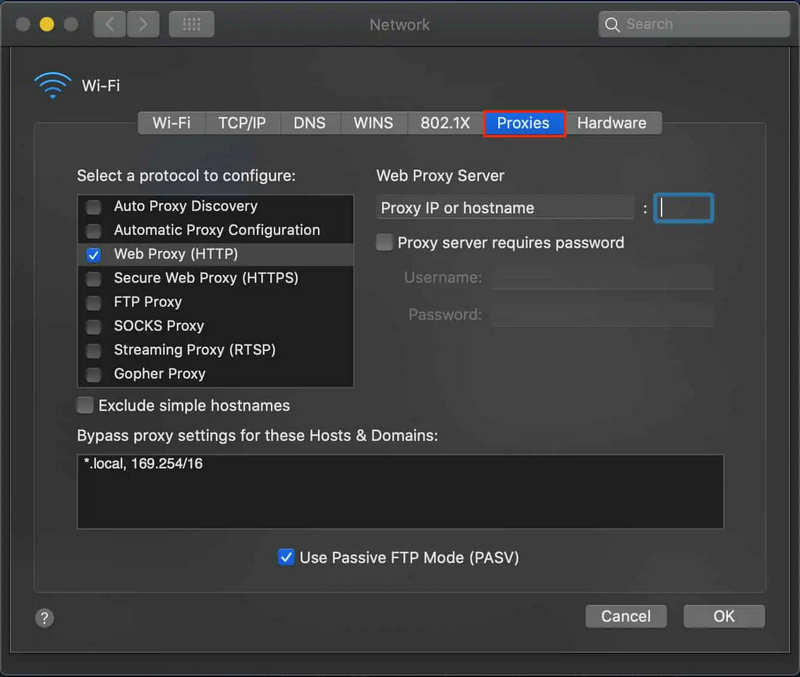
Proxy: This is the easiest way to change your IP address. By connecting to a server in London or Tokyo, Safari will automatically serve you content from those regions.
Development Tools: If you are a web designer, you can use Safari's Develop menu to change the location. Go to Safari > Settings > Advanced and check Show features for web developers. In the Develop menu, select Inspect Facility and use the Overrides tab to manually input latitude and longitude.
Part 4. FAQs of Changing Location on Safari
FAQs.
-
How do I change Safari to a different country?
To change your Safari's country, you can change your Apple ID's country and region or use a proxy (or VPN). It will directly change the country in Safari.
-
How do I make it so Safari doesn't know my location?
You can go to Settings > Apps > Safari > Location, and then tap Deny. You can also go to Privacy & Security > Location Services > Safari Websites, and then select Never.
-
Can someone track you on Safari?
Yes, websites and advertisers can track your online behavior through IP addresses, fingerprinting your device's unique settings, and cross-site cookies, though Safari includes built-in features to significantly limit these activities.
Conclusion
This article tells you how to change Safari location on iPhone and Mac. You can use a proxy or developer tools to directly change the location on Mac. For iPhone users, you should turn on the Developer Mode and then use imyPass iLocaGo to enter a desired virtual location. Then, the Safari app on your iPhone will use this fake location as your real location.
Penny focuses on GPS troubleshooting and Windows optimization. She formerly worked as a technical support engineer, helping clients solve location-based and system issues efficiently. Backed by IT support experience, she provides practical solutions that really work. In her free time, she likes hiking and geocaching, testing GPS tech in the real world.
Hot Solutions
-
GPS Location
-
Unlock iOS
-
iOS Tips
-
Unlock Android