



 Solution
 Support Center
 About Us
 Contact
How to Change Location on App Store for Different Countries
 Penny Warren Published on January 16, 2026GPS Location3-min reading
When you click on an app in the App Store and only see "Not available in your region," many people start searching for how to change the App Store location. Such restrictions are not uncommon. The problem isn't that the process is complicated, but that most people don't understand how the App Store's regional system works, and they don't know which method of changing it is truly suitable for their situation.

In this article:
Part 1. Understanding App Store Country Change
Guessing you clicked on this article because a certain app cannot be used in your region, and you want to figure out how to change the App Store location. This situation is quite common, as the App Store itself restricts content based on the region of the account.
The key point is that the country shown in the App Store does not depend on where you are physically located, but on the country associated with your Apple ID. Even if you are abroad, as long as your account region hasn't changed, the app list, prices, and download permissions usually won't change either. This is also why many users repeatedly try to figure out how to change location on the App Store without success.
In simple terms, switching the App Store country is essentially adjusting the scope of your account usage, which involves payment methods and some subscription rules. Understanding this can help you avoid unnecessary detours and quickly determine which method is truly suitable for you.
Part 2. Things You Must Check Before Changing App Store Location
Before attempting to change the App Store location, make sure to confirm the following key conditions to avoid switch failures or restrictions midway effectively.
Subscription effective period
As long as there is a subscription service in use under the Apple ID, the system usually does not allow changing the region, which is the first obstacle many people encounter when researching how do you change your App Store location.
Account balance
The App Store balance must be zero, and there must be no pending refunds, pre-orders, or rentals, or the location settings will not be saved successfully.
Terms of payment
Restrictions on payment methods vary from country to country, with some areas accepting only local credit cards or payment instruments. This is especially important to think about ahead of time if you're looking for how to change the App Store location without a credit card, especially if you are unable to remove the payment method from iPhone.
Purchased content and services
After changing the region, some apps, subscriptions, or media content may no longer be available, but the purchase history will usually remain in the account.
Part 3. Best Tool to Change Location for App Store
If you don't want to get stuck repeatedly with subscriptions, payment methods or account regions, a professional location tool is often a less time-consuming option. imyPass iLocaGo offers a more flexible approach for users who want to change location for the App Store with a high success rate.

4,000,000+ Downloads
No need to change Apple ID country, avoiding complex account-level restrictions.
No local payment method required, no external restrictions.
Clear operation path, set up in a few steps.
Supports multiple iPhone scenarios for application download, content display, and regional testing.
Install and open imyPass iLocaGo on your computer and select Modify Location mode. Connect your iPhone to your computer using a cable and follow the prompts to authorize your device.

Enter the destination country or city in the map screen and confirm the location you want to use for the App Store.
Click Modify, and the system will immediately switch the device location information to the selected region.

Open the App Store on your iPhone and refresh the page to see the app content corresponding to your new location.
This method does not directly change the account country setting, but helps the App Store display content in different regions by changing the location environment of the device. It's a safer option for users who only need temporary access to overseas apps, or who repeatedly try how to change location in the iPhone App Store but don't want to deal with account issues.
Part 4. How to Change App Store Location via Simple Methods
If you prefer to use the official Apple method to complete the region switch, the following methods are still worth knowing. However, there are obvious differences between different approaches, so a quick comparison will help you determine which one is best for you.
| Method | Difficulty | Requires Local Payment Method | Subscription Cancellation Required | Keeps Previous Purchases | Risks/Limitations | Best for |
| Via Settings | Medium | Yes (in most regions) | Yes | Yes | Strict requirements, higher failure rate | Users permanently relocating to another country |
| Via Apple ID website | Medium | Yes (in most regions) | Yes | Yes | More steps, same restrictions as Settings | Users who cannot access iPhone settings |
| Create a new Apple ID | Medium-High | Not always | No | No (new account) | Requires account switching | Users who only need access to specific regional apps |
Settings
This is the most common method for how to change app store location on iPhone and can be done directly on the device.
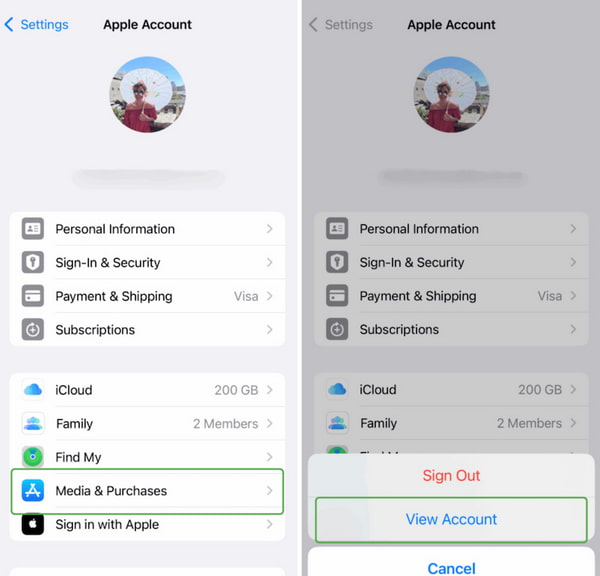
Open Settings and tap the Apple ID at the top.
Go to Media & Purchase and select View Account.
Click on the country or region and select Change Country or region.
Select the target country from the list, read and agree to the terms.
Add a payment method that meets the requirements of the region to complete the save.
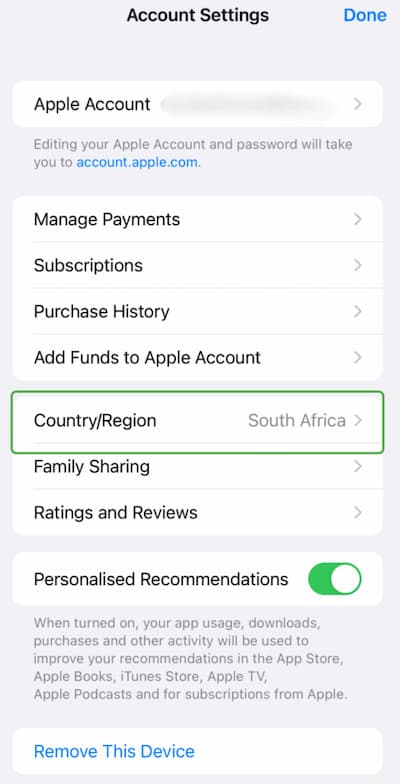
This method requires canceling all subscriptions and clearing the balance; the changes cannot be saved successfully.
Apple ID Website
You can also use the web version to complete the setup when you're temporarily unable to do so on your iPhone.
Log in to the Apple ID website in a browser and reset Apple ID password if you forget it.
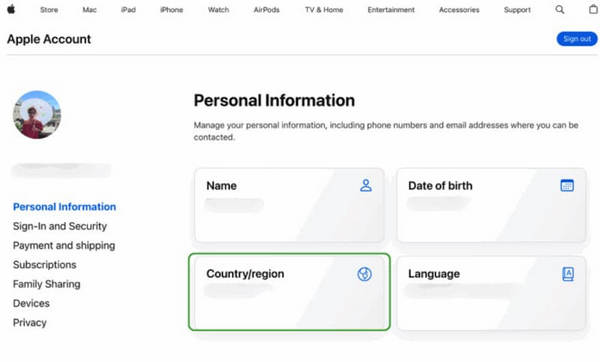
Go to the Personal Information page and find the Country/region option.
Select a new country or region and confirm the changes.
Fill in the new billing information and payment method as prompted. Save the Settings and reopen, and your region will be updated.
Create a New Apple ID
Creating an Apple ID for a target country is an alternative that many users turn to when trying out how to change location on the App Store when you can't meet the subscription or payment terms of your original account.
Quit your current Apple ID, or open the Apple ID registration page in a browser.
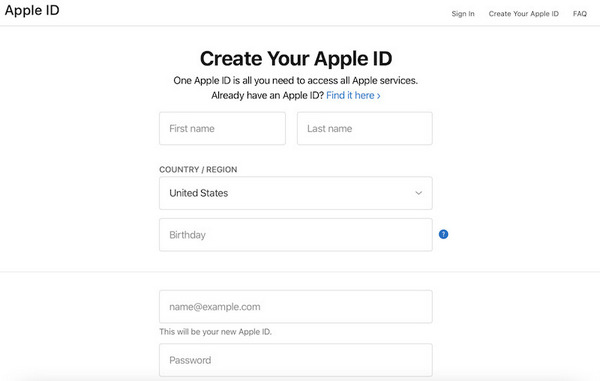
Select Create New Apple ID and fill in an unused email address.
Select the target country you wish to use in the Country/region column.
Complete email verification and fill in basic information as prompted. Select None on the payment method page, or skip this step (supported in some regions).
Sign in to your iPhone with your newly created Apple ID. Open the App Store to access apps and content in the corresponding country.
This method does not affect the data and purchase history of the original account, but purchased apps, subscriptions, and cloud content cannot be shared with the new account, and you need to switch between different Apple IDs manually.
Conclusion
If you don't want to deal repeatedly with subscriptions, payment methods, or account switching, choosing a more flexible tool can often save you a lot of time. Location tools like imyPass iLocaGo make it possible to quickly adjust the location of your device without changing your Apple ID country Settings. In the face of complex restrictions, a simpler way to accomplish how to change location on App Store is often a more efficient choice.
Penny focuses on GPS troubleshooting and Windows optimization. She formerly worked as a technical support engineer, helping clients solve location-based and system issues efficiently. Backed by IT support experience, she provides practical solutions that really work. In her free time, she likes hiking and geocaching, testing GPS tech in the real world.
Hot Solutions
-
GPS Location
-
Unlock iOS
-
iOS Tips
-
Unlock Android


