



 Solution
 Support Center
 About Us
 Contact
How to Turn Off Location on Life360 Without Notifying
 Penny Warren Published on December 17, 2025GPS Location3-min reading
Life360 is a family-tracking app. After creating a Circle, you can know the real-time locations of your families. It is greatly helpful if you have kids or the elderly to take care of. Parents use it to check whether their children are in a safe place. Older people in your family may have a bad memory and sometimes can't find the way home. The tracking app can help you find them soon.
However, the location tracking feature also raises concerns about privacy. Some people hate it because it constantly gets the location where you are. For this reason, you may wonder how to turn your location off on Life360. The guide will give you two solutions. You can simply turn the location tracking off within the Life360 app. Or fake your location on Life360 while keeping the location sharing on. Read more to learn how to stop being tracked on Life360.
In this article:
Part 1: What Does Life360 Track
Before discussing how to turn off location on Life360, let’s learn about what data will Life360 collect and track. As a family-tracking app, Life360 is not limited to real-time location, but also your device status, driving behaviors, and more.
| Data | Details |
| Location Data | GPS location, location history, travel routes, arrival/departure alerts, etc. |
| Driving Behavior Data | Driving speed, rapid acceleration, Phone usage behavior, collisions or accidents behavior, etc. |
| Device and Network Data | Phone model, phone OS, battery, network status, sensor data, etc. |
| Usage Data and Account Information | Email, phone number, family Circle memberships, in-app interactions and Settings, subscription status |
| … | … |
Part 2: How to Turn Off Your Location on Life360
1. Turn Off Location Directly Within Life360
Life360 has a feature to let you stop sharing your location. This method can stop you from being tracked. But other family members would be aware of it, too. Let's take a look at how to turn the tracking feature off on Life360.
Open Life360 on your phone, and tap the Setting icon in the top left corner.
Tap Location Sharing.
In Your location sharing, you will see the purple slider beside your name. Tap the slider to turn the location sharing off.
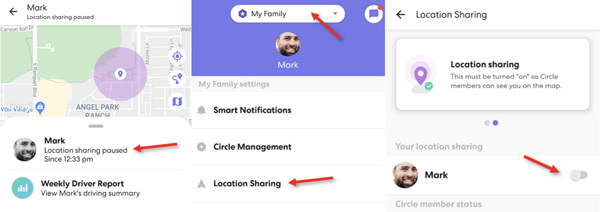
After that, Life360 will not update your location. You will disappear on the family location-sharing map. This method is quick and easy. But other family members may also notice that you have made yourself invisible.
Tips on Blurring Your Location
Life360 has a Bubbles feature. The Bubble can blur your location on your family map. Moreover, you can decide the size and duration of the Bubble. If you don't want your families to know your exact location, follow the steps below.
Open Life360, tap your avatar and tap Create a Bubble at the bottom of your map.
Use the slider to adjust the Bubble size. Next, tap Continue to set the duration of your Bubble.
Tap on Done to create a Bubble.
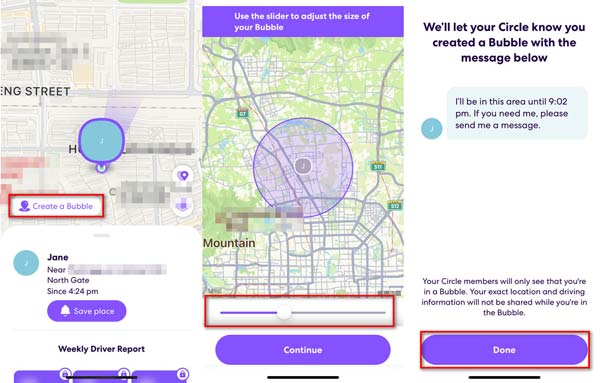
With the Bubble on, your family members can only see your approximate position. Meanwhile, Life360 will send a notification to all the members within the Circle. They will know the area where you are and how long you will stay.
2. Turn Off Location on Life360 Without Them Knowing
Turning off the tracking feature on Life360 is easy. But it will notify other members of the Circle. What if you want to turn off Life360 location sharing without others knowing? To do that, you can disable your Internet or GPS features. But it's not convenient as it affects other phone activities. The best solution is to find a powerful tool to fake your GPS location. In this way, you can stop Life360 from tracking you without any notification.
imyPass iLocaGo is the best tool to change your real-time location for any iOS user. It is a safe and easy solution for any location-changing needs. With the location changer, you can easily set your location to anywhere you want. Even though your Life360 is working, it can only get the fake address. Now, let's learn how to change your location on Life360 without anyone knowing.
If you are underaged, please use it under adult supervision.

4,000,000+ Downloads
Modify, change, and spoof your location on Life360 with one click.
Hide your real GPS location on Life360 to protect your privacy.
Make virtual routes by simulating GPS movements.
Support nearly all iOS devices, including the latest iPhone and iPad.
Download and install the location changer and run it on your computer. Next, prepare a USB cable and connect your iPhone to your computer. It will pop up a question of whether you trust this computer. Select Trust on your iPhone.

On your computer, click on Modify Location on the left.

The location changer will show you a map with your current location. On the top left corner, enter the location you want to change to. Or simply drag the map, zoom in and out to find the place, and click on it. Finally, click on the Confirm Modify button. If you want to stop it, click on the Back to Real Location icon in the bottom right corner.

After that, the location of your iPhone will be modified. Life360 will show the location you have newly set. No one in Circle on Life360 will know you have made the change. Besides, any other app will not get your real location. In a word, to fake your location on the Life360 iPhone, imyPass Location changer is the best and safest choice.
You can also use this software to pause Snapchat location.
3. Turn on the Airplane Mode
Turning off the Airplane mode is your best choice to turn off Life360 location quickly. It will cut off all cellular data at one. Follow the steps below to learn how to do it:
Swipe down from the top of your screen. (Some models need to swipe up from the bottpm.)
Find and click the airplane button when it is highlighted.
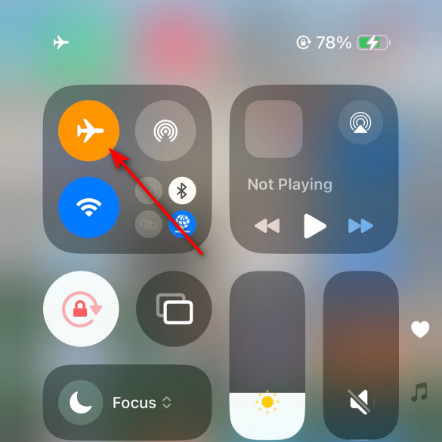
When you turn on the Airplane mode on your phone, Wi-Fi, cellular data, and Bluetooth will be disabled.
4. Turn Off Location Services
Turning off location service for Life360 in Settings is another direct way to stop Life360 from tracking your location. Follow the detailed steps below if needed:
On iPhone
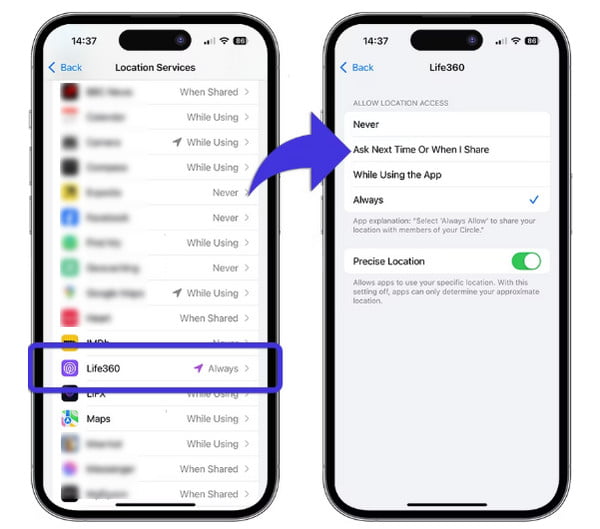
Open Settings and scroll down to find Privacy & Security.
Choose Location Services and scroll down to select Life360 on the following page. Click it.
Change the option to any one of Never, Ask Next Time or When I Share, or While Using the App.
On Android
Open Settings and go to Apps - Manage Apps.
Find and click Life360 and tap Permissions.
Tap location and change the access to Don’t Allow, Ask Every Time, or Allow Only While Using the App.
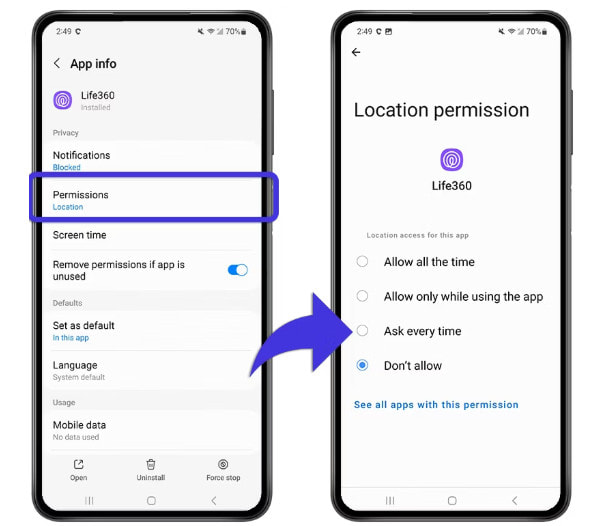
When you disable the location services for Life360, your Circle members will see a Location Sharing Paused message.
5. Turn Off Background App Refresh
The background app refresh feature enables apps like Life360 to update data automatically in the background, even you don’t use the app. Disable the background app refresh feature can effectively stop Life360 from tracking your location to a certain extent.
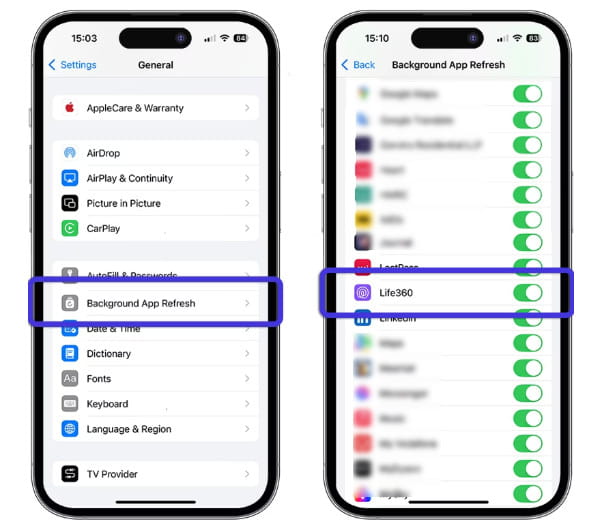
On iPhone
Launch Settings and choose General.
Hit Background App Refresh.
Scroll down and toggle off the switch of Life360.
On Android
Open Settings and go to the Apps interface.
Select Life360 and tap on similar options like Mobile Data.
Toggle off Allow background data usage.
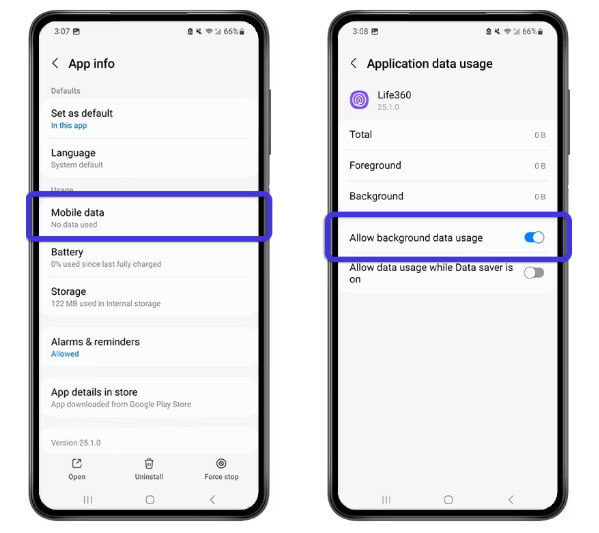
When you disable the background app refresh, Life360 will stop track your location when you exit the app.
6. Delete Life360 Account
Deleting Life360 account can also prevent Life360 from tracking your location by removing your account from all circles.
Open Life360.
Press the Settings button in the upper-left, and choose Account.
Click Delete Account and confirm your operation.
Your last location will be displayed in Circles.
Part 3. FAQs About How to Turn Your Location Off Life360
FAQs.
-
Does Life360 work when your phone is off?
No. Life360 couldn't work without the Internet. If your phone is off, Life360 won't track you anymore.
-
How to disable life360?
The main feature of Life360 is to track your location. To disable Life360, you need to turn location sharing off. Go to Settings > Location Sharing, and tap the slider to turn off the sharing.
-
Why is life360 bad?
It always shows your location anywhere and anytime. Though it is designed to protect your safety, it could be a violation of your privacy.
-
Can Life360 see my text messages?
No. Life360 is an app designed for location tracking. It won't read your text messages.
-
Does Life360 tell you when someone checks your location?
No. When someone checks your location, you will not be notified.
Conclusion
In summary, this article shares how to turn off location on Life360. You can turn off the location sharing within the Life360 app. Or you can use the best imyPass iLocaGo. It can change your location without them knowing. Besides, it doesn't need to disconnect the Internet or turn off GPS on your iPhone. Whether you need to protect your location data or simply need to change your GPS location, it has you covered.
Penny focuses on GPS troubleshooting and Windows optimization. She formerly worked as a technical support engineer, helping clients solve location-based and system issues efficiently. Backed by IT support experience, she provides practical solutions that really work. In her free time, she likes hiking and geocaching, testing GPS tech in the real world.
Hot Solutions
-
GPS Location
-
Unlock iOS
-
iOS Tips
-
Unlock Android


