



 Solution
 Support Center
 About Us
 Contact
How to Fix Your iPhone Location Sharing Not Working
 Penny Warren Published on March 19, 2026GPS Location3-min reading
“I can send my girlfriend my location indefinitely, and we always have shared it with each other, but now her phone won’t come through to me anymore. How to fix location sharing not working on my iPhone?” Location Sharing is an essential feature on iOS devices. It enables users to track friends and family’s location as well as share their own location. If this feature suddenly doesn’t work, you can fix it on your own by following our solutions.

In this article:
Part 1: Why iPhone Location Sharing Is Not Working
On an iPhone, you can share your location in the Find My app, an instant messaging app, or a map app once you set up Location Services properly. This feature is also helpful when you need to track your iPhone location and find your device or check its current position. Before walking through the solutions, let’s discuss the causes first. Understanding the causes and identifying your situation can help you fix the iPhone that is not sharing location quickly. The main causes include:
• Location Services are disabled.
• Connectivity issues or unstable internet connection.
• Low battery.
• Software glitches.
• Privacy restrictions.
Part 2: How to Fix Location Sharing Not Working on iPhone
Excluding hardware malfunction, you can fix the share my location issue on iPhone on your own. You can perform the solutions below one by one to make location sharing normal. Let’s start the journey.
Solution 1: Turn on Location Services
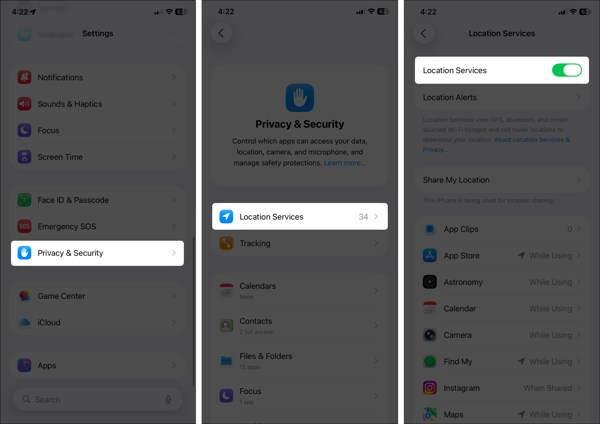
Open the Settings app on your iPhone.
Go to the Privacy & Security tab, and choose Location Services.
Make sure to toggle on Location Services.
If Location Services is enabled, turn it off and toggle it back on.
Tap Find My on the list, and choose Always or While Using.
Solution 2: Configure Find My
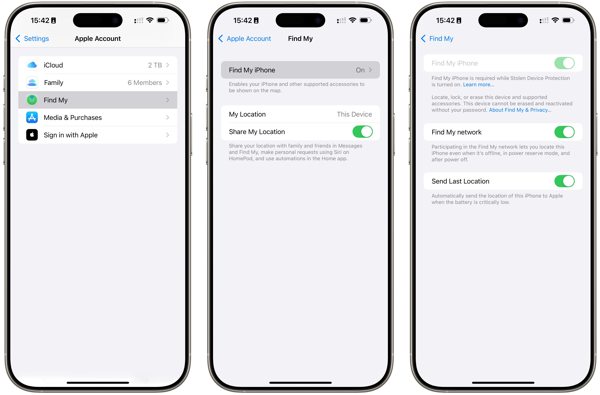
Go to your Settings app.
Tap on your profile and choose Find My.
Tap Find My iPhone and toggle on Find My iPhone.
Back to the Find My screen and toggle on Share My Location.
If prompted, tap Allow to confirm turning on GPS tracking.
Next, check if the iPhone location sharing not updating issue disappeared.
Solution 3: Check Your Connection
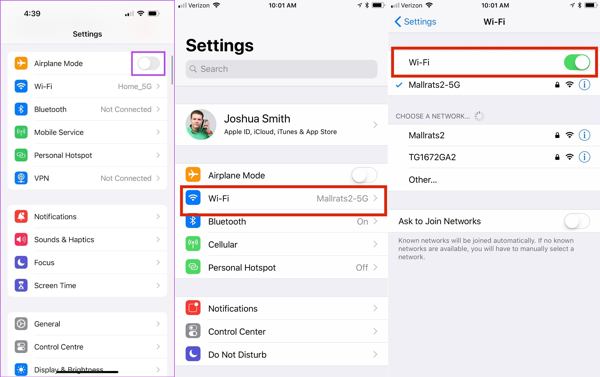
Run the Settings app on your iPhone.
Toggle on Airplane Mode.
Then, turn off Airplane Mode.
If you still find iPhone not sharing location, check your internet signal.
Tap Wi-Fi in Settings and switch to a stable network.
Note:
If you don’t have a Wi-Fi network, connect to a cellular data network instead.
Solution 4: Disable Location Restrictions
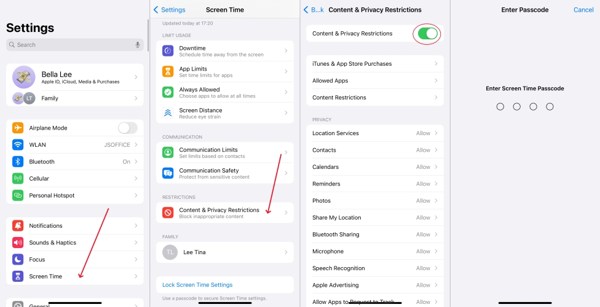
When iPhone location sharing is not updating due to restrictions, go to Screen Time in your Settings app.
If prompted, enter your Screen Time passcode.
Choose Content & Privacy Restrictions.
Toggle off Content & Privacy Restrictions to completely disable restrictions.
Note:
If you want to keep restrictions, turn on Content & Privacy Restrictions, pick Share My Location under Privacy, and choose Allow.
Solution 5: Update Software
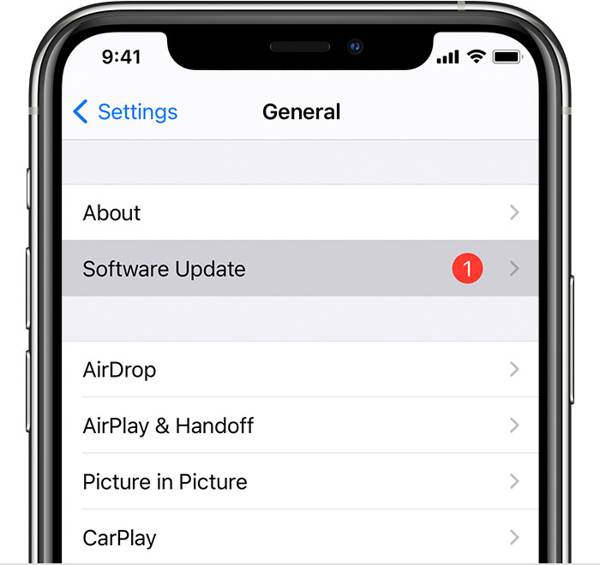
If you are still running an old version of iOS and no location is found when your iPhone shares location, go to the Settings app.
Go to General and choose Software Update to search for updates.
If an update is available, tap the Download and Install button.
Follow the onscreen instructions to install the update.
Note:
You’d better not install a beta version of iOS. If iPhone location stops sharing after you update to a beta, go back to a standard version of iOS.
Solution 6: Reset Location & Privacy
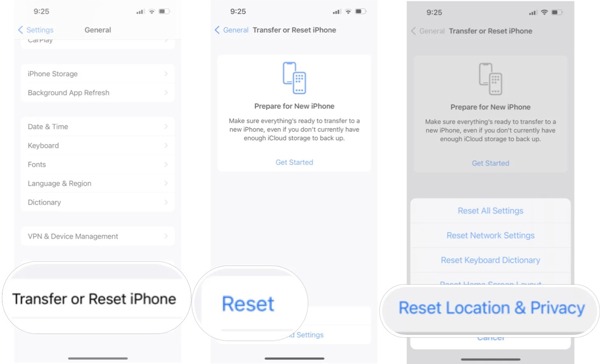
Go to the General tab in your Settings app when your iPhone is not sharing location.
Scroll down and tap Transfer or Reset iPhone.
Tap Reset and pick Reset Location & Privacy.
If prompted, enter your iPhone passcode or Apple ID password.
When your iPhone restarts, set up Find My and share your location.
Extended Reading:
Part 3: Bonus Tip: How to Fake iPhone Location
Location Sharing on iPhone is a useful feature, but it is not perfect. It may expose your geolocation and privacy to someone else. Moreover, many apps capture your location information for marketing and advertising. If you turn on Location Services, these services will get your last location available. Can you stop sharing your location without others knowing? iLocaGo can help you resolve this problem.

4,000,000+ Downloads
Fake iPhone location without disabling Location Sharing.
Change to any address and location around the world.
Create virtual routes for AR games and more.
Offer multiple modes for different purposes.
Work on the latest versions of iOS and iPadOS.
How to Fake iPhone Location Without Notifying Others
Step 1 Connect to your device
Run the iPhone location spoofing software once you install it on your PC. There is another version for Mac. Plug your iPhone into your PC with a Lightning cable. Then, the software will detect your device automatically.

Step 2 Choose a mode
On the mode window, you will see four options. If you just need to change your iPhone location, choose Modify Location. The other three modes, One-stop Mode, Multi-stop Mode, and Joystick Mode, are used to make virtual locations.

Step 3 Change iPhone location
Enter an accurate address into the field on the Modify Location dialog. If you don’t have an address, click a proper position on the map, and you will see the address. Finally, click on the Modify button to confirm changing your location. Now, turn to your iPhone and share your location.

Conclusion
Now, you should understand what you can do if sharing location is unavailable on an iPhone. First, you can learn why this problem happens. More importantly, you can follow the proven solutions to get rid of the issue quickly. If you wish to protect your location information and privacy, we suggest iLocaGo. It allows you to change your iPhone location without moving one step. The intuitive design makes it easy to use, especially for beginners and ordinary people.
Penny focuses on GPS troubleshooting and Windows optimization. She formerly worked as a technical support engineer, helping clients solve location-based and system issues efficiently. Backed by IT support experience, she provides practical solutions that really work. In her free time, she likes hiking and geocaching, testing GPS tech in the real world.
Hot Solutions
-
GPS Location
-
Unlock iOS
-
iOS Tips
-
Unlock Android


