



 Solution
 Support Center
 About Us
 Contact
How to Fix Life360 Not Working on iPhone and Android
 Penny Warren Published on March 27, 2026GPS Location3-min reading
"My wife and I use Life360 to update our location. Recently, my wife's location hasn't updated. She left the house 15 minutes ago, but Life360 still shows her as home. Why is Life360 not working?" As a popular location-sharing app, Life360 enables users to track and be tracked with family and friends. However, some users encounter issues with the app. This article shares eight solutions to fix this problem quickly.

In this article:
Part 1: Why Life360 Is Not Working
Life360 uses GPS technology to track location. Once you have the app installed on your mobile device, it continually updates your whereabouts and shares the information with your circles. It also taps into Wi-Fi and Bluetooth signals. The main causes why Life360 is not working include:
1. Poor GPS and internet connection.
2. Life360 is restricted or blocked.
3. Your device is in low power mode.
4. Life360 is outdated or stuck.
5. Software glitches.
Part 2: How to Fix Life360 Not Working
Solution 1: Check App Permissions
Why am I not getting Life360 notifications? In most cases, the problem is due to the notification permission being blocked. The solution is simple: check your app permissions and enable notifications.
On iPhone
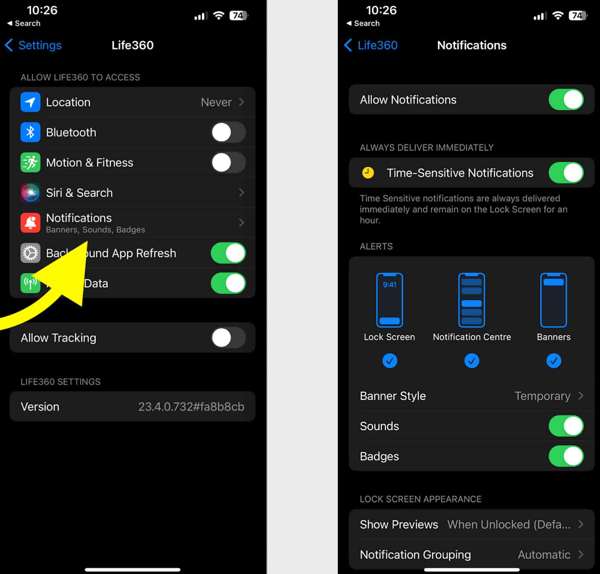
Open the Settings app.
Choose Life360 and tap Notifications.
Toggle on Allow Notifications and Time-Sensitive Notifications.
On Android
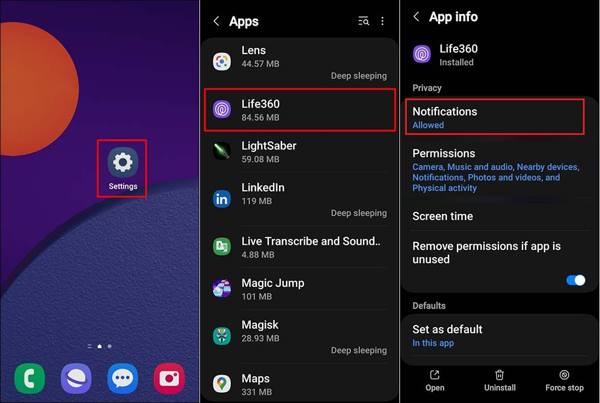
Run Settings.
Go to Apps and choose Life360.
Tap Notifications, and choose Allow.
Solution 2: Update Life360
If you could not be located on Life360, you'd better update your app. The outdated app may lead to a variety of issues. In fact, the developer fixes bugs and adds new features in each update of the app.
On iPhone
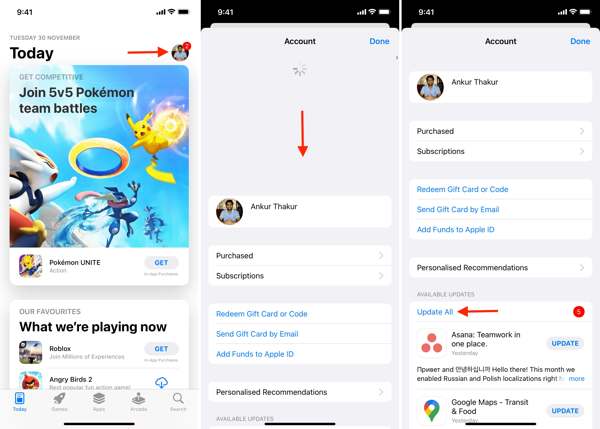
Open your App Store.
Tap on your profile.
Swipe downward from the top of your screen.
Tap UPDATE for Life360.
On Android
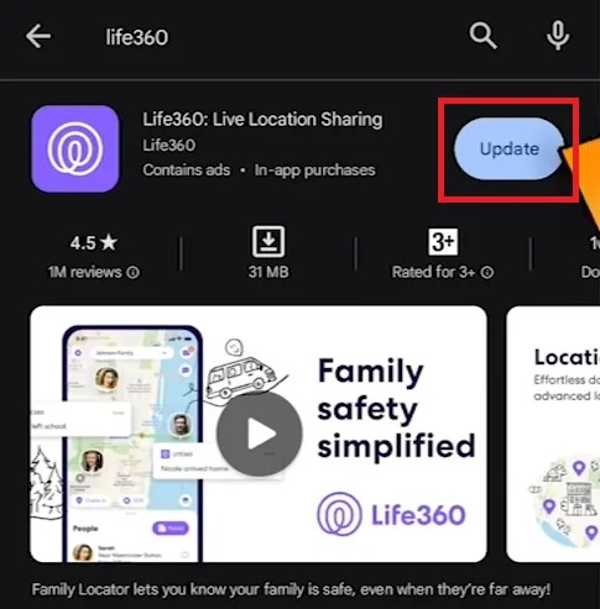
Open the Play Store and find Life360.
Check if an update is available.
Tap the Update button.
Solution 3: Restart the App
Why does Life360 say I'm driving when I'm not? This problem is partly because your app or device gets stuck. You can force stop the app and restart Life360 to share your location as usual.
On iPhone
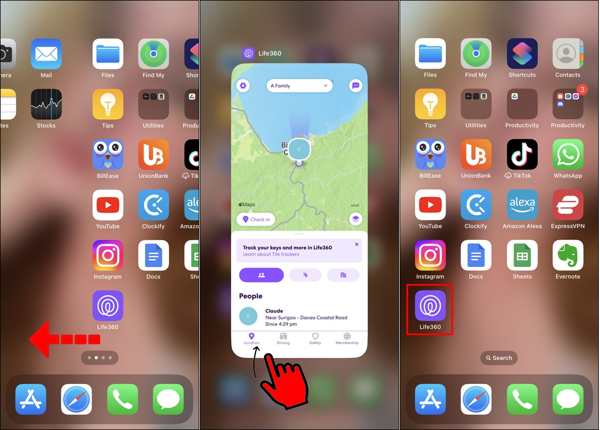
Access the App Switcher on your device.
Swipe left and right to find the Life360 app.
Tap the app and swipe upward to close it.
Then, open Life360 again.
On Android
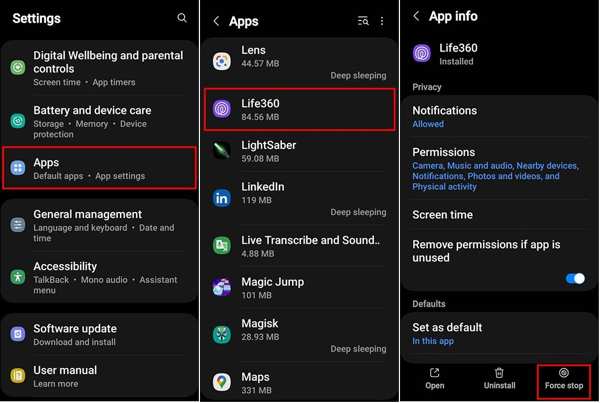
Go to Apps in Settings.
Choose Life360 and tap Force stop.
Then, reopen the app.
Solution 4: Check Your Account
After changing your account credentials for Life360, you must update them on all your devices. Plus, you have to update it if the associated email or phone number stops being used. Otherwise, Life360 won't work today.
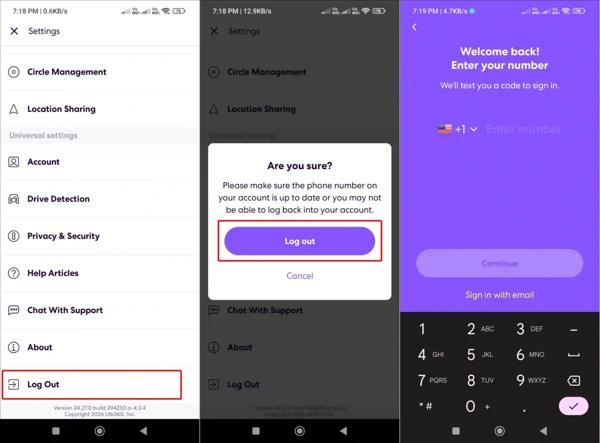
Run Life360 on your phone.
Tap the Settings button with a gear icon.
Scroll down and tap Log Out.
Restart your iPhone or Android phone.
Next, sign in with your account and password.
Solution 5: Enable Location Sharing
Life360 works through the GPS on your mobile phone. If you accidentally disable Location Sharing, the Life360 app won't work. Therefore, you'd better check Location Sharing for Life360 and keep it on.
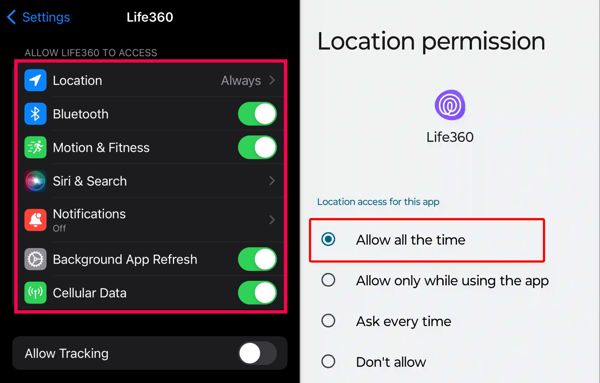
On iPhone
Choose Life360 in your Settings app.
Tap Location and choose Always.
Then, turn on Precise Location.
On Android
Run the Settings app.
Go to Apps and choose Life360.
Tap Permissions and select Location.
Enabling Location Sharing in Always mode ensures Life360 can update your location continuously, even when the app is in the background.
Toggle on Use precise location.
Extended Reading:
Solution 6: Allow Background App Refresh
If your Life360 is not showing speed, you need to allow Background App Refresh. Once you disable this option, Life360 cannot update your location and speed when it is running in the background.
On iPhone
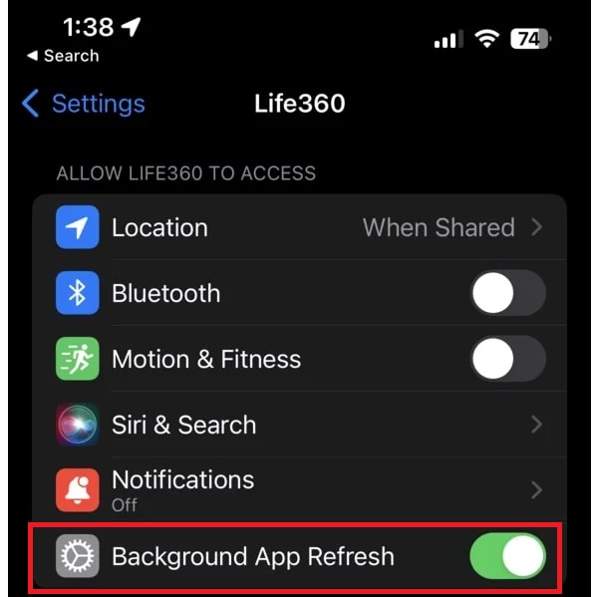
Choose Life360 in Settings.
Locate the Allow Life360 to Access section.
Toggle on Background App Refresh.
On Android
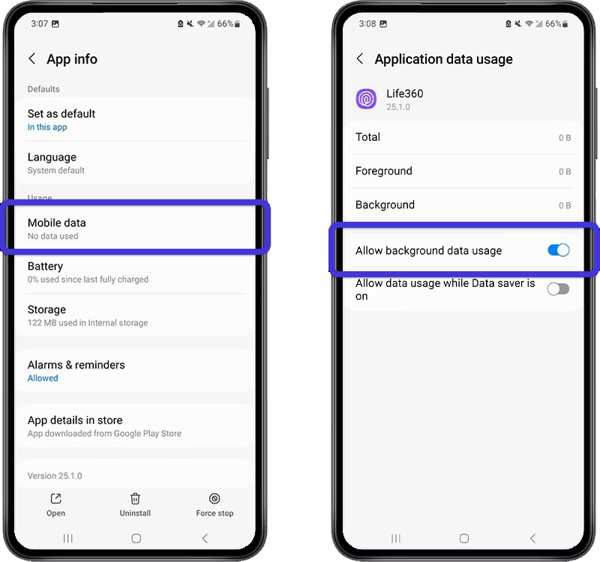
Go to Apps in Settings.
Choose Life360 and tap Mobile Data & Wi-Fi.
Toggle on Allow background data usage.
Part 3: Bonus Tip: How to Change Life360 Location Without Notifying Others
iLocaGo is an effective method to change your Life360 location to anywhere on your iPhone or Android phone. More importantly, the user-friendly design makes it easy to use, especially for beginners.

4,000,000+ Downloads
Change Life360 location with one click.
Use an accurate address or any position.
Offer multiple modes for different purposes.
Support a wide range of iPhones and Android devices.
How to Change Life360 Location Without Notifying Others
Install the Life360 location spoofing tool
Launch the Life360 location spoofing tool after installing it on your computer. Connect your iPhone or Android phone to your computer with a compatible USB cable.

Choose a mode
Choose Modify Location if you need to change the static location. The other three modes, One-stop Mode, Multi-stop Mode, and Joystick Mode, are used to make virtual routes.

Change Life360 location
Input an address into the field or click a position on the map. Finally, click the Modify button. Now, you can open the Life360 app on your mobile device, and the app should update your location automatically.

Conclusion
This article explained what you should do if Life360 is not working. You can learn the main causes of this problem. Furthermore, you can follow our solutions one by one to fix your location tracking app and share your position with your family and friends. If you wish to hide your real location when using Life360, iLocaGo is helpful. It allows you to fake your geolocation on either an iPhone or an Android phone.
Penny focuses on GPS troubleshooting and Windows optimization. She formerly worked as a technical support engineer, helping clients solve location-based and system issues efficiently. Backed by IT support experience, she provides practical solutions that really work. In her free time, she likes hiking and geocaching, testing GPS tech in the real world.
Hot Solutions
-
GPS Location
-
Unlock iOS
-
iOS Tips
-
Unlock Android


