Solution
 Support Center
 About Us
 Contact
How to Change the Mock Location on Your iPhone 18 Pro/17/16
 Penny Warren Published on May 27, 2026GPS Location3-min reading
It seems very difficult to change location on an iPhone to spoof those location-based games and apps. While Android includes a native Allow mock locations setting buried within its Developer Options, Apple's iOS ecosystem is famously a walled garden. This leaves many users wondering: can you mock location on iPhone, and if so, what is the best mock location app for iPhone?
This article breaks down everything you need to know about navigating mock location iPhone systems. We will offer you detailed steps to mock location and change the mock location on iPhone 18 Pro/17/16. You will be able to use a virtual location on your device.

In this article:
Part 1. Can You Mock Location on iPhone?
The short answer is yes, it requires a completely different approach than Android. To bypass these limitations and successfully manage a mock location iPhone setup, you must use dedicated external software - imyPass iLocaGo. It can interact with Apple's official developer protocols to temporarily override your iPhone's global positioning system without affecting your device's core security.
4,000,000+ Downloads
Connect your iPhone to your computer to mock a location.
Let you create a virtual location or make a fake route.
Offer a joystick mode to let you easily control movements.
Work for the latest iPhone devices and iOS versions.
Part 2. How to Enable Mock Location on iPhone
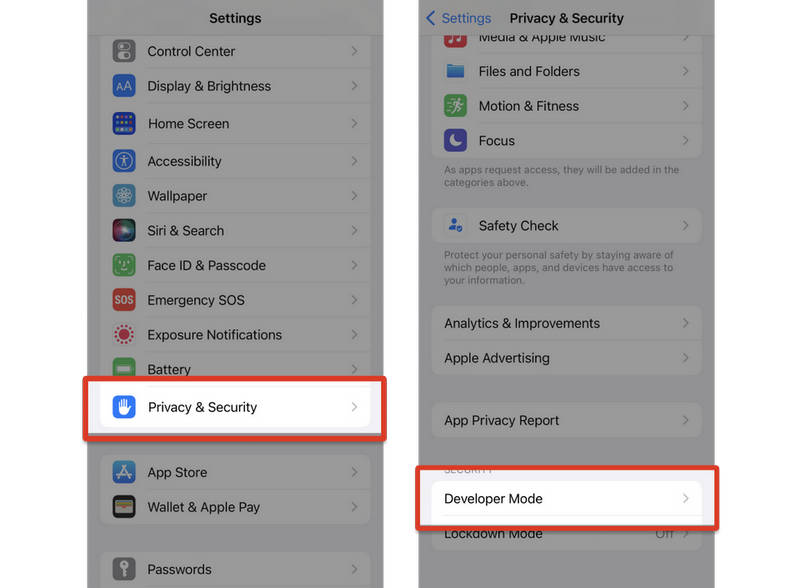
To successfully spoof your iPhone GPS, you need to understand the initial setup phase. Because iOS does not feature an allow-mock-locations button in the standard settings menu, learning how to enable mock location on iPhone involves preparing your device to accept external developer commands. That's the Developer Mode, available on iOS 16.3 and above. It can help you change location on iPhone.
Turn on Developer Mode on iOS 16.3 or Above
- 1.Open the Settings app on your iPhone.
- 2.Select Privacy and Security. Then, scroll down to select Developer Mode.
- 3. You'll receive a prompt. Tap the Restart button to restart the device.
- 4.When your iPhone is restarted, a system alert will appear. You should tap Turn On to turn on the developer mode.
Use imyPass iLocaGo to Enable Mock Location on iPhone
Download, install, and launch imyPass iLocaGo on your computer. Connect your iPhone to your computer. Select Trust This Computer on your iPhone screen if prompted.
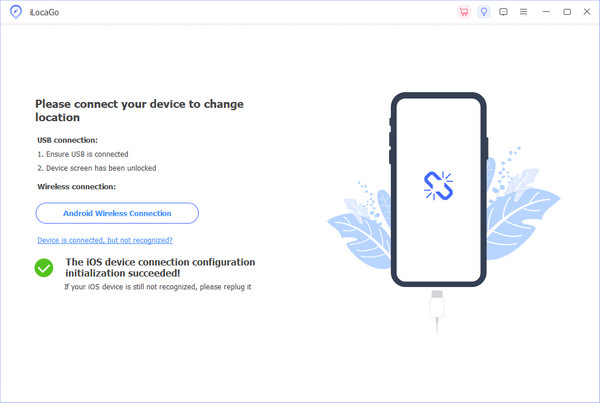
By now, you've successfully enabled mock location on your iPhone. The Developer Mode on your iPhone and imyPass iLocaGo can let you easily change the mock location.
Part 3. How to Change Mock Location on iPhone
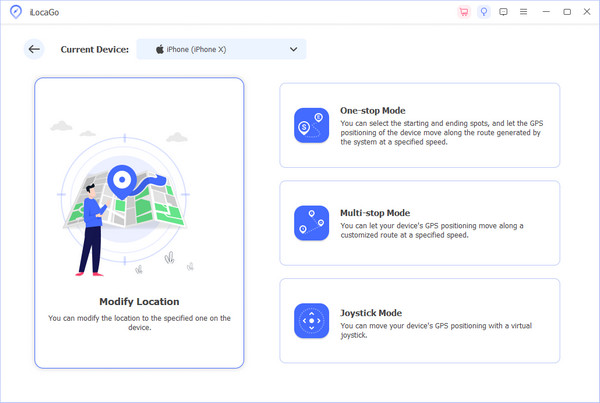
On imyPass iLocaGo, you can find four modes. If you need to directly change the mock location, you can click the Modify Location button.
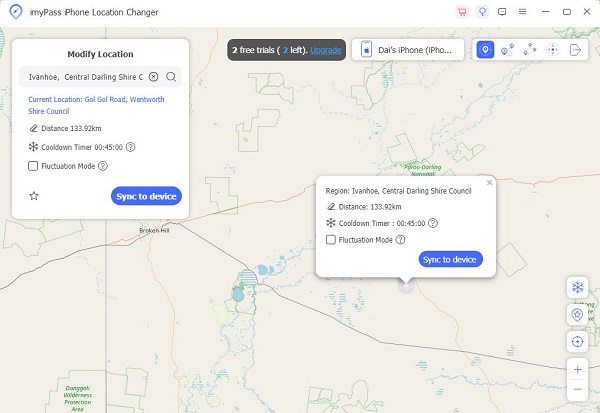
You will see a map on the interface. You can drag the map and click to choose a random location. You can also locate the Input modified site box on the top left side and then input a desired location. Click the Modify button to mock your location on iPhone.
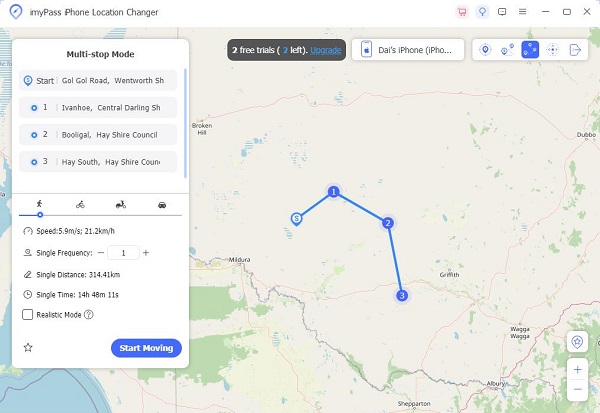
Sometimes, you need to create a virtual route rather than making an instant location change. In that case, you can use the other three modes: One-Step Mode, Multi-stop Mode, and Joystick Mode:
- One-stop Mode: Select a location, and then you iPhone's location will move to that location.
- Multi-stop Mode: Select multiple stops. Your device's location will move across them.
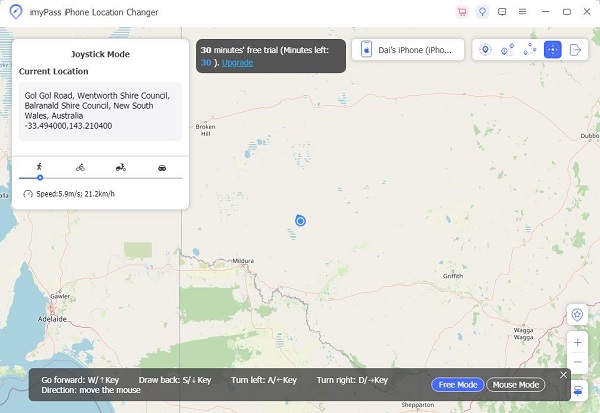
- Joystick Mode: You can do real-time and manual directional control.
Moreover, you can select a different moving speed to avoid being detected by some video games or location-based apps. This best mock location app for iPhone can help you easily spoof your iPhone and apps to get more exciting benefits.
Extended Reading:
Part 4. FAQs of Mocking Location on iPhone
FAQs.
-
How can I make my iPhone think I'm somewhere else?
You can use imyPass iLocaGo to create a virtual location on your iPhone. But if your iPhone running iOS 16.3 or later, you should enable the Developer Mode in Settings > Privacy and Security in advance.
-
Is it possible to change your location on iPhone?
You can only create a virtual location on your iPhone and spoof the apps or even Apple services. But you cannot change the GPS location directly.
-
What is location spoofing?
Location spoofing is to make the apps or services on a device to believe that you are in a different location. However, it doesn't really change your GPS location.
Conclusion
This article explains how to enable mock location and how to change the mock location on your iPhone. For iOS devices running iOS 16.2 or above, Developer Mode should be enabled in advance. Then, you can use imyPass iLocaGo to directly spoof your iPhone location. You can enjoy seamless location changes without restrictions.
Penny focuses on GPS troubleshooting and Windows optimization. She formerly worked as a technical support engineer, helping clients solve location-based and system issues efficiently. Backed by IT support experience, she provides practical solutions that really work. In her free time, she likes hiking and geocaching, testing GPS tech in the real world.
Hot Solutions
-
GPS Location
-
Unlock iOS
-
iOS Tips
-
Unlock Android