



 Solution
 Support Center
 About Us
 Contact
5 Effective Ways to Stop Location on Snapchat with Ease
 Penny Warren Published on December 05, 2025GPS Location3-min reading
Want to protect your privacy by pausing your location on Snapchat?
Maybe you don’t want your friends to know where you are, but still want to use the app as usual. Don’t worry! Snapchat offers several ways to pause or hide your location without anyone knowing. In this guide, we’ll show you how to pause Snapchat location step by step, whether by turning it off, enabling Ghost Mode, or using smart tricks. Read more!

In this article:
- Part 1: How Will Snapchat Share Your Location
- Part 2: How to Pause Location on Snapchat by Turning It off
- Part 3: Best Practice to Pause Snapchat Location Without Turning It Off
- Part 4: How to Pause Snapchat Location by Enabling Ghost Mode
- Part 5: How to Pause Your Location on Snapchat by Disabling Location Service
- Part 6: How to Pause Snapchat Location Using Airplane Mode
Part 1: How Will Snapchat Share Your Location
Snapchat offers different ways to share your location with friends, mainly through your Last Active and Live locations. It will help you manage your privacy better and decide when or how to pause your location sharing by understanding how each one works.
Last Active Location
Last Active Location is the location shown on Snap Map when you’re offline, indicating where you last opened or used Snapchat.
• It isn’t updated in real time.
• Only the friends you’ve allowed in your Snap Map settings can see your Last Active Location.
• It will be hidden if you turn on the Ghost Mode.
• It usually stays visible to your friends for about 8 hours after you were last active.
Live location
Live Location is a real-time sharing feature on Snapchat that lets selected friends see your current movements for a limited time, such as 15 minutes, 1 hour, or 8 hours.
• It is updated in real time.
• You can pause or stop your live location anytime.
• You can choose which friend to share your live location with.
• Your friends can still see your live movements even if you are not using Snapchat.
Part 2: How to Pause Location on Snapchat by Turning It off
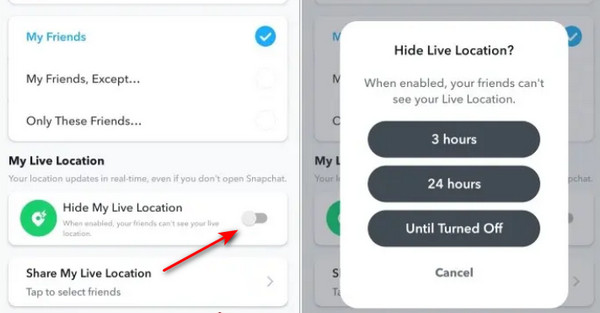
As we mentioned above, your live location will be shared with your friends even if you are not using Snapchat. Therefore, if you don’t want to share your location with friends all the time, it is recommended to turn it off. Follow the steps below to pause your Snapchat location by turning it off:
Open Snapchat and click the Map icon in the bottom navigation.
Press the Settings button in the top right corner.
Toggle the Hide My Live Location on.
Choose the time period as you like.
Part 3: Best Practice to Pause Snapchat Location Without Turning It Off
Directly turning off Live Location on Snapchat protects your privacy, but it also limits real-time interaction, disables some features, and removes flexibility. Changing your location instead can be a smarter way to pause sharing while staying in control. And here we recommend a powerful location changer – imyPass iLocaGo.

4,000,000+ Downloads
Change your location easily with one click.
3 modes to make your movements real.
100% safe and easy to get started.
Support both Android and iOS devices.
Save the common used spots and see the previous location.
Press the button above to download this Snapchat location changer for free.
Launch this software and connect your phones to your computer.
Press Modify Location (the largest section on the left of the main interface).

Enter your desired location in the box and press the Modify button. Your location will be changed without anyone knowing. It works even after unplugging phone from the computer until you reset the phone.

You can also drag and drop the map to select a location to change location on Snapchat.
Part 4: How to Pause Snapchat Location by Enabling Ghost Mode
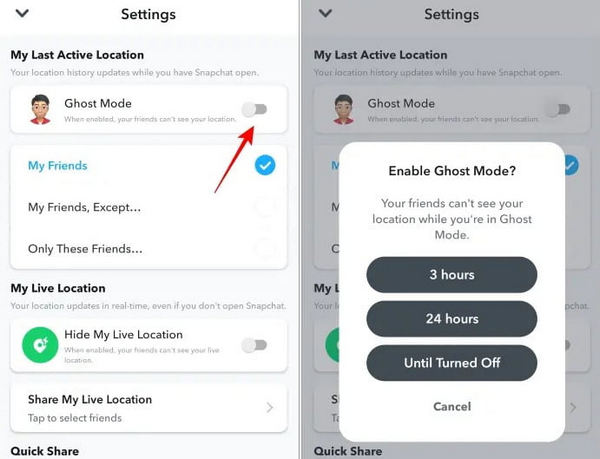
If you want to temporarily stop location sharing or just don't want your friends to see your current location, enabling Ghost Mode is the simplest and safest way.
Click Location at the bottom.
Tap the Settings in the top-right corner.
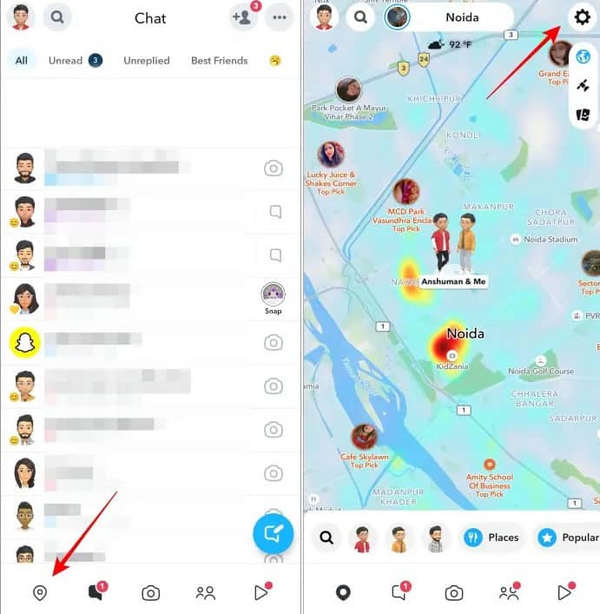
Toggle on Ghost Mode.
Select the duration in the pop-up window.
Part 5: How to Pause Your Location on Snapchat by Disabling Location Service
If you want the most direct and thorough method to pause location on Snapchat, just turn off the Location Service on your mobile phone. By disabling the device's location permission, Snapchat will not obtain your real-time location, thus stopping any location sharing on Snap Maps. See how to turn off the location service on different devices to effectively pause your location on Snapchat below:
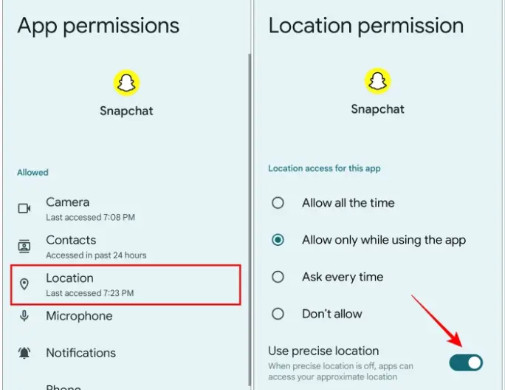
On Android
Long-press the Snapchat app and click the i icon. Click Permissions.
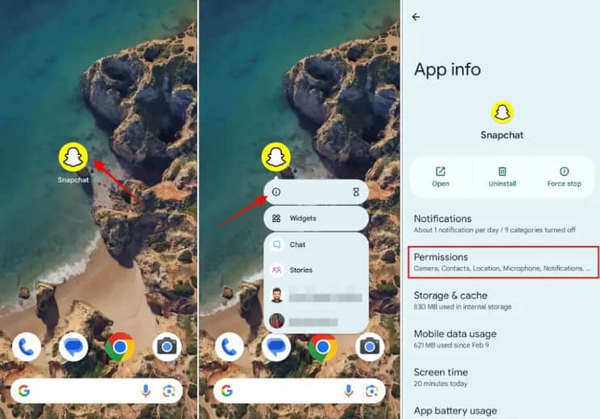
Select the Location option.
Disable the Use precise location option.
On iPhone
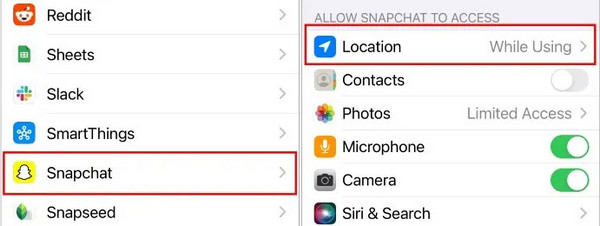
Open Settings on your iPhone. Scroll down to the bottom and click Apps.
Scroll down to find Snapchat and click it.
Click Location.
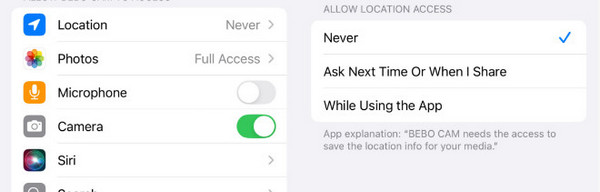
Change the permission to Never.
Next time, when you want to share your location, just follow the same steps and change the permission back to Always.
Part 6: How to Pause Snapchat Location Using Airplane Mode
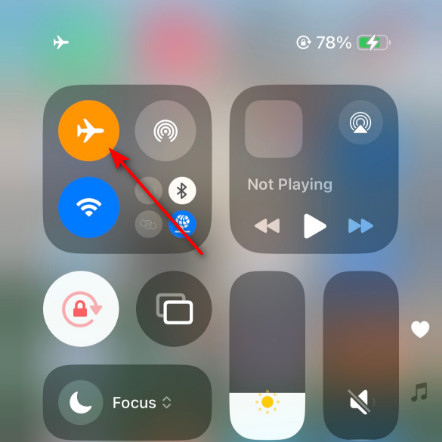
If you don’t want to modify the privacy Settings or location permissions, enabling the Airplane Mode is a suitable and feasible method for you. Just swipe down from the top of your iOS or Android screen, and click the plane-like button.
Conclusion
This post has introduced how to pause your location on Snapchat in 5 effective ways. That is, turning the location off within the app, using a location changer, enabling Ghost Mode, disabling location service, or using Airplane mode. Whether you want to protect your privacy or hide your location temporarily, you can select one of them to stop your Snapchat location sharing.
Penny is a senior editor from imyPass. She has focused on discovering perfect GPS location solutions in all scenarios, and also has experience in fixing computers.
Hot Solutions
-
GPS Location
- Best Pokemon Go Locations with Coordinates
- Turn Your Location Off on Life360
- How to Change Location on iPhone
- Review of iSpoofer Pokemon Go
- Set Virtual Locations on iPhone and Android
- TikTok Track Your Location
- Monster Hunter Now Joystick
- Review of IP Location Finder
- Change Mobile Legends Location
- Change Location on Tiktok
-
Unlock iOS
-
iOS Tips
-
Unlock Android


