



 Solution
 Support Center
 About Us
 Contact
How to Spoof Location on iPhone Without Jailbreaking
 Penny Warren Published on June 02, 2026GPS Location3-min reading
Apple's Location Services offer precise location information for apps, websites, and services. Spoofing location on your iPhone can be useful for various reasons. For example, you hope to access region-exclusive content, location-based apps, or hide your footprints on the web. In fact, you have multiple ways to modify your GPS or IP address on your iOS device. This guide shares the 5 proven methods and detailed processes.

In this article:
Part 1. What Is Location Spoofing
What is location spoofing? It is the action of faking a device's geographical location using GPS manipulation, VPNs, and more. It involves deliberately modifying the location data reported by a mobile device, making it appear as if the device is somewhere it is not. The reasons why you need to spoof your location are accessing geo-restricted content, protecting privacy and security, testing apps, and having fun on social media.
Part 2. How to Spoof Location on iPhone for Free
In fact, Apple doesn't allow users to spoof iPhone location. However, you can hide and change your real location with the right settings, including adjusting your country and region in the App Store.
How to Spoof Location on iPhone by Disabling Location Services
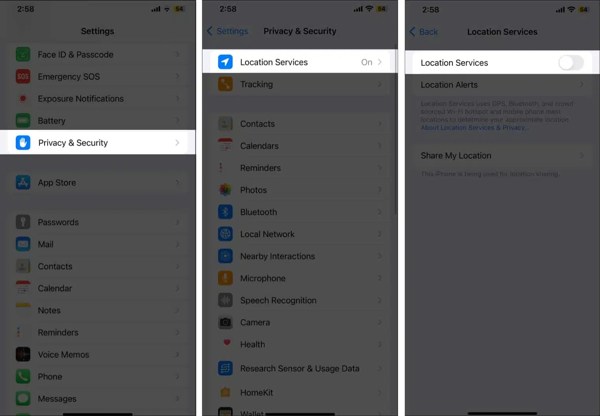
Open the Settings app on your iPhone.
Go to Privacy & Security and choose Location Services.
Toggle off Location Services.
If you wish to spoof location on your iPhone for a specific app, keep Location Services on. Then, choose the desired app on the list and tap Never. Bear in mind that this way only hides your location but does not spoof it.
How to Spoof Location on iPhone in App Store
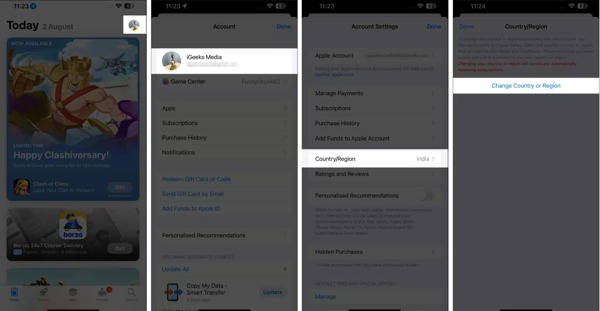
Run the App Store app from your home screen.
Tap on your profile picture and tap on your account.
Scroll down and choose Country/Region.
Tap Change Country or Region.
Search for the preferred country or region.
Confirm it and tap Done to spoof the location on your iPhone for the App Store.
How to Spoof Location on iPhone for App Store in Settings
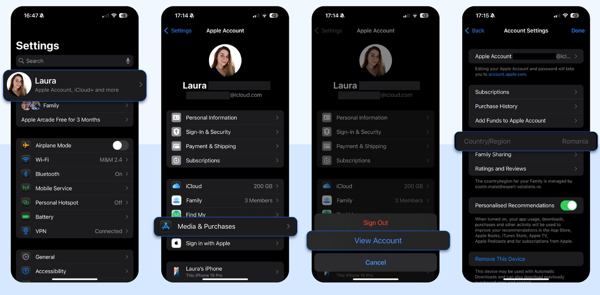
Start the Settings app.
Tap on your profile.
Go to Media & Purchases.
Tap the View Account button.
Choose the Country/Region option.
Tap the Change Country or Region button.
Set a new region, accept the terms, and enter a valid payment method.
Part 3. How to Spoof iPhone Location with a VPN
The VPN stands for virtual private network. It connects your iPhone to the internet and allows you to browse websites using a virtual network. It is able to spoof the GPS location on your iPhone. In fact, a VPN service can only change the IP address but not the GPS metadata. Moreover, you'd better use a reputable VPN service, such as the Surfshark VPN app. Plus, you need to subscribe to an account.
Open the App Store app.
Search for a VPN app and download it.
Run the app and log in with an active subscription.
If you don't have an account, tap Create account and sign up for one.
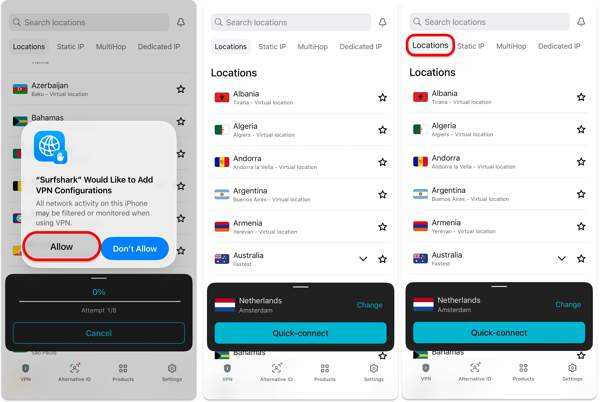
When making a VPN connection for the first time, tap Allow to let the app configure VPN.
Choose a proper location and tap the Quick-connect button.
If the connection is slow, tap the Change button and switch to another location.
You can also search for the desired location in the top Search bar.
Now, open your browser and access websites.
When you want to stop spoofing location on your iPhone, tap the Disconnect button in the VPN app.
Part 4. How to Spoof Location on iPhone by Changing Property List
If you are running iOS 13 or earlier on your iPhone, you can spoof iPhone location by modifying the property list. This method requires 3uTools and technical skills. You should follow the steps below carefully:
Connect your iPhone to a PC with a USB cable.
Open 3uTools and detect your device.
Go to the Backup/Restore section and click Back up iDevice.
When it finishes, choose Backup Management and pick the recent backup.
Click Pro Mode under the View section.
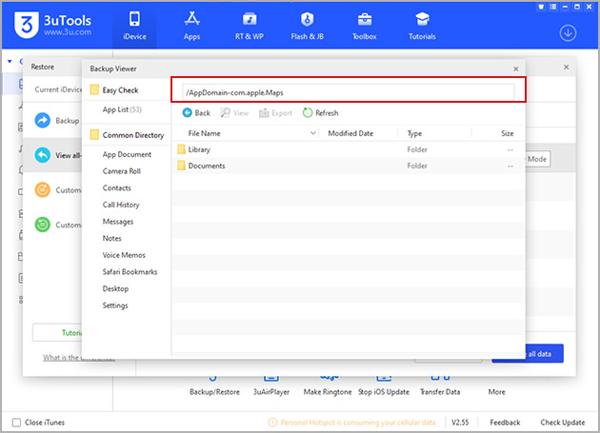
Click Application Document on Backup Viewer.
Go to AppDomain.com.app.Maps, Library, and Preferences.
Open the file named com.apple.Maps.plist.
Input the code:
<key>__internal__PlaceCardLocationSimulation</key>
<true/>
Save the plist file.
Next, restore the backup.
Disconnect your iPhone and open the Apple Maps app.
Set a preferred address in the address bar, and tap Simulate Location button.
Part 5. How to Successfully Spoof Location on iPhone
imyPass iLocaGo is the ultimate solution to spoof location on your iPhone. It won't install any app or addon on your mobile device. Furthermore, the built-in advanced technology simplifies the workflow.

4,000,000+ Downloads
Spoof location on your iPhone quickly.
Simulate movements with one or multiple stops.
Offer multiple modes for different purposes.
Support a wide range of iPhone and iPad models.
How to Spoof Location on Your iPhone
Connect to your iPhone
Start the location spoofer software after installing it on your computer. It is compatible with PC and Mac. Connect your iPhone to your computer with a Lightning cable.

Choose a mode
Choose the Modify Location mode if you wish to change the static location. The other three modes, One-stop Mode, Multi-stop Mode, and Joystick Mode, are used to simulate movement.

Spoof iPhone location
Enter an accurate address into the field or click a position on the map. Finally, click on the Modify button. Now, you can use your iPhone after spoofing your location.

You May Also Like:
Conclusion
This guide explained how to spoof location on your iPhone. You can change the country and region of your App Store to download apps exclusive to specific regions. Disabling Location Services can hide your real location easily. Plus, you can try a VPN service to modify your IP address. imyPass iLocaGo is the ultimate solution to change your mobile device location.
Penny focuses on GPS troubleshooting and Windows optimization. She formerly worked as a technical support engineer, helping clients solve location-based and system issues efficiently. Backed by IT support experience, she provides practical solutions that really work. In her free time, she likes hiking and geocaching, testing GPS tech in the real world.
Hot Solutions
-
GPS Location
-
Unlock iOS
-
iOS Tips
-
Unlock Android


