



 Solution
 Support Center
 About Us
 Contact
What Is Mock Location and How to Enable It on Android
 Penny Warren Published on January 08, 2026GPS Location3-min reading
Compared to other operating systems, Android is highly customized. There exist certain features that enable users to control their devices. One such feature is mock location, a powerful feature that enables users to simulate their devices' location, tricking apps and services into believing they are somewhere else. However, what is mock location on Android and how to use it? This article helps you delve into the feature and learn everything you should know.

In this article:
Part 1: What Is Mock Location
As a developer option on Android, mock location is also known as mock GPS or fake location. It is a built-in feature on Android devices for faking or spoofing GPS location. Instead of showing your real geolocation, the phone and apps can display any location you choose. This feature is primarily designed for testing and development purposes, but everyone can use it for different purposes.
Common Uses of Mock Location
1. App development. Developers can test location features of their apps.
2. Privacy protection. It hides your real location when accessing websites and apps.
3. Geo-restricted content access. If you want to view series for specific regions in a streaming app, you can mock a location on your Android phone.
4. Gaming. When playing location-based mobile games, mocking Android location enables you to get advantages around the world without travelling.
How Does Mock Location Work?
GPS, or Global Positioning System, is a network of satellites orbiting Earth. It provides location data to GPS receivers on the ground. Android devices receive the data to determine their locations. When mocking location on Android, you are actually overriding the GPS data with fake coordinates.
Part 2: Enable Mock Location on Android
The designs of Android devices are different, depending on brands and models. However, the workflows for enabling mock location are similar. We use Samsung and Xiaomi as examples to show you how to.
How to Allow Mock Locations on Samsung
Open the Settings app on your phone. If you have enabled Developer options, skip to step 5.
Go to About device or About phone.
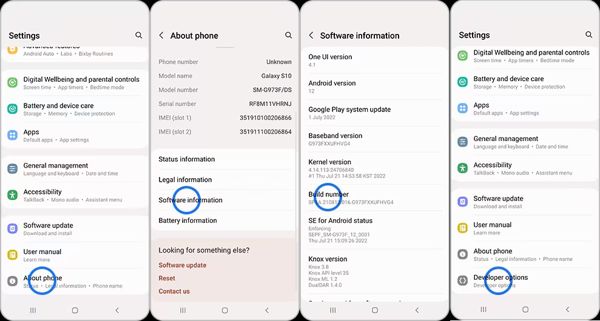
Tap Software information, and press Build number seven times.
When prompted, enter your pattern, PIN, or password to activate Developer options.
Back to Settings, go to Developer options, and toggle on Developer options.
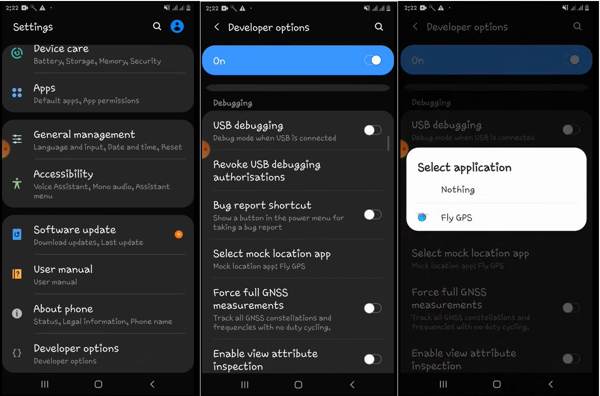
Scroll down and choose Select mock location app.
Next, select a mock location app on the pop-up to allow mock location on Samsung.
How to Allow Mock Location on Xiaomi
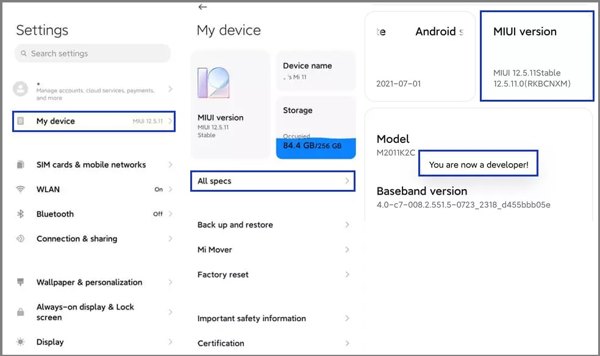
Tap My device in your Settings app.
Choose All specs, and tap MIUI version seven to ten times in a row.
Then, head to Additional settings, and enter Developer options.
Next, tap Select mock location app and select a mock location app to allow mock location on Xiaomi.
Part 3: Top 3 Mock Location Apps
Top 1: Fake GPS
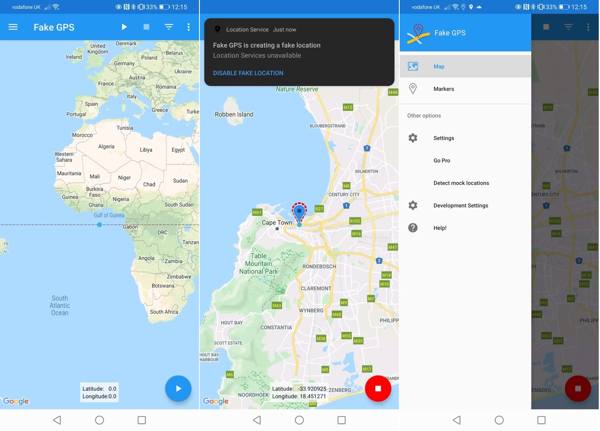
Fake GPS is a quick mock location app. If you are new to mock location on Android, it is an excellent place to start due to the intuitive user interface and simple operation. Moreover, it can be downloaded from the Play Store.
Pros
- Fake GPS on Android quickly.
- Set coordinates or pick a location.
- Free to download.
- Work on a variety of Android models.
Cons
- It doesn't work with Pokémon Go.
- Advanced features require in-app purchases.
Top 2: GPS Emulator
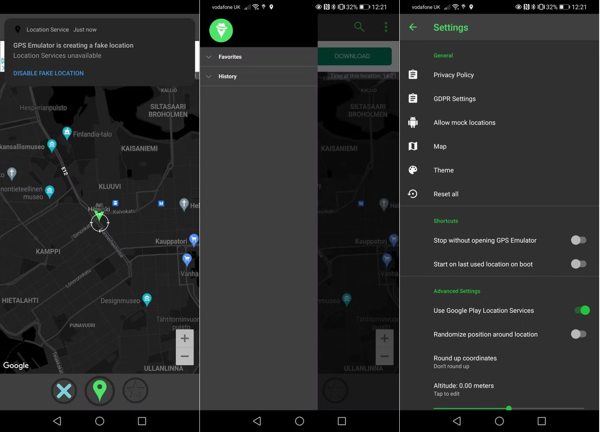
GPS Emulator is a free location mock app for Android phones and tablets. It works in a wide variety of situations where you need to hide and fake your location. If you want to use advanced features, a premium version is available.
Pros
- Come with a mapping system.
- Offer multiple view modes.
- Include manual map navigation.
- Select a precise pin.
Cons
- There are ads in the free version.
- GPS accuracy may be auto-corrected.
Top 3: Fake GPS Location Spoofer
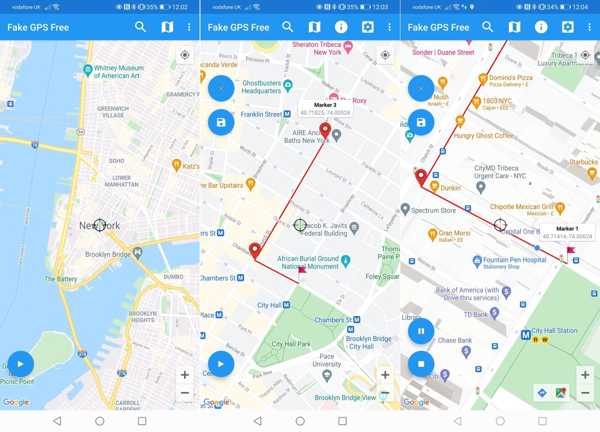
Fake GPS Location Spoofer is a quick location changer for faking GPS mock on Android devices. It comes with both a free and paid version. If you just want to mock Android location, the free version is enough.
Pros
- Save favorite routes.
- Mock location on Android 6 or above.
- Comes with custom options.
- Offer multiple modes.
Cons
- It may lead to your account being banned.
- The paid version is expensive.
Recommend: Best Mock Location Software for Android and iOS
Location mock apps may bring risks to your Android device. Once your games or social media detect the app, your account will be suspended. Thankfully, iLocaGo can help you resolve this problem. It allows mock location on iPhone and Android without installing anything on your device.

4,000,000+ Downloads
Enable mock location on Android and iPhone.
Connect your mobile phone with a cable or wirelessly.
Create virtual locations and fake routes on your mobile phone.
Create virtual routes without moving.
Support almost all iPhone and Android models.
Detect your phone
Run the best mock location software after installing it on your computer. Plug your phone into your computer with a compatible cable. Then, the software will detect your device.

Select a mode
Choose Modify Location. The other three modes are used for making virtual routes.

Allow mock location on Android
Next, type an accurate address in the field or click a proper position on the map. Finally, click the Modify button to confirm allowing mock location on your Android device.

Conclusion
This article discussed the best mock location apps, as well as what mock location is and how to use this feature on your Android phone or tablet whenever you need to fake your location. You can follow our comprehensive guide to protect your privacy and gain advantages in games. iLocaGo is the best option to change your Android or iPhone location with a computer without technical skills.
Penny focuses on GPS troubleshooting and Windows optimization. She formerly worked as a technical support engineer, helping clients solve location-based and system issues efficiently. Backed by IT support experience, she provides practical solutions that really work. In her free time, she likes hiking and geocaching, testing GPS tech in the real world.
Hot Solutions
-
GPS Location
-
Unlock iOS
-
iOS Tips
-
Unlock Android


