Solution
 Support Center
 About Us
 Contact
Save Passwords in iPhone for Quick Sign-in to Different Accounts
 Gideon Byron Published on March 20, 2026Password Tips3-min reading
iPhone is very convenient for everyday use. Users can use it to sign in and manage the accounts that they have. Multiple accounts can be signed in at any time they want. Are you afraid that you will forget your account passwords due to their quantity? It is recommended to save the iPhone passwords. You might wonder how.
In this article, we will show you ways to save, edit, and check your iPhone passwords. This way, you no longer need to worry if you accidentally forget them. Please scroll below to save passwords in iPhone in the default way, including bonus tips.

In this article:
Recommended: Best Password Manager for iPhone & iPad
If you are looking for the best iPhone or iPad password manager, imyPass iPhone Password Manager is the one you need to consider using. It can check different account types on your iPhone and iPad, including Wi-Fi passwords, Apple ID credentials, email passwords, and more. The best thing about it is that you can have a copy of your passwords. You can export them in CSV files to your computer without inputting them individually. So, you can also make a backup for your iPhone and iPad passwords.
Moreover, the tool supports the latest versions of iOS and iPadOS. The scanning process of the tool is quick, which makes the process save you time. Please use the tool using the steps below.
Go to the main website of the imyPass iPhone Password Manager. After that, download the file to set it up. Install and open the tool to start the procedure afterward.
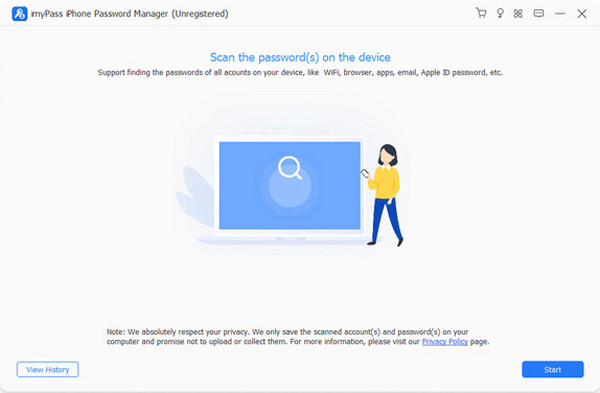
Grab a USB and plug it into the computer and iPhone or iPad. Then, please click the Start button at the bottom right. This way, the tool will scan the available passwords from your iPhone or iPad accounts.
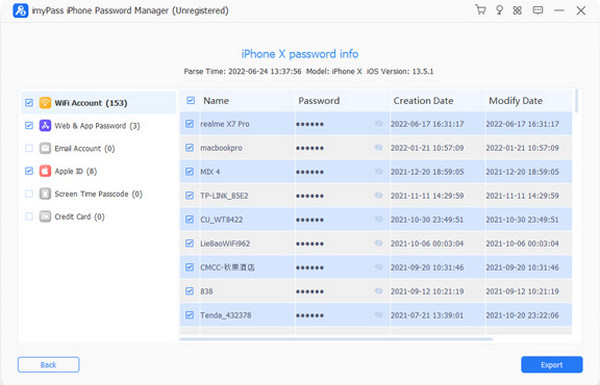
The result will appear on the next screen. Please go to the account you want to view the password for. You only need to click the Eye button. If you want to have their copies, please click the Export section at the bottom right.
Part 1. How to Save & Auto-Fill Passwords with iCloud Keychain (The Default Method)
iCloud Keychain is the built-in password manager feature for your iPhone and iPad that can manage your iPhone passwords. It is the most secure password manager feature because Apple offers it. It can sync your passwords, passkey, Wi-Fi details, credit card information, and more. The good thing about it is that it can automatically fill in the account credentials from your Safari. It can be accessed with Face ID, Touch ID, or the screen lock passcode.
Moreover, the feature uses end-to-end encryption, which means that even Apple cannot view your account passwords. Learn how to auto-save passwords on iPhone with iCloud Keychain using the steps below.
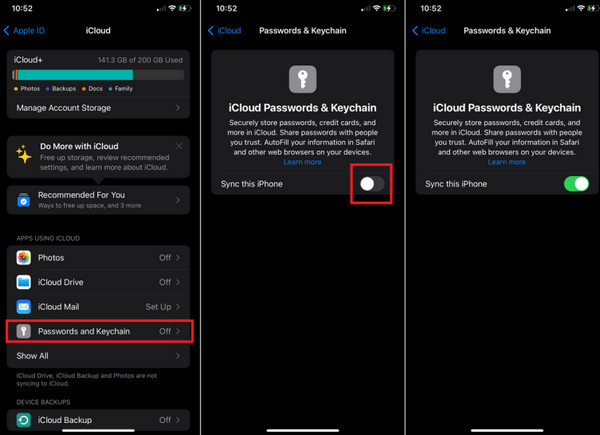
First, enable iCloud Keychain on your iPhone. To do that, open the Settings app and choose the account at the top. Tap the iCloud button and select the Passwords and Keychain button from the list.
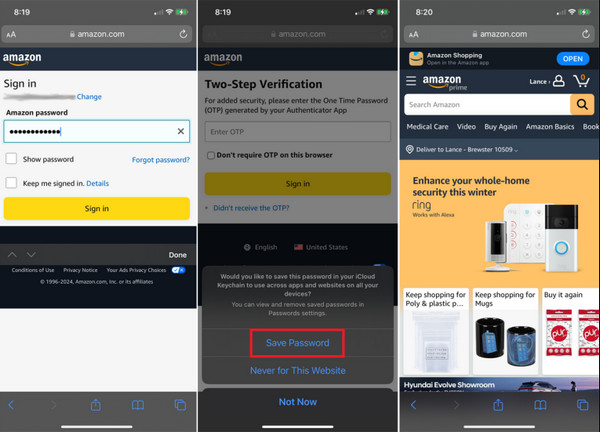
The iCloud Passwords & Keychain window will appear. Toggle on the Sync This iPhone slider afterward. Then, go to the website you prefer to save the password. Enter the account credentials and sign in.
A small window will be prompted at the bottom. Please tap the Save Password button at the bottom. The next time you sign in to the website, the Password section will be filled out automatically.
Part 2. How to Check, Edit & Manage Saved Passwords
After you have created and saved the passwords, some of you might want to check, edit, and manage them. You might want to sign in to a new device or take note of it as a physical backup. The Passwords app can do this process, which is linked to iCloud Keychain. How to check saved passwords on iPhone? The steps are available below.
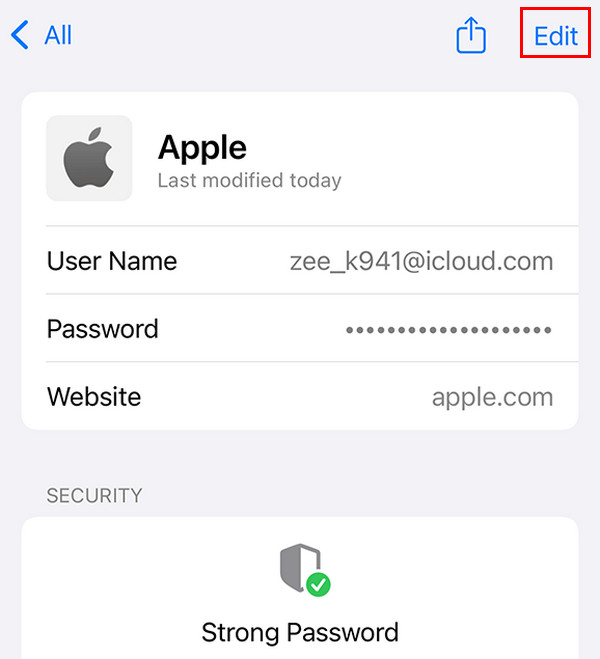
Open the Passwords app. After that, unlock the application with Face ID or Touch ID. You can also enter your screen lock passcode on your iPhone. Choose an account you want to check the password to proceed.
The password will be revealed. You can tap the Edit button at the top right if you want to edit the password.
Part 3. How to Save Passwords on iPhone for Apps
Besides the websites, you can also save passwords from your iPhone apps. You can use iCloud Keychain for this procedure. There are two ways to save iPhone passwords on apps. See them from the list below.
1. Save Password with Prompts
When you log into an app and see the Save Password prompt, tap Save. It will be stored in your iCloud Keychain and available across all your Apple devices. In fact, this procedure has been discussed in Part 1 of this article.
2. Save Password Without Prompts
You can manually add the account credentials to your iCloud Keychain with the Passwords app. The reason is that there are applications that do not allow you to save your iPhone passwords automatically. The steps for the process are available below.
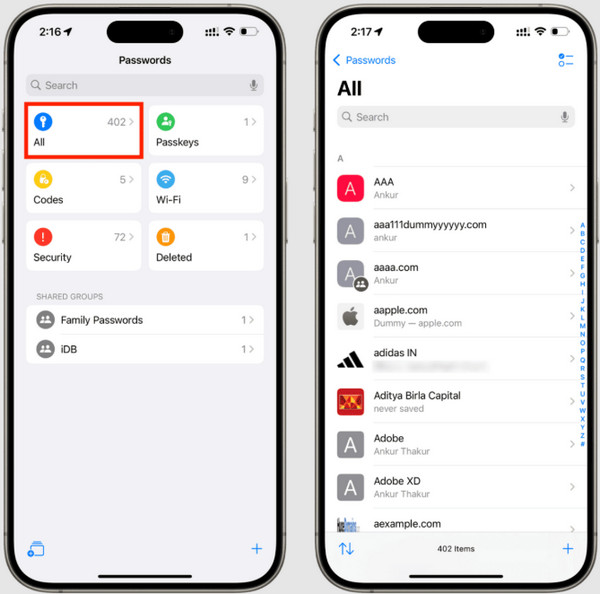
Open the Passwords app. Then, tap the All button from the main screen. Later, tap the Plus button at the bottom left.
Enter the details about the account. Then, tap the Password button. Tap the Check button to confirm and complete the process.
Part 4. How to Use Google Password Manager on iPhone
Google Password Manager can be used on your iPhone to view the saved passwords on Google Chrome. You can also create and manage passwords with the app. You only need to ensure that Google Chrome is installed before the Google Password Manager app will function. Also, the Google account associated with your iPhone should be known because an Apple ID cannot be used with the process. Please know how to use Google Password Manager on iPhone with the steps below.
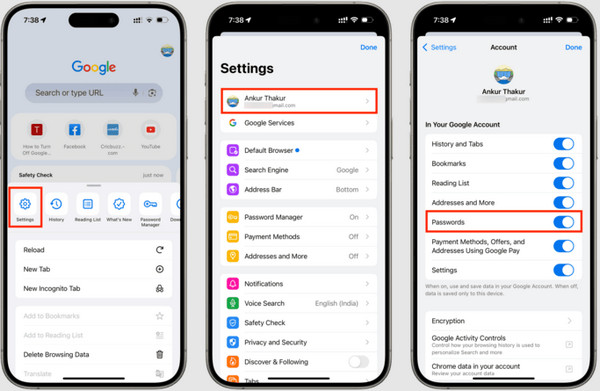
Install Google Chrome on your iPhone. Then, open it immediately. Tap the Three Dots option at the bottom right. From the menu, please tap the Settings button and choose your preferred Google account.
Swipe down and select the Passwords section. Toggle on the slider afterward to turn it on. Now, every time you create a password, Google will recommend a strong one. Once saved, the account passwords will be accessed automatically.
Conclusion
To sum it up, this article is a guide on how to save passwords on an iPhone. Procedures for checking, editing, and managing them are also presented. imyPass iPhone Password Manager is also here to help you view your iPhone and iPad passwords. The creation and modified dates will be visible. Download the tool to know more about its features.
Gideon writes about unlocking iOS, Android, and Windows devices. He previously worked as a mobile device specialist in a repair center, assisting customers with locked devices and password recovery. In his spare time, he tests new unlock tools, customizes smart devices and makes complex unlock processes simple and safe.
Hot Solutions
-
Password Tips
- 4 Best Instagram Password Finders
- How to See Your Instagram Password
- How to Unlock Your Snapchat Account
- How to Reset Forgetten Twitter Password
- How to View Saved Passwords in Chrome
- What to Do When I Forgot My Apple ID Password
- How to Reset Your Snapchat Password
- How to Reset Forgotten Discord Password
-
Unlock iOS
-
Unlock Android
-
Windows Password