



 Solution
 Support Center
 About Us
 Contact
How to Put iPhone in Recovery Mode and Get It Out Safely
 Clara Prescott Published on February 12, 2026Recover Data3-min reading
When your iPhone won't turn on, gets stuck on the Apple logo, or fails during a system update, putting your iPhone in Recovery Mode is often the most effective solution. In this guide, you'll learn what iPhone Recovery Mode is, when to use it, and how to enter and exit. Furthermore, you'll also find reliable methods to recover your data after recovery.

In this article:
Part 1: What is iPhone Recovery Mode
iPhone Recovery Mode is Apple's official system repair feature. It can fix serious iOS issues that stop your iPhone from booting normally or make it unresponsive. After connecting your device to a computer, you can update or restore your iPhone and reinstall iOS in this mode. People commonly use it to resolve boot problems, failed updates and system crashes when basic fixes no longer work.
Part 2: When to Use iPhone Recovery Mode
When basic fixes don't resolve system glitches on your iPhone, iPhone Recovery Mode comes in handy. You can repair iOS, reinstall the system, and get your device back to working normally. Here are the most common scenarios to use Recovery Mode.
1. Your iPhone Won't Start or Gets Stuck
If your iPhone won't turn on, freezes on the Apple logo, keeps restarting nonstop, or locks up as it boots up, use Recovery Mode. These problems usually come from major iOS boot failures or corrupted system files that stop your device from loading properly.
2. iOS Updates or Installations Fail
If an iOS update fails halfway, gets stuck while installing, or leaves your system unstable afterward, just enter Recovery Mode to reinstall iOS and fix all update-related errors.
3. iPhone Screen is Unresponsive, Locked, or Unrecognized
If your screen won't respond to taps and a force restart doesn't work either, or if you forget your passcode, you can turn to Recovery Mode to re-establish a connection with your iPhone.
Part 3. How to Put iPhone in Recovery Mode
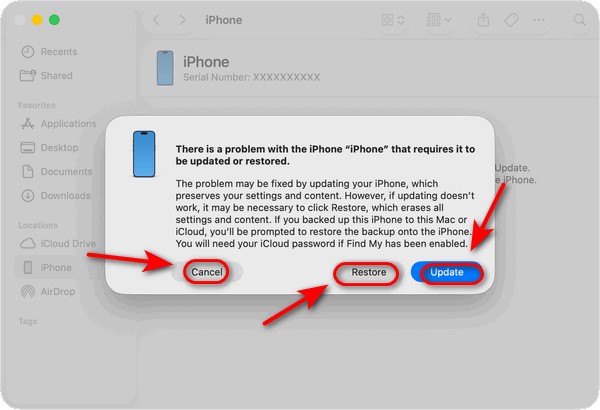
Before you start, make sure you have a computer, a USB cable and a stable internet connection, then open Finder or iTunes. Once your iPhone enters Recovery Mode, your computer will prompt you to choose one of 3 options:
Update: Reinstall iOS without deleting data.
Restore: Erase all data and reinstall iOS.
Cancel: Exit Recovery Mode without any changes.
Note:
Choosing Restore will erase all data on the device! That's why Recovery Mode is helpful but should be used with caution, especially when your data hasn't been backed up!
Different iPhone models use different methods to enter Recovery Mode. Match your iPhone model to find the most accurate steps for your device.
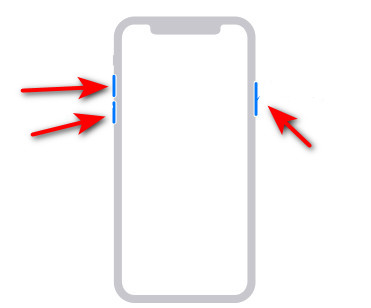
For iPhone 8 and Later Models Including iPhone SE (2nd Generation)
If you use an iPhone 8 or newer models, you need to follow these steps:
Press and release the Volume Up button quickly.
Press and release the Volume Down button quickly.
Press and hold the Power button until you see Recovery Mode appear.
For iPhone 7 and iPhone 7 Plus
Keep pressing the Volume Down button and Side button together until Recovery Mode appears on the screen.

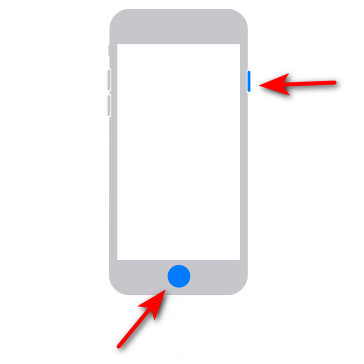
For iPhone 6S or Earlier, Including iPhone SE (1st Generation)
Press the Home and Side buttons together and hold them until Recovery Mode appears on your phone.
Part 4. How to Get iPhone Out of Recovery Mode
If you accidentally entered Recovery Mode by mistake, or your iPhone got stuck during an update, how can you exit Recovery Mode? Don't worry - just follow the steps below, and your iPhone will get out of Recovery Mode without losing any data!
For iPhone 8 and Later Models Including iPhone SE (2nd Generation)
Press and release the Volume Up button quickly.
Press and release the Volume Down button quickly.
Press and hold the Power button until you see the Apple logo.
For iPhone 7 and iPhone 7 Plus
Keep pressing the Volume Down button and Power button together until the Apple logo appears.
For iPhone 6S or Earlier, Including iPhone SE (1st Generation)
Press and hold the Home and Power buttons until the Apple logo appears.
Part 5. How to Recover Data After Restoring iPhone in Recovery Mode
Will Recovery Mode delete my photos and files? The answer is yes – Recovery Mode will erase all data on your phone. That's why this Mode is extremely helpful but risky to try. When your iPhone enters Recovery Mode, you'll see three options: Cancel, Restore and Update. Selecting Restore means you agree to erase all data on the device, including photos, videos, messages and apps, and reinstall the iOS from scratch.
Does Restore Mode remove my data from my iPhone permanently? Don't panic! If you have an iCloud or iTunes/Finder backup, you can restore your files after the process. Even without a backup, a professional iPhone data recovery software may help retrieve lost photos and files!
imyPass iPhone Data Recovery is a powerful tool that allows you to recover lost data without a backup. It is available for both Windows and Mac users. With an intuitive interface and a clean guide page, this software makes it easy for users to operate. It also supports file preview before recovery, so you can selectively restore only the data you need.
4,000,000+ Downloads
Supports iOS 5 – iOS 18, including the latest iOS 26.
Recover all kinds of file types, such as text content, media content, Contacts and more.
Recover files with/without a backup.
Retrieve lost data from multiple scenarios and damages.
Recover from iOS Devices Step-by-Step:
Launch the software and connect your device to your computer via USB. The program will detect your device automatically.
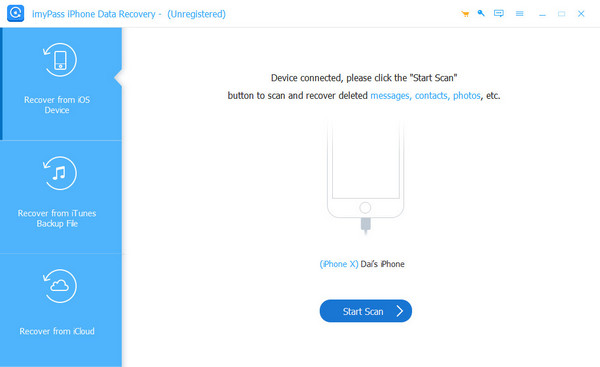
Select Recover from iOS devices to start scanning. You can preview the files, apply filters or search for specific files.
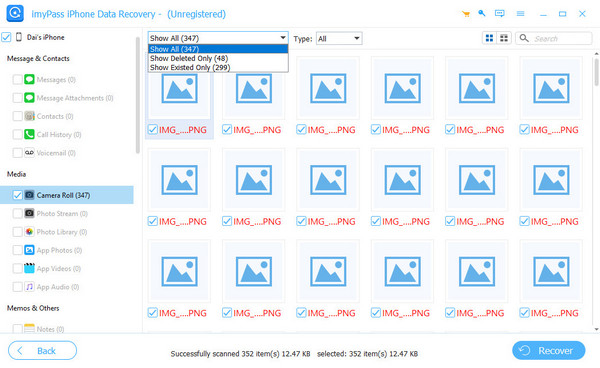
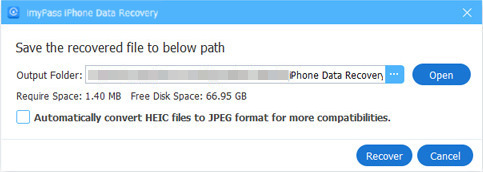
Choose the files you want to recover. Specify the output folder and click Recover to save them.
Recover from iCloud Backup
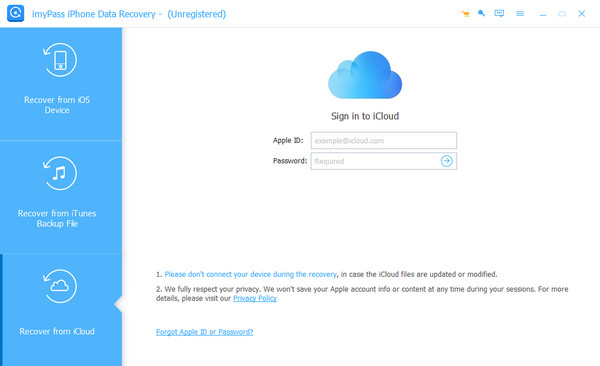
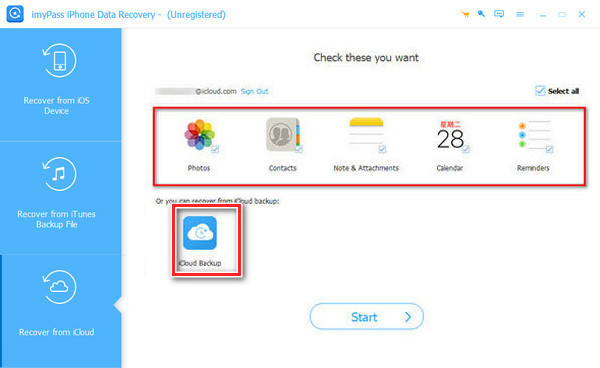
Launch the software and click Recover from iCloud. Input your Apple ID and password.
Note:
If you forget your Apple ID or password, imyPass still offers good solutions to help you resolve the issue effortlessly!
Select to recover data from Apps or iCloud Backup.
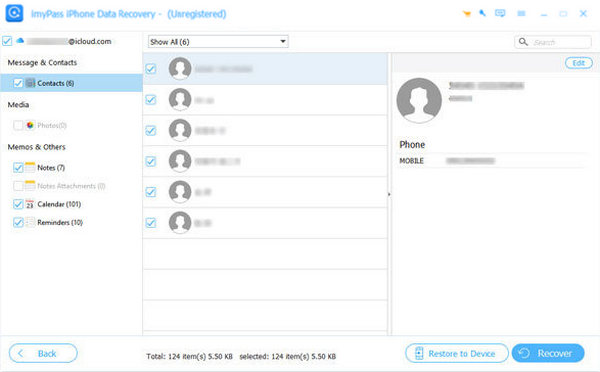
Choose the files you want to recover and click the Recover button to save them.
Conclusion
Learn how to enter Recovery Mode, and you'll fix sudden iOS glitches fast. One more thing to note: Though serious iPhone system issues are gone, the restoring process has erased your data. If that happens, a reliable iPhone data recovery software can help you retrieve all important files!. Tired of dealing with a stuck or unresponsive iPhone now? Follow the steps above and pick the right solution that fits you best!
Clara is an editor from imyPass. She specializes in data recovery. You can find professional tutorials and solutions for recovering lost data from any device. Many users reported that his tutorial is easy and useful.
Hot Solutions
-
Recover Data
- Recover WhatsApp View Once Photo
- Recover Deleted TikTok Videos on Mobile
- Recover Deleted Facebook Photo
- Recover Viber Messages, Photos, etc.
- Recover Deleted Snapchat Photos
- 5 Best Contact Recovery Apps
- Recover Deleted Discord Messages
- AppGeeker iOS Data Recovery Review
- Recover Data from DFU Mode
- Cannot Restore iPhone Backup
-
Unlock iOS
-
iOS Tips
-
Password Tips

