



 Solution
 Support Center
 About Us
 Contact
How Do You Get Back Deleted Contacts from iPhone - Complete Guide
 Clara Prescott Published on January 23, 2026Recover Data3-min reading
Contacts are one of the most important aspects of your iPhone, but mistakes can occur, and numbers can be lost. iPhones keep contacts in iCloud and on the device, so recovery is usually possible. Knowing where contacts are stored can save you from permanent loss. This guide on how to find deleted contacts on an iPhone shows where your contacts live, restores missing numbers, and provides simple steps to keep your list safe. By following these tips, you can quickly retrieve your contacts and keep them organized.

In this article:
Part 1. Where Do the Contacts Store [for iPhone Users]
Deleted contacts on an iPhone can usually be recovered because of how iPhones store contact information. iPhones keep contacts in iCloud and in the device memory. Contacts saved to iCloud are synced across all Apple devices linked to the same account, which makes it easier to recover deleted contacts that iPhone users may have lost.
Contacts stored directly on the device remain locally, and in some cases, they can be restored from backups. Additionally, contacts from email accounts or messaging apps may also appear in the contact list. Knowing these storage locations is essential for anyone looking to recover deleted contacts iPhone reliably.
Part 2. How to Recover Deleted Contacts on iPhone
If you have lost contacts on your iPhone, there are several ways to get them back. Below are the most effective methods, from using recovery software to iCloud and backups, so that you can restore your important numbers quickly and safely.
1st Method: imyPass iPhone Data Recovery [Recommended]
When you need to get your contacts quickly but do not have any idea how to get deleted contacts from your iPhone, then lean on the imyPass iPhone Data Recovery. Why? Because with just a few clicks, you can get the deleted files, such as contacts, messages, call logs, and more, back to your iPhone easily. Compared to other methods that are mentioned here, this is by far the easiest tool to use. Do you want to learn how? Read the steps in here:
Before you can retrieve contacts on your iPhone with this tool, you need to download and install it first by clicking the button here. Then, follow the instructions before you can use it. After that, connect your iOS device to your desktop as we continue to dive into the steps.
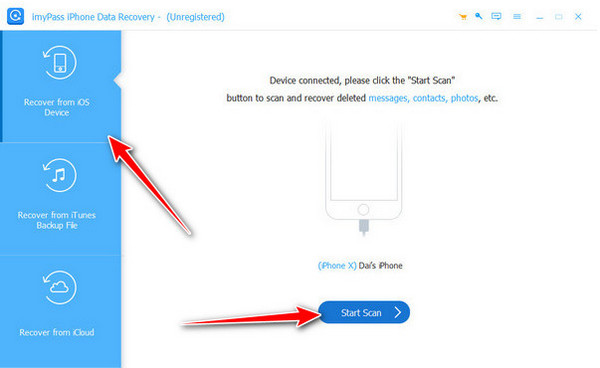
On the main page of it, tick the Recover from iOS Device and choose the Start Scan button to proceed. Waiting is necessary as it scans your device data.
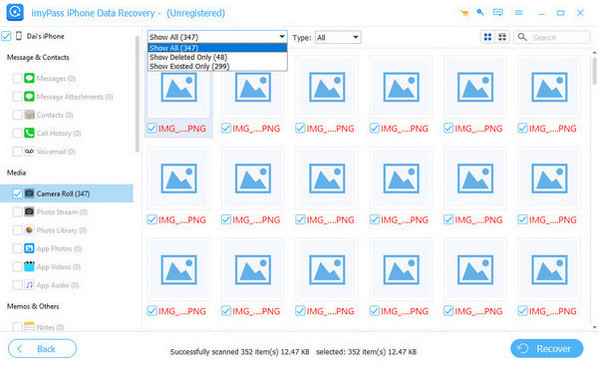
Once done, you will get all the results and click the dropdown, choose the Show Deleted Only, go to the Messages and Contacts, and tick the Contacts. Find all the contacts you want to retrieve that appear in the result.
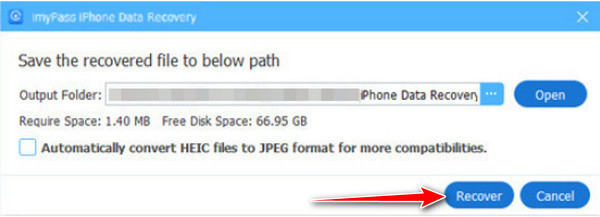
Finally, you can tick the Recover button to start exporting the files.
Method 2: Restore via iCloud on Your iPhone
If your iPhone syncs contacts with iCloud, you can recover deleted contacts directly on your device. This answers questions like how you can retrieve deleted contacts on an iPhone.
Open Settings, tap your name, then iCloud or just iCloud for iOS 10.2 or earlier.
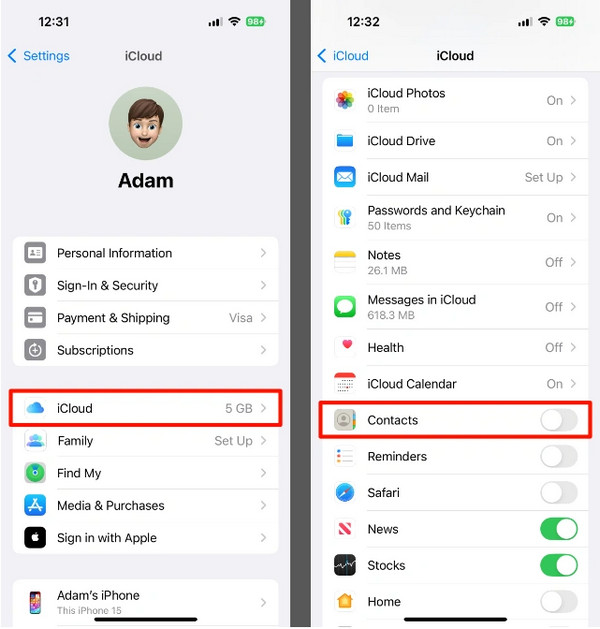
Toggle Contacts off and select Keep on My iPhone.
Toggle Contacts back on and tap Merge to restore contacts from iCloud to your iPhone.
Method 3: Restore Contacts via iCloud.com
If you want to recover contacts from a computer, this method works well for those asking how do you get back deleted contacts from iPhone.
Go to iCloud.com and sign in with your Apple ID, then select Contacts.
Choose the contacts to recover and click the gear button, then Export vCard.
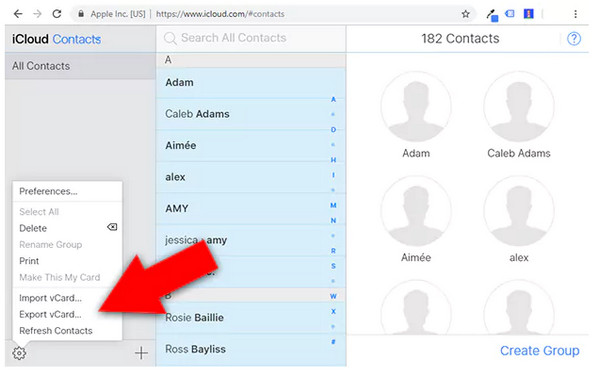
Import the vCard to your contacts app or sync it back to your iPhone to restore deleted contacts.
Method 4: Restore from an iPhone Backup
If you backed up your iPhone via iTunes, Finder, or the Apple Devices app, you can restore lost contacts. This method helps answer how can I recover a deleted contact iPhone.
Link up your iPhone to your computer and open iTunes, Finder, or the Apple Devices app.
Select your device, then choose Restore Backup, and pick the backup containing your contacts.
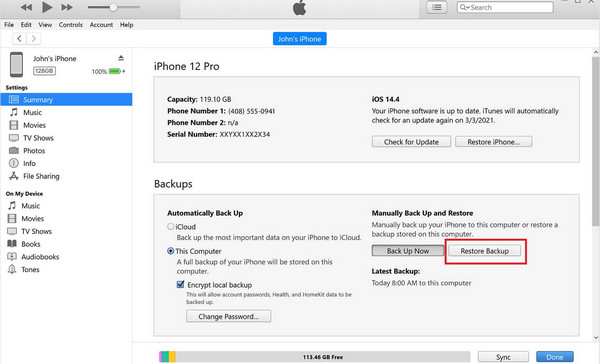
Follow the instructions to restore the backup. Note that this will replace any data added after the backup.
Method 5: Ask Friends for Missing Contacts
If only a few contacts are missing, the fastest way to recover them is to ask friends. You can request that they send you the missing numbers directly through messages, email, or other apps. This approach is simple and effective for restoring individual entries and is a practical solution for retrieving iPhone deleted contacts without relying on backups or syncing tools.
Part 3. Tips to Keep Your Contact Safe
To protect your contacts on your iPhone, it is essential to save your contacts in order to prevent losing them unintentionally. With the help of some simple measures, it is possible to save your numbers and make them accessible at all times. The following are some of the hints that will keep your contacts safe:
1. Use iPhone Transfer and Backup Feature
Regularly backing up your contacts ensures you always have a secure copy. This feature helps you save and transfer your contacts between devices, reducing the risk of losing important numbers. After having a backup, you can now export the contacts on iPhone through it.
2. Check Recently Deleted Contacts
iPhones keep deleted contacts in a temporary folder before permanent removal. By checking the recently deleted contacts iPhone section, you can quickly restore any contacts you deleted by accident.
3. Enable iCloud Sync
Syncing your contacts with iCloud keeps them updated across all your Apple devices. This makes it easier to find deleted contacts iPhone and prevents loss if something happens to your device.
4. Organize Your Contacts
Grouping or categorizing contacts helps you locate them faster. A well-organized contact list makes it simple to manage entries and reduces the chance of accidental deletion, meaning you do not need to restore deleted contacts iPhone.
5. Keep Regular Backups
Making periodic backups to your computer or another storage system ensures that you can retrieve deleted iPhone contacts if something goes wrong. Frequent backup serves as a backup for your whole address book.
6. Enable Two-Factor Authentication for Apple ID
An additional security level will ensure that an unauthorized person does not access your iCloud account and contacts, and your data will remain secure.
Conclusion
Contact loss in an iPhone is not inevitable. There is also a regular backup, iCloud synchronization, and a structure of contacts to ensure that you save your numbers and retrieve them at any time. By following these methods and best practices, you can confidently maintain your contacts and know exactly how can you retrieve deleted contacts on iPhone whenever an accidental deletion occurs.
Clara is an editor from imyPass. She specializes in data recovery. You can find professional tutorials and solutions for recovering lost data from any device. Many users reported that his tutorial is easy and useful.
Hot Solutions
-
Recover Data
- Recover WhatsApp View Once Photo
- Recover Deleted TikTok Videos on Mobile
- Recover Deleted Facebook Photo
- Recover Viber Messages, Photos, etc.
- Recover Deleted Snapchat Photos
- 5 Best Contact Recovery Apps
- Recover Deleted Discord Messages
- AppGeeker iOS Data Recovery Review
- Recover Data from DFU Mode
- Cannot Restore iPhone Backup
-
Unlock iOS
-
iOS Tips
-
Password Tips

