Solution
 Support Center
 About Us
 Contact
Celero 5G FRP Bypass Without PC: Full Guide for Android Users
 Gideon Byron Published on June 12, 2026Unlock Android3-min reading
Getting locked out of a Celero 5G Plus after a factory reset is stressful. This guide shows safe, tested ways to remove Google Factory Reset Protection and get the phone working again. First, check Google Password Manager for saved account details that may restore access without extra tools. Next, we show no PC methods using the keyboard and TalkBack, a PC route with Octoplus, and a quick tool option for fast results. For an automated choice, see the Celero 5G plus FRP unlock tool download section.

In this article:
Part 1. What is Celero 5G (Plus) FRP
The Celero 5G and Celero 5G Plus have a Google security feature called Factory Reset Protection, or FRP. FRP is automatically enabled once a Google account is added to the phone. It does not allow any person to use the phone following a reset unless the initial Google account information is provided. This security assists in protecting the personal information in case the phone is misplaced or stolen.
Some common situations that trigger Celero 5G FRP:
- Forgetting your Google account password after a factory reset.
- Resetting the Celero 5G through Recovery Mode.
- Purchasing a second-hand Celero 5G that is still linked to the previous owner's account.
What should you do if you're locked out of the Celero 5G FRP? Before trying to bypass Celero 5G FRP, it is recommended to recover the original Google account. You can check Google Password Manager, use Google's account recovery options, or sign in with a recently recovered account.
Part 2. How to Bypass Google FRP Celero 5G Without PC
If you do not have a PC at your disposal to use for bypassing the FRP lock that is activated on your Celero, then this is the tutorial you need to learn.
Tested Device Information (for reference):
- Device: Celero 5G/Celero 5G Plus
- Android Version: Android 13
- Security Patch: March 5, 2025
- Success Rate: 2/3 attempts successful
The success rate varies depending on Android version, security patch level, and device model.
1. Keyboard
The keyboard method is another option for handling Celero 5G FRP Android 11 when Google Keyboard is present on the device. It works by navigating through hidden settings from the keyboard menu, allowing you to create a new password or PIN and unlock the phone. This process is not always guaranteed, but it can be worth trying before moving to more advanced tools.
On the Verify Your Account screen, tap the email box to bring up the keyboard. Tap the gear button on the keyboard to open its settings.
Tap the Back button, and you will see the Google Voice Typing option. Select it. Tap the search button and type voice into the bar.
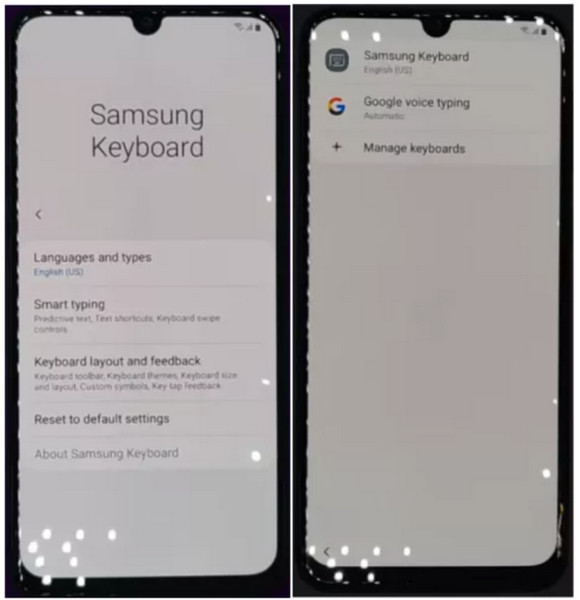
When the Voice menu shows, tap the Back button again to return to the Settings screen. Go to General, then navigate to Manage pending searches.
Use the search icon again and type Settings into the search bar. From here, set a new password, PIN, or pattern for your device.
Restart your phone, and use the new lock screen password to regain access. For a safer option, you can also check Google Password Manager after completing the FRP bypass Android 11 method.
2. TalkBack
One of the most reliable no-PC methods is using the built-in TalkBack feature. TalkBack is designed to assist users with visual impairments, but with the right steps, it can also help you perform a Celero 5G FRP bypass without a computer. This process lets you reach hidden settings and install the tools needed to remove the lock.
Pre-Requisite:
- Stable Wi-Fi connection.
- Spare Google account for login.
- Second device to download APK if needed.
- Enable install unknown apps permission.
Steps on How to Use the TalkBack Feature:
Power on your Celero 5G Plus and connect it to a stable Wi-Fi network. On the welcome screen, tap Accessibility and enable TalkBack.
Complete the quick TalkBack tutorial, then draw an L shape on the screen to open the menu. From the menu, select Text-to-Speech Settings. Hold Volume Up and Volume Down together until TalkBack turns off.
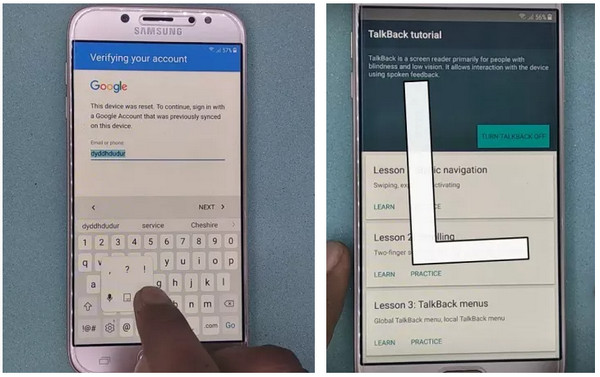
In Settings, go to Help & Feedback and choose Use Morse Code to launch YouTube. Inside YouTube, use the search bar to find an FRP bypass video that provides an APK link.
Open the link, download a trusted FRP bypass APK, and install it on the device. Use the installed app to add a new Google account. Restart the phone and complete the setup. The FRP lock should now be gone.
Part 3. How to Bypass Celero 5G FRP with PC
Octoplus is a professional service tool used by repair shops and technicians to service many Android phones. When used properly by an authorized technician, Octoplus can help achieve a FRP bypass Celero 5G as part of a legitimate recovery process, but it requires technical skill, correct drivers, and an activated Windows installation. Owners should prefer official account recovery or authorized service centers before considering service tools like viewing the password on Google Chrome.
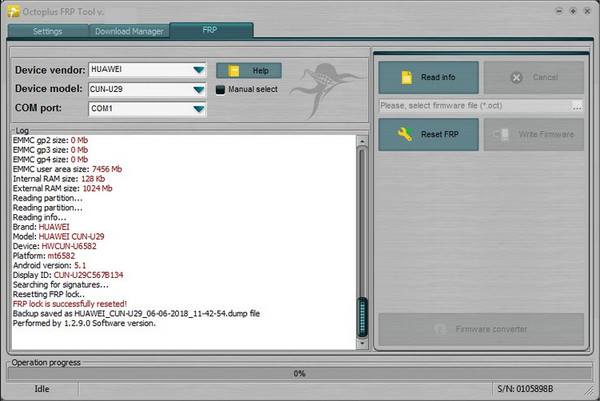
Install and activate the official Octoplus software on a Windows PC, then update it to the latest release.
Install the correct USB drivers for the phone brand so the PC can reliably detect the device.
Launch Octoplus, choose the device brand and model from the tool interface, and use the tool to read the device information to confirm detection.
A trained technician selects the appropriate FRP or reset operation in the tool, runs the process, then verifies the device reboots and accepts account setup again.
Part4. The Easiest Way to Bypass FRP on Android 5-17
If the manual methods above don't work, an FRP bypass tool can be your practical alternative. imyPass AnyPassGo is typically designed to assist users in removing the screen lock and bypassing FRP. It can remove the FRP lock easily on Android 5-17, and all you need to get started is a computer and a USB cable.
4,000,000+ Downloads
Remove PIN, passcode, fingerprint, and pattern on Android.
Bypass Google FRP safely and easily without technical skills.
Supports all major Android brands, like Samsung, Motorola, and more.
Compatible with Android 5-17.
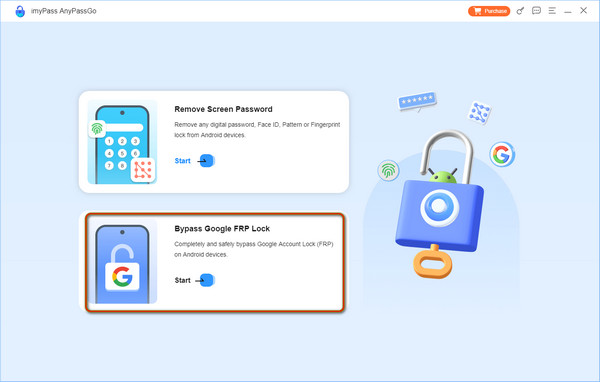
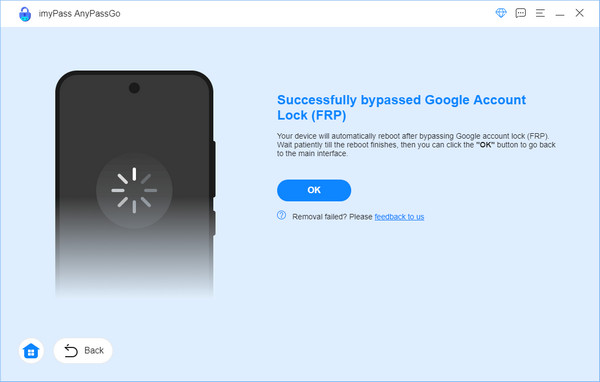
Launch the sofeware on your computer and select the Bypass Google FRP Lock feature.
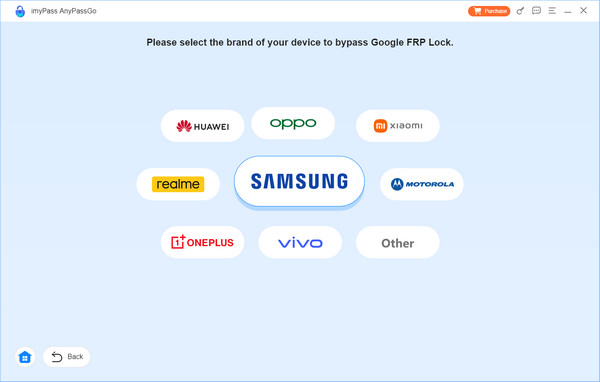
Select the brand of your device and connect your device to your computer via a USB cable.
Once recognized by AnyPassGo, click the Bypass Now button to continue. Follow the on-screen instructions to set up your device.
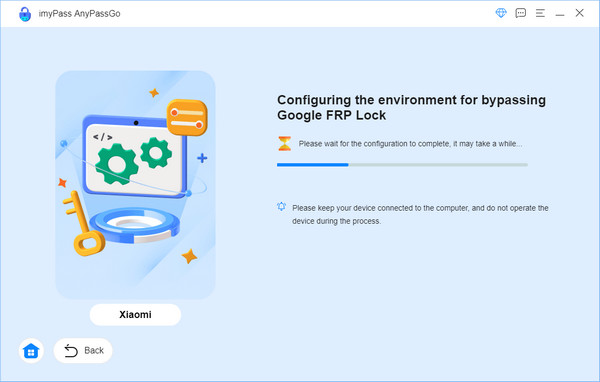
Now you can start bypassing the Google FRP lock on your device and wait for the removal to be finished in seconds.
Part5. FAQs About Bypassing Celero 5G FRP
FAQs.
-
What warning signs indicate that the Celero 5G FRP bypass might fail?
If you repeatedly see "Google account verification" on your device, and it cannot connect to Wi-Fi during setup, the FRP bypass attempt may fail. These issues often occur when your phone brand or model is not supported.
-
How does using a PC vs. no-PC method affect Celero 5G FRP bypass?
PC methods require specialized software and USB debugging. It is usually universal and easier since you can operate with the guidance of the software on your PC. No-PC methods are generally more complex in operation, and they vary from brands and models.
-
What are the limitations after Celero 5G FRP bypass?
After a successful FRP bypass on Celero 5G, you may lose access to official OTA updates, DRM-protected apps, and carrier services. These limitations vary by region and operator policies.
Conclusion
This guide covered several ways to perform a Celero 5G FRP bypass with or without a PC. Start with Google Password Manager or account recovery first. If those options do not work, you can proceed with the methods mentioned in this guide. When using third-party tools, ensure your device is compatible, legally owned, and all important data is backed up.
Gideon writes about unlocking iOS, Android, and Windows devices. He previously worked as a mobile device specialist in a repair center, assisting customers with locked devices and password recovery. In his spare time, he tests new unlock tools, customizes smart devices and makes complex unlock processes simple and safe.
Hot Solutions
-
Unlock Android
-
Unlock iOS
-
Password Tips
-
iOS Tips