


 Solution
 Support Center
 About Us
 Contact
How to Change Screen Timeout on iPhone and Fix Auto-Lock Issues
 Samuel Spenser Published on October 15, 2026Unlock iOS3-min reading
Is your iPhone screen turning off too quickly? Or do you want it to stay on longer while reading or watching content? This is controlled by the Auto-Lock setting, also known as the screen timeout. In this guide, you'll learn how to change Auto-Lock on iPhone whether you want to save battery, read without interruptions, or keep the screen awake longer.

In this article:
Part 1. What is Screen Timeout on iPhone? Understanding Auto-Lock
When you stop using your iPhone or iPad for a while, you may notice that the screen automatically dims and then turns off. This feature is called Auto-Lock by Apple, and it is often referred to as screen timeout. It controls how long your device screen stays on before it locks automatically.
Screen timeout determines how long your screen stays on when you are not using your device. For example, you can set the time to 30 seconds, a minute, or more to suit different usage scenarios. For users who like to read e-books or browse the web for a long time, extending the timeout can avoid frequently waking up the screen; For those who value battery life, a shorter time is more beneficial.
Part 2. How to Change Screen Timeout on iPhone
When you want to keep the screen on longer, or when you want it to lock faster, you need to change the iPhone screen timeout setting. The steps are similar across iPhone models, including older models and the latest iPhone versions. Here are the specific steps:
Open the Settings app and tap Display & Brightness.
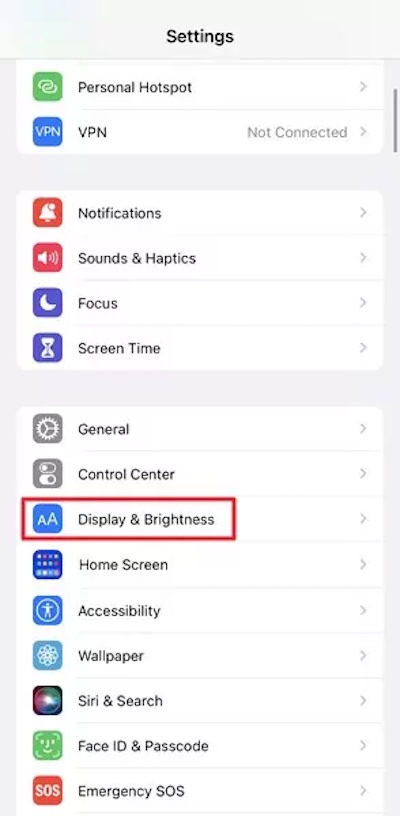
Here, you'll see Auto-Lock, which is where you control the screen timeout settings.
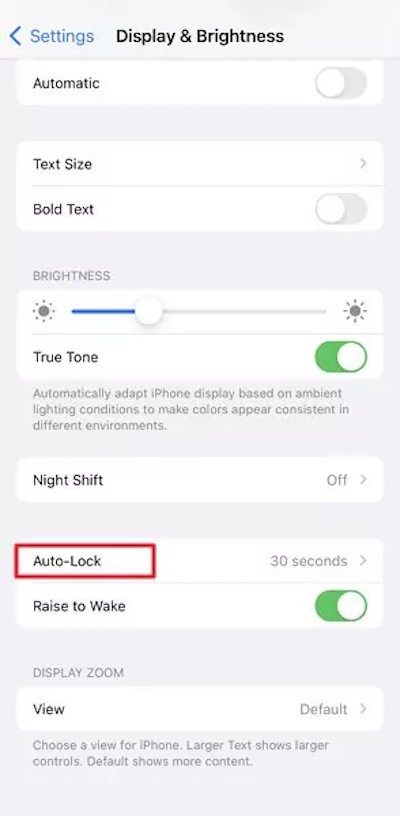
Tap it, and you can choose from different timeout options, such as 30 seconds, 1 minute, 2 minutes, and 5 minutes.
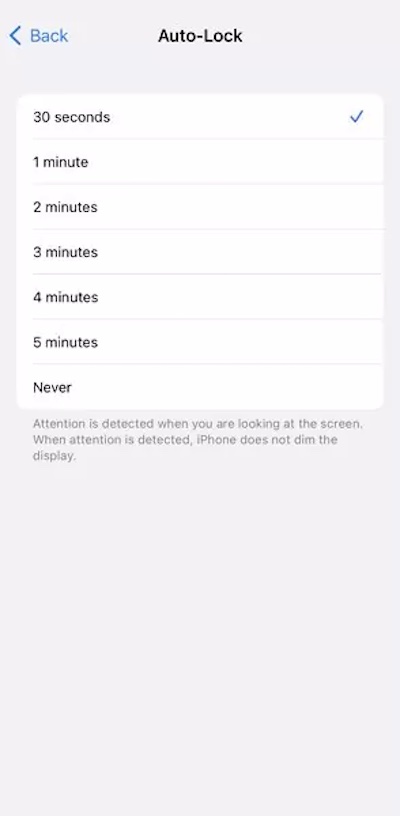
After the selection is complete, simply return and the system will automatically apply the new settings. This completes the process of changing the lock screen timeout of the iPhone.
If you're using an iPad, it's pretty much the same. To change the iPad screen timeout, find Auto-Lock in Display & Brightness. In this way, you can flexibly adjust the screen timeout according to your usage habits, whether you're using an iPhone or an iPad.
Part 3. Why Can't I Change Auto-Lock on iPhone
Sometimes, you may find that the Auto-Lock option on your iPhone is greyed out or cannot be changed. This is not a system error, but a few specific reasons:
Low Power Mode is Enabled
When Low Power Mode is turned on, your iPhone may limit some settings to reduce battery consumption. In this case, the screen timeout time may be temporarily set to 30 seconds and cannot be adjusted. To change the screen timeout again, go to Settings > Battery and turn off Low Power Mode.
Screen Time Restrictions Are Blocking Changes
If you cannot change Auto-Lock settings, Screen Time restrictions may be the reason. If your parent has set a limit for you, you need to change the parental controls have been enabled. Go to Settings > Screen Time and check whether any restrictions are active.
Your iPhone Has a Management Profile
Some iPhones used for work or school have a management profile installed. These profiles can limit Auto-Lock settings to meet organizational security requirements. You can check this by going to Settings > General > VPN & Device Management. If a profile is installed, contact your administrator to remove MDM restrictions.
Temporary System error
In a few cases, system updates can also make the iPhone screen timeout setting unavailable. Restart your iPhone, install the latest iOS update, then check the Auto-Lock setting again.
Part 4. Does Screen Timeout Affect iPhone Battery Life
Have you ever noticed your iPhone battery draining faster than expected, even when you are not using it much? In fact, the amount of time your screen stays on is one of the factors that affects battery usage. On iPhone, the Auto-Lock setting controls how long your display stays active before turning off, which can influence how quickly your battery is used.
By adjusting the screen timeout settings or limiting the screen time on iPhone, you can balance the experience and battery life in different scenarios:
- When you're out or away for long periods of time: Shorten screen timeouts and reduce power consumption.
- When reading or watching videos: Increase screen timeouts and avoid touching the screen frequently.
Master how to control screen timeout on iPhone or how to increase screen timeout on iPhone, and you'll be able to adjust it to your needs flexibly, improving convenience and optimizing battery life. With these small tweaks, you can tailor your iPhone or iPad to your habits while reducing the hassle of frequent charging.
Part 5. How to Fix Screen Time Restrictions That Block Auto-Lock Settings
Sometimes, you can't change the Auto-Lock setting because Screen Time restrictions are enabled on your iPhone. What if you forget your Screen Time passcode? Is there any way to disable Screen Time restrictions before changing screen timeout? This professional iPhone unlocking tool - imyPass iPassGo can help you remove forgotten Screen Time passcode. With simple 4 steps, you can regain control of your device and change the Auto-Lock time according to your needs.

4,000,000+ Downloads
Bypass Screen Time restrictions without password.
Keep your personal data intact during the process.
Removing iOS screen lock and Apple ID from iPhone.
Compatible with a wide range of iPhones and iPads.
Launch imyPass iPassGo on your computer, then choose the Unlock Screen Time mode from the interface.
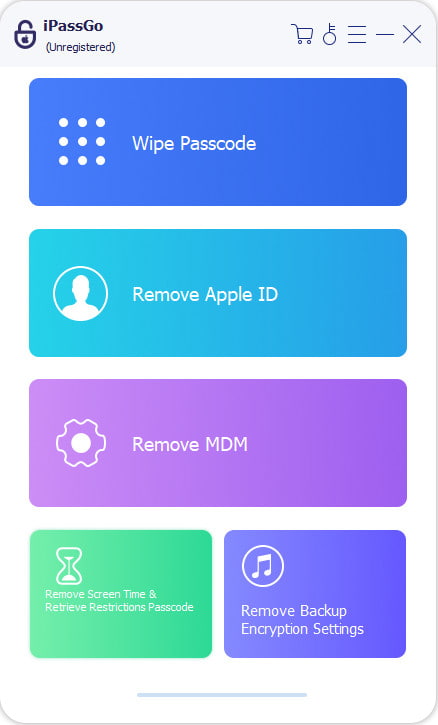
Connect your device to computer with a USB cable.
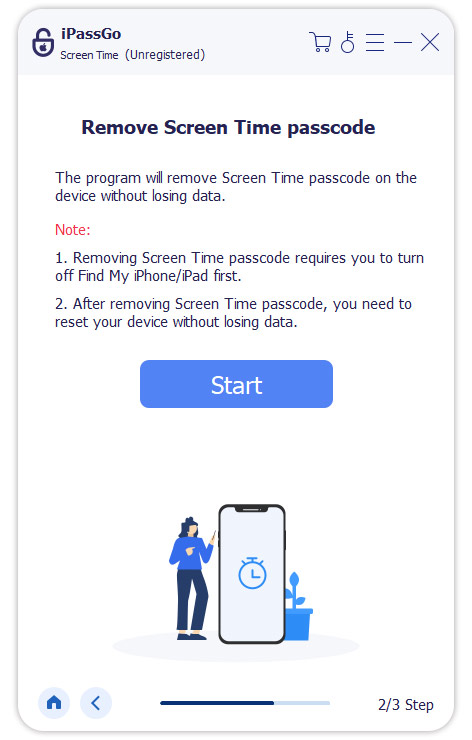
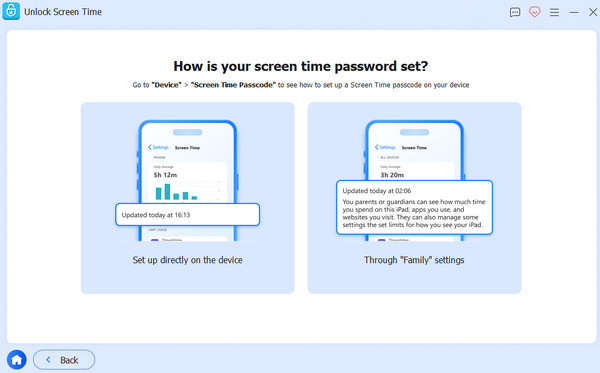
Choose how your Screen time password is set. Make sure that Find My on your iPhone is disabled, then follow the on-screen instructions to turn off Screen Time.
Click the Unlock button to continue. This tool will remove the Screen Time passcode, and your device will reboot automatically.
Conclusion
Adjusting the screen timeout settings can make your iPhone and iPad more power-efficient and better suited to your usage habits. If you can't change it because you forgot your Screen Time password, you can use a tool like imyPass iPassGo to remove the restrictions easily, making the operation smooth and hassle-free.
Samuel specializes in password security and digital privacy. He used to work as a cybersecurity consultant for small businesses to protect digital assets. With certifications in Cybersecurity and Ethical Hacking, he turns complex security topics into easy-to-follow advice. He also enjoys sharing password tips to help users protect their accounts more confidently.
Hot Solutions
-
Unlock iOS
-
iOS Tips
-
Unlock Android
-
Password Tips


