Solution
 Support Center
 About Us
 Contact
What Is FonesGo Unlocker and How to Use It to Unlock Devices
 Samuel Spenser Published on August 25, 2026Unlock iOS3-min reading
This article reviews a reputable unlocking program, FonesGo Android/iPhone Unlocker. If you purchase a second-hand iPhone or Android device and you don’t have the screen lock, you will need an unlocking tool. If you forgot your lock screen password, an effective unlocking program is helpful. Of course, before you download and purchase the program, you can learn everything about it, such as features, prices, benefits, and more, from this article.

In this article:
Part 1: FonesGo Unlocker Review
FonesGo Unlocker is a software toolkit designed to assist users in removing various types of screen locks from mobile devices. Its primary functionality is screen unlock; however, it offers bonus features.
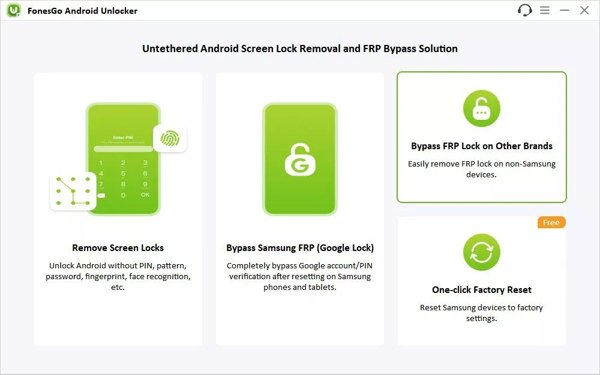
Main Features of FonesGo Android Unlocker
- 1.Unlock an Android device without the password.
- 2.Remove all types of Android screen locks.
- 3.Bypass FRP Lock without the linked Google account.
- 4.Factory reset Samsung devices.
- 5.Compatible with popular Android phone brands.
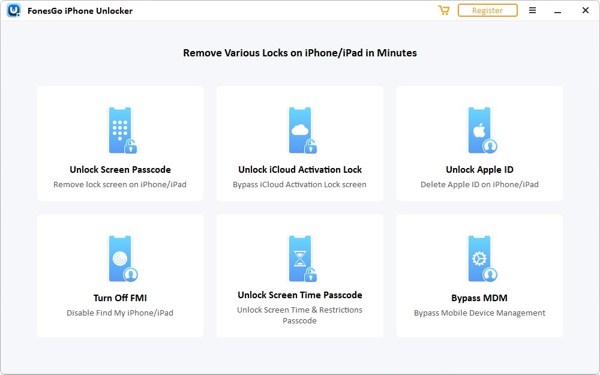
Main Features of FonesGo iPhone Unlocker
- 1.Unlock iPhone and iPad without a passcode.
- 2.Remove all screen locks from iOS devices.
- 3.Bypass iCloud Activation Lock screen.
- 4.Turn off Find My iPhone or Find My iPad.
- 5.Remove Apple Account from iPhone or iPad.
- 6.Unlock Screen Time passcode.
- 7.Delete MDM profiles from iOS devices.
Review of FonesGo Unlocker
Pros
- The toolkits offer flexible price plans.
- The interface is user-friendly and straightforward.
- It is available to iOS 27 and earlier and over 6,000 Android device models.
Cons
- The toolkit is not free.
- It clears your data during the process.
- Some features are unavailable to all devices.
FonesGo Unlocker Price
FonesGo Android Unlocker costs $14.95 per device, $29.95 per month, $39.95 per year, and $49.95 lifetime. FonesGo iPhone Unlocker costs $25.95 per device, $35.95 per month, $39.95 per year, and $49.95 lifetime. While the toolkit is not free, you’d better purchase a license rather than download the FonesGo iPhone Unlocker crack.
Part 2: How to Use FonesGo Unlocker
How to Use FonesGo Android Unlocker
Install FonesGo on your computer and open it.
Turn on USB Debugging mode on your phone. Then, connect your phone to your computer with a USB cable.
Follow the prompts to trust this computer.
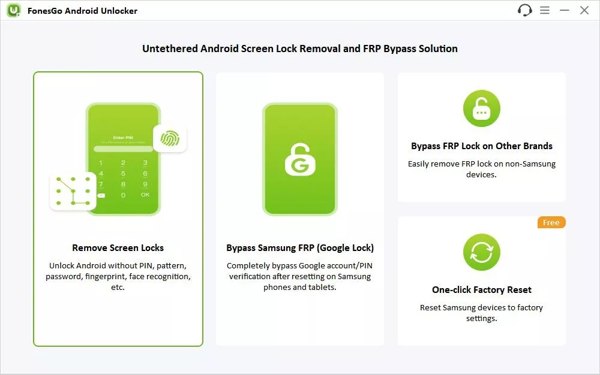
Click the Remove Screen Locks option and click the Start button.
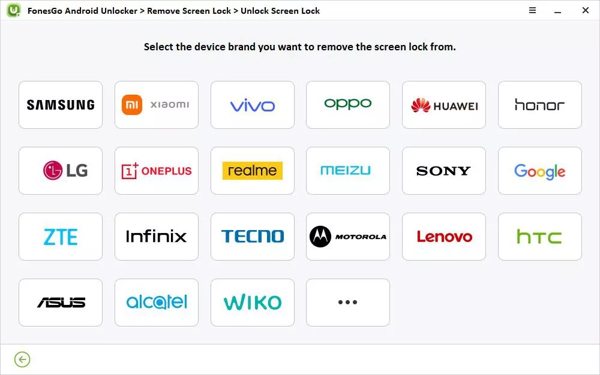
Select your phone brand and put your phone in Recovery Mode.
Next, remove the screen lock with the onscreen instructions.
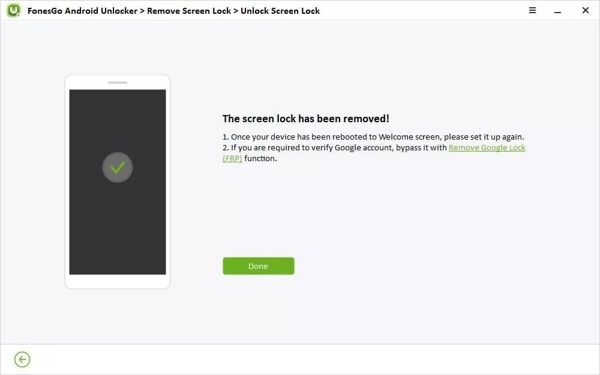
Once your Android device restarts, disconnect it and set it up again.
How to Use FonesGo iPhone Unlocker
Open FonesGo Unlocker after you install it on your computer.
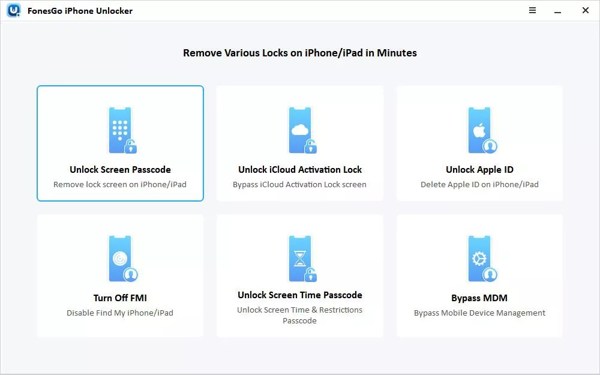
Choose the Unlock Screen Passcode option.
Plug your iPhone into the computer with a compatible cable.
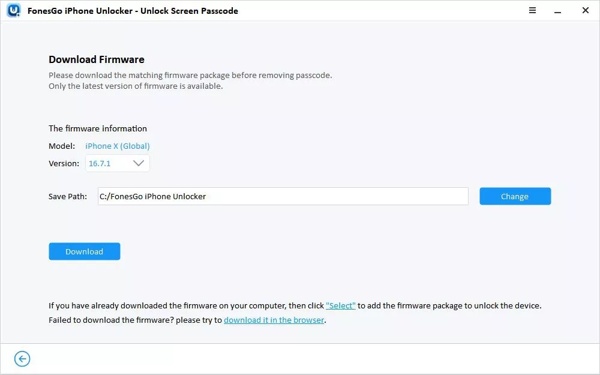
After your device is recognized, click the Download button to download the firmware.
Once downloaded, click the Unlock Now button to begin unlocking your iPhone.
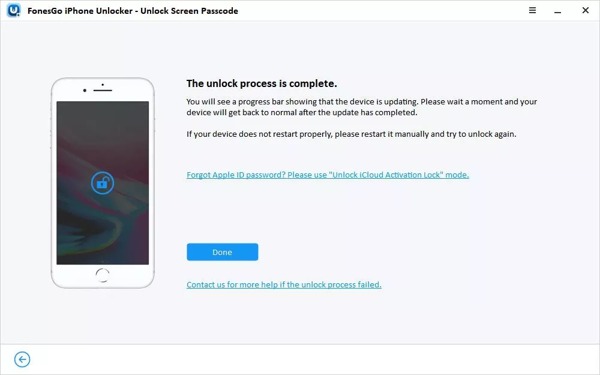
After the unlocking process, your iPhone will restart automatically.
Part 3: A Great Alternative to FonesGo Unlocker
If you are looking for an alternative solution for FonesGo, imyPass AnyPassGo and imyPass iPassGo are available. They are able to remove any screen locks from an iPhone or Android device without restrictions.
4,000,000+ Downloads
Unlock an Android device without any restrictions.
Remove PINs, passwords, patterns, fingerprints, and face recognition.
Bypass FRP Lock without the linked Google account password.
Support all Android brands and models.
Deliver a high success rate.
How to Unlock an Android Phone Without the Password
Install the FonesGo Unlocker alternative
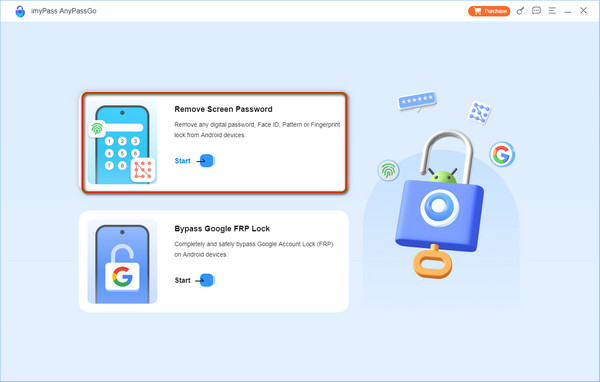
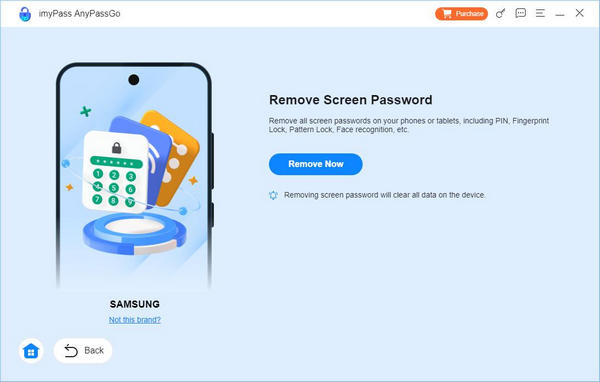
Launch the alternative to FonesGo Android Unlocker once you install it on your computer. Choose the Remove Screen Password mode to proceed.
Connect to your phone
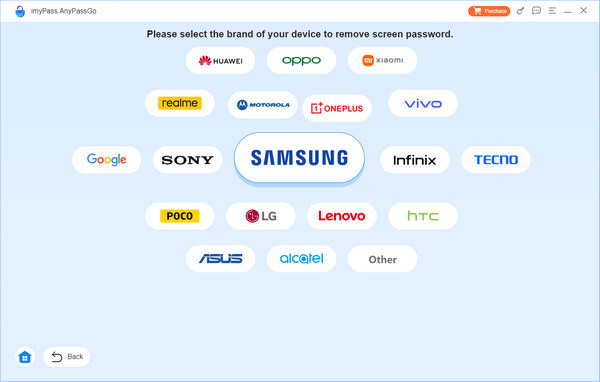
Choose your phone brand on the window. Link your phone to your computer with a USB cable. Make sure to trust your computer. Then, the software will detect your phone.
Unlock your phone
Finally, click on the Remove Now button to initiate unlocking your Android phone automatically.

4,000,000+ Downloads
Unlock the iOS screen in three steps.
Work for digit passcodes, Face IDs, and Touch IDs.
Remove Apple ID or iTunes backup encryption without a password.
Bypass Activation Lock, MDM, Screen Time, and SIM lock.
Compatible with the latest editions of iOS and iPadOS.
How to Unlock Your iPhone Without a Passcode
Detect your iPhone
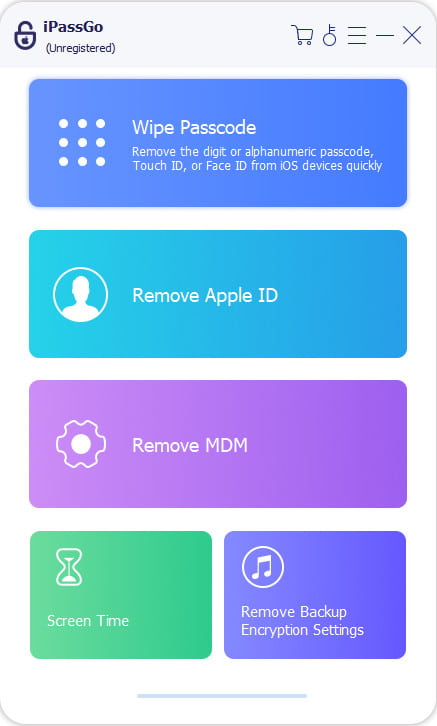
Download and install the alternative to FonesGo iPhone Unlocker on your computer. Choose the Unlock iOS Screen mode to continue.
Download firmware
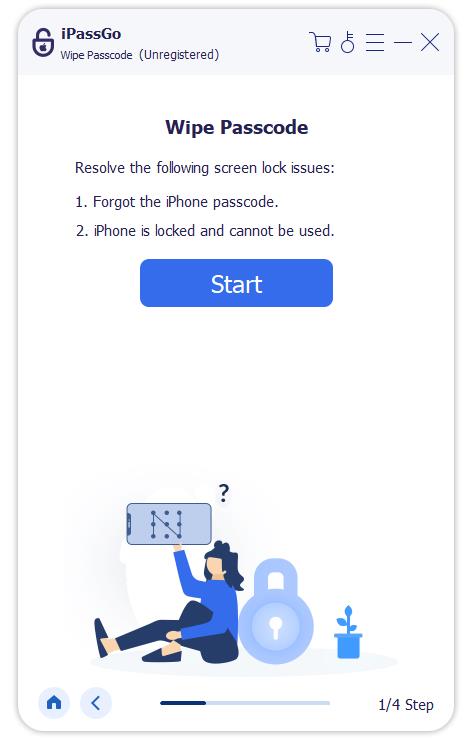
Hook up your iPhone to your computer with a Lightning cable. Once the software detects your device, it will load your iPhone information. Click the Start Now button to begin downloading the firmware.
Unlock iPhone
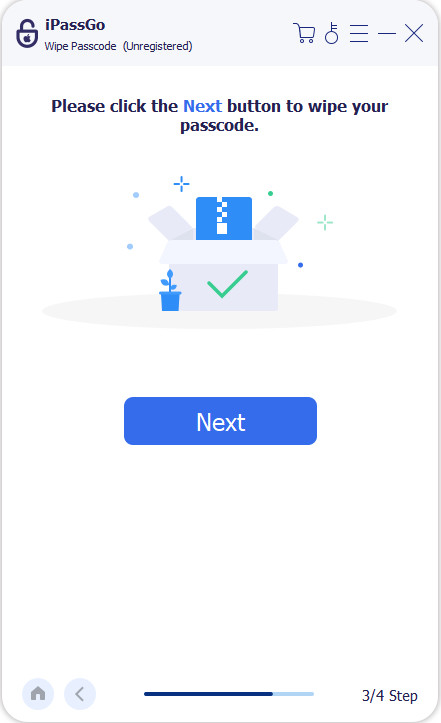
After downloading, hit the Start Removing button to confirm it. Next, click Confirm Again to start the unlocking process.
Conclusion
Now, you should understand what FonesGo Android Unlocker and FonesGo iPhone Unlocker are, what they can do, and the honest review. Furthermore, you can learn how to. The knowledge can help you make the best decision. Plus, we recommended the alternative solutions: imyPass AnyPassGo and imyPass iPassGo
Samuel specializes in password security and digital privacy. He used to work as a cybersecurity consultant for small businesses to protect digital assets. With certifications in Cybersecurity and Ethical Hacking, he turns complex security topics into easy-to-follow advice. He also enjoys sharing password tips to help users protect their accounts more confidently.
Hot Solutions
-
Unlock iOS
-
iOS Tips
-
Unlock Android
-
Password Tips