Solution
 Support Center
 About Us
 Contact
How to Find Administrator Password on Windows 11/10/8/7
 Penny Warren Published on September 09, 2026Windows Password3-min reading
Windows includes two types of accounts: administrator and user accounts. The administrator account contains some additional privileges to manage system files or do anything without requiring confirmation. In other words, you cannot make any major changes if you forgot the administrator password. The good news is that you can find the administrator password on Windows 11/10/8/7 with the right methods. This article walks you through the proven ways and detailed steps.

In this article:
Part 1: How to Find Admin Password on the Control Panel
Credential Manager is the built-in password manager on Windows 10 and above. It saves both your web logins and Windows accounts. It is the first place to see the administrator password when you forgot it.
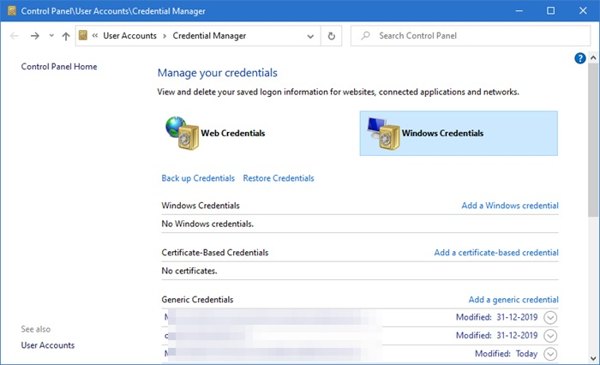
Go to the Start menu and open Control Panel.
Choose the User accounts option.
Click the Credential Manager option.
Switch to the Windows Credentials tab to view all accounts.
Find the administrator account and click the Next button with an arrow icon.
Click Show next to the password.
Part 2: How to Check Admin Password on Registry Editor
Another way to get the administrator password is Registry Editor. It is a built-in utility for users to view, modify, create, and delete entries in the Windows Registry, which is a database storing configuration settings for the operating system, preferences, and more.
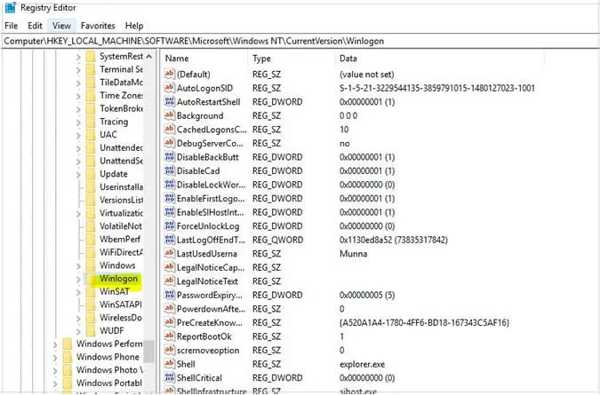
Press the Win + R keys on your keyboard.
Type regedit in the Run dialog and hit the Enter key.
Navigate to HKEY_LOCAL_MACHINE, SOFTWARE, Microsoft, Windows NT, CurrentVersion, and Winlogon.
Scroll down and find the DefaultPassword entry and double-click on it to check the administrator password.
Note:
Here, you can change your administrator password if you forgot it.
Part 3: How to Get Admin Password by Commands
Command lines cannot figure out the administrator password on Windows; however, they allow you to reset your password when you forget it. In other words, you can make a new password for the administrator account.
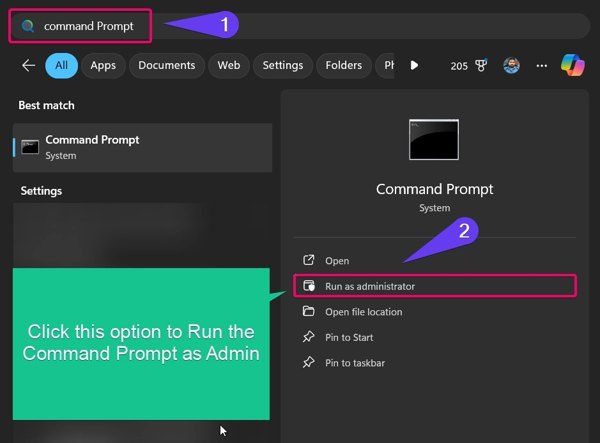
Go to the Start menu.
Search for Command Prompt, right-click on it, and choose Run as administrator.
Type in the command below and press the Enter key on your keyboard.
net user Administrator NewPassword123
Replace Administrator with the administrator username and NewPassword123 with the new password.
If you don't know the administrator account, perform net user first.
Restart your Windows and try the new administrator password.
Part 4: How to See Admin Password When Forgetting It
As you can see, you need to log in to your PC to know the administrator password on Windows. If you are locked out of your machine, imyPass Windows Password Reset can help you address this problem. It allows you to find the password for each account on your Windows, including the administrator account. Moreover, the straightforward interface makes it easy to use for beginners.
4,000,000+ Downloads
Figure out the password for the administrator on Windows.
Reset account passwords on Windows quickly.
Complete the process without accessing Windows.
Protect your data during the process.
Support Windows 11/10/8/7/XP/Vista/Server 2003/Server2008
How to Find Administrator Password on Windows
Create a bootable device
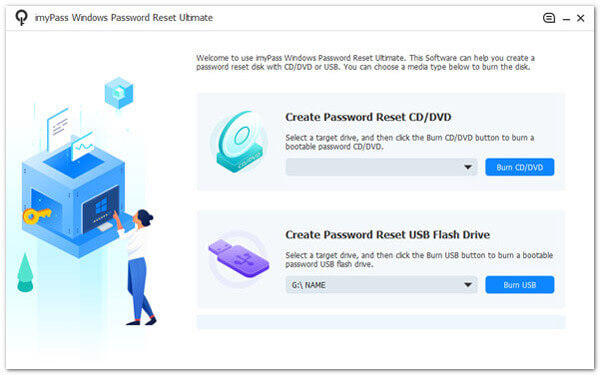
Download and install the password recovery software on an accessible PC. Launch it from the desktop. Insert a blank disk into the ROM drive. Locate the Create Password Reset CD/DVD section, select the disk from the drop-down option, and click the Burn CD/DVD button. If you don't have a disk, connect a USB flash drive to the PC, select it from the Create Password Reset USB Flash Drive option, and click the Burn USB button. When it is done, eject the bootable disk or drive.
Check administrator password
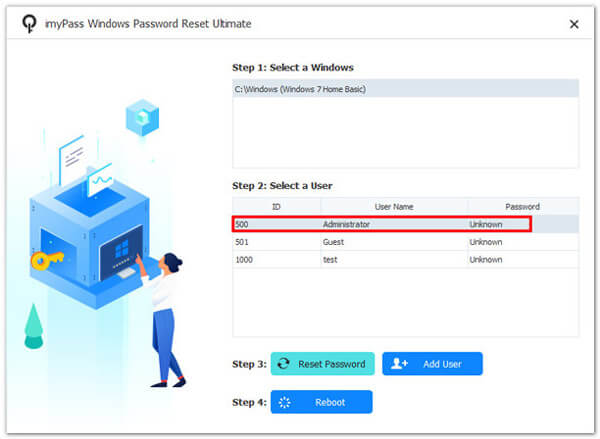
Next, insert the bootable disk or drive into your PC and power it on. Make sure to boot into the disk or USB. Once your PC boots into the bootable medium, click your Windows. Then, you will see all accounts and passwords on your PC. Here, you can check your administrator password.
Reset your password
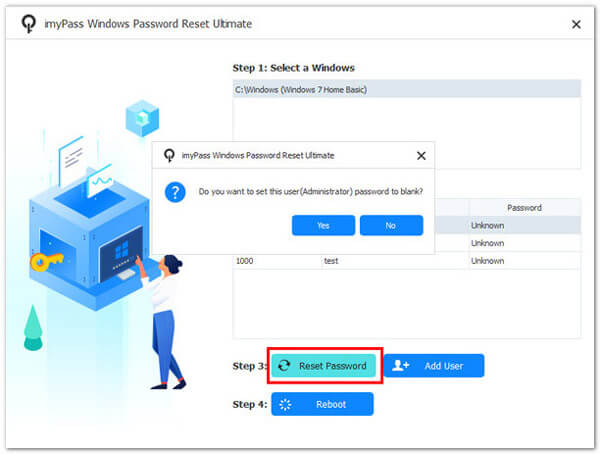
If you want to reset your password, select the administrator account and click the Reset Password button. Next, click the OK button to set it to be blank. Finally, click the Reboot button. Disconnect the bootable disk or USB, and restart your PC. Select the administrator account and enter your Windows directly. Then, you can set a new password for the administrator.
You May Also Like:
Conclusion
This article shared multiple ways to see the administrator password on Windows 11/10 and earlier in various situations. Credential Manager is a quick way to learn the saved passwords for accounts on Windows. The Windows Registry allows you to find your password, too. You can also reset the forgotten password with the command line. imyPass Windows Password Reset is a simple way to check the password for any account on Windows.
Penny focuses on GPS troubleshooting and Windows optimization. She formerly worked as a technical support engineer, helping clients solve location-based and system issues efficiently. Backed by IT support experience, she provides practical solutions that really work. In her free time, she likes hiking and geocaching, testing GPS tech in the real world.
Hot Solutions
-
Windows Password
-
Windows Tips
-
Fix Windows
-
Password Tips