



 Solution
 Support Center
 About Us
 Contact
Step-by-Step Guide to Recover Data from iPhone in DFU Mode
 Clara Prescott Published on January 23, 2026Recover Data3-min reading
A silent or frozen iPhone can feel like a real threat to your files, and it can be hard to know what to do next. Many users reach DFU mode without understanding how it works or what it can achieve. If you need to recover data from DFU mode, you must start with a clear view of how this deep repair state handles your system. Simple and steady steps will help protect your files and prevent new issues. In this guide, you will learn what DFU mode can do, how the recovery process works, and what to try after a full reset.

In this article:
Part 1. Can You Recover Data Using DFU Mode
No. You cannot recover data from the iPhone in DFU mode. This state only handles deep system repairs and firmware changes. It does not load iOS, read your storage, or reach photos, messages, or app data. DFU mode works below the system level, so none of your files are accessible while the device is in this state. You can use it to fix major system errors, but you cannot use it to pull data from the phone. To get your files back, you must use a backup or a recovery tool that works outside DFU mode.
Part 2. How to Recover Data from iPhone DFU Mode
It is very hard to recover data in DFU mode. This deep repair state does not load iOS, so it cannot reach your photos, messages, or app data. Some tools claim they can scan old iPhone models while in DFU mode, but many users report that these tools do not find real files. DFU mode only handles low-level system tasks, and modern devices block access to personal storage in this state.
If you need your files, your best chance is to scan the device before entering recovery from DFU mode or use a backup from iCloud, iTunes, or a reliable recovery tool that works outside DFU mode.
1. Retrieve Data on DFU with iTunes
iTunes is one of the most common ways to iPhone in DFU mode to recover data. This method only works if you created a backup before entering DFU mode. Without a prior backup, iTunes cannot restore your files.
Link up your iPhone to a computer with a Lightning cable and open iTunes or Finder on newer macOS versions. Click the device icon on the main interface and go to the Summary or General tab.
In the Backups section, locate Restore Backup under Manually Back Up and Restore. Select the backup you would like to restore and click Restore Backup.
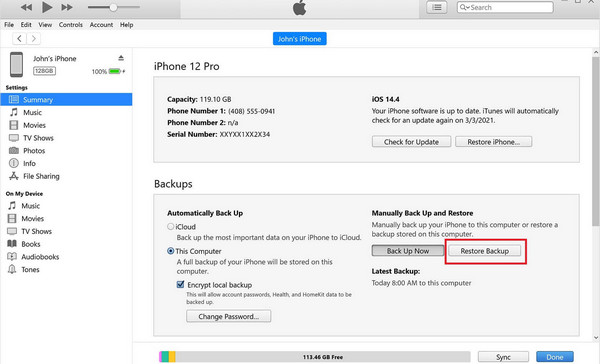
This method is ideal for users who regularly back up their iPhone. It allows you to safely recover messages, contacts, and other essential files after DFU mode. If the backup is on iCloud and you want to recover deleted messages on iCloud, then proceed by using the next method.
2. Retrieve Data from DFU Using iCloud
If you have an iCloud backup, you can do an iPhone DFU mode to recover photos and other files during device setup after a DFU restore. Follow these steps:
Turn on your iPhone and proceed through the setup screens until you get the Apps & Data screen. Choose Restore from iCloud Backup.
Log in with your Apple ID and password to access your iCloud backups.
Pick the backup you want to restore from the list of available backups.
Wait for the restoration process to complete. The time will depend on the size of the backup and your internet connection. Once finished, your photos, messages, and other files will be restored to your iPhone.
If all these steps do not work, your best option is to use a professional recovery tool to retrieve your iPhone data safely. In the next section, we will review imyPass, a reliable tool that helps you recover lost files after DFU mode or a factory reset, including photos, messages, contacts, and more.
Part 3. Recover iPhone Data After DFU Mode & Factory Reset
Losing files after a DFU restore can feel permanent, but recovery is possible with the right tool. imyPass iPhone Data Recovery is designed to scan your device deeply and safely. It allows you to DFU mode recover photos along with messages, contacts, and other important files. The software works with iTunes and iCloud backups, providing flexibility and giving you a clear preview of what can be restored before making changes.
For those unsure where to start, how to recover from DFU mode becomes simple with imyPass. Its guided recovery process walks you through every step, ensuring you retrieve lost data without affecting the current system. Using this tool gives you the best chance to regain control of your iPhone quickly and safely after a DFU restore.
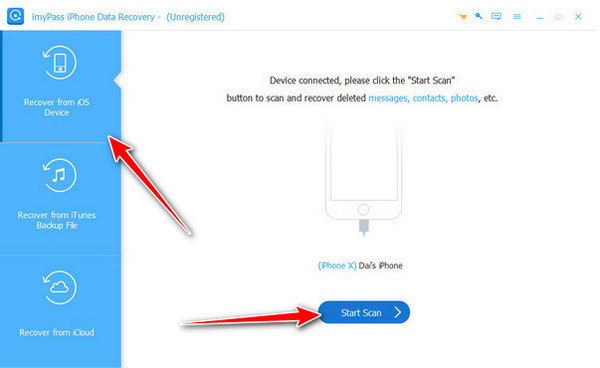
Download the latest version of the iPhone data recovery on the computer you are currently using. After that, follow the installation and setup instructions it requires you to do, then launch it.
While the app is launched, go to the Recover from iOS Device, connect the iOS device, and click the Start Scan button to do a deep scan of your device. This process might require some time as it scans all the retrievable files that are deleted from DFU mode or Factory Reset.
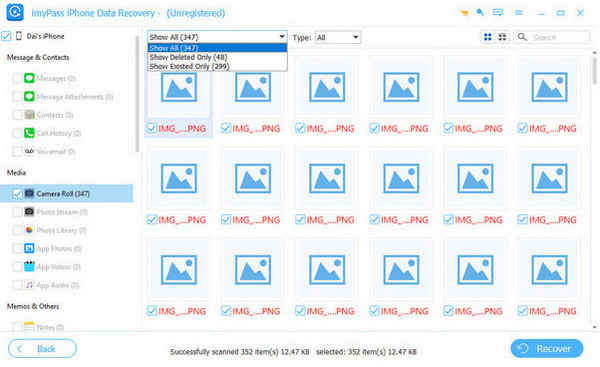
After scanning, you will see all the retrievable files on your iOS device. Choose all the data you want to get a hold of again by ticking the boxes on each file.
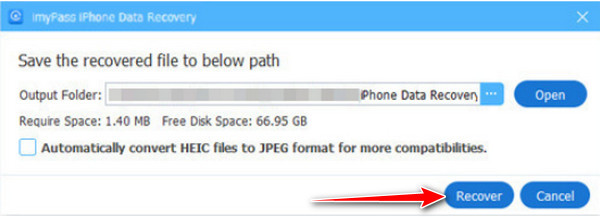
Once you are done doing that, set the location where you want to save it on your computer and click the Restore button to start processing.
Part 4: What Is DFU and Why Do You Need to Use It
DFU, or Device Firmware Update mode, is a special mode on iPhones that lets your device connect to iTunes or Finder without starting iOS. It works deeper than Recovery Mode and is used for fixing serious software issues or updating the firmware.
You might need DFU mode if your iPhone is stuck in recovery mode, the Apple logo, frozen, or not responding. While it is useful for restoring your device, DFU mode does not allow access to personal data. Knowing what DFU mode does helps you protect your files and choose the safest way to recover data using backups or reliable recovery tools.
Conclusion
Recovering data from an iPhone in DFU mode can be hard, but it is possible if you follow the right steps. DFU mode blocks direct access to files, so using backups or a trusted recovery tool is important. Tools like iTunes, iCloud, or imyPass iPhone Data Recovery can help you restore photos, messages, contacts, and other files safely. By understanding DFU mode and using the right method, you can recover data from the iPhone in DFU mode without losing important information.
Clara is an editor from imyPass. She specializes in data recovery. You can find professional tutorials and solutions for recovering lost data from any device. Many users reported that his tutorial is easy and useful.
Hot Solutions
-
Recover Data
- Recover WhatsApp View Once Photo
- Recover Deleted TikTok Videos on Mobile
- Recover Deleted Facebook Photo
- Recover Viber Messages, Photos, etc.
- Recover Deleted Snapchat Photos
- 5 Best Contact Recovery Apps
- Recover Deleted Discord Messages
- AppGeeker iOS Data Recovery Review
- Recover Data from DFU Mode
- Cannot Restore iPhone Backup
-
Unlock iOS
-
iOS Tips
-
Password Tips

