



 Solution
 Support Center
 About Us
 Contact
How to Quickly Add and Change Custom Twitter Location
 Penny Warren Published on February 04, 2026GPS Location3-min reading
It is well known that social media tracks your GPS location. According to the developers, they provide personalized content based on your location data, interests, and more. Moreover, social platforms, like Twitter, allow users to add and show their location when posting texts and images. This article explains how to add and change your Twitter location to attract more followers and enhance the exposure of your tweets with a step-by-step tutorial.

In this article:
Part 1: Does Twitter Show Location?
Does Twitter show your location? Yes. According to X or Twitter, when you access the platform, it receives information about your location based on your GPS and IP address, as described in Section 1.2 of X’s Privacy Policy. It also uses information about your location to determine the country settings for your account. In other words, X shows location not only in your content but also profile.
Part 2: How to Add a Custom Location on Twitter
How to Add Location on Twitter Profile
A Twitter profile is a representation of an individual. It includes a profile picture, bio, header image, and your country. It serves as a digital identity and allows you to share your basic information.
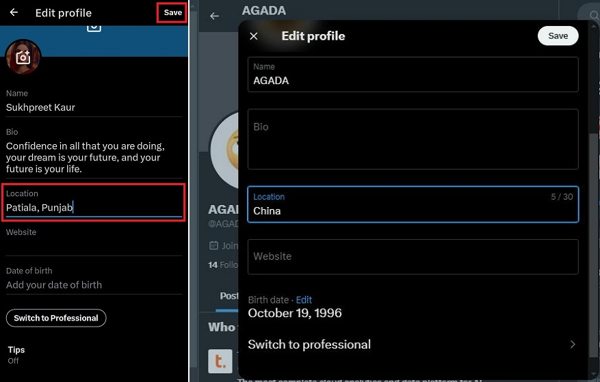
To add a custom location on your Twitter profile, open your Twitter account in the app or website.
Press your profile picture or name to access your Twitter profile.
Hit the Edit profile button on the profile page.
Scroll down to the Location field, and add a location.
Tap or click Save to confirm it.
How to Add Location on Twitter Post
When sharing a post on Twitter, it enables you to add a location to Twitter, too. Then, others can discover your tweet through the location tag. Here are the steps to tag a geolocation on X:
Log in to your account on Twitter.
Click on your profile picture and choose Settings and privacy.
Pick the Privacy and safety tab.
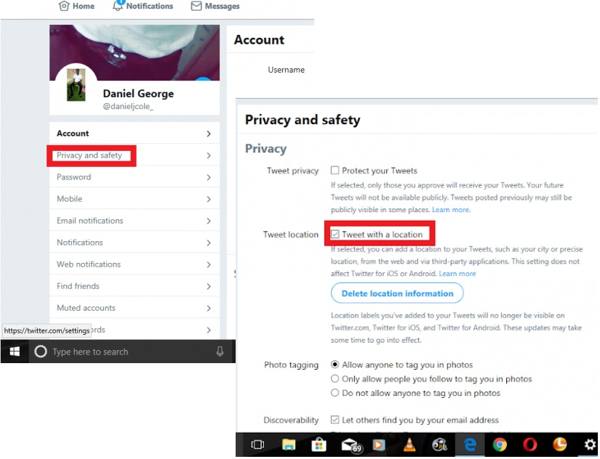
Check Tweet with a location next to the Tweet location area.
Click the Tweet button next to your profile picture on the home page to make a new tweet.
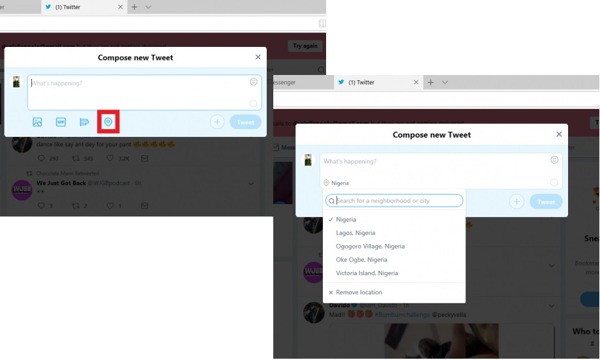
Add texts and pictures to your post.
Click the Location button and select a proper location.
Part 3: How to Change Location on Twitter
On X, formerly Twitter, users can change account location, trending location, and profile location. The first location is about where you are living now. The second is involved in seeing what is trending in a different city. The third is about the location in your profile information.
How to Change Twitter Location in Account
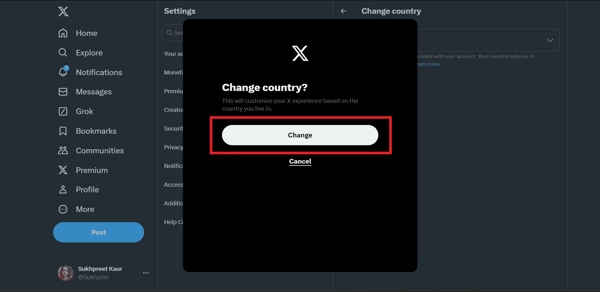
Access X in a browser or the app, and log in to your account.
Click the More button or tap your profile.
Choose Settings and privacy and pick Your account.
Choose Account Information, and hit Country.
Select the desired country from the list, and hit Change.
How to Change Trending Location on Twitter
On Web
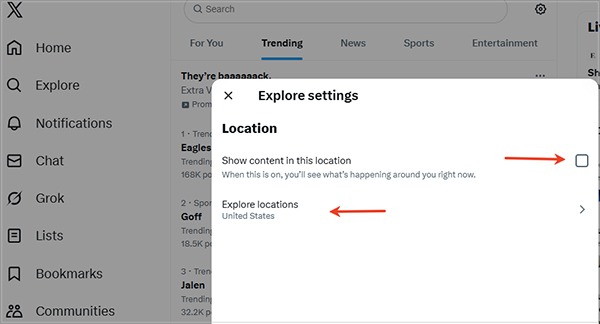
Go to the Explore tab from the main page.
Switch to the Trending list, and click the Settings button with a gear icon.
Check Show content in this location.
Click Explore locations, and pick the desired country or city.
On X App
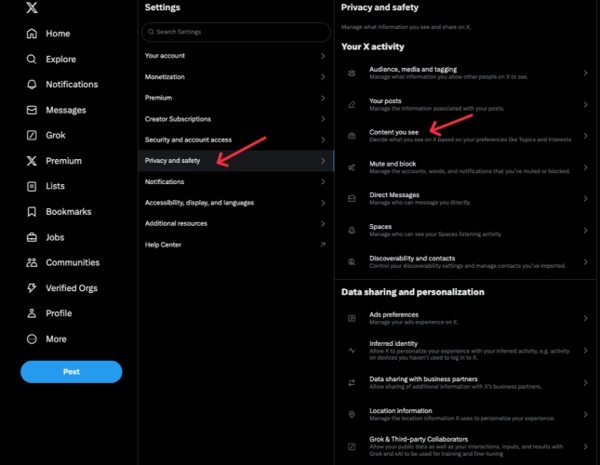
Tap on your profile in the app.
Choose Settings and privacy, pick Privacy and safety.
Tap Content you see under Your X activity.
Hit Explorer, and uncheck Show content in your current location.
Tap Explore locations, and change the trending location on Twitter to worldwide.
How to Change Location on Twitter Profile
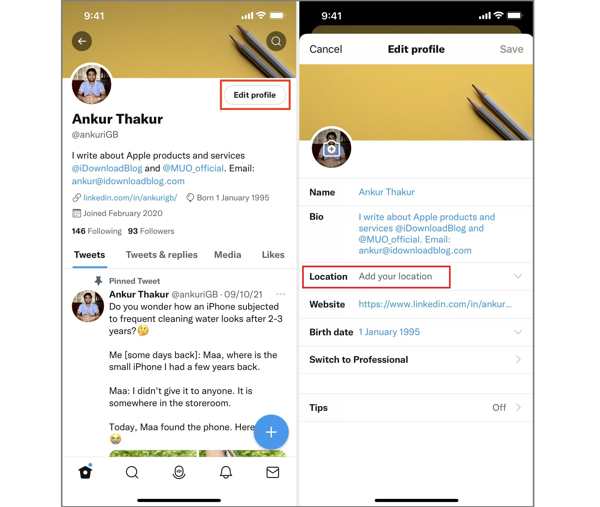
Go to the profile on X.
Hit Edit profile and choose Location.
Change Twitter location and hit Save.
Part 4: How to Change Twitter Location Without Notifying Anyone
iLocaGo is a great way to change your Twitter location worldwide without notifying anyone. More importantly, you don’t need to change X settings every time you access the platform. The intuitive interface makes it easy to navigate.

4,000,000+ Downloads
Change your phone location on iPhone and Android with one click.
Simulate routes in multiple modes.
Work for a wide range of apps and services, including X.
Support the latest versions of iOS and Android.
How to Change Location on Twitter Without Notifying Others
Install location changer
Launch the location changer software after installing it on your computer. Link your iPhone or Android device to your computer with a USB cable.

Choose Modify Location
Once your device is detected, choose Modify Location. The other three modes, One-stop Mode, Multi-stop Mode, and Joystick Mode, are used to simulate routes.

Change Twitter location
Then, type in an address into the field or click a position on the map. Finally, click on the Modify button to confirm it. You can also change location on DoorDash with this program.

Conclusion
This guide explained how to add and change locations on Twitter. You can follow our tutorial to change the location in account information, Twitter trending, and profile. If you don’t want to frequently adjust the location for your account, iLocaGo is a good option to fake your GPS location easily.
Penny focuses on GPS troubleshooting and Windows optimization. She formerly worked as a technical support engineer, helping clients solve location-based and system issues efficiently. Backed by IT support experience, she provides practical solutions that really work. In her free time, she likes hiking and geocaching, testing GPS tech in the real world.
Hot Solutions
-
GPS Location
-
Unlock iOS
-
iOS Tips
-
Unlock Android


