



 Solution
 Support Center
 About Us
 Contact
How to Turn off Location on Android - Easy & Clear
 Samuel Spenser Published on December 17, 2025GPS Location3-min reading
Have you ever encountered such situations below?
• After dropping your child off at school, you later see nearby after-school program ads on Facebook.
• After a visit to your friend’s house, Google and Instagram start to recommend restaurants and events around that area.
• After a usual check in a community clinic, you see targeted health-insurance ads just days later.
Are you concerned about the privacy of your phone due to the pop-up messages that say you are being tracked? This message has caused some people to fear being tracked. And that’s why it’s significant to learn how to turn off location tracking on Android.
This guide will show you how to turn off location on Android using normal and pro methods to prevent you from being tracked further.
In this article:
Part 1: Why Need to Turn Location Off on Android
Do you know that your phone has disclosed your personal information unconsciously through your location? Below, we list some reasons why you need to turn off your location on Android:
• To protect your privacy and avoid being tracked by commercial apps. Many news reports have shown that several social platforms, like Facebook, have profited by collecting and selling users’ location data.
• To avoid personalized ads. Have you ever noticed that when you travel to a new country/city, you will see some local ads like places of interest, restaurants, etc. on your social platform? That’s because you are tracked!
• To better battery performance. Keep your location on drains your battery and that’s one of the reasons why your battery keeps dropping even when you’re not using your phone.
Part 2: Can Your Android Be Tracked If the Location Is Off
Yes. When you turn off your Android phone location, you temporarily deactivate this function. As a result, your Android phone cannot be tracked with the cell tower triangulation or GPS. The only location that can be determined using these methods is the last one shown before the device was turned off.
However, other wireless connections can also track you: Bluetooth, Wi-Fi networks, carrier towers, and so on. Remember that technology and security practices evolve, so staying informed about any potential risks or updates related to phone tracking is essential. If you want to maintain privacy, consider turning off location services and powering down your phone when necessary.
Part 3: How to Turn off Location on Android Phone
Method 1. How to Turn Off Location on Android via Quick Settings
How to turn on location on Android? The Quick Settings method swiftly toggles location access directly from your notification panel. It's a convenient way to turn location services on or off without navigating multiple menus.
Swipe down once or twice from the top of your screen to open the notifications.
Look for the Quick Settings panel, which contains various toggles on your Android.
Find the Location toggle and tap it to turn off location access. The location is usually deactivated on a white like side, so there is no need to tap if this is the case.
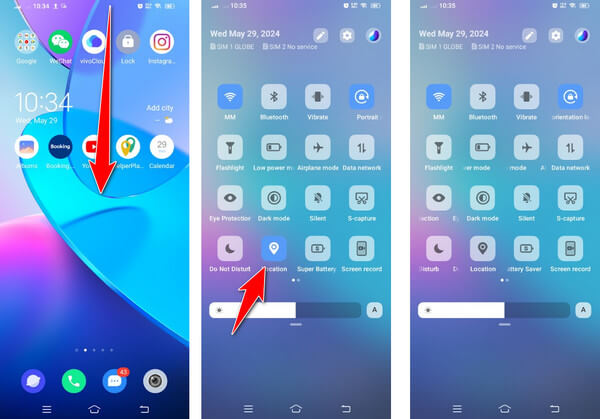
Sometimes, you may not see the Location toggle on the screen. That is why you must go to Quick Settings by clicking the pen like or three dots, depending on your phone's version. Hold and drag to the upper area to add the location toggle, or you can tap it if the indicated method is required.
You can also go to Settings - Location, and toggle the Use Location off to disable location service on Android.
Method 2. Turn Off Location Service on Android for a Specific App
If you turn off location for the entire phone, some features, like maps, ride-hailing, or finding nearby restaurants or gas stations, may stop working properly. In that case, you can simply disable location access for a specific app.
If you want to hide location for a specific app, like Hinge, follow this guide and stop location permission for it. You can also stop other services using this method.
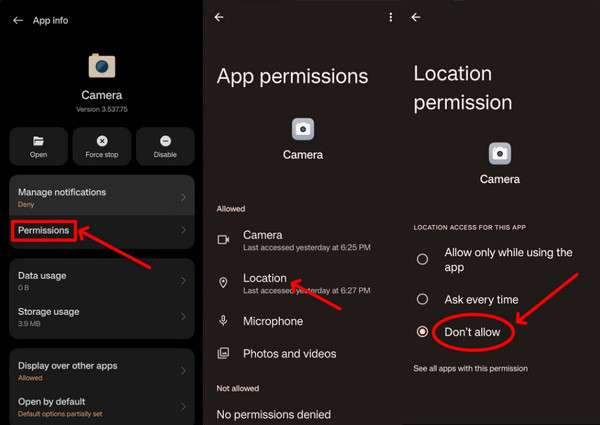
Find an app on the Home screen, tap and hold it.
Tap App Info or the little i button.
Tap App Permissions and find Location. You can adjust location service from: all the time,
only while using the app, ask every time, and deny. You can choose to use a precise location or not.
Method 3. How to Stop Sharing Location with Someone
Don't want to share a location with someone you don't like? Follow this guide to stop them from tracking your location.
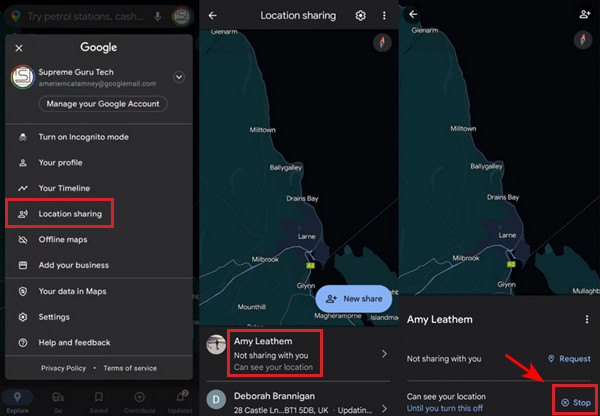
Open the Google Maps app and tap your profile picture on the top. Find an app on the Home screen, tap and hold it.
Tap Location Sharing.
Tap the name of the person you don't want to share your location with, and tap Stop.
Part 4: How to Fake a Location on Android
Many services on our phones are using our location and other information, and it's hard to turn them all off because doing so may impact the regular usage of our phones. However, you can use imyPass iLocaGo to stop location tracking on your Android.
It works especially when you’re sharing your real-time location with someone, but not feel comfortable turning it off directly, even when you need more privacy.
It is a powerful location changer on Android and iOS that allows you to modify the GPS location effortlessly to hide your actual location from others without turning any service off. Its intuitive interface makes it unrestricted even for beginners who want to try it. The app offers precise control over if you wish to teleport to a specific location or spot on the map. You can also use this for AR games with the same primary functionality as the iSpoofer Pokemon Go.

4,000,000+ Downloads
Protect your privacy and do not affect the use of other functions on the Android phone.
Support changing movement speed and spots.
3 modes to make your movement real.
Compatible with all devices running Android 5 and above.
Let's see how to stop location tracking on Android using iLocaGo.
Download and install iLocaGo on your computer from the button above. Launch it. Connect your phone to this computer. You can use a USB connection or a wireless connection.

After a successful connection, select Modify Location.

Search or drag the map to select a location you want to change to. Click Modify to establish change.

Conclusion
Location services on Android play a vital role in enhancing our mobile experience, whether for navigating, finding nearby restaurants, or sharing your location with friends. However, when it becomes too much, some users might easily track your precise location, which is only sometimes what we want. In this article, we have shown you all the workable approaches that allow you to turn off the location service on your Android so no one can track you easily. Though the tutorial highlighted how to do it, always take safety precautions and keep your location safe by being cautious about the apps you download and websites you visit.
Samuel is a senior editor from imyPass. He is an expert on password unlocking. He has over five years of experience writing tutorials on phone unlocking.
Hot Solutions
-
GPS Location
- Best Pokemon Go Locations with Coordinates
- Turn Your Location Off on Life360
- How to Change Location on iPhone
- Review of iSpoofer Pokemon Go
- Set Virtual Locations on iPhone and Android
- TikTok Track Your Location
- Monster Hunter Now Joystick
- Review of IP Location Finder
- Change Mobile Legends Location
- Change Location on Tiktok
-
Unlock iOS
-
iOS Tips
-
Unlock Android


