



 Solution
 Support Center
 About Us
 Contact
How to Change Your Location on Hinge for iOS and Android
 Penny Warren Published on January 30, 2026GPS Location3-min reading
Dating apps, such as Hinge, have changed how people make friends and keep in touch with others. These apps usually provide matches according to your location, interests, and more. However, what happens when you intend to meet people in a different city or country? No matter you are traveling to a new city, planning a vacation, moving to another location, or just curious about foreigners, this tutorial shows you how to change location on Hinge.
In this article:
Part 1: Why You Need to Change Location on Hinge
According to our research, your geolocation is one of the key filters on Hinge. Most users are looking for someone who lives nearby. The location determines who you see in the Hinge feed and who sees you. Therefore, keep your location up to date.
Why Change Your Location on Hinge?
- 1.You are traveling to a new city or country.
- 2.You are moving to a new location.
- 3.You just want to expand your dating pool.
The new question is whether Hinge updates your location. The answer is no. Unlike many dating apps, Hinge doesn't automatically update your location. Therefore, you have to change it manually.
Part 2: How to Change Feed Location on Hinge
If you wish to change your location on Hinge and let people in other cities discover you, you can change the feed location. Hinge uses the location data to calculate matches. This way is available to any Hinge account.
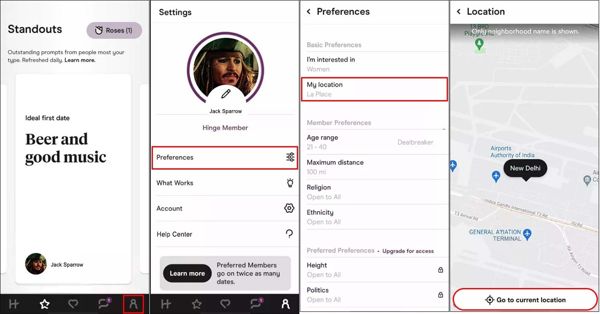
Open the Hinge app on your phone and sign in with your account.
Go to the Profile tab at the bottom.
Choose Preferences and tap My location or My neighborhood.
Now, you have two options:
Option 1
Tap Go to current location to change Hinge location using your device's location service.
Option 2
Move the map, find and tap the desired location.
Note:
To use your device location, you must turn on Location Services on your iPhone or Android phone and permit Hinge to access your GPS location.
Part 3: How to Change Location on Hinge Profile
Once someone discovers you on Hinge, he or she can learn your basic information from your profile, which includes your location data. If you wish to change your location on your Hinge profile, here are the steps.
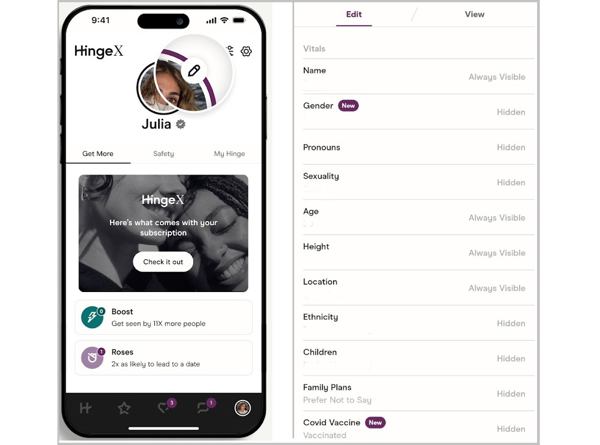
Run your Hinge app and log in to your account.
Head to the Profile tab.
Tap the Edit button with a pencil icon on your profile picture.
Switch to the Edit tab and tap VITALS.
Scroll down to the Location option and tap it.
Now, enter any city. According to Hinge, you should be honest about where you live.
Tap the circle next to Visible on Profile if you want others to see your location.
Finally, tap the Back button to save the changes.
Extended Reading:
Part 4: How to Change Hinge Location with Travel Mode
Can you change your location on Hinge? The answer is yes. Even if you are using a free account, you can change your feed location and profile location. Once you upgrade to Hinge+, you can get more advanced features, including Travel mode. It allows you to set a temporary location on Hinge without affecting your profile.
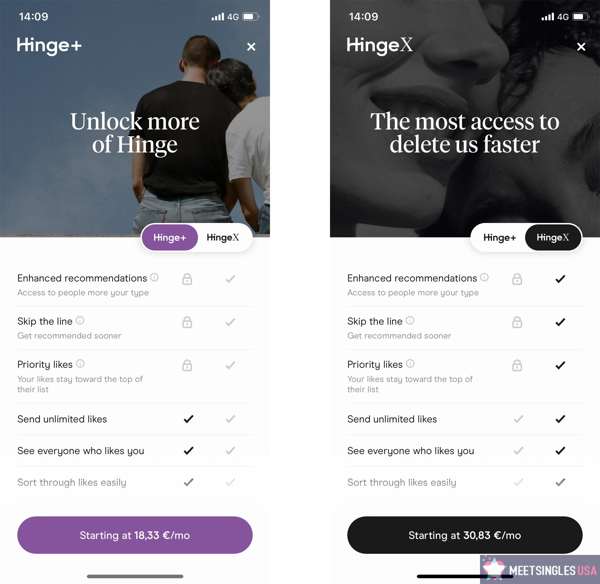
Run your Hinge and upgrade to Hinge+.
Go to the Profile tab and tap Preferences.
Scroll down to find the Travel option, and tap it.
Then, set your destination city and confirm it.
Part 5: How to Change Location on Hinge Without Notifying Others
Changing location on Hinge is not difficult, but it tracks your location through your device's GPS. In other words, it collects your geolocation data even if you change your city manually. That brings risks if someone else tracks your location in real time on Hinge. Thankfully, iLocaGo is able to change your location on Hinge without notifying others. It works smoothly for both iPhones and Android devices. Moreover, apps cannot detect your cheating activity.

4,000,000+ Downloads
Change your device location with a single click.
Available for accurate addresses and any positions.
Fake location and create virtual routes in multiple modes.
Work for dating apps, social media, mobile games, etc.
Support almost all iPhones and Android devices.
How to Change Location on Hinge Without Notifying Others
Install iLocaGo
Launch the location-changing software as long as you install it on your PC. It is compatible with Windows 11/10/8/7. There is another version for Mac OS X 10.12 or above. Connect your iPhone or Android phone to your PC with a compatible USB cable. If prompted, tap Trust on your screen to trust this PC. If you are using an Android device, you can connect it to your PC to the same Wi-Fi network.

Choose a mode
Once your mobile device is detected, you will be presented with the mode window. If you just want to change location on Hinge, choose Modify Location. The other three modes, One-stop Mode, Multi-stop Mode, and Joystick Mode, are used to make virtual routes.

Change Hinge location
By default, the software will display your current location on the map. Type in an address into the field on the Modify Location dialog. If you don't have an address, click a proper position on the map, and you will get the address. Finally, click on the Modify button. Then, turn on your handset and access Hinge.

Conclusion
This tutorial explained whether Hinge automatically updates your location. More importantly, we shared multiple methods to modify your Hinge location on your mobile device. You can change the feed location when you move to a new city. Hinge allows you to customize your profile location, too. If you have Hinge+, you can use the Travel Mode to temporary modify your location. If you don't want others to track your geolocation on Hinge, imyPass iLocaGo can meet your needs.
Penny is a senior editor from imyPass. She has focused on discovering perfect GPS location solutions in all scenarios, and also has experience in fixing computers.
Hot Solutions
-
GPS Location
- Best Pokemon Go Locations with Coordinates
- Turn Your Location Off on Life360
- How to Change Location on iPhone
- Review of iSpoofer Pokemon Go
- Set Virtual Locations on iPhone and Android
- TikTok Track Your Location
- Monster Hunter Now Joystick
- Review of IP Location Finder
- Change Mobile Legends Location
- Change Location on Tiktok
-
Unlock iOS
-
iOS Tips
-
Unlock Android


