



 Solution
 Support Center
 About Us
 Contact
Best Location Faker for iPhone Without Anyone Knowing
 Penny Warren Published on January 16, 2026GPS Location3-min reading
Against the backdrop of growing social apps, location-based games, and increasing privacy protection needs, more and more users are starting to pay attention to the feasibility of fake location on iPhone. This article will break down the working principles and applicable scenarios of current mainstream methods from a practical usage perspective, helping you manage your location information more flexibly without affecting the normal use of your device.

In this article:
Part 1. Can You Fake GPS Location on iPhone
As many apps increasingly access location permissions, the demand for fake location on iPhone is no longer limited to technical experiments but has gradually evolved into practical use cases. The core concern for users has always been the same question: Does the device truly support fake GPS for iOS, and does it do so without compromising system security?
From a system design perspective, iOS does not provide an official way to enable iPhone fake location, which is why many users eventually turn to third-party solutions when searching for how to fake location on iPhone.
It is important to note that not all methods for faking iPhone location are suitable for regular users. Some solutions may seem to offer greater flexibility, but they often come with issues such as decreased stability and increased system risk. Understanding the differences in safety and controllability between these methods is a key prerequisite for choosing the right location faker for iPhone.
Before diving into specific operations, the table below will focus only on the types of methods that will be explained in detail later in this article, helping you quickly determine which fake GPS for iPhone implementation path best suits your needs.
Overview of iPhone GPS Location Faking Methods
| Method | Requires Computer | Jailbreak Needed | Safety Level | Stability | Typical Use Case |
| imyPass iLocaGo | Yes | No | Highs | High | Stable fake GPS for iOS usage |
| Computer Program | Yes | No | Medium | Medium | Short-term fake GPS location iPhone |
| Jailbreaking Systems | Optional | Yes | Low | Unstable | Advanced fake GPS iOS customization |
It can be seen that whether a device is jailbroken remains an important dividing line in assessing the risk level of fake GPS. For most users who wish to use it long-term and be able to restore their real location at any time, prioritizing solutions that do not require jailbreaking usually aligns better with safety expectations.
Part 2. Safest Way to Fake GPS Location on iPhone
Without jailbreaking, using computer-based tools to change location is currently the most reliable way to achieve a fake GPS location on an iPhone. In practice, imyPass iLocaGo is the most suitable location faker for iPhone for regular users, especially for scenarios where frequent location adjustments are needed without affecting the normal use of the device.

4,000,000+ Downloads
Can be used without jailbreaking, avoiding system-level security risks.
Location simulation is stable, with minimal position jumping.
Fine control over location, supporting place search or coordinate input.
Real location can be restored at any time, and using it will not have a long-term impact on the iPhone's location functionality.
Click the download button above to install the latest version. After completing the basic setup, open the program. Connect the iPhone whose location you want to change to the computer, then select the Modify Location mode on the main interface. This is the key entry point to achieve a fake iPhone location.

Preview the upcoming fake GPS iPhone location by searching an address or clicking a location on the map. After confirming it is correct, click Modify to apply the settings. Maps, social, and location-based apps on the iPhone will then read the new location information.

Disconnecting the device or restarting the iPhone will restore the real location, making the entire process controllable and reversible.
Part 3. Alternative Ways to Fake GPS for iPhone
When mainstream solutions are unavailable or only temporary needs exist, some alternative methods can also achieve the effect of faking GPS on an iPhone under certain conditions. However, these methods involve more noticeable trade-offs in terms of stability and security, so it's important to fully understand their limitations before using them.
Computer Program
Xcode is Apple's official development tool, mainly used for application development and debugging. It has a built-in location simulation feature, allowing developers to manually set the device's geographic location when testing apps, thereby achieving the effect of an iPhone fake location.
Install and open Xcode from the App Store on your Mac. Connect your iPhone to the Mac using a data cable and complete the device trust process.
Click Single View Application to create a new test project in Xcode, then click Next.
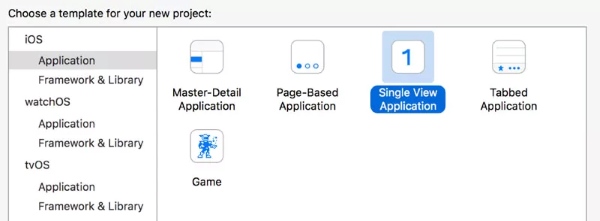
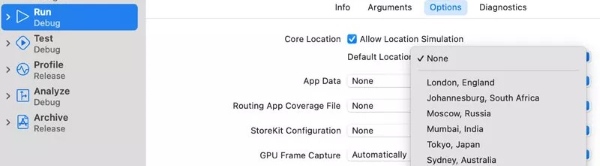
Click the Run button and wait for the project to be successfully deployed to the device; at this point, the iPhone will be in Xcode-controlled debug mode.
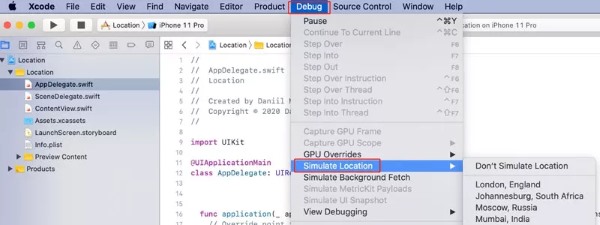
On the Mac's top menu bar, click Debug > Simulate Location, and then choose a system preset location.
Open Maps or any location-related app, and you will see that the iPhone is currently showing a virtual location. When you stop running the project or disconnect the iPhone from the Mac, the device will automatically return to its real GPS location.
It should be noted that this method requires Xcode to be running and the device to be connected. Once the connection is broken, the fake GPS on the iPhone will stop working. If your main goal is just to reduce frequent location access, hiding location on iPhone at the system level might be a lighter and more controllable approach.
Jailbreaking Systems
Jailbreaking allows users to bypass iOS system restrictions and gain deeper control over location behavior, so it is often used to achieve highly flexible fake GPS on iOS.
Choose an available jailbreak method based on the current iOS version.
Complete the jailbreak and install a location plugin that supports fake GPS for iOS.
Set a virtual location or enable the location simulation feature in the plugin.
Open the relevant app to verify whether the fake location is working.
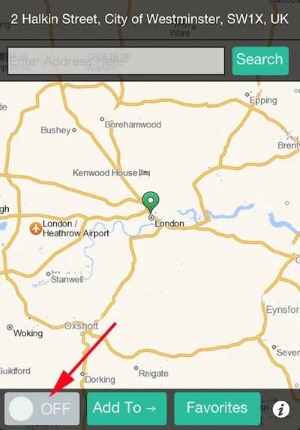
Although jailbreaking offers greater flexibility, it significantly increases system risks, including reduced stability, increased security vulnerabilities, and limited system updates. Therefore, this approach is more suitable for users who have technical experience and can accept the potential consequences.
Conclusion
For most users, changing location is not just a one-time attempt, but a comprehensive consideration of privacy, flexibility, and stability. Compared to methods that require complicated setups or carry system risks, choosing a good tool can often significantly reduce the cost of use. A location faker for iPhone, like imyPass iLocaGo, which doesn't require jailbreaking, makes it easier to strike a balance between security and practicality, and is also more suitable for users who want to maintain long-term control over their location.
Penny focuses on GPS troubleshooting and Windows optimization. She formerly worked as a technical support engineer, helping clients solve location-based and system issues efficiently. Backed by IT support experience, she provides practical solutions that really work. In her free time, she likes hiking and geocaching, testing GPS tech in the real world.
Hot Solutions
-
GPS Location
-
Unlock iOS
-
iOS Tips
-
Unlock Android


